
Slow DNS resolution can make even the fastest internet connection feel sluggish. Pages take longer to load, streaming buffers unexpectedly, and online tools respond with frustrating delays. While upgrading your internet plan might seem like the obvious fix, the real bottleneck could be your Domain Name System (DNS) — the invisible translator that converts website names into IP addresses. The good news? You don’t need to switch providers to solve this. With a few strategic adjustments, you can dramatically improve DNS performance and restore snappy browsing.
Understanding DNS and Why It Slows You Down
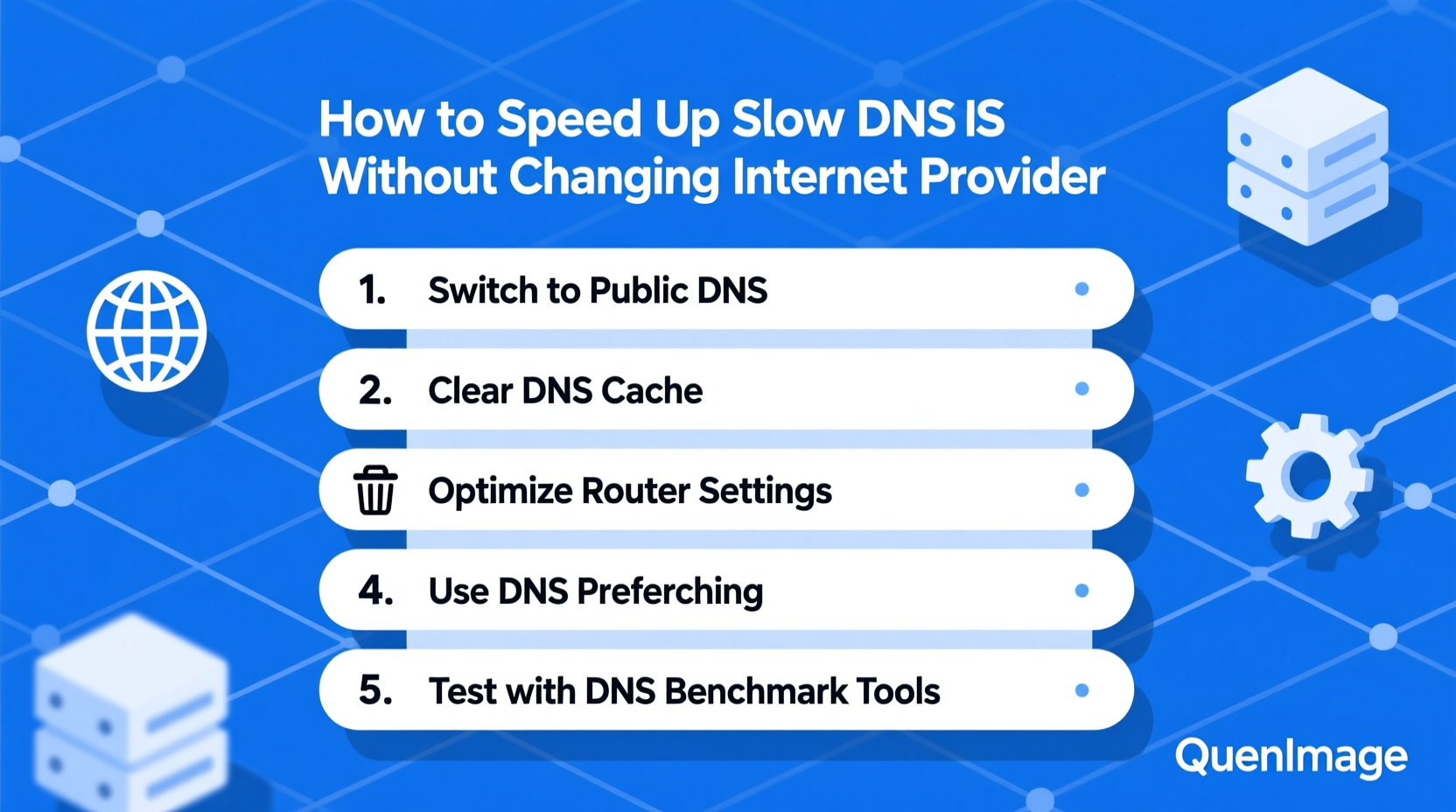
DNS is often called the \"phonebook of the internet.\" When you type a URL like example.com, your device contacts a DNS server to find the corresponding IP address. If that server is overloaded, poorly configured, or geographically distant, it responds slowly — delaying every web request before it even begins.
Most users rely on their ISP’s default DNS servers. While convenient, these are often optimized for cost and scale rather than speed or security. They may lack caching efficiency, suffer from high latency, or route queries inefficiently. Additionally, outdated router firmware, local cache congestion, or malware interference can further degrade DNS performance.
“Over 60% of perceived ‘slow internet’ issues stem from DNS inefficiencies, not actual bandwidth limitations.” — Dr. Lin Zhao, Network Performance Researcher at NetMetrics Lab
Switch to a Faster Public DNS Service
One of the most effective ways to accelerate DNS is replacing your ISP’s default server with a high-performance public alternative. These services are engineered for speed, reliability, and global reach.
Top-tier public DNS providers include:
- Google Public DNS (8.8.8.8 and 8.8.4.4)
- Cloudflare DNS (1.1.1.1 and 1.0.0.1)
- OpenDNS (208.67.222.222 and 208.67.220.220)
- Quad9 (9.9.9.9 and 149.112.112.112) – emphasizes security
Each has strengths: Cloudflare prioritizes speed and privacy; Google offers extensive infrastructure; OpenDNS includes content filtering; Quad9 blocks malicious domains by default.
How to Change Your DNS Settings
You can configure DNS at multiple levels — per device, router, or operating system. Changing it at the router level applies the improvement to all connected devices.
- On Windows: Go to Control Panel > Network and Sharing Center > Change adapter settings. Right-click your connection, select Properties > Internet Protocol Version 4 (TCP/IPv4) > Properties. Choose “Use the following DNS server addresses” and enter your preferred DNS IPs.
- On macOS: System Settings > Network > Select active connection > Details > DNS. Click the \"+\" button to add new servers and remove old ones.
- On Routers: Access your router’s admin panel (usually via 192.168.1.1 or 192.168.0.1). Navigate to WAN or DNS settings. Replace the ISP-assigned DNS with your chosen public options. Save and reboot the router.
Clear Local DNS Cache Regularly
Your computer stores recent DNS lookups in a local cache to speed up future visits. However, over time, this cache can become bloated or corrupted, leading to outdated records and slower resolution.
Clearing the cache forces your device to fetch fresh DNS data, often resolving slowdowns caused by stale entries.
Clearing DNS Cache by OS
| Operating System | Command | Notes |
|---|---|---|
| Windows | ipconfig /flushdns |
Run Command Prompt as Administrator |
| macOS (Ventura and later) | sudo dscacheutil -flushcachesudo killall -HUP mDNSResponder |
Requires password entry |
| Linux (systemd-resolved) | sudo systemd-resolve --flush-caches |
Common on Ubuntu and Debian |
| Chrome Browser | Navigate to chrome://net-internals/#dns and click \"Clear host cache\" |
Browsers maintain independent caches |
Optimize Router and Network Configuration
Your router plays a central role in DNS performance. Outdated firmware, suboptimal settings, or hardware limitations can cripple even the best DNS configuration.
Key Router Optimization Steps
- Update Firmware: Check your router manufacturer’s website for updates. Many older models ship with bugs affecting DNS handling.
- Enable DNS Caching: Some routers support internal DNS caching. This reduces external queries and speeds up repeat visits.
- Reduce Connected Devices: Too many devices strain router resources. Disconnect unused gadgets or set up Quality of Service (QoS) rules.
- Reboot Monthly: Routers accumulate memory leaks and connection hiccups. A regular restart clears temporary issues.
“In enterprise networks, we’ve seen DNS response times drop by 70% after updating router firmware and enabling local caching.” — Rajiv Mehta, Senior Network Engineer at InfraCore Solutions
Block Malware and Prevent DNS Hijacking
Malware can hijack your DNS settings, redirecting queries through rogue servers that log activity or inject ads. This not only compromises privacy but also introduces significant latency due to inefficient routing.
Symptoms of DNS hijacking include:
- Unexpected redirects to unfamiliar sites
- New toolbars or search engines appearing in browsers
- Sluggish browsing despite strong signal
Protective Measures
- Run a full system scan with updated antivirus software.
- Check your DNS settings regularly to ensure they haven’t been altered.
- Use DNS providers with built-in security, such as Cloudflare or Quad9, which block known malicious domains.
- Consider installing DNS-over-HTTPS (DoH) or DNS-over-TLS (DoT) on supported devices for encrypted queries.
Real-World Example: Fixing Home Office Latency
Mark, a freelance developer in Austin, experienced frequent lag when accessing GitHub and cloud development environments. His 300 Mbps fiber connection showed full speed in tests, yet websites loaded slowly. Initial troubleshooting focused on Wi-Fi signal and browser extensions — with no improvement.
After testing DNS response times using DNS Benchmark, he found his ISP’s DNS averaged 320ms per lookup. He switched to Cloudflare DNS (1.1.1.1), flushed his local cache, and updated his aging router’s firmware. Post-change, average DNS response dropped to 45ms. Page loads improved by over 60%, and remote collaboration tools became responsive again — all without changing providers or paying more.
Comprehensive DNS Speed Checklist
Follow this actionable checklist to systematically eliminate DNS bottlenecks:
- ✅ Test current DNS speed using online tools or benchmark software
- ✅ Switch to a high-performance public DNS (e.g., 1.1.1.1 or 8.8.8.8)
- ✅ Flush DNS cache on all primary devices
- ✅ Update router firmware to the latest version
- ✅ Configure DNS settings at the router level for whole-network impact
- ✅ Enable DNS-over-HTTPS in browser settings where available
- ✅ Run malware scan to rule out DNS hijacking
- ✅ Reboot router and test performance again
- ✅ Monitor improvements using speed tests and real-world browsing
Frequently Asked Questions
Will changing DNS affect my internet security?
Not if you use reputable providers. In fact, services like Cloudflare, Quad9, and OpenDNS include threat intelligence layers that block access to phishing and malware sites. Avoid obscure or unverified DNS servers, as they may log or manipulate your traffic.
Can DNS changes improve gaming or streaming performance?
Indirectly, yes. Faster DNS resolution reduces initial connection time to game servers and streaming platforms. While it won’t increase bandwidth, it minimizes lag during session initiation and improves consistency, especially when switching between services.
Is it safe to use third-party DNS on a work device?
It depends on company policy. Some organizations restrict DNS settings to enforce security policies or content filtering. Always check with your IT department before making changes on managed devices.
Conclusion: Take Control of Your Browsing Experience
Slow DNS doesn’t have to mean slow internet. By understanding how DNS works and taking targeted steps — from switching to faster servers to maintaining clean local caches — you can unlock significantly better performance without upgrading your plan or changing providers. These fixes are free, quick to implement, and deliver measurable results across all your devices.




 浙公网安备
33010002000092号
浙公网安备
33010002000092号 浙B2-20120091-4
Comments
No comments yet. Why don't you start the discussion?