
In an era where digital convenience often comes at the cost of personal privacy, location tracking has become one of the most pervasive forms of data collection. While some apps require access to your location for essential functionality—like navigation or weather updates—many others collect this information silently, even when you're not actively using them. This background tracking can lead to targeted ads, data profiling, and potential exposure of your daily routines. The good news is that you have control. With the right settings and habits, you can significantly reduce or eliminate unwanted location monitoring across your smartphone.
Why Background Location Tracking Is a Concern
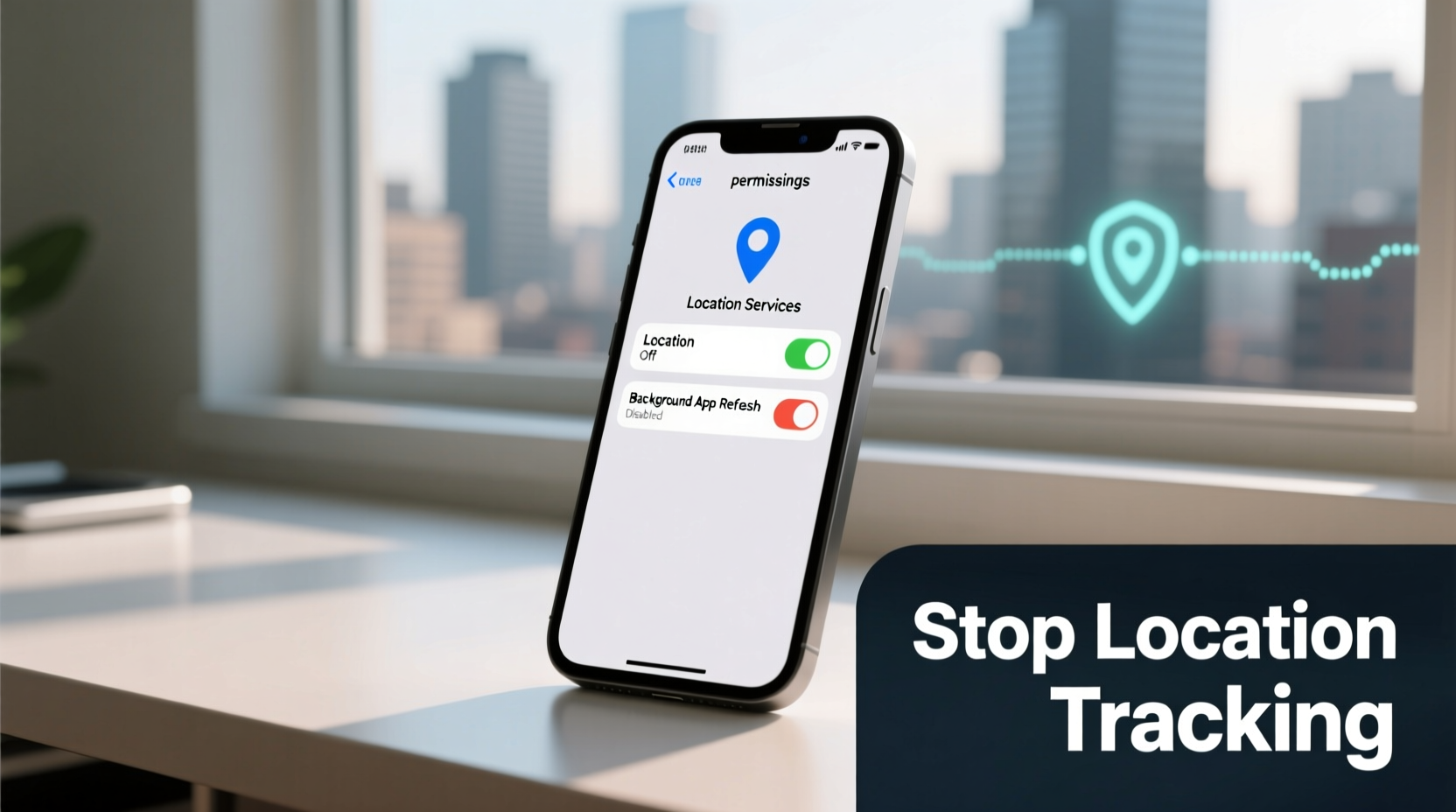
When an app accesses your location in the background, it means it’s collecting GPS, Wi-Fi, or cellular data about your whereabouts even when the app isn’t open. This continuous surveillance enables companies to build detailed behavioral profiles, including your home address, workplace, gym visits, and travel patterns. These insights are often sold to advertisers or used to personalize content—but rarely with full transparency.
According to a 2023 report by the Electronic Frontier Foundation (EFF), over 70% of free mobile apps share location data with third-party analytics firms. Even seemingly harmless apps like flashlights or calculators may include tracking SDKs. Beyond advertising, there’s also a security risk: if a device is compromised, persistent location access increases the chance of stalking, burglary planning, or identity theft.
“Location data is among the most sensitive personal information users generate. Once leaked, it cannot be changed like a password.” — Dr. Renee Binder, Digital Privacy Researcher at Stanford University
How to Disable Background Location Access on iOS
Apple has made significant strides in user privacy with features like App Tracking Transparency and granular location permissions. However, default settings still allow many apps to request “Always” access, which enables background tracking.
Step-by-Step Guide for iPhone Users
- Open the Settings app on your iPhone.
- Tap Privacy & Security, then select Location Services.
- Review the list of apps with location access. Tap any app to adjust its permission level.
- For each non-essential app, choose While Using the App instead of Always. This prevents background tracking.
- To further limit tracking, scroll down and tap System Services. Disable options like Popular Near Me and Location-Based Apple Ads.
- Enable Precise Location only for trusted navigation apps like Maps or Uber.
Managing Location Permissions on Android Devices
Android offers robust controls, but they vary slightly depending on your device manufacturer and OS version. Google has improved visibility into background location use since Android 10, introducing alerts when apps access location in the background.
Steps to Restrict Tracking on Android
- Go to Settings, then navigate to Location (or Security & Location on some devices).
- Select App Location Permissions.
- Browse through the list and tap any app that doesn’t need constant location access.
- Change the setting from Allow all the time to Only while using the app or Deny.
- For additional protection, go to Google Account Settings > Data & Personalization > Location History and toggle it off.
- On Samsung and other OEM skins, check for extra services like “Location-based recommendations” under the device care or privacy dashboard and disable them.
Android 14 introduces even stricter defaults, requiring explicit user approval for background location access during app installation. If you’re on an older version, manually reviewing permissions is critical.
Essential Apps vs. Hidden Trackers: A Practical Checklist
Not all location access is malicious. The key is distinguishing between necessary functionality and exploitative data harvesting. Use this checklist to evaluate each app:
- Keep “Always” access only for:
- Ride-sharing apps (Uber, Lyft)
- Navigation tools (Google Maps, Waze)
- Fitness trackers (Strava, Runkeeper) during workouts
- Emergency services or family safety apps
- Revoke background access for:
- Social media (Instagram, TikTok, Facebook)
- Weather apps (unless hyperlocal forecasts are crucial)
- Games, utilities, or productivity tools
- Any app that never clearly explains why it needs location
- Periodically review: Monthly audits of your location permissions help catch apps that reset access after updates.
Comparing iOS and Android: Location Control Features
| Feature | iOS | Android |
|---|---|---|
| Granular Permission Levels | Never, While Using, Always | Denied, Only While Using, All the Time |
| Background Access Alerts | Blue bar indicator when accessed | Notification dot or icon badge |
| System-Wide Location Toggle | Yes (via Control Center) | Yes (Quick Settings panel) |
| Location History Management | Limited to iCloud-connected services | Full Google Timeline control via account settings |
| Approximate Location Option | No (but less precise mode available) | Yes (Android 12+) |
This comparison shows both platforms offer strong tools, but Android provides more flexibility in managing system-wide history, while iOS excels in real-time visual feedback.
A Real-World Example: How One User Reduced Tracking by 90%
Sophia, a freelance designer from Portland, noticed her phone battery draining quickly and began receiving uncanny ads for coffee shops near her morning jogging route. She didn’t recall giving fitness or social media apps permission to track her constantly. After reading about background location risks, she took action.
She reviewed her iPhone’s Location Services and found Instagram had “Always” access enabled. She changed it to “While Using the App.” She also disabled background location for Spotify, which she assumed needed it for offline playback—turns out, it didn’t. Within a week, her battery life improved by nearly two hours, and location-targeted ads dropped sharply. Six months later, she performs a quick permission check every month and reports feeling more in control of her digital footprint.
Advanced Tactics to Minimize Exposure
Beyond basic settings, consider these proactive strategies:
- Use Airplane Mode Strategically: When in sensitive locations (doctor’s office, private meetings), enable Airplane Mode and re-enable Wi-Fi if needed. This disables GPS, Bluetooth, and cellular triangulation.
- Limit Ad Tracking: On iOS, enable “Limit Ad Tracking” in Settings > Privacy & Security > Apple Advertising. On Android, go to Google Settings > Ads > Opt out of Ads Personalization.
- Install Tracker-Free Alternatives: Replace common apps with privacy-focused versions. For example, use Citymapper instead of Google Maps for transit, or DuckDuckGo Weather instead of AccuWeather.
- Disable Location Tags in Photos: Both iOS and Android embed GPS coordinates in photo metadata. Turn this off in Camera Settings to prevent accidental sharing on social media.
Frequently Asked Questions
Will disabling background location affect app performance?
For most apps, no. Messaging, email, and browsing functions remain unaffected. Navigation and ride-hailing apps may prompt you to re-enable access when launching, but you can safely grant it temporarily.
Can apps still guess my location without permission?
Yes, though less accurately. Apps can infer general location through IP address, connected Wi-Fi networks, or nearby Bluetooth beacons. However, this data lacks precision compared to GPS and is harder to tie to specific individuals consistently.
Do I need to worry about location tracking on tablets or smartwatches?
If your tablet or watch has GPS or connects to a phone with location services, yes. Smartwatches often mirror phone permissions. Review settings on wearable devices separately, especially if worn throughout the day.
Conclusion: Take Back Control of Your Digital Privacy
Your location is not just data—it’s a reflection of your life, movements, and habits. Allowing unrestricted access means surrendering intimate details to entities that may not have your best interests in mind. The steps outlined here—from adjusting permissions to adopting privacy-conscious habits—are simple but powerful. You don’t need technical expertise to make meaningful changes. What matters is consistency and awareness.




 浙公网安备
33010002000092号
浙公网安备
33010002000092号 浙B2-20120091-4
Comments
No comments yet. Why don't you start the discussion?