
In today’s connected world, spam calls have become an unavoidable nuisance. From fake tech support scams to robocalls about extended car warranties, these unwanted interruptions not only disrupt daily life but can also pose real security risks. While many users turn to third-party call-blocking apps, Android devices come equipped with powerful built-in tools designed specifically to combat spam. By leveraging native features from Google and your device manufacturer, you can significantly reduce or even eliminate unwanted calls—without installing additional software.
This guide walks through the most effective ways to use Android’s built-in capabilities to stop spam calls. Whether you're using a Pixel, Samsung Galaxy, or another Android model, the solutions are accessible, easy to set up, and highly effective when used correctly.
Understanding How Android Handles Spam Calls
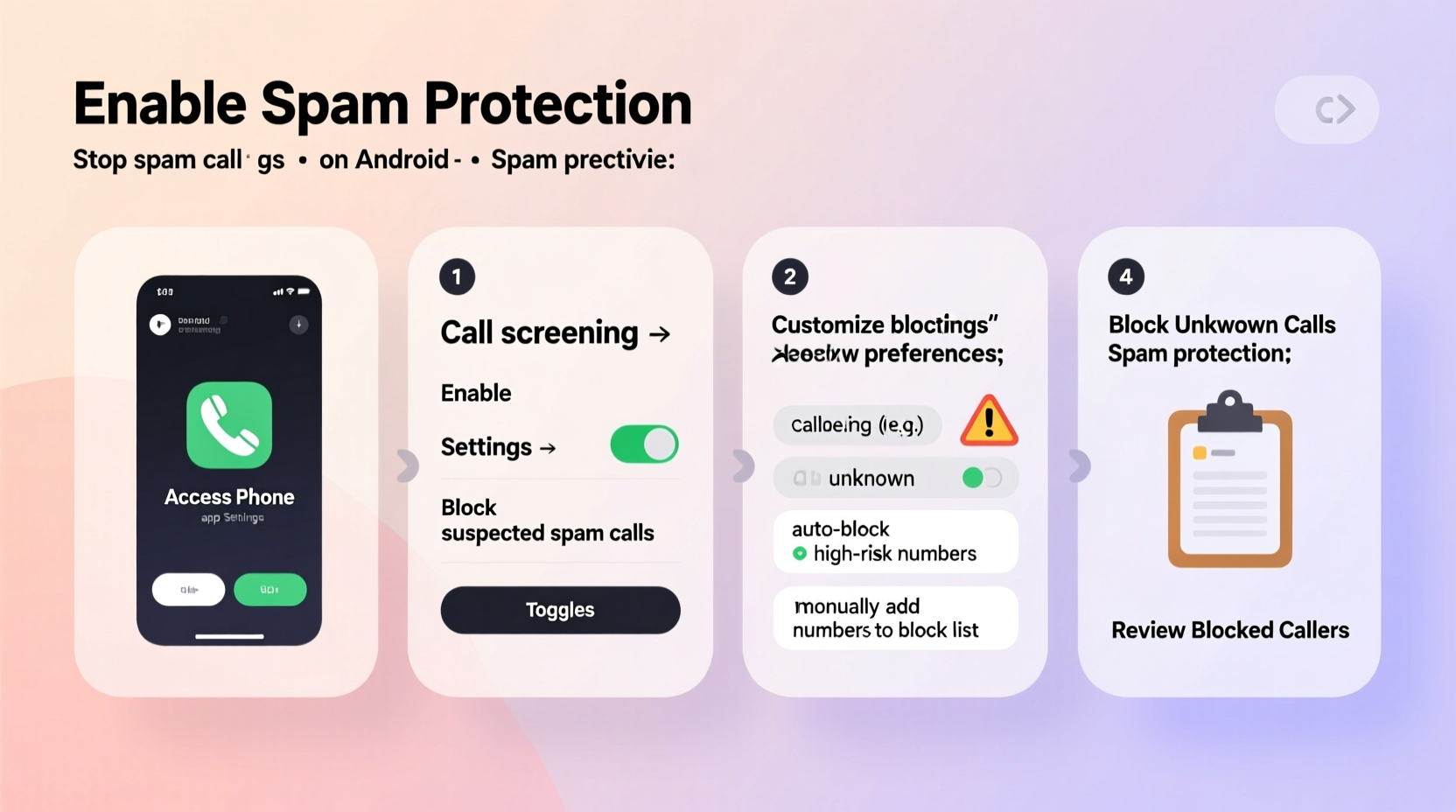
Modern Android phones integrate Google’s Call Screen and Spam Protection features, which rely on machine learning and a global database of reported numbers to identify suspicious callers. These tools are part of the default Phone app (often labeled as \"Phone by Google\") and work seamlessly across most Android devices released in the last five years.
Google continuously updates its spam detection algorithms based on user reports and behavioral patterns. When a number is flagged repeatedly by users, it gets added to a centralized blocklist. Your phone checks incoming calls against this list in real time. If a match is found, you’ll see a warning such as “Suspected spam” or “Telemarketer” on your screen before the call connects.
The system doesn’t just rely on databases—it learns from your behavior. For example, if you consistently mark certain types of calls as spam, future similar calls are more likely to be filtered automatically.
Step-by-Step Guide to Enable Built-In Spam Protection
Activating spam protection on your Android device takes just a few minutes. Follow these steps to maximize your defense against unwanted callers:
- Open the Phone app – This is usually labeled “Phone” or “Dialer” and comes pre-installed.
- Tap the three-dot menu (⋮) in the top-right corner and select Settings.
- Navigate to “Spam and scam protection” – The exact wording may vary slightly depending on your device.
- Toggle on “Enable spam and scam protection” – Once enabled, your phone will start showing warnings for suspected spam calls.
- Review automatic blocking options – Some devices allow you to auto-reject confirmed spam calls silently.
- Confirm emergency calling is unaffected – Rest assured that even with blocking enabled, 911 and emergency services remain fully accessible.
With this feature active, every incoming call is checked against Google’s spam database. If a number is identified as risky, you’ll see a notification on-screen advising you to hang up. You can still answer if you choose, but the warning gives you critical context to avoid scams.
Using Call Screen to Filter Unknown Callers
One of the most advanced native features available on supported Android devices is Call Screen. This tool uses Google Assistant to answer calls on your behalf, letting you listen in while the AI asks the caller to state their purpose. It’s especially useful for unknown or suspicious numbers.
To enable Call Screen:
- Go to Phone app → Settings → Call Screen.
- Toggle on “Use Call Screen”.
- Customize preferences: Choose whether to screen all unknown callers or only suspected spam.
- Optional: Record a custom message like “Please state your name and reason for calling.”
When an untrusted number calls, your phone routes the call through Google Assistant. The caller hears a prompt asking them to explain why they’re calling. You see a real-time transcription on your screen. If it’s a telemarketer or scammer, you can end the call without answering. If it’s legitimate, you can join the conversation at any time.
“Call Screen shifts control back to the user. Instead of being ambushed by a robot voice, you get to decide whether to engage—safely and on your terms.” — David Chen, Senior UX Designer at Google
Blocking Specific Numbers Manually
Sometimes automated systems miss persistent scammers. In those cases, manually blocking numbers adds an extra layer of protection.
To block a number:
- Open your recent calls list in the Phone app.
- Find the unwanted number and tap the info (i) icon next to it.
- Select Block number or Add to block list.
- Confirm the action.
Once blocked, the number cannot reach you via calls or SMS (on most devices). You can manage your block list anytime under Phone Settings → Blocked numbers.
Some manufacturers, like Samsung, offer enhanced blocking tools within their dialer apps. For example, Samsung users can enable “Block unknown callers” to send all non-contacts directly to voicemail—a drastic but effective option for high-risk users.
Do’s and Don’ts of Managing Spam Calls
| Do’s | Don’ts |
|---|---|
| Do enable spam protection in your Phone app settings. | Don’t answer calls from clearly spoofed numbers (e.g., local area code but random digits). |
| Do use Call Screen for unknown numbers to verify legitimacy. | Don’t share your number publicly on social media or forums. |
| Do report spam calls after they occur to improve detection. | Don’t press any keypad options during robocalls—even “press 0 to speak to an agent” confirms your number is active. |
| Do regularly review your block list and remove outdated entries if needed. | Don’t rely solely on carrier-based spam filters; supplement with Google’s tools. |
Real-World Example: How Maria Reduced Spam by 90%
Maria, a small business owner in Austin, was receiving over 15 spam calls per day—mostly fake IRS threats and loan offers. She initially ignored them, but the frequency became overwhelming. After reading about Android’s native tools, she spent 10 minutes configuring her phone.
She enabled Spam Protection, turned on Call Screen for unknown numbers, and blocked three recurring scam numbers. Within two days, her phone stopped ringing for fraudulent calls. Legitimate clients still reached her because they were saved in her contacts. Over the next month, spam dropped from 15/day to less than one per week.
“I didn’t want to install another app,” she said. “It’s reassuring that my phone already had the tools—I just needed to turn them on.”
Additional Tips for Maximum Protection
Beyond the core settings, consider these advanced strategies to further harden your phone against spam:
- Disable Caller ID for sensitive numbers: If you frequently receive spoofed calls pretending to be your bank, contact your financial institution to set up a verbal password or PIN that representatives must provide.
- Use Google Voice (optional): Though not strictly “built-in,” Google Voice integrates natively with Android and offers superior spam filtering. You can route calls through a secondary number and apply stricter rules.
- Turn off “Silence unknown callers” selectively: On some Samsung and Pixel models, this feature sends non-contacts straight to voicemail. Use with caution—it may miss important calls from new clients or services.
- Check carrier-specific tools: Major carriers like T-Mobile (Scam Shield), Verizon (Call Filter), and AT&T (ActiveArmor) offer free spam protection that works alongside Android’s native features. Activate them through your carrier’s app.
Frequently Asked Questions
Will blocking spam calls affect emergency alerts or legitimate notifications?
No. Government alerts, weather warnings, and emergency services operate on separate networks and protocols. They are not classified as calls and will not be blocked by spam filters.
Can I unblock a number if I made a mistake?
Yes. Go to Phone app → Settings → Blocked numbers. Tap the number you wish to unblock and select “Unblock.” The process is instant and reversible.
Why do I still get spam calls even with protection enabled?
Spammers constantly rotate numbers and use caller ID spoofing to mimic local or trusted numbers. While no system is 100% effective, enabling all built-in protections reduces exposure by 80–90%. Continued reporting improves accuracy over time.
Final Checklist: Secure Your Android Against Spam
Before finishing, run through this quick checklist to ensure full protection:
- ✅ Open the Phone app and confirm it’s the Google version (not a manufacturer fork).
- ✅ Enable “Spam and scam protection” in settings.
- ✅ Turn on Call Screen for unknown callers.
- ✅ Report at least one recent spam call to contribute to Google’s database.
- ✅ Manually block any repeat offenders from your call log.
- ✅ Verify that your carrier’s free spam filter is activated (if applicable).
- ✅ Periodically review blocked numbers to avoid false positives.
Take Control of Your Calling Experience
You don’t need complicated apps or paid subscriptions to fight spam. Android’s built-in tools are robust, privacy-conscious, and constantly improving. By spending just a few minutes adjusting your settings, you reclaim peace of mind and protect yourself from fraud.
The key is consistency: keep spam protection active, report suspicious calls, and use Call Screen as your first line of defense. As more users participate in reporting, the entire ecosystem becomes smarter and safer.




 浙公网安备
33010002000092号
浙公网安备
33010002000092号 浙B2-20120091-4
Comments
No comments yet. Why don't you start the discussion?