
In today’s connected world, receiving unsolicited phone calls has become a daily nuisance. For iPhone users, the rise in spam and scam calls—often disguised as local numbers or legitimate businesses—can be both intrusive and anxiety-inducing. While blocking individual numbers is an option, it’s not practical when hundreds of unknown callers appear each week. The challenge lies in filtering out the noise without accidentally silencing important calls from friends, family, or service providers.
The good news is that Apple has equipped iOS with powerful tools, and third-party solutions have evolved to help users manage unwanted calls intelligently. With the right setup, you can significantly reduce spam calls while keeping your phone open to genuine communication. This guide explores proven strategies to stop spam calls on iPhone without blocking essential contacts, using a combination of system settings, carrier services, and trusted apps.
Enable Silence Unknown Callers
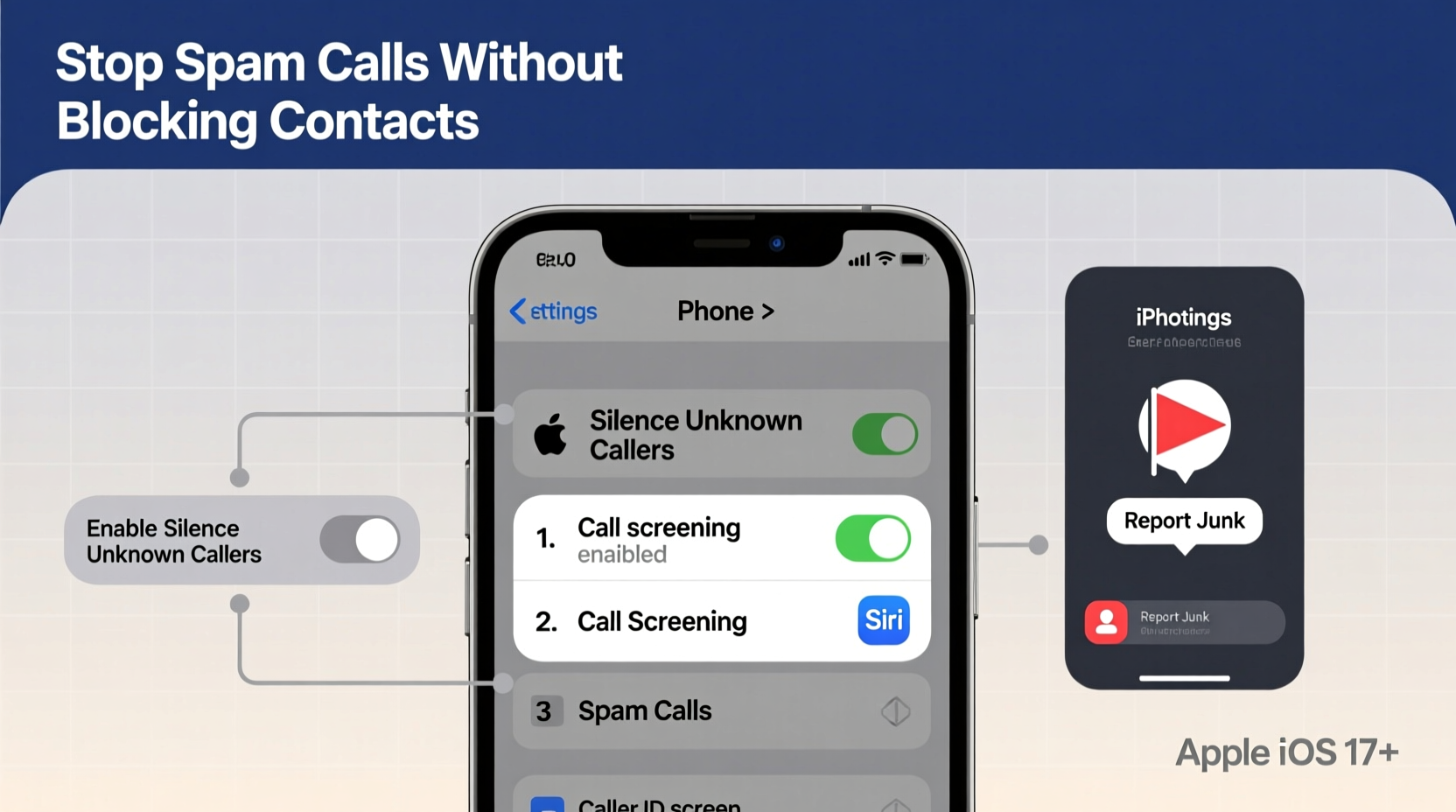
One of the most effective built-in features on iPhone for reducing spam is “Silence Unknown Callers.” When activated, this setting sends calls from numbers not saved in your contacts, recent calls, or emails directly to voicemail. This prevents disruptive rings from random numbers while ensuring that anyone you’ve interacted with previously can still reach you.
To turn it on:
- Open the Settings app.
- Scroll down and tap Phone.
- Select Silence Unknown Callers.
- Toggle the switch to enable it.
Once enabled, incoming calls from unrecognized numbers won’t ring your phone. Instead, they go straight to voicemail, and a log appears in your Recents list. If a caller leaves a message, you’ll see it later and can decide whether to return the call.
This feature strikes a balance between privacy and accessibility. It doesn’t block numbers permanently, so there’s no risk of cutting off someone who might eventually need to reach you. However, it does require discipline—check your silenced calls occasionally to ensure nothing critical slips through.
Leverage Caller ID & Spam Protection Apps
iOS allows third-party apps to integrate with the Phone app to provide real-time caller identification and spam detection. These apps analyze millions of user-reported numbers and use AI to flag suspicious activity before the phone even rings.
Popular and reliable options include:
- RoboKiller – Uses answer bots to waste scammers’ time and offers robust spam filtering.
- Hiya – Provides detailed caller ID and blocks known fraud numbers.
- Calls Blacklist – Lightweight app focused on identifying telemarketers and robocalls.
- Truecaller – Massive global database for identifying spam and showing caller names.
These apps work by scanning incoming numbers against their databases and automatically marking or silencing likely spam calls. Crucially, they don’t interfere with contacts already in your address book or frequently called numbers.
To set up a spam protection app:
- Download and install the app from the App Store.
- Grant permission when prompted to access your phone settings.
- Go to Settings > Phone > Call Blocking & Identification.
- Under “Allow These Apps To Block Calls And Provide Caller ID,” toggle on your chosen app.
- Drag the app to the top of the list to give it priority in screening.
After setup, the app will begin labeling suspicious calls. Some even offer community-driven reporting, where users flag numbers in real time, improving accuracy over time.
“Third-party caller ID apps are now essential tools in the fight against telecom fraud. They add a layer of intelligence that carriers alone can't provide.” — David Chen, Cybersecurity Analyst at MobileTrust Labs
Use Your Carrier’s Built-In Spam Tools
Many mobile carriers offer free spam-blocking services designed specifically for iPhone users. These tools operate at the network level, meaning they intercept spam before it reaches your device—without affecting your contact list.
Here’s how major U.S. carriers handle spam calls:
| Carrier | Spam Tool Name | Key Features | Cost |
|---|---|---|---|
| AT&T | AT&T Call Protect | Blocks robocalls, labels spam, custom blocking lists | Free (basic), $3.99/mo (plus) |
| Verizon | Call Filter | Real-time alerts, scam detection, spam blocking | Free (basic), $2.99/mo (premium) |
| T-Mobile | Scam Shield | Scam ID, Scam Block, Name ID, international blocking | Free for all customers |
| Sprint (now T-Mobile) | Scam Shield | Same as T-Mobile, automatic migration | Free |
To activate your carrier’s spam protection:
- Visit your carrier’s website or download their official app (e.g., AT&T Call Protect, Verizon Call Filter).
- Log in with your account credentials.
- Enable scam call blocking and caller ID features.
- Follow prompts to install any required configuration profiles (if applicable).
These services often include additional features like voice-to-text for voicemails, which helps identify whether a silenced call is worth returning. Since they’re integrated with your phone number rather than your device settings, they offer consistent protection across multiple devices.
Manage Call Announcements and Focus Modes
iOS 15 and later introduced enhanced Focus modes that allow granular control over which calls and notifications interrupt you. When combined with contact filtering, these features help minimize distractions from unknown callers without resorting to blocking.
For example, you can set up a “Work” or “Do Not Disturb” Focus mode that only allows calls from your Favorites, specific groups, or repeated callers—while sending others to voicemail silently.
To configure this:
- Go to Settings > Focus.
- Select a mode (e.g., Do Not Disturb) or create a custom one.
- Tap People under “Allow Notifications From.”
- Choose Favorites, a contact group, or specific individuals.
- Under Calls, select “Allow Calls From” and pick the same limited group.
- Enable “Repeated Calls” if you want to allow a second call from the same number within 3 minutes (useful for emergencies).
You can also customize when these Focus modes are active—based on time, location, or app usage. For instance, enable strict call filtering during sleep hours or meetings.
This method ensures peace of mind without permanent blocks. A spammer calling once won’t break through, but a doctor’s office calling twice in quick succession will get through—even if not in your contacts.
Real-World Example: Reducing 50+ Weekly Spam Calls
Sarah, a freelance graphic designer in Austin, was receiving over 50 spam calls per week—mostly fake IRS warnings, auto warranty scams, and phishing attempts. She didn’t want to block numbers manually because she occasionally received calls from new clients via referral.
She took the following steps:
- Enabled Silence Unknown Callers in Settings.
- Installed Hiya and allowed it in Call Blocking settings.
- Activated T-Mobile Scam Shield through her carrier’s app.
- Set up a Focus mode for evenings that only allowed calls from Favorites.
- Added key professionals (her accountant, healthcare provider) to her Favorites list temporarily.
Within a week, her disruptive call volume dropped by 90%. She still saw spam numbers in her Recents list, but her phone no longer rang. When a new client called, they left a voicemail, which she checked the next morning. By using layered filtering instead of blocking, Sarah maintained accessibility while regaining control over her phone experience.
Step-by-Step Action Plan
To stop spam calls on iPhone without blocking contacts, follow this comprehensive checklist:
- ✅ Enable Silence Unknown Callers in Settings > Phone.
- ✅ Download a trusted spam protection app (e.g., Hiya, RoboKiller).
- ✅ Grant the app permission in Settings > Phone > Call Blocking & Identification.
- ✅ Activate your carrier’s free spam protection (e.g., Scam Shield, Call Filter).
- ✅ Set up a Focus mode to limit calls during certain times.
- ✅ Add critical non-contact numbers (e.g., doctor, school) to Favorites temporarily.
- ✅ Check silenced calls weekly to catch any missed legitimate messages.
Frequently Asked Questions
Will enabling “Silence Unknown Callers” cause me to miss important calls?
It might delay them, but not block them entirely. Calls from unknown numbers go to voicemail, where you can review them later. To reduce risk, encourage new contacts to text first or add key institutions (like your bank or clinic) to your contacts proactively.
Can I still receive calls from businesses I trust but haven’t saved?
Yes. If a business calls and you believe it’s legitimate, simply save their number after the first call. Future calls will ring normally. Alternatively, some spam apps learn over time and may stop flagging recurring legitimate callers.
Do these methods work internationally?
Most features work globally, but carrier-based tools (like Scam Shield) are region-specific. Third-party apps like Truecaller have strong international databases, making them ideal for travelers or those receiving overseas spam calls.
Final Thoughts: Take Control Without Cutting Off Communication
Spam calls are unlikely to disappear anytime soon, but you don’t have to endure them at the cost of missing real conversations. The iPhone offers a sophisticated ecosystem of tools—built-in settings, intelligent apps, and carrier-level defenses—that let you filter noise without blocking doors.
The key is using layered protection: silence unknowns, identify threats, and allow flexibility for new but legitimate callers. Unlike outright blocking, these methods preserve access while restoring peace. Whether you’re a busy professional, a parent, or someone who simply values quiet, implementing even two or three of these strategies can dramatically improve your calling experience.




 浙公网安备
33010002000092号
浙公网安备
33010002000092号 浙B2-20120091-4
Comments
No comments yet. Why don't you start the discussion?