
Spam text messages have become an unavoidable nuisance for iPhone users. From fake package delivery alerts and phishing scams to unsolicited marketing blasts, these unwanted texts clutter inboxes, waste time, and can even pose security risks. The good news: you don’t need to change your phone number to regain control. With Apple’s robust privacy features, smart settings adjustments, and a few strategic habits, you can significantly reduce — if not eliminate — spam texts on your iPhone.
Unlike Android devices, iPhones run on iMessage and SMS through a tightly controlled ecosystem, which offers unique advantages when filtering spam. This guide walks through proven, effective methods to block, filter, and report spam messages while preserving communication with real contacts.
Enable Filter Unknown Senders (Built-In Protection)
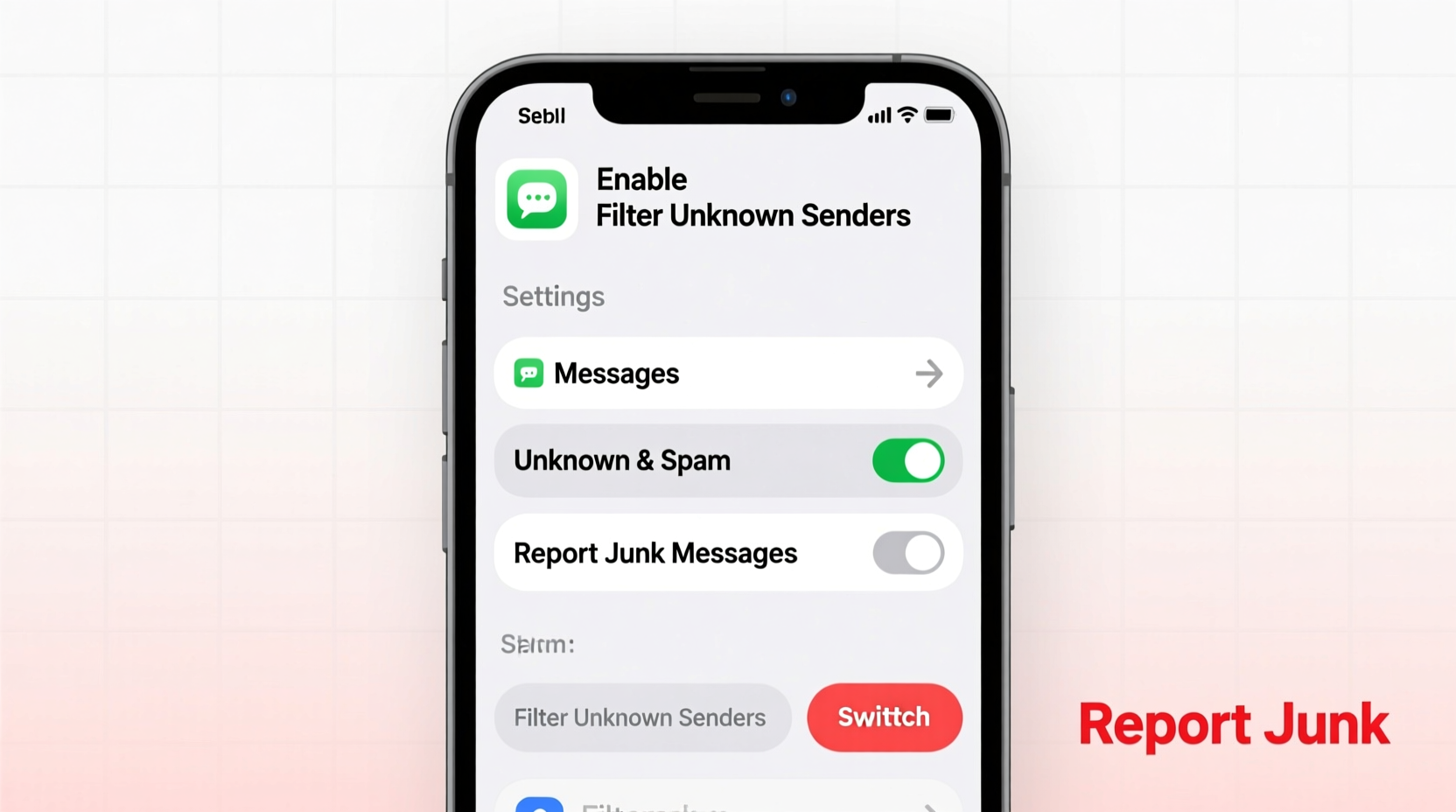
iOS includes a powerful native feature called “Filter Unknown Senders” that automatically separates messages from people not in your contact list. When enabled, these messages are moved to a separate tab, reducing clutter and helping you identify potential spam at a glance.
To activate this setting:
- Open the Settings app.
- Scroll down and tap Messages.
- Toggle on Filter Unknown Senders.
Once enabled, messages from unknown numbers appear under the “Unknown Senders” section in the Messages app, below your regular conversations. You’ll still receive them, but they won’t trigger notifications unless you’ve specifically allowed alerts for that sender.
This feature doesn’t block messages outright, but it creates a critical first line of defense by isolating potential spam and reducing distractions.
Block Individual Spammers Instantly
When you receive a clear spam message—such as a suspicious link, loan offer, or fake refund notification—you can block the sender with just a few taps.
How to Block a Number on iPhone
- Open the spam message in the Messages app.
- Tap the sender’s number or name at the top of the conversation.
- Select Info.
- Scroll down and tap Block this Caller.
- Confirm by tapping Block Contact.
After blocking, the number cannot send you iMessages, SMS, or FaceTime calls. Any future messages from that number are silently discarded and never appear on your device.
Blocking works best when you’re certain about the sender’s intent. However, be cautious when blocking short codes or automated services, as some may represent legitimate companies (e.g., banks or delivery services).
What Happens After Blocking?
- The blocked number will not know they’ve been blocked.
- They can still leave voicemails (which won’t show up in your recent calls).
- No notifications or banners will appear for new messages.
- iMessages from blocked contacts remain undelivered on Apple’s servers.
“Blocking is the most immediate way to stop harassment or repeated spam. It’s silent, effective, and fully reversible.” — Sarah Lin, Mobile Security Analyst at PrivacyGuard Labs
Use Third-Party Apps for Advanced Spam Detection
While iOS restricts deep access to messaging data, several trusted third-party apps integrate with the Messages system to enhance spam filtering using crowd-sourced databases and AI detection.
These apps work by analyzing incoming messages in real time and flagging known scam patterns, fraudulent links, or high-risk numbers before you interact with them.
Top Recommended Apps
| App | Key Features | Limitations |
|---|---|---|
| RoboKiller | Spam call + text blocking, AI-powered scam detection, blacklist sync | Paid subscription required ($4.99/month), limited free trial |
| Cisco Webex Calling (formerly Duo) | Caller ID, spam identification, community-based reporting | Focused more on calls than texts; requires account setup |
| Truecaller | Global spam database, automatic SMS filtering, caller ID overlay | Privacy concerns due to contact upload; ads in free version |
To enable any of these apps for message filtering:
- Download and install the app from the App Store.
- Follow setup instructions to grant permission to access Messages.
- Go to Settings > Messages > Message Filtering.
- Toggle on the extension provided by the app (e.g., “Truecaller”).
Once activated, suspected spam messages are filtered into a separate folder within the Messages app, similar to email spam folders.
Report Spam to Apple and Carriers
Reporting spam helps improve filtering algorithms across all iPhone users. When you report a message, Apple uses anonymized data to detect and block similar spam campaigns in the future.
How to Report a Junk Message
- Open the spam message thread.
- Tap and hold the offending message bubble.
- Select Copy, then tap Report Junk.
- The message is deleted, and metadata is sent securely to Apple.
Your carrier also benefits from spam reports. Most major providers—like AT&T, Verizon, and T-Mobile—offer free spam reporting tools:
- AT&T: Forward spam texts to 7726 (SPAM).
- Verizon: Forward to 7726 and include the original sender’s number in the body.
- T-Mobile: Use the Scam Shield app or forward to 7726.
These systems analyze reported messages and update carrier-level blacklists, helping prevent future spam delivery network-wide.
Mini Case Study: How One User Reduced Spam by 90%
Jamie, a small business owner in Portland, was receiving over 15 spam texts daily—mostly fake invoice alerts and credit card scams. Frustrated, she decided to take action.
She started by enabling **Filter Unknown Senders**, then used **Truecaller** to scan her recent messages. Over two days, she manually blocked 23 numbers and reported another 12 as junk. She also forwarded persistent spam to 7726.
Within a week, her spam volume dropped to fewer than two per day. After a month, only one suspicious message slipped through—and it was caught by Truecaller’s AI filter before she saw it.
“I didn’t realize how much mental clutter those texts caused,” Jamie said. “Now my Messages app feels like mine again.”
Prevent Future Spam: Smart Habits That Work
Stopping spam isn’t just about reacting—it’s also about preventing exposure in the first place. Many spam texts originate from data leaks, online forms, or public number listings.
Checklist: Preventive Measures to Avoid Spam
- ✅ Avoid sharing your phone number on public websites or forums.
- ✅ Use a secondary email or Google Voice number for online signups.
- ✅ Opt out of marketing messages when possible (reply STOP if legal).
- ✅ Never respond to spam texts—even saying “STOP” can confirm your number is active.
- ✅ Regularly audit app permissions; disable SMS access for unnecessary apps.
- ✅ Enable two-factor authentication using authenticator apps instead of SMS when available.
One of the most overlooked sources of spam is app permissions. Some third-party apps request access to your messages for “verification” purposes but may misuse or leak data. To check:
- Go to Settings > Privacy & Security > Messages.
- Review the list of apps with message access.
- Turn off access for any app you don’t trust or no longer use.
Additionally, consider using Apple’s Hide My Email and Sign in with Apple features to minimize personal data exposure during online registrations.
Frequently Asked Questions
Can iMessage spam be dangerous?
Yes. While iMessage is encrypted, spam texts often contain phishing links, malware-laden attachments, or social engineering tactics designed to steal login credentials or financial information. Never tap links or download files from unknown senders.
Why do I still get spam after blocking numbers?
Spammers frequently rotate phone numbers and use spoofing technology to disguise their origin. Blocking individual numbers helps, but it's not a complete solution. Layered defenses—like filtering, reporting, and third-party apps—are essential for long-term protection.
Does turning off iMessage stop spam?
No—and it’s not recommended. Disabling iMessage forces all messages to go through SMS, which lacks encryption and advanced filtering. Instead, keep iMessage on and use Apple’s spam tools to manage unwanted content.
Conclusion: Take Back Control of Your Messaging Experience
You don’t need to live with constant spam text interruptions. By combining Apple’s built-in features like Filter Unknown Senders and junk reporting with proactive habits and trusted third-party tools, you can dramatically reduce unwanted messages—without sacrificing accessibility or changing your number.
Start today: review your current settings, block the most persistent offenders, install a reliable filtering app, and commit to never engaging with spam. Every step strengthens your digital boundaries and restores peace to your inbox.




 浙公网安备
33010002000092号
浙公网安备
33010002000092号 浙B2-20120091-4
Comments
No comments yet. Why don't you start the discussion?