
For students, artists, and professionals who rely on the Apple Pencil for note-taking, sketching, or design work, sudden disconnections are more than a minor annoyance—they disrupt workflow, break focus, and can lead to lost progress. Despite its premium build and seamless integration with iPadOS, even the latest Apple Pencil models occasionally suffer from unstable Bluetooth connections. The good news is that most disconnection issues are fixable with the right approach. This guide dives into the root causes of random dropouts and delivers actionable, tested solutions to keep your Apple Pencil connected and responsive when you need it most.
Understanding Why Your Apple Pencil Disconnects
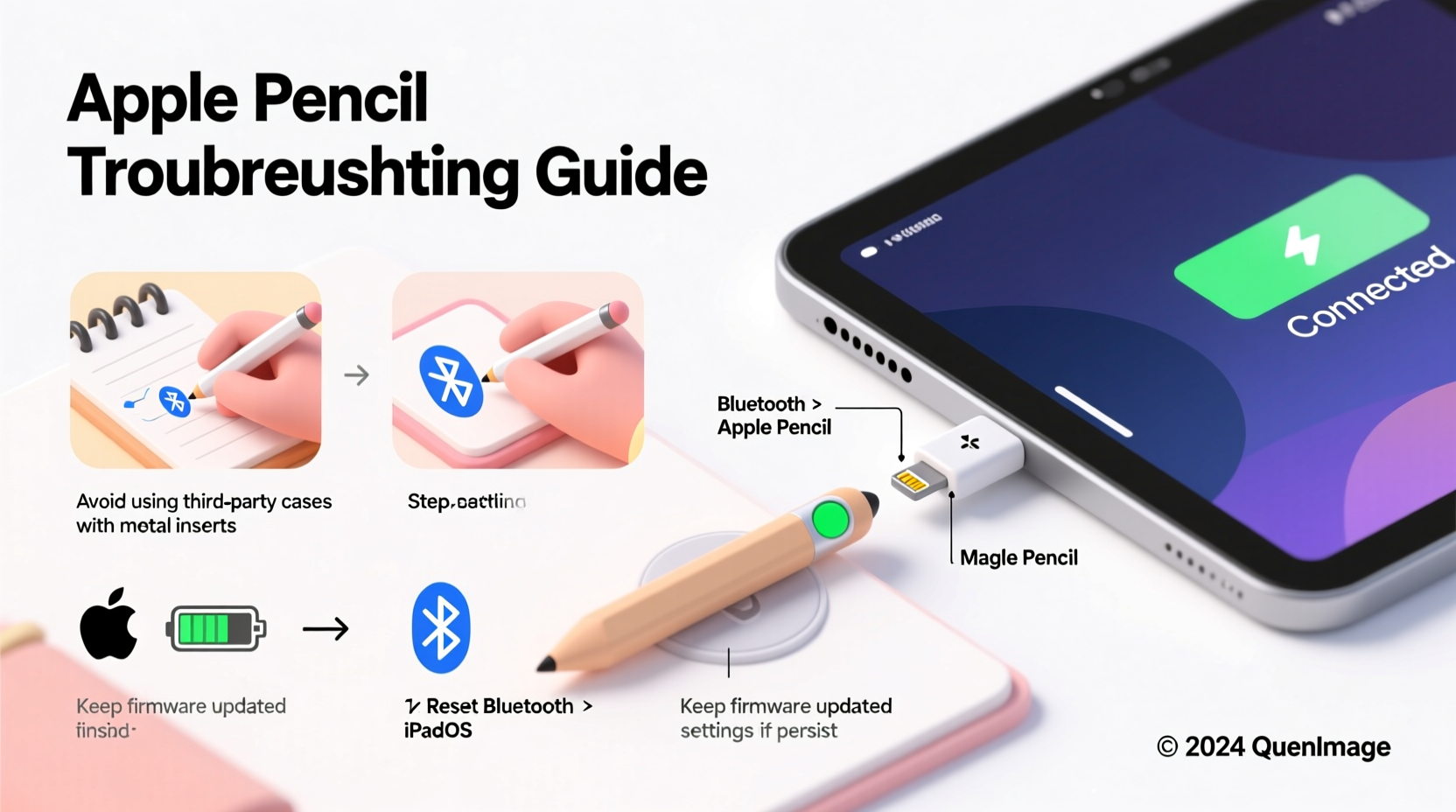
The Apple Pencil connects to your iPad via Bluetooth, which makes it inherently vulnerable to interference, pairing glitches, and software hiccups. Unlike passive styluses, the Apple Pencil relies on continuous communication with the iPad for pressure sensitivity, tilt detection, and palm rejection. When this connection stutters or drops, input stops mid-stroke, forcing users to reconnect manually—often at the worst possible moment.
Common triggers include:
- Bluetooth interference from nearby devices (wireless headphones, speakers, or other tablets)
- Firmware bugs in iPadOS or outdated Apple Pencil firmware
- Low battery levels causing instability
- Physical obstructions or electromagnetic interference from cases or screen protectors
- Background app overload slowing down system responsiveness
Apple has improved connectivity across generations—from the first-generation Pencil’s charging port pairing to the second-gen’s magnetic snap-and-connect—but no version is immune to occasional hiccups. Understanding these underlying factors is the first step toward a stable experience.
Step-by-Step Guide to Stabilize Your Apple Pencil Connection
If your Apple Pencil keeps dropping out during critical tasks, follow this systematic troubleshooting sequence. Each step addresses a different layer of potential failure, from hardware to software.
- Restart Your iPad
A simple reboot clears temporary memory glitches and resets the Bluetooth stack. Hold the power button (and home button on older models) until the slider appears, then power off completely. Wait 30 seconds before turning it back on. - Re-pair the Apple Pencil
Go to Settings > Bluetooth, find your Apple Pencil in the list, and tap the “i” icon. Select “Forget This Device.” Then reconnect: attach the Pencil magnetically (2nd gen) or plug it into the Lightning/USB-C port (1st gen). Wait for the pairing prompt and confirm. - Check for iPadOS Updates
Outdated operating systems often contain unresolved Bluetooth bugs. Navigate to Settings > General > Software Update. Install any available updates—even minor patches can resolve connectivity regressions. - Update Apple Pencil Firmware
Firmware updates are delivered automatically when the Pencil is paired and charging, but only if your iPad is updated first. Ensure your device runs the latest iPadOS, leave the Pencil connected overnight, and check for silent background updates. - Reduce Wireless Interference
Move away from Wi-Fi routers, microwaves, or crowded USB-C hubs. Disable unused Bluetooth devices temporarily. Test in airplane mode (with Wi-Fi manually re-enabled) to isolate Bluetooth conflicts. - Test Without Accessories
Some third-party cases and screen protectors interfere with capacitive sensors or block magnetic alignment. Remove the case and test direct contact with the iPad. If stability improves, consider switching to a thinner or Apple-certified accessory.
Do’s and Don’ts for Maintaining a Stable Connection
Prevention is often more effective than repeated troubleshooting. The following table outlines best practices to minimize disconnection risks over time.
| Do’s | Don’ts |
|---|---|
| Keep your iPadOS updated regularly. Critical bug fixes often target Bluetooth reliability. | Ignore minor OS updates. Even point releases like 17.5.1 can patch known Pencil issues. |
| Charge the Apple Pencil fully before long sessions. Low battery increases dropout risk. | Let the Pencil drain below 10% frequently. Deep discharges strain internal circuitry. |
| Use Apple-branded or MFi-certified accessories. They’re tested for signal compatibility. | Use thick metal-backed cases. These can block magnetic alignment and signal transmission. |
| Store the Pencil attached to your iPad when not in use. Ensures constant charging and firmware sync. | Leave the Pencil disconnected for days. May require re-pairing after prolonged idle periods. |
Real-World Example: An Artist’s Workflow Rescue
Jamal, a freelance illustrator based in Portland, used his iPad Pro and Apple Pencil 2 daily for client sketches. Over two weeks, he noticed increasing disconnections during tight deadlines—sometimes losing entire strokes mid-line. He initially assumed hardware failure and considered purchasing a replacement. Instead, he methodically tested variables: first disabling all Bluetooth devices, then removing his rugged case. The issue persisted. Only after checking Settings > General > About > Apple Pencil did he notice a pending firmware update indicator. After updating iPadOS and leaving the Pencil connected overnight, the disconnections stopped entirely.
“I was about to spend $130 on a new Pencil,” Jamal said. “But it turned out to be a silent software issue. Now I check for updates every Sunday night—it’s part of my routine.”
This case underscores a key insight: symptoms resembling hardware failure are often rooted in overlooked software maintenance.
“Many Apple Pencil issues stem from outdated firmware or environmental interference—not defective units. A structured reset process resolves 80% of reported dropouts.” — Lin Zhao, Senior Support Technician at Apple Authorized Service Provider
Proactive Maintenance Checklist
To prevent future interruptions, integrate the following actions into your weekly routine. This checklist ensures your Apple Pencil remains reliable under pressure.
- ✅ Reboot your iPad at least once per week
- ✅ Check for iPadOS updates every Monday
- ✅ Fully charge the Apple Pencil after heavy use
- ✅ Clean the Pencil tip monthly with a soft cloth
- ✅ Inspect the magnetic connector (2nd gen) for debris
- ✅ Avoid using the Pencil near high-frequency electronics
- ✅ Rotate between two tips if using heavily—wear affects balance and signal stability
- ✅ Use the Pencil in supported apps only (Notes, GoodNotes, Procreate, etc.)
Frequently Asked Questions
Why does my Apple Pencil disconnect when I’m writing fast?
Rapid strokes increase data transmission frequency between the Pencil and iPad. If Bluetooth is congested or the system is overloaded, packets may drop. Close unused apps, disable background refresh, and ensure your iPad isn’t overheating. Also, verify that your screen protector isn’t creating friction-induced lag that mimics disconnection.
Can a damaged tip cause disconnections?
While a worn or cracked tip won’t directly break the Bluetooth link, it can create inconsistent contact with the screen, leading the system to interpret input as erratic or absent. Replace frayed or loose tips promptly. Apple offers replacement tips in the box and sells them separately.
Is there a difference in reliability between 1st and 2nd generation Apple Pencils?
Yes. The 2nd generation benefits from magnetic attachment, automatic pairing, and faster wake times. It also charges while connected, reducing low-battery disconnections. However, both models use similar Bluetooth protocols and can suffer dropouts under poor conditions. The 1st gen requires manual re-pairing if disconnected, making interruptions more disruptive.
Final Recommendations for Long-Term Stability
Maintaining a rock-solid Apple Pencil connection isn’t about one magic fix—it’s about consistent digital hygiene. Treat your iPad and Pencil like precision tools: update them religiously, pair them mindfully, and protect them from environmental stress. Pay attention to subtle cues: delayed stroke rendering, jittery lines, or brief input freezes are early warnings of deeper issues.
For those using their Pencil in academic or professional settings, consider carrying a spare tip and keeping a lightweight notepad as a backup. While rare, hardware failures do occur. But in most cases, the solution lies in disciplined maintenance, not replacement.




 浙公网安备
33010002000092号
浙公网安备
33010002000092号 浙B2-20120091-4
Comments
No comments yet. Why don't you start the discussion?