
Controller drift is one of the most frustrating issues gamers face. You're in the middle of a crucial match, your character suddenly moves on their own, or your camera spins uncontrollably—despite you not touching the stick. This phenomenon, known as joystick drift, affects millions of players across platforms like PlayStation, Xbox, and Nintendo Switch. While manufacturers often recommend replacement or professional repair, many cases can be resolved at home with careful cleaning and calibration. The good news: you don’t always need to buy a new controller.
Joystick drift typically stems from debris buildup under the analog sticks, wear on internal components, or misaligned sensors—not necessarily permanent hardware failure. With the right tools and techniques, you can restore smooth control and extend your controller’s lifespan significantly. This guide walks through proven, non-invasive solutions that avoid costly replacements while preserving your device’s integrity.
Understanding Joystick Drift: Causes and Early Signs
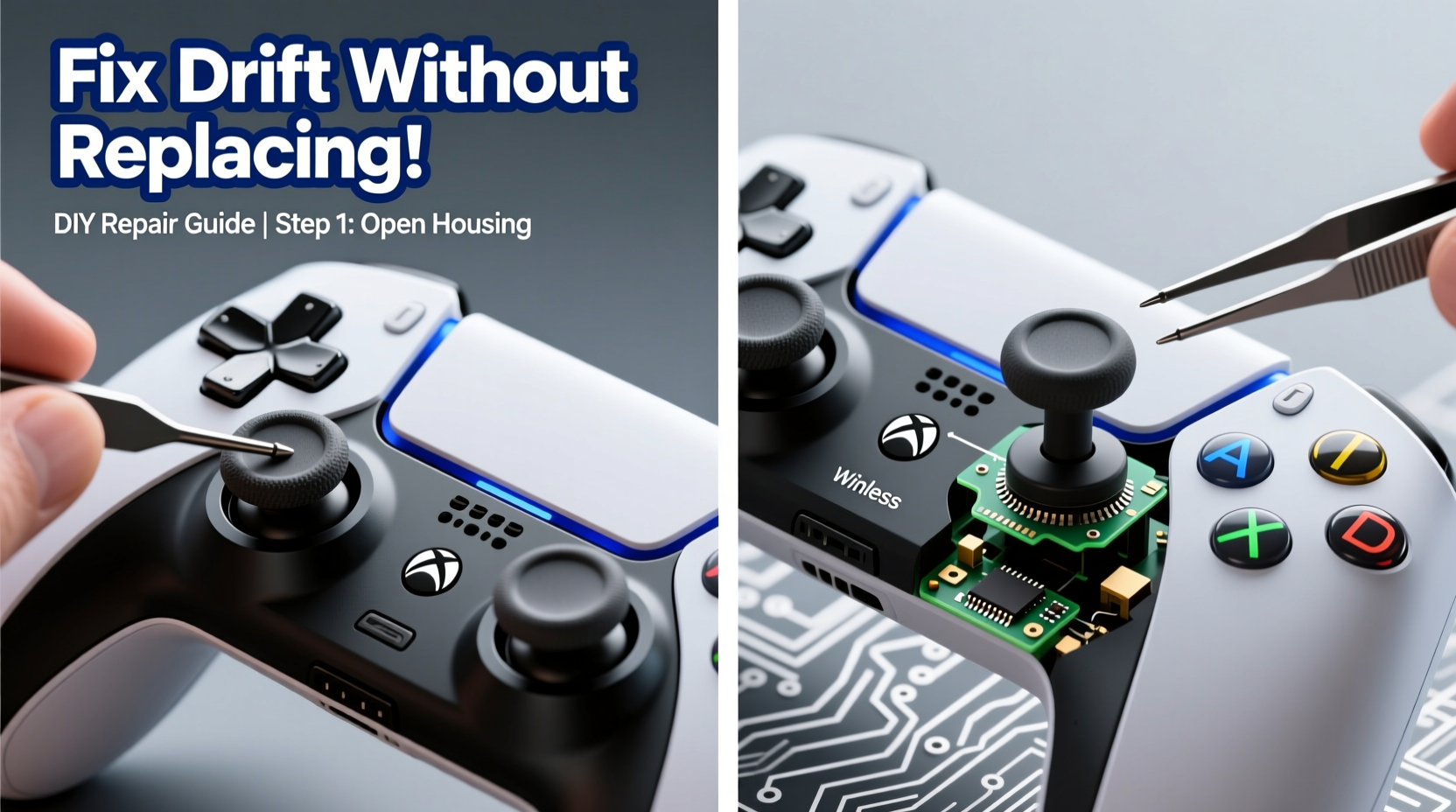
Analog sticks rely on potentiometers—small sensors that detect movement along horizontal and vertical axes. Over time, dust, skin oils, and microscopic debris accumulate around the base of the stick, interfering with sensor readings. Even slight contamination can cause the system to register false inputs, leading to unintended movements. Additionally, repeated use wears down internal springs and rubber cups, reducing precision and increasing resistance.
Common symptoms include:
- Character moving without input
- Camera panning during idle moments
- Sticks failing to return to center position
- Inconsistent sensitivity during gameplay
Early detection is key. If your controller shows minor drift only during long sessions, it may respond well to cleaning. However, if the stick wobbles excessively or feels loose, internal damage might be present—but even then, partial recovery is often possible.
“Over 60% of drift cases we see are due to contamination rather than component failure. A thorough cleaning can restore functionality in most mid-life controllers.” — David Lin, Electronics Repair Technician with 12 years of experience
Step-by-Step Guide to Clean and Calibrate Your Controller
Cleaning is the most effective first-line solution for drift. Done correctly, it removes grime without disassembling the unit. Follow this detailed process to maximize results.
- Power off and disconnect: Turn off your console and unplug or disconnect the controller. Never attempt cleaning while powered.
- Gather supplies: You’ll need isopropyl alcohol (90% or higher), a microfiber cloth, cotton swabs (preferably pointed tip), compressed air, and optionally, a soft-bristle brush.
- Blow out loose debris: Hold the controller upright and use short bursts of compressed air around the base of both analog sticks. Rotate the controller to cover all angles. This dislodges surface dust.
- Dampen (don’t soak) a swab: Moisten a cotton swab with isopropyl alcohol. Wring it gently so it’s damp, not dripping. Excess liquid can seep into circuits and cause damage.
- Clean around the stick base: Gently press the stick to one side and swipe the swab around the exposed rim. Repeat in all four directions (up, down, left, right), rotating the stick manually between passes.
- Work in circular motions: After cleaning each quadrant, circle the entire base to lift embedded residue. Use fresh swabs as they darken with grime.
- Repeat for second stick: Apply the same method to the other analog stick.
- Let dry completely: Allow at least 15–20 minutes for any remaining alcohol to evaporate before use.
- Test and recalibrate: Power on the controller and test in a menu or game. If drift persists, proceed to software calibration.
Calibration Methods by Platform
After cleaning, recalibrating the controller helps realign sensor data. Each major platform offers built-in tools to reset analog stick behavior.
| Platform | Calibration Steps | Notes |
|---|---|---|
| Xbox Wireless Controller | Go to Settings > Devices & connections > Accessories > select controller > Configure. Use “Calibrate” option if available. Otherwise, perform manual deadzone adjustment via Xbox Accessories app. | Some models require firmware updates before calibration appears. |
| PlayStation DualShock 4 / DualSense | Navigate to Settings > Accessories > Controllers > Adjust Analog Sticks. Move sticks to extremes, then release. System maps new neutral point. | Use visual feedback on screen to confirm full range of motion. |
| Nintendo Switch Pro Controller | System Settings > Controllers and Sensors > Disconnect Controllers. Reconnect and test. If issue continues, use “Clear All Data” and re-pair. | No direct calibration tool, but re-pairing resets input baseline. |
For mobile or PC-based controllers, check manufacturer software (e.g., Steam Input) for customizable deadzones. Increasing the deadzone slightly can mask minor drift without affecting responsiveness.
DIY Fixes That Work (Without Opening the Controller)
If cleaning and calibration don’t fully resolve the issue, try these low-risk interventions before considering disassembly.
- Rubber band trick: Wrap a thin rubber band around the base of the drifting stick. It applies gentle inward pressure, helping the stick stay centered. Works best for mild drift where the stick floats outward.
- Stick rotation exercise: Move the analog stick in slow figure-eights for 2–3 minutes. This works the mechanism and can free up stiffened parts.
- Heat exposure (cautiously): Warm the area around the stick with your hands or a hairdryer on cool setting. Heat expands materials slightly, potentially loosening stuck particles. Never overheat.
These are temporary aids but can extend usability between deeper maintenance sessions.
When Disassembly Is Worth Considering
For persistent drift, opening the controller allows access to internal components. While this carries risk, it’s feasible with care. You’ll need a precision screwdriver set (including P2 or TS4 depending on model), plastic prying tools, and patience.
Once opened:
- Remove the joystick module carefully.
- Inspect the rubber cup underneath for tears or deformation—replace if damaged.
- Clean the potentiometer housing with alcohol-dipped swabs.
- Check spring tension; weak springs can be replaced with aftermarket kits (~$5 online).
- Reassemble and test incrementally.
Note: Opening voids warranties. Only attempt if your controller is out of warranty or no longer supported by the manufacturer.
Mini Case Study: Reviving a Drifting DualSense After Six Months of Daily Use
Alex, a PS5 player who logs 2+ hours daily, noticed his DualSense’s right stick causing constant camera drift in third-person shooters. He tried factory resets with no success. Instead of buying a $70 replacement, he followed the cleaning protocol using 91% isopropyl alcohol and compressed air. After two rounds of deep cleaning and recalibration via the PS5 settings menu, drift reduced by 80%. A week later, when minor drift returned, he applied the rubber band trick temporarily while scheduling a more thorough clean. Total cost: $12 for supplies. Result: six additional months of reliable use before any further degradation.
This case illustrates that consistent maintenance—not just one-time fixes—delays the need for replacement.
Prevention Checklist: Extend Your Controller’s Life
Drift isn’t inevitable. Regular upkeep dramatically reduces its onset. Follow this checklist monthly:
- ✅ Clean analog sticks with alcohol swabs
- ✅ Blow out debris with compressed air
- ✅ Recalibrate controls through system settings
- ✅ Store controller in a closed case or drawer
- ✅ Wash hands before play to reduce oil transfer
- ✅ Limit extreme stick movements during idle
- ✅ Use protective caps on analog sticks (silicone covers)
Players who adhere to preventive routines report up to 50% longer functional life compared to those who ignore maintenance.
Frequently Asked Questions
Can I fix drift permanently without replacing parts?
In early-stage drift caused by dirt, yes—cleaning and calibration often provide lasting improvement. However, if internal components like potentiometers or springs are worn, eventual part replacement becomes necessary. Prevention extends the window before hardware failure occurs.
Is using compressed air safe for my controller?
Yes, when used properly. Hold the can upright and use short bursts from a distance of 1–2 inches. Avoid shaking the can, which can spray liquid propellant. Never insert nozzle directly into the stick housing.
Do stick caps help prevent drift?
Yes. Silicone stick caps act as barriers against dust, sweat, and skin particles. They also reduce direct friction on the stick ball, slowing wear. Choose snug-fitting, breathable designs to avoid trapping moisture underneath.
Conclusion: Save Money and Reduce E-Waste
Controller drift doesn’t have to mean immediate replacement. With proper cleaning, calibration, and preventive habits, most users can restore functionality and delay costly purchases. These methods aren’t just economical—they’re environmentally responsible. Millions of controllers end up in landfills each year due to easily correctable issues. By mastering simple maintenance, you extend device longevity and contribute to reducing electronic waste.




 浙公网安备
33010002000092号
浙公网安备
33010002000092号 浙B2-20120091-4
Comments
No comments yet. Why don't you start the discussion?