
Smart speakers have become central to modern homes, offering hands-free convenience for music, reminders, and smart home control. But when your device activates without being called—blinking its lights or responding to background noise—it raises real concerns. These random activations aren’t just annoying; they can feel like a breach of privacy. The good news? You don’t need to unplug your device or abandon voice assistants altogether. With the right settings, habits, and awareness, you can significantly reduce unwanted wake-ups and strengthen your privacy.
This guide delivers practical, tested strategies to stop false triggers, secure your data, and ensure your smart speaker respects your space—without sacrificing functionality.
Why Smart Speakers Activate Randomly
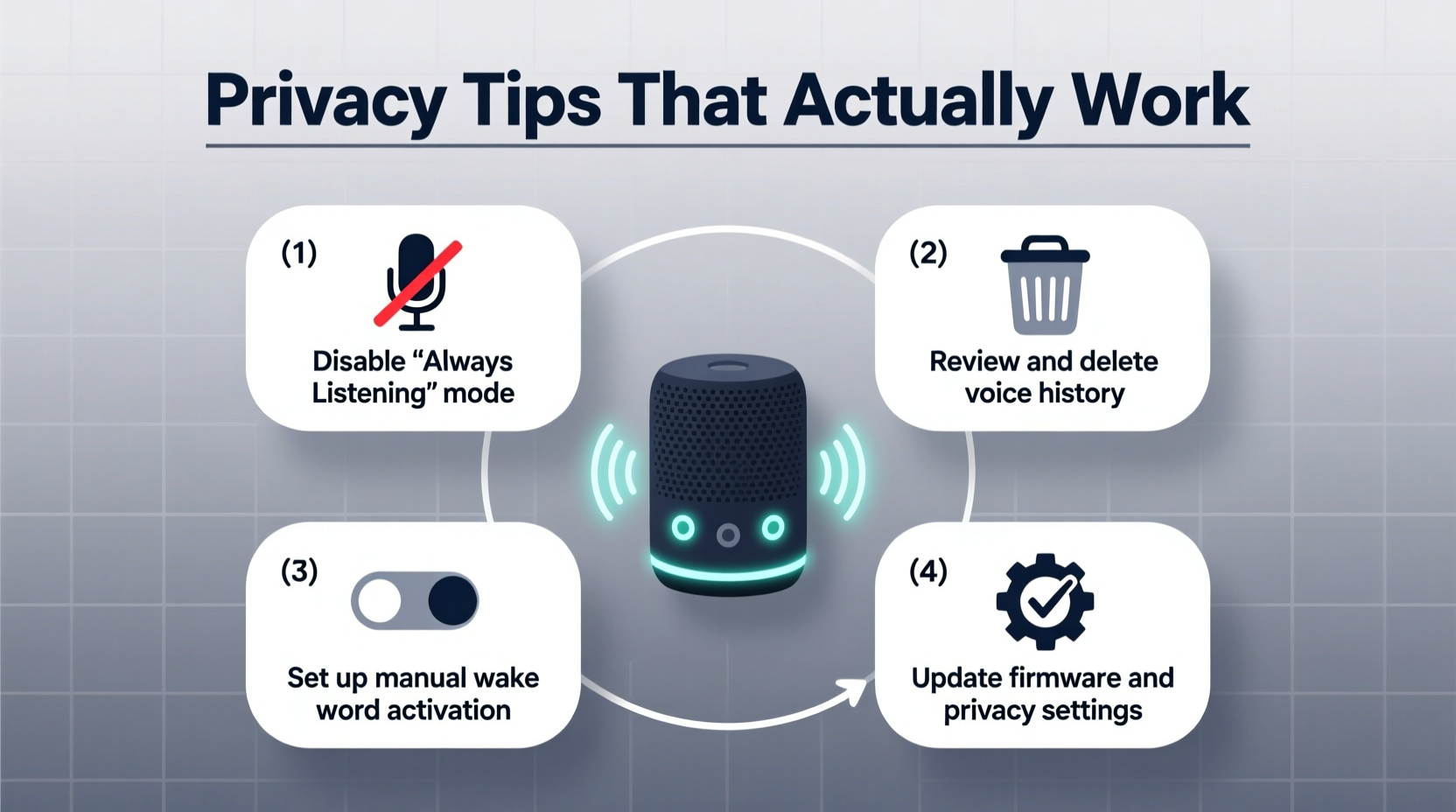
Most smart speakers rely on a “wake word” (like “Alexa,” “Hey Google,” or “Hey Siri”) to activate. The device is always listening for this phrase, but not recording everything. However, background sounds—conversations, TV dialogue, or even certain frequencies in music—can mimic the wake word. When that happens, the speaker thinks it’s been summoned.
The microphone sensitivity is calibrated for responsiveness, not perfection. That means occasional misfires are built into the system. According to a 2023 report by Consumer Reports, nearly 40% of smart speaker owners reported at least one unintended activation per week. While most recordings are discarded quickly, each accidental trigger still sends audio to the cloud for processing—raising valid privacy questions.
“False activations are a trade-off between usability and accuracy. The more sensitive the wake-word detection, the more likely it is to misfire—but turning it off defeats the purpose.” — Dr. Lena Torres, Voice AI Researcher at MIT Media Lab
Step-by-Step Guide to Reduce Unwanted Activations
Follow this sequence to systematically address the root causes of random activations. Each step builds on the last, creating a layered defense against false triggers.
- Adjust Wake Word Sensitivity
Many devices allow you to fine-tune how aggressively they respond. In the Alexa app, go to Settings > Device Settings > [Your Echo] > Wake Word Sensitivity. Lowering the sensitivity reduces false positives, especially in noisy environments. - Change Your Wake Word (If Available)
If you're using Alexa, you can switch from “Alexa” to “Echo,” “Amazon,” or “Computer.” “Alexa” is common in conversations and media, making it prone to accidental triggers. “Computer” is less likely to be said naturally. - Reposition the Speaker
Place your smart speaker away from TVs, radios, or high-traffic areas where voices frequently overlap. Avoid corners or enclosed shelves that amplify sound reflections. A central location on a flat surface, at ear level, often performs best. - Use a Physical Mute Button
Every major smart speaker has a hardware mute button. When engaged, the microphone is physically disabled. Make it a habit to mute the device during private conversations, phone calls, or while watching dialogue-heavy shows. - Review and Delete Voice History
Regularly clear stored voice recordings. In Alexa: Settings > Alexa Privacy > Manage Your Alexa Data > Delete by Voice or Text. For Google Assistant: Assistant Settings > Data & Personalization > Voice & Audio Activity. This limits long-term exposure even if a false activation occurs.
Privacy Checklist: Secure Your Smart Speaker in 7 Steps
Follow this actionable checklist monthly to maintain control over your device and personal data.
- ✅ Mute the microphone when not in use, especially at night
- ✅ Disable voice purchasing or set a PIN requirement
- ✅ Turn off “Brief Mode” (Alexa) or “Voice Match” if not needed
- ✅ Review connected apps and remove unused third-party skills
- ✅ Enable two-factor authentication on your account
- ✅ Set auto-delete for voice recordings (3 or 18 months)
- ✅ Check firmware updates monthly—security patches matter
Do’s and Don’ts: What Actually Works (And What Doesn’t)
Not all advice online is effective. Some tips are outdated or based on misconceptions. This table separates fact from fiction.
| Action | Effectiveness | Notes |
|---|---|---|
| Use a physical cover over the mic array | ❌ Ineffective / Risky | May trap heat, damage device, or interfere with mute function. Use the mute button instead. |
| Lower microphone sensitivity | ✅ High | Directly reduces false triggers without disabling functionality. |
| Disable voice recording storage | ✅ High | Prevents cloud retention of accidental captures. Available in privacy settings. |
| Wrap the speaker in fabric | ❌ Low | Muffles sound input unevenly and may cause overheating. |
| Set up routine-based mute schedules | ✅ Medium-High | Automatically mute at bedtime or during meetings using smart routines. |
| Turn off Wi-Fi when not in use | ⚠️ Moderate (but inconvenient) | Effective but impractical for daily use. Better to use mute or disable mic via app. |
Real Example: How Sarah Reduced False Triggers by 90%
Sarah, a teacher from Portland, noticed her Echo Dot kept lighting up during evening Netflix binges. It would chime in the middle of tense scenes, sometimes ordering trivia or pausing playback. After reading about voice data collection, she grew concerned about privacy.
She started by changing her wake word from “Alexa” to “Echo,” which immediately reduced activations. Next, she moved the speaker from her entertainment center to a side table, away from the TV speakers. She also enabled auto-delete of voice recordings after three months and began using the mute button before bedtime.
Within a week, false triggers dropped from several per night to once every few days. “I didn’t want to give up the convenience,” she said, “but now I feel like I’m back in control.”
Advanced Tips for Maximum Privacy Control
Beyond basic settings, there are deeper configurations that offer stronger protection—especially for users who prioritize privacy over automation.
Disable Voice Recording for Specific Skills: Third-party Alexa skills may request permission to record interactions. Go to Settings > Skills & Games > Your Skills and review each one. Disable voice permissions for those that don’t need them (e.g., a joke skill).
Use Guest Mode or Household Controls: If others use your speaker, create separate voice profiles. This prevents accidental personal data access and allows individual privacy settings. In Google Home, enable “Guest Mode” to avoid saving unrecognized voices.
Limit Cloud Processing: Both Amazon and Google allow you to opt out of human review of voice snippets. In Alexa, disable “Help Improve Alexa” under Alexa Privacy. On Google, turn off “Improve Audio Match” and “Improve Voice Recognition.”
Set Up Routines to Auto-Mute: Create a routine that mutes the microphone at specific times. For example: “Every night at 10 PM, mute all Echo devices.” You can reverse it in the morning. This ensures consistent privacy without manual effort.
Frequently Asked Questions
Can someone else hear my smart speaker recordings?
No—not unless you share your account or someone gains unauthorized access. However, anonymized voice snippets may be reviewed by quality assurance teams unless you disable the setting. To block this, turn off “Help Improve Alexa” or “Improve Audio Match” in your privacy settings.
Does muting the microphone stop all data collection?
Yes. When the red light is on (indicating mute), the microphone circuit is physically disconnected. No audio is recorded or transmitted. This is the most reliable way to ensure privacy in real time.
Are some smart speakers less prone to false activations?
Yes. Devices with multiple microphones and advanced noise filtering—like the Amazon Echo (4th gen) or Google Nest Audio—tend to perform better than older or budget models. Apple’s HomePod uses on-device processing more extensively, reducing cloud dependency and potential exposure.
Conclusion: Take Back Control—Without Losing Convenience
Your smart speaker should serve you, not surprise you. Random activations undermine trust, but they’re not inevitable. By adjusting sensitivity, changing wake words, using physical mute controls, and tightening privacy settings, you can drastically reduce false triggers and protect your personal space.
Privacy doesn’t require abandoning technology—it requires intentional use. Start with one change today: mute the mic when you’re not actively using the device, or switch your wake word to something less common. Small steps lead to lasting control.




 浙公网安备
33010002000092号
浙公网安备
33010002000092号 浙B2-20120091-4
Comments
No comments yet. Why don't you start the discussion?