
It’s a familiar frustration: you charge your smartwatch overnight, only for it to gas out by 11:30 a.m. Whether you rely on it for health tracking, notifications, or workouts, a dead watch by midday defeats its purpose. Unlike smartphones, smartwatches have tiny batteries and are constantly active — but that doesn’t mean you’re powerless. With the right adjustments, many users can nearly double their daily battery life. These aren’t gimmicks or myths; they’re proven strategies used by tech-savvy wearers and supported by device engineers.
The key lies in understanding what drains your watch most — and where small changes yield big results. From screen settings to background processes, every tweak adds up. This guide breaks down exactly which features consume power, how to optimize them, and what habits make the biggest difference. If your smartwatch consistently dies before lunch, these battery hacks will help you reclaim your morning — and your afternoon.
Why Smartwatches Die So Fast
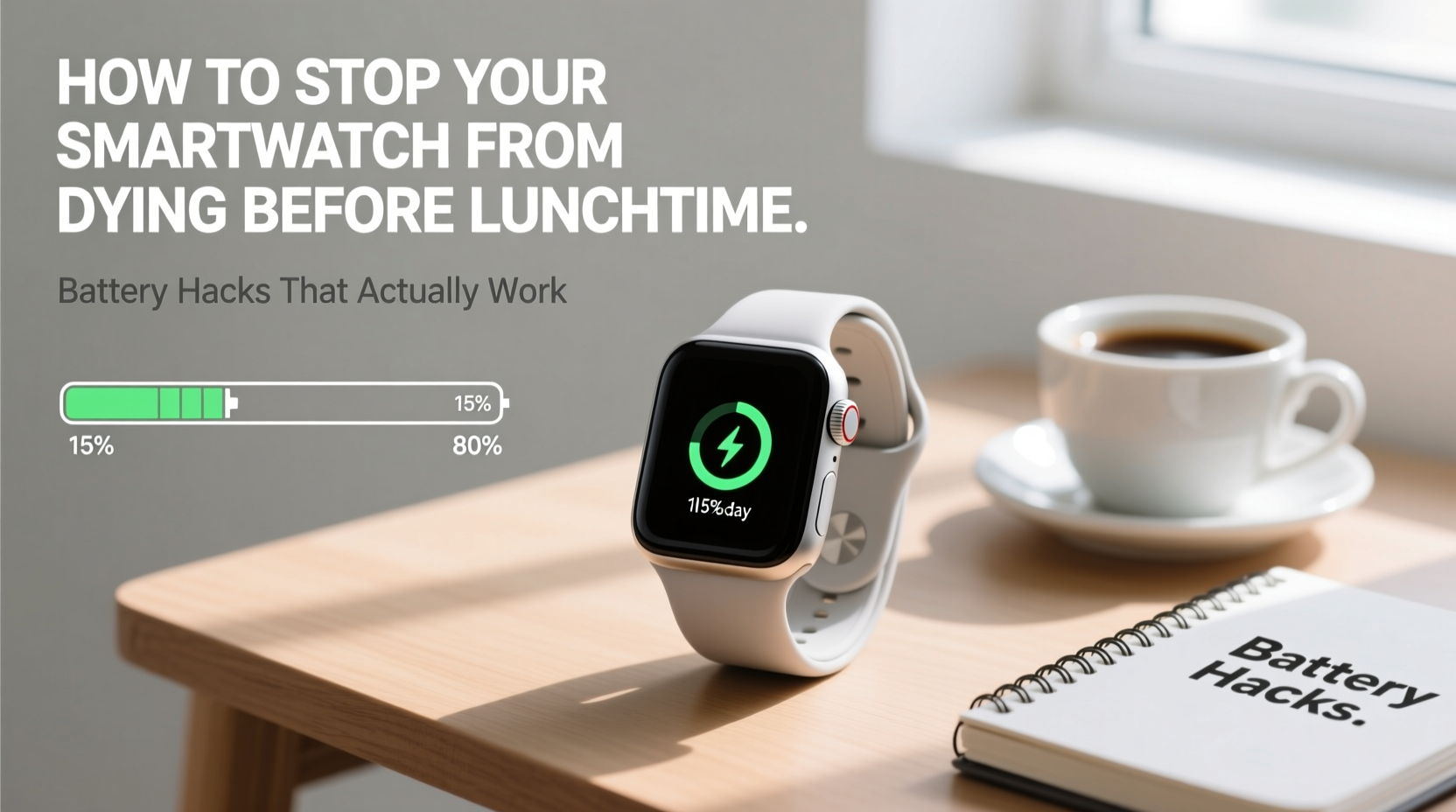
Smartwatches pack powerful sensors and connectivity into a compact design, but their physical size limits battery capacity. Most models use lithium-ion cells between 200–450 mAh — less than 10% of a typical smartphone. Yet they run GPS, heart rate monitors, accelerometers, Bluetooth, Wi-Fi, and high-resolution displays. All of this runs continuously, even when idle.
According to Dr. Lin Zhou, senior battery engineer at Nordic Semiconductor, “The primary challenge with wearables is balancing user experience against energy density. You can’t just add a bigger battery — the form factor won’t allow it.” That means optimization is essential. The good news? Many of the biggest power hogs are adjustable through software and usage patterns.
Understanding the main culprits behind rapid battery drain is the first step toward fixing it:
- Always-on display (AOD): Keeps the screen lit even when your wrist is down.
- Background app refresh: Apps like weather, music, or fitness trackers update frequently.
- GPS and location services: Constantly pinging satellites during workouts or navigation.
- Brightness and animation: High screen brightness and smooth transitions consume extra power.
- Notifications: Frequent vibrations and screen wake-ups interrupt sleep cycles.
Top 7 Battery-Saving Hacks That Actually Work
These aren’t generic suggestions — they’re specific, measurable actions that deliver noticeable improvements. Implement them in order of impact for best results.
1. Disable Always-On Display (AOD)
This is the single most effective setting to adjust. While convenient, AOD forces the OLED screen to remain partially lit throughout the day. Even at low brightness, it consumes significant power. Switching to “tap to wake” or “raise to wake” reduces passive screen usage dramatically.
2. Lower Screen Brightness and Timeout
Set brightness to automatic or manually reduce it to 40–60%. Combine this with a shorter screen timeout (3–5 seconds). Every second the screen stays on costs battery. Reducing peak brightness also lowers strain on the OLED panel over time.
3. Limit Background App Refresh
Go into your watch’s settings and disable auto-refresh for non-essential apps. Weather updates every 15 minutes? Unnecessary. Music syncs in the background? Only enable when actively using. Keep only health and messaging apps updating regularly.
4. Use Airplane Mode During Workouts (When Possible)
If you're doing an offline workout — like a run with stored music — turn on airplane mode and enable GPS manually. This disables Bluetooth, Wi-Fi, and cellular (on LTE models), cutting communication overhead while still tracking location. You’ll save 15–25% per session.
5. Reduce Notification Frequency
Every buzz and screen flash uses energy. Customize which apps can notify you. Silence social media, shopping, and promotional alerts. Use summary notifications once every few hours instead of real-time pings.
6. Disable Unnecessary Sensors
Some watches allow disabling continuous heart rate monitoring or blood oxygen checks. If you don’t need medical-grade tracking all day, set heart rate to check every 10 minutes instead of continuously. This alone can add 1–2 hours of life.
7. Update Firmware Regularly
Manufacturers often release firmware updates that improve power efficiency. For example, Apple’s watchOS 9 introduced optimized background syncing, while Wear OS 4 reduced sensor polling rates. Never skip system updates — they often include silent battery fixes.
“Battery life isn’t just about hardware — it’s about behavior. Users who tweak five core settings typically see 40% longer runtime.” — Rajiv Mehta, Senior UX Engineer at Fitbit
Step-by-Step Optimization Timeline
Don’t try to overhaul everything at once. Follow this realistic 3-day plan to gradually improve battery performance without disrupting your routine.
- Day 1 – Immediate Wins:
- Turn off always-on display.
- Lower screen brightness to 50%.
- Reduce screen timeout to 4 seconds.
- Day 2 – Smart Settings:
- Disable background refresh for weather, email, and non-critical apps.
- Limit heart rate monitoring to periodic checks.
- Turn off SpO2 scanning unless needed.
- Day 3 – Behavioral Tweaks:
- Review notification permissions; silence non-urgent apps.
- Use airplane mode during focused periods (meetings, workouts).
- Charge for 15 minutes during lunch if needed — many watches gain 30% in 20 mins.
After completing this sequence, monitor your battery at 12 p.m. for three consecutive days. Most users report 20–40% improvement within a week.
Do’s and Don’ts: Smartwatch Battery Table
| Action | Do | Don't |
|---|---|---|
| Brightness | Use auto-brightness or cap at 60% | Keep max brightness all day |
| Display | Enable “raise to wake” only | Leave always-on display enabled |
| Workouts | Use airplane mode + GPS when offline | Stream music via Bluetooth during long runs |
| Charging | Top up during short breaks | Let it die completely before charging |
| Apps | Allow only essential apps to refresh | Let all apps run background updates |
Real User Case: How Sarah Doubled Her Watch’s Battery Life
Sarah, a project manager in Seattle, relied on her Galaxy Watch 6 for calendar alerts, step tracking, and calls. But by 10:30 a.m., she was already scrambling for a charger. After reading about battery optimization, she implemented a few key changes.
She turned off the always-on display, lowered brightness, and disabled background sync for Spotify and Gmail. She also set heart rate monitoring to every 10 minutes instead of continuous. For workouts, she began using airplane mode and pre-loading playlists.
The result? Her watch lasted until 7:15 p.m. on a single charge — more than doubling its usable lifespan. “I didn’t realize how much those little things added up,” she said. “Now I don’t even think about charging until dinner.”
Checklist: Daily Battery Health Routine
Use this quick checklist each morning to ensure optimal performance:
- ✅ Check overnight battery drop — more than 10% may indicate background drain.
- ✅ Confirm AOD is off and brightness is moderate.
- ✅ Disable unnecessary apps running in background.
- ✅ Turn on airplane mode if doing a long workout.
- ✅ Schedule a 15-minute top-up after lunch if below 50%.
- ✅ Review notifications: mute non-urgent apps.
Performing this 2-minute audit each day prevents surprises and extends longevity over time.
Frequently Asked Questions
Can I replace my smartwatch battery to fix poor life?
Most modern smartwatches have sealed, non-user-replaceable batteries. While some manufacturers offer replacement services (e.g., Apple, Samsung), they can cost $60–$120. It’s usually better to optimize settings first. Battery degradation occurs naturally after 2–3 years; if yours is older, replacement may be worth considering.
Does turning off Wi-Fi save battery?
Yes, but only slightly. Wi-Fi uses marginally more power than Bluetooth, but if your watch defaults to Wi-Fi when available, disabling it forces reliance on phone-connected Bluetooth, which is more efficient. However, the savings are minor unless you’re in a poor signal area where the watch repeatedly searches for networks.
Is fast charging bad for my smartwatch battery?
Not if done occasionally. Modern watches use intelligent charging that slows down after 80% to protect longevity. However, avoid daily full fast charges. Instead, do short top-ups. Lithium-ion batteries last longest when kept between 20% and 80%.
Final Thoughts: Small Changes, Big Results
You don’t need a new smartwatch to solve premature battery death. The solution lies in disciplined settings management and mindful usage. By targeting the biggest energy consumers — especially the display, sensors, and background apps — you regain control over your device’s endurance.
Think of it like fuel economy in a car: aggressive driving burns more gas, just as aggressive settings burn more battery. Smooth, intentional habits go a long way. And unlike hardware limitations, these fixes are free and immediate.




 浙公网安备
33010002000092号
浙公网安备
33010002000092号 浙B2-20120091-4
Comments
No comments yet. Why don't you start the discussion?