
In an era where families and communities are often separated by distance or circumstance, the tradition of gathering around a glowing Christmas tree has taken on new meaning. A virtual tree lighting ceremony via Zoom offers a heartfelt way to preserve holiday spirit, connect across miles, and include loved ones who might otherwise miss out. Whether you're organizing a family event, a church service, or a company-wide celebration, streaming a tree lighting on Zoom can be both meaningful and technically straightforward—if done right.
This guide walks through every essential element: planning logistics, setting up your equipment, managing participants, enhancing the viewing experience, and troubleshooting common issues. With thoughtful preparation, your virtual event can feel as warm and magical as an in-person gathering—complete with carols, candlelight (real or digital), and the joy of shared tradition.
Planning Your Virtual Tree Lighting Ceremony
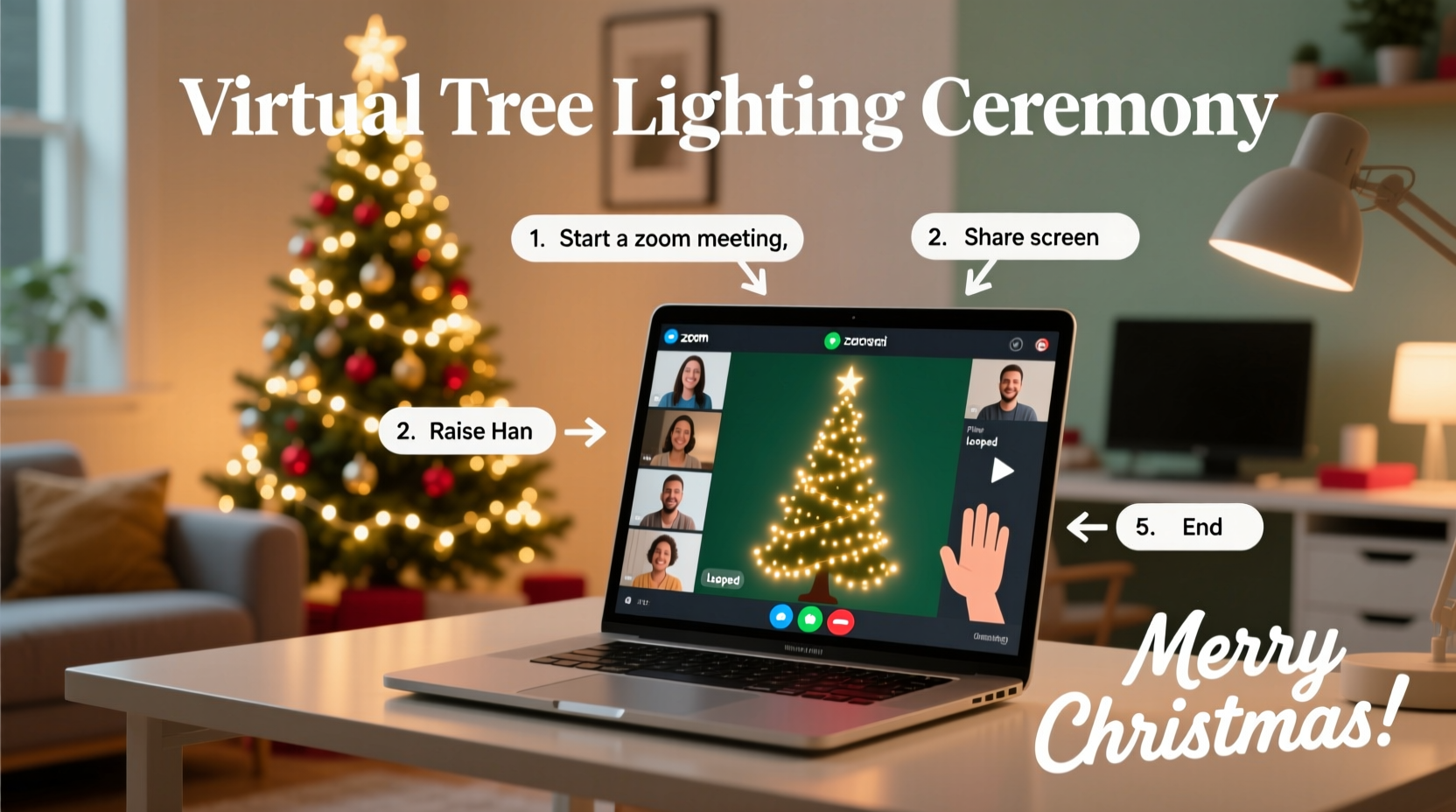
The success of any virtual event begins long before the first camera turns on. Start by defining the purpose and scope of your ceremony. Is it intimate—just immediate family—or are you inviting extended relatives, neighbors, or colleagues? Knowing your audience helps determine timing, duration, and format.
Choose a date and time that accommodates different time zones if necessary. Weekday evenings or weekend afternoons typically work best. Send digital invitations at least two weeks in advance, including the Zoom link, agenda, and any special instructions (e.g., “Bring your favorite holiday cookie!”).
Consider incorporating traditions into the virtual space:
- A countdown to the moment the tree lights are switched on
- Reading of a holiday poem or scripture
- Singing classic carols together (with lyrics shared in advance)
- Sharing personal memories or wishes
Technical Setup: Equipment and Environment
To create a visually engaging and smoothly running stream, attention to technical details is crucial. You don’t need professional gear, but a few key components make a significant difference.
Essential Equipment Checklist
- Computer or smartphone – Use a device with a stable operating system and updated software.
- External camera (optional) – While built-in webcams work, an external HD webcam provides better image quality and framing control.
- Microphone – Built-in mics often pick up background noise. A USB microphone or headset improves audio clarity.
- Lighting – Avoid backlighting from windows. Use soft front-facing lights so faces are visible during speeches or singing.
- Stable internet connection – Wired Ethernet is ideal; if using Wi-Fi, ensure no other devices are consuming bandwidth during the event.
- Power backup – Plug all devices into power sources to avoid unexpected shutdowns.
Position your camera at eye level, ideally focused on both the tree and the main host. If possible, use two cameras: one wide shot showing the tree and participants, and a close-up when needed.
Test your setup at the same time of day as the event to account for natural light changes. Dim ambient room lights slightly to make the tree glow more vividly on camera.
Do’s and Don’ts of Streaming Setup
| Do’s | Don’ts |
|---|---|
| Use a tripod or stable surface for your camera | Hold your phone or let it wobble |
| Conduct a full tech rehearsal 24 hours prior | Wait until the last minute to test connections |
| Close unnecessary apps to free up bandwidth | Run downloads or video streams in the background |
| Share screen only when needed (e.g., lyrics, photos) | Switch screens constantly, causing lag |
| Have a co-host ready to assist with muting/unmuting | Manage everything alone while hosting |
Step-by-Step Guide to Hosting the Stream
Follow this timeline to execute a seamless virtual tree lighting on Zoom:
- 7 Days Before: Finalize guest list, send invites with calendar attachments, and confirm participation of readers, musicians, or speakers.
- 3 Days Before: Share a brief agenda and any materials (song lyrics, prayer texts) via email or a shared document.
- 1 Day Before: Conduct a full run-through with all key participants. Test audio levels, camera angles, and screen sharing.
- 30 Minutes Before: Open the Zoom meeting, enable waiting room, assign co-hosts, and mute all incoming attendees automatically.
- Start of Event: Welcome guests verbally or with pre-recorded holiday music playing in the background.
- Middle Segment: Proceed with readings, songs, or stories. Use “Spotlight” feature to focus on each speaker.
- Tree Lighting Moment: Build anticipation with a countdown. When lights turn on, hold the shot for several seconds to let viewers absorb the moment.
- Closing: Thank everyone, invite final thoughts, and consider taking a screenshot of all attendees as a keepsake.
- After the Event: Record the session (with consent), save it securely, and share a link with those who couldn’t attend.
Enhancing Engagement and Atmosphere
A virtual event doesn’t have to feel sterile. Thoughtful touches transform a simple video call into a memorable experience.
Encourage attendees to decorate their own spaces. Suggest they wear festive attire, display mini trees, or light candles (safely). You might even mail small ornaments or printable decorations in advance to create shared symbolism.
Play instrumental holiday music softly during entry and exit. Use Zoom’s screen share to display a slideshow of past tree lightings or family photos. For interactivity, launch a live poll (“Which carol should we sing next?”) or use the chat for real-time messages.
If children are involved, plan a short activity—like coloring a digital ornament or reading a children’s story—to keep them engaged. Consider assigning each household a “lighting role,” such as shouting “Now!” in unison when the main tree is illuminated.
“Virtual gatherings won’t replace physical presence, but they can deepen emotional connection when designed with intention.” — Dr. Laura Chen, Digital Community Researcher, University of Washington
Real Example: The Miller Family’s Cross-Country Celebration
The Millers, spread across California, Illinois, and Maine, had not gathered in person for Christmas in three years due to health concerns and travel costs. In 2023, they decided to host their first virtual tree lighting on Zoom.
They planned for weeks: Grandma recorded a reading of \"'Twas the Night Before Christmas,\" the kids rehearsed a short piano piece, and each household received a matching set of red stockings and LED candles. The main tree was placed near a large window so moonlight enhanced the sparkle on camera.
During the ceremony, Uncle David—a former sound engineer—handled audio levels remotely. At exactly 7:15 PM EST, the youngest member counted down from five, and the tree lit up amid cheers in the chat. Afterward, they used breakout rooms to split into family clusters for private chats.
“It felt surprisingly intimate,” said Sarah Miller. “We laughed, cried, and sang off-key like always. The screen didn’t matter—it was still *us*.”
Frequently Asked Questions
Can I record the tree lighting and share it later?
Yes. Zoom allows recording to your local device or cloud (if enabled). Inform participants at the start that the session will be recorded, especially if minors are present. Afterward, edit the file (using free tools like DaVinci Resolve or Clipchamp) to remove dead air, then upload to a private YouTube link or Google Drive folder for safe sharing.
What if someone has poor internet or no camera?
That’s completely okay. Remind guests they can join by phone audio only. Designate a family member to describe visual moments aloud (“The blue lights just came on!”). Prioritize inclusion over perfection—presence matters more than picture quality.
How do I prevent unwanted guests or Zoom bombing?
Secure your meeting by enabling these settings: require a password, use the waiting room, disable screen sharing for participants, and appoint trusted co-hosts. Avoid posting the Zoom link publicly; instead, send it directly via email or messaging apps.
Final Checklist Before Going Live
- ✅ Confirm Zoom Pro account or sufficient meeting duration (up to 24 hours for paid plans)
- ✅ Test camera, mic, speakers, and internet speed
- ✅ Charge all devices and plug into power
- ✅ Prepare scripts, lyrics, or talking points in printed form
- ✅ Set up tree and lighting mechanism within easy reach
- ✅ Invite and assign co-hosts with moderation rights
- ✅ Rehearse transitions between segments
- ✅ Enable recording (with participant awareness)
- ✅ Open meeting 15 minutes early to troubleshoot latecomers
- ✅ Have a backup plan (e.g., phone number for audio-only access)
Conclusion: Light Up the Screen, Warm the Heart
Streaming a virtual Christmas tree lighting on Zoom isn’t about replicating the past—it’s about reimagining tradition for today’s world. Technology becomes invisible when human connection takes center stage. With careful planning, a touch of creativity, and a willingness to embrace imperfections, your digital gathering can radiate the same warmth and wonder as any in-person celebration.




 浙公网安备
33010002000092号
浙公网安备
33010002000092号 浙B2-20120091-4
Comments
No comments yet. Why don't you start the discussion?