
Streaming PC games to a mobile device used to require expensive hardware or complex setups. Today, Valve’s free Steam Link app makes it possible to play your full library of Steam games on your phone—anywhere in your home, as long as you have a solid network connection. Whether you're lounging on the couch, waiting in another room, or simply want a more portable way to game, streaming from your gaming PC to your phone is both practical and surprisingly smooth when configured correctly.
The key lies in understanding how Steam Link works, optimizing your network, and configuring settings for performance over visuals. This guide walks through everything you need to know: setup requirements, step-by-step configuration, troubleshooting tips, and real-world performance expectations.
How Steam Link Works for Mobile Streaming
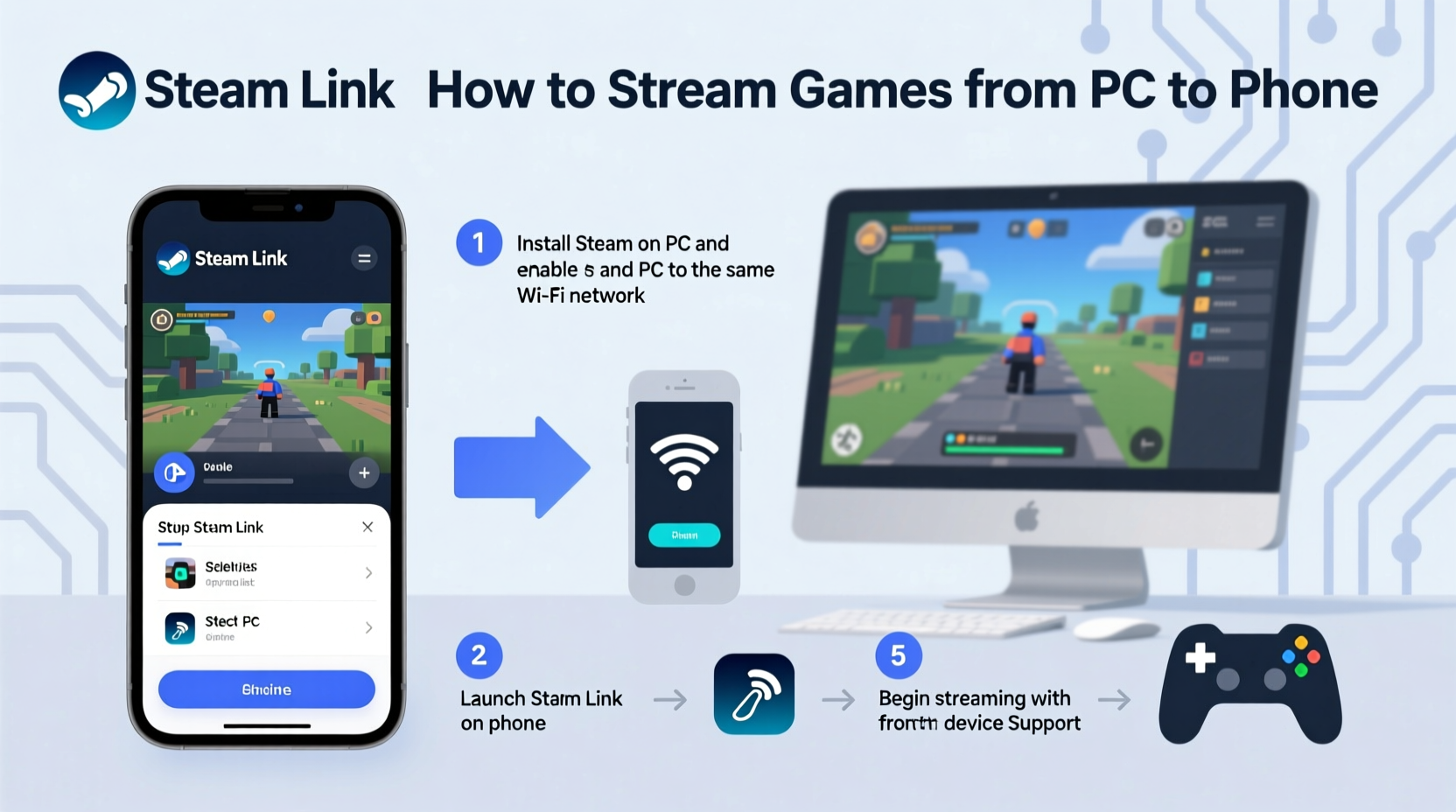
Steam Link functions by capturing video output from your PC in real time, compressing it, and transmitting it over your local network to a receiving device—in this case, your smartphone. Input from your phone (touch controls or connected controller) is sent back to the PC, creating a closed-loop system that mimics direct gameplay.
The app supports streaming from any Windows, macOS, or Linux machine running Steam, provided both devices are on the same local network. While originally designed for dedicated hardware like the discontinued Steam Link box, the mobile app now delivers comparable functionality with minimal setup.
Latency—the delay between input and response—is the biggest challenge. A poor Wi-Fi signal or suboptimal encoding settings can make fast-paced shooters or rhythm games nearly unplayable. However, with proper tuning, many users report near-console responsiveness, especially on modern routers and capable phones.
“Streaming isn’t about replacing your monitor—it’s about extending your gaming freedom. When optimized, Steam Link on mobile feels like carrying your entire gaming rig in your pocket.” — Jordan Lee, Network Optimization Specialist at GameStream Labs
Step-by-Step Setup Guide
Follow these steps to begin streaming Steam games from your PC to your phone seamlessly.
- Verify System Requirements
Ensure your PC meets minimum specs: quad-core CPU, 4GB RAM, active Steam session, and a stable internet connection. Your phone must run Android 5.0+ or iOS 13.0+, with sufficient storage and processing power (mid-range or better recommended). - Install Steam Link on Your Phone
Download “Steam Link” from the Google Play Store (Android) or App Store (iOS). Do not confuse it with third-party apps—Valve’s official app includes end-to-end encryption and adaptive bitrate streaming. - Prepare Your PC
Open Steam on your computer. Go to Settings > Remote Play and ensure “Enable Remote Play” is checked. Also enable “Allow remote device connections to this computer” if prompted. - Connect Both Devices to the Same Network
For best results, connect your PC via Ethernet and place your router within close proximity to where you’ll be playing. Your phone should use the 5 GHz Wi-Fi band, which offers higher bandwidth and lower interference than 2.4 GHz. - Launch Steam Link on Your Phone
Open the app and tap “Start Streaming.” It will scan your network for available Steam machines. Select your PC from the list. - Authenticate the Connection
A four-digit PIN will appear on your PC screen. Enter it into your phone to pair the devices securely. This only needs to be done once per device unless you remove the pairing. - Optimize Initial Settings
On first connection, Steam Link may prompt you to adjust resolution and bitrate. Start with 720p at 60 FPS and 15–20 Mbps bitrate. You can fine-tune later based on performance. - Begin Playing
Once connected, you’ll see your Steam interface mirrored on your phone. Navigate using touch or an attached Bluetooth controller. Launch any compatible game and start playing.
Performance Optimization: Getting the Best Experience
Raw setup gets you connected, but optimization determines whether the experience is enjoyable. Several factors influence stream quality, most notably network stability and encoding efficiency.
Network Configuration Tips
- Use a dual-band router and connect your phone to the 5 GHz frequency.
- Avoid physical obstructions between your phone and router—walls degrade signal strength significantly.
- If possible, enable Quality of Service (QoS) settings on your router to prioritize traffic from your gaming PC and phone.
- Close background downloads or cloud sync services (e.g., Dropbox, OneDrive) during streaming to reduce bandwidth contention.
PC-Side Encoding Options
In Steam’s Remote Play settings, you can choose between NVENC (NVIDIA), AMD AMF, Intel Quick Sync, or software encoding. Hardware encoders offload work from your CPU and typically deliver lower latency:
| Encoder Type | Best For | Latency | Visual Quality |
|---|---|---|---|
| NVENC (RTX/GeForce) | NVIDIA GPU owners | Low | High |
| AMD AMF | Radeon users | Low-Moderate | Good |
| Intel Quick Sync | Integrated graphics | Moderate | Fair |
| Software (x264) | All systems | High | Variable |
Select the encoder matching your GPU. If unsure, let Steam auto-detect. Avoid software encoding unless necessary—it increases system load and lag.
Adjust Bitrate and Resolution
Higher bitrates improve image clarity but demand more bandwidth. Recommended starting points:
- 720p @ 15–20 Mbps: Ideal for most homes; balances quality and responsiveness.
- 1080p @ 30–50 Mbps: Requires gigabit network and strong Wi-Fi; may introduce lag on congested networks.
- Lower than 720p: Use only on older phones or weak signals; degrades usability.
You can adjust these under Remote Play > Advanced Host Options > Video Streaming Settings.
Controller & Input Solutions
Touchscreen controls are impractical for most PC games. To get the best experience, pair a physical controller with your phone.
Recommended options include:
- Xbox Wireless Controller (via Bluetooth)
- DualShock 4 or DualSense (Bluetooth supported on Android; limited on iOS)
- 8BitDo Pro 2 (excellent cross-platform compatibility)
- Razer Kishi or Backbone One (mobile gamepads that attach directly to your phone)
Once paired, Steam automatically maps buttons for supported titles. For non-Steam games added via shortcuts, ensure they’re launched through Big Picture Mode for consistent input handling.
iOS users should note that MFi-certified controllers work best. Apple’s Game Controller framework integration means fewer compatibility headaches compared to generic Bluetooth pads.
Real Example: Streaming Resident Evil 4 Remake on iPhone
Alex, a gamer in Chicago, wanted to continue his campaign of Resident Evil 4 Remake while relaxing in bed. His gaming PC was downstairs, but he had a Backbone One controller and a Wi-Fi 6 router.
He installed Steam Link on his iPhone 14, connected via 5 GHz Wi-Fi, and paired the Backbone. After entering the PIN, he navigated to the game and started playing. Using the controller’s tactile feedback and shoulder triggers, combat felt responsive despite being streamed wirelessly. Occasional compression artifacts appeared during cutscenes, but gameplay remained fluid at 720p/60fps.
“I didn’t expect console-like precision,” Alex said. “The only downside was slight audio sync drift after 45 minutes—but restarting the stream fixed it instantly.”
Common Issues and Troubleshooting Checklist
Even with ideal conditions, problems can arise. Use this checklist to diagnose and resolve frequent issues.
Troubleshooting Checklist
- ✅ Ensure both devices are on the same local network.
- ✅ Disable firewalls or antivirus tools temporarily if connection fails.
- ✅ Reboot your router if latency spikes occur mid-session.
- ✅ Update GPU drivers and Steam client to latest versions.
- ✅ Test with a simple game (e.g., Portal) before trying demanding titles.
- ✅ Reduce streaming resolution if画面 freezes or stutters.
- ✅ Check for phone battery-saving modes that throttle performance.
- ✅ Remove metal objects or thick walls between phone and router.
If your phone disconnects repeatedly, try toggling airplane mode on/off to reset network interfaces. Also verify that your router isn’t assigning conflicting IP addresses due to DHCP timeouts.
FAQ: Frequently Asked Questions
Can I stream non-Steam games using Steam Link?
Yes. Add any executable as a “Non-Steam Game” in your Steam library. When streamed, it will launch normally through Big Picture Mode. Performance depends on the game’s input sensitivity and rendering demands.
Is internet speed important for Steam Link?
Only local network speed matters. Internet bandwidth does not affect streaming since data stays within your home network. However, a fast router with strong Wi-Fi standards (Wi-Fi 5/Wi-Fi 6) is critical for reducing latency.
Can I use Steam Link over the internet (outside my home)?
Technically yes, but performance is rarely playable. Valve introduced Remote Play Anywhere, allowing connections over the internet, but latency usually exceeds 100ms—even on fast connections. Local network streaming remains the only reliable method for smooth gameplay.
Final Thoughts and Next Steps
Streaming games from your PC to your phone using Steam Link transforms how and where you play. With no additional cost beyond your existing hardware, it unlocks flexibility that few platforms offer. The technology has matured to the point where, under optimal conditions, the experience rivals sitting in front of your monitor.
Success hinges on preparation: choosing the right network setup, pairing quality peripherals, and adjusting expectations based on your environment. Not every game translates perfectly—fast-paced competitive shooters may still feel slightly delayed—but narrative-driven adventures, RPGs, and turn-based strategy games shine in this format.
Don’t wait for perfect conditions to try it. Install the app, follow the steps, and test it tonight. You might be surprised how well your favorite titles adapt to handheld play. And if you discover a new way to optimize performance, share it—others in the community will benefit just as you did.




 浙公网安备
33010002000092号
浙公网安备
33010002000092号 浙B2-20120091-4
Comments
No comments yet. Why don't you start the discussion?