
Streaming games from your PC to your TV can transform your living room into a personal gaming theater. But nothing ruins the experience faster than lag, stuttering, or poor video quality. The good news: you don’t need expensive hardware or subscriptions to achieve a smooth, responsive stream. With the right free software and proper network configuration, you can enjoy seamless gameplay on your TV—without breaking the bank.
This guide walks through proven methods, tools, and optimizations that deliver low-latency game streaming using only free solutions. Whether you're playing fast-paced shooters or immersive RPGs, these steps will help you maintain responsiveness and visual fidelity.
Understanding PC-to-TV Game Streaming
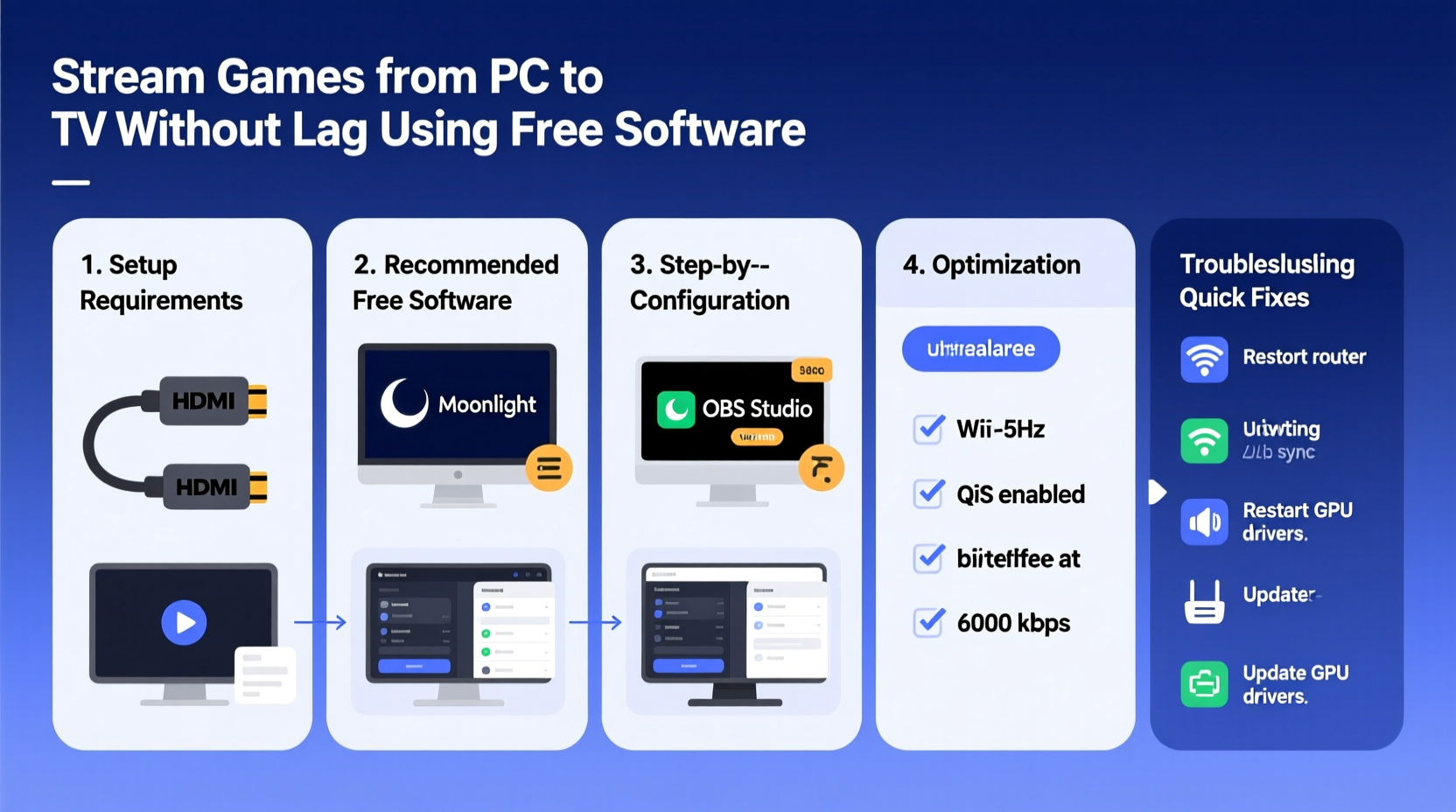
Game streaming involves transmitting real-time video, audio, and input signals from your gaming PC to another device—typically a smart TV or media box—over a local network. Unlike pre-recorded video, game streaming must be nearly instantaneous. Any delay between controller input and on-screen response introduces lag, which degrades playability.
The key challenge is balancing three factors:
- Latency: The time between pressing a button and seeing the result on screen.
- Resolution & Bitrate: Higher settings improve image quality but demand more bandwidth.
- Network Stability: Wireless interference or congestion can cause stuttering or disconnections.
Free software tools like Steam Link, Moonlight, and Sunshine make this possible by compressing and transmitting game data efficiently. However, success depends heavily on system compatibility and network tuning.
“Low-latency streaming isn’t about raw power—it’s about optimization. A well-tuned mid-range PC on a solid network often outperforms a high-end rig with poor configuration.” — Jordan Lee, Network Optimization Specialist
Best Free Software Options for Lag-Free Streaming
Not all streaming tools are created equal. Some prioritize ease of use; others focus on performance. Below is a comparison of top free options suitable for minimizing lag.
| Software | Latency (Typical) | Max Resolution | Input Support | Setup Complexity |
|---|---|---|---|---|
| Steam Link | 30–60ms | 4K @ 60Hz | Controllers, Keyboard/Mouse | Easy |
| Moonlight + Sunshine | 20–40ms | 4K @ 120Hz | Full controller & mouse support | Moderate |
| Parsec | 25–50ms | 1080p @ 60Hz (free tier) | Excellent input sync | Easy |
| NetStream Player | 60–100ms | 1080p @ 30fps | Limited | Simple |
For most users aiming for minimal lag, Moonlight with Sunshine offers the best balance of speed, quality, and customization. It leverages NVIDIA NVENC encoding (also available on AMD and Intel via emulation), delivering near-console responsiveness when configured correctly.
Step-by-Step Setup: Stream with Moonlight & Sunshine
Moonlight (client) paired with Sunshine (host) is currently the most powerful free combo for low-latency PC game streaming. Here's how to set it up properly:
- Install Sunshine on Your Gaming PC
Download Sunshine from the official GitHub repository. Run the installer and follow the prompts. During setup, it auto-detects installed games and applications. - Configure Video Settings
Open the Sunshine web interface (usually accessible athttp://localhost:47990). Navigate to “Settings” → “Video.” Set:- Encoder: NVENC (if using NVIDIA), or VAAPI/QuickSync for AMD/Intel
- Resolution: Match your TV (e.g., 1920x1080 or 3840x2160)
- Refresh Rate: 60Hz or higher if supported
- Bitrate: Start at 50 Mbps for 1080p; increase to 80 Mbps for 4K
- Optimize Audio and Input
In the same interface, go to “Audio” and select your primary output device. Under “Input,” enable “Absolute Mouse Mode” and configure controller support (XInput, DS4, etc.). - Install Moonlight on Your TV Device
Install Moonlight on an Android TV, Fire Stick, Raspberry Pi, or any device connected to your TV. Launch the app and enter your PC’s local IP address. - Pair Devices
When prompted, enter the pairing code displayed on your PC screen. Once connected, Moonlight will detect available apps and games. - Start Streaming
Select a game and launch it. For best results, close background applications on your PC and ensure no downloads are running.
This setup typically achieves sub-40ms latency—comparable to native console performance—when running over a stable 5 GHz Wi-Fi or wired connection.
Network Optimization: Eliminate Lag at the Source
No software can overcome a poor network. Even the fastest encoder will struggle with packet loss or jitter. Follow these networking best practices to minimize lag:
- Use a 5 GHz Wi-Fi Band: Avoid 2.4 GHz networks due to interference from household devices (microwaves, Bluetooth). 5 GHz provides faster speeds and lower latency.
- Position Router Strategically: Place your router centrally, with clear line-of-sight between your PC and streaming device.
- Enable Quality of Service (QoS): In your router settings, prioritize traffic from your gaming PC and streaming client. Assign higher priority to UDP ports used by Moonlight (default: 47984, 48010).
- Use Wired Ethernet Where Possible: Connect both your PC and TV device (via streaming box) directly to the router using Cat 6 cables for maximum stability.
- Reduce Background Traffic: Pause cloud backups, updates, and video streams during gameplay.
ping commands. Open Command Prompt and run
ping [TV-device-IP] -t. Look for consistent response times under 10ms and zero packet loss.
Mini Case Study: Reducing Lag in a Real-World Setup
Mark, a casual gamer in Chicago, struggled with choppy gameplay while using Steam Link over his home Wi-Fi. His PC was in the basement, and his TV used a built-in Android system. Despite having gigabit internet, he experienced noticeable input delay in fast-paced titles like Apex Legends.
After switching to Moonlight + Sunshine and upgrading his streaming device to a wired Ethernet-connected NVIDIA Shield TV, his latency dropped from ~90ms to ~35ms. He also enabled QoS on his ASUS router, prioritizing the Shield’s MAC address. The result? Smooth, playable FPS performance with no visible compression artifacts.
His total cost: $0. Only configuration changes were required.
Essential Checklist for Lag-Free Streaming
Before launching your next session, verify the following:
- ✅ Gaming PC and streaming device are on the same local network
- ✅ Using 5 GHz Wi-Fi or Ethernet connection
- ✅ Hardware encoding enabled in streaming software
- ✅ Bitrate set appropriately (50–80 Mbps depending on resolution)
- ✅ No large downloads or cloud sync jobs running
- ✅ Controller paired and recognized by host PC
- ✅ Sunshine or equivalent server is running and updated
- ✅ Router firmware is current and QoS is configured
Running through this checklist eliminates most common causes of lag and ensures optimal conditions for streaming.
Frequently Asked Questions
Can I stream games without a dedicated GPU?
Yes, but performance will vary. Modern integrated graphics (Intel Iris Xe, AMD Radeon Vega) support hardware encoding and can handle 1080p streaming at 30–60fps. However, CPU load may increase, potentially affecting game performance. For demanding titles, a discrete GPU is strongly recommended.
Is Moonlight safe to use? Does it require a NVIDIA GPU?
Moonlight itself is open-source and secure. While originally designed for NVIDIA’s GameStream, it now works with any GPU via Sunshine, which emulates the server. You do not need an NVIDIA card—AMD, Intel, and even integrated GPUs are supported as long as they can encode H.264 or HEVC video.
Why does my stream freeze or disconnect randomly?
This is usually due to network instability. Check for Wi-Fi signal drops, router overheating, or bandwidth-heavy background tasks. Also ensure your firewall isn't blocking Moonlight ports (UDP 47984, 48010). Switching to a wired connection often resolves intermittent issues.
Final Thoughts: Enjoy Console-Like Performance—for Free
Streaming games from your PC to your TV without lag is entirely achievable with free tools and smart configuration. By choosing efficient software like Moonlight and Sunshine, optimizing your network, and fine-tuning encoding settings, you can achieve a responsive, high-fidelity gaming experience that rivals dedicated consoles.
The barrier to entry has never been lower. No monthly fees, no proprietary hardware—just your existing equipment and a few minutes of setup. Whether you’re extending your gaming space to the living room or sharing multiplayer fun with friends, this method unlocks flexibility and performance without compromise.




 浙公网安备
33010002000092号
浙公网安备
33010002000092号 浙B2-20120091-4
Comments
No comments yet. Why don't you start the discussion?