
Many older smart TVs lack native support for 4K streaming, especially from services like Netflix. While the screen may be capable of displaying high-resolution content, outdated hardware or software can prevent access to ultra HD streams. However, this doesn’t mean you need to replace your TV. By leveraging external streaming devices, you can bypass the limitations of your older smart system and enjoy Netflix in stunning 4K resolution—complete with HDR and Dolby Vision where supported.
This guide walks through practical solutions, device compatibility, setup steps, and troubleshooting tips to help you unlock 4K Netflix on your existing television without upgrading the entire unit.
Why Older Smart TVs Struggle with 4K Netflix
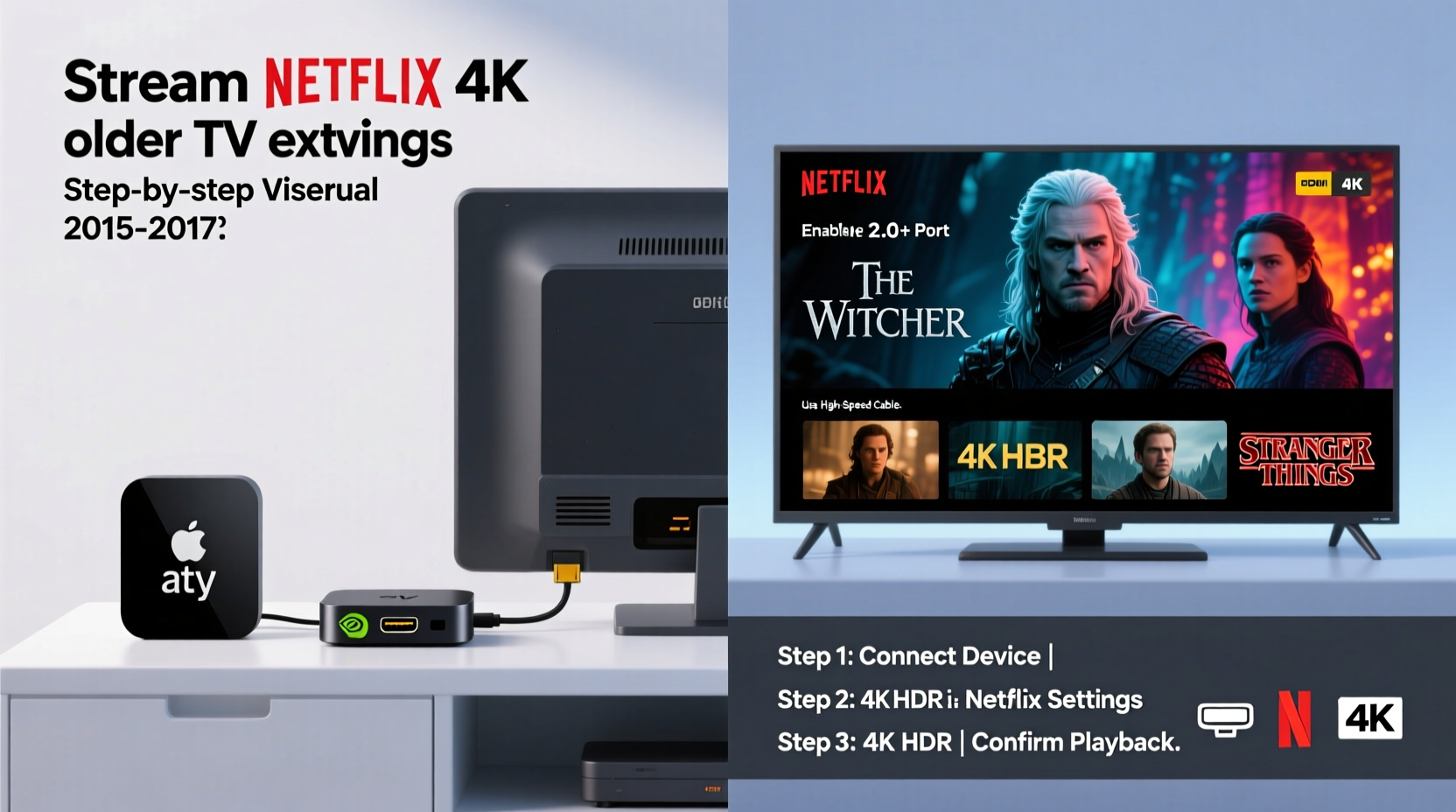
Manufacturers often discontinue firmware updates for smart TVs after a few years. As a result, even if your TV has a 4K panel, its internal processor, memory, or operating system may not meet Netflix’s evolving certification requirements for 4K playback. These include:
- Support for HDCP 2.2 copy protection
- Secure video path handling (required by Netflix)
- Decoding capabilities for HEVC (H.265) or AV1 codecs
- Minimum bandwidth and DRM compliance
Netflix maintains strict standards to protect premium content. If your TV’s built-in app fails any of these checks—even slightly—it will default to 1080p or lower, regardless of your internet speed or subscription tier.
“Even a 4K-capable display is only as good as the weakest link in the chain: the source device.” — James Lin, Streaming Technology Analyst at DisplayMate
Best External Devices for 4K Netflix Streaming
The most effective workaround is connecting an external device that meets Netflix’s 4K certification. These plug into your TV’s HDMI port and act as modern streaming hubs. Below is a comparison of top options:
| Device | Max Resolution | HDR Support | Dolby Vision | Netflix 4K Certified | Price Range (USD) |
|---|---|---|---|---|---|
| Apple TV 4K (3rd Gen) | 4K @ 60Hz | Yes (HDR10, HLG) | Yes | Yes | $129–$179 |
| Amazon Fire TV Stick 4K Max | 4K @ 60Hz | Yes (HDR10, HLG) | Yes | Yes | $70 |
| Google Chromecast with Google TV (4K) | 4K @ 60Hz | Yes (HDR10, Dolby Vision) | Yes | Yes | $50 |
| Roku Ultra | 4K @ 60Hz | Yes (HDR10, HLG) | No | Yes | $100 |
| Xbox Series X | 4K @ 120Hz | Yes (HDR10) | Yes | Yes | $499 |
| PlayStation 5 | 4K @ 120Hz | Yes (HDR10) | Yes | Yes | $499 |
For most users, the **Chromecast with Google TV (4K)** or **Fire TV Stick 4K Max** offers the best balance of performance, price, and ease of use. Gamers who already own an Xbox or PS5 can simply install the Netflix app and begin streaming in 4K immediately.
Step-by-Step Setup Guide
Follow this sequence to enable 4K Netflix via an external device:
- Check Your Internet Speed: Ensure you have at least 25 Mbps stable download speed. Use fast.com or speedtest.net to verify.
- Purchase a Compatible Device: Choose one from the table above based on budget and ecosystem preference.
- Connect to HDMI Port: Plug the device into an HDMI input on your TV labeled “HDMI 1” or similar. Confirm the port supports HDCP 2.2 if possible (refer to your TV manual).
- Power the Device: Most sticks use USB power; connect to a powered USB port on the TV or use the included wall adapter.
- Switch Input Source: Use your TV remote to switch to the correct HDMI input.
- Set Up the Device: Follow on-screen prompts to connect to Wi-Fi, sign in to accounts, and update firmware.
- Install Netflix App: Open the app store and download the official Netflix application.
- Sign In to Netflix: Use your premium account credentials (must be a Standard or Premium plan).
- Test 4K Playback: Search for “Netflix 4K Demo” or play a known 4K title like *Stranger Things* or *The Crown*. Press “Info” or “Display” during playback to confirm resolution.
Real Example: Bringing 4K to a 2015 Samsung SUHD TV
Mark owns a Samsung UN65JS8500, a high-end 4K TV released in 2015. Despite having a 4K screen and HDMI 2.0 ports, his Netflix app caps at 1080p. After contacting Samsung support, he learns firmware updates ended in 2020, and the Tizen OS no longer qualifies for Netflix 4K certification.
Instead of buying a new TV, Mark purchases a Chromecast with Google TV (4K) for $50. He connects it to HDMI 2 (confirmed HDCP 2.2), links it to his Google account, and installs Netflix. Upon launching *Birds of Prey*, he sees the “4K” badge in the top-right corner. The image is noticeably sharper, with richer contrast thanks to Dolby Vision support—something his old TV couldn’t deliver through its native apps.
Within 15 minutes, Mark has transformed his aging TV into a fully functional 4K streaming hub.
Requirements Checklist for 4K Netflix Success
Before assuming failure, ensure all conditions are met. Here’s a quick checklist:
- ✅ Subscription: Netflix Standard ($15.49/month) or Premium ($22.99/month)
- ✅ Internet: Minimum 25 Mbps sustained speed (preferably wired or strong 5GHz Wi-Fi)
- ✅ Device: External player certified for 4K Netflix (e.g., Apple TV, Chromecast 4K)
- ✅ HDMI Cable: High-Speed HDMI (version 2.0 or higher) supporting 18 Gbps
- ✅ HDMI Port: On TV must support HDCP 2.2 (check user manual)
- ✅ TV: Must accept 4K signal and support HDR if watching HDR content
- ✅ Firmware: External device updated to latest OS version
- ✅ Netflix App: Installed directly on the external device (not cast from phone)
“Streaming quality isn’t just about pixels—it’s about end-to-end compatibility. One mismatched component breaks the chain.” — Lisa Park, Senior Engineer at Netflix Partner Solutions
Troubleshooting Common Issues
Even with the right setup, problems can occur. Here’s how to resolve them:
No 4K Option Appears in Netflix
Verify your Netflix plan allows 4K. Go to Account > Profile > Playback Settings. It should say “High” for video quality. Also, restart the device and relaunch Netflix.
Playback Drops to 1080p Mid-Stream
This usually indicates bandwidth fluctuation. Run a continuous speed test during playback. If speeds dip below 20 Mbps, consider switching to a less congested Wi-Fi channel or using Ethernet.
HDCP Error Message
This means the handshake between device and TV failed. Try a different HDMI cable (certified High-Speed), reboot both devices, or switch to another HDMI port. Some older ports may not support HDCP 2.2 despite being labeled HDMI 2.0.
No HDR or Dolby Vision
Ensure the TV supports the format and that the feature is enabled in settings (e.g., “HDMI UHD Color” on LG or “HDMI Deep Color” on Samsung). Also, confirm the Netflix title supports HDR—look for badges on the show page.
Frequently Asked Questions
Can I cast 4K Netflix from my phone to an older TV?
No. Casting via AirPlay or Google Cast does not support 4K due to compression and protocol limitations. To watch 4K, the Netflix app must run directly on a certified 4K device connected to the TV.
Do I need a new HDMI cable for 4K streaming?
If your current cable is labeled “High-Speed HDMI” (with bandwidth up to 18 Gbps), it should suffice. Older “Standard HDMI” cables may not support 4K@60Hz or HDR. When in doubt, replace it with a certified Ultra High Speed HDMI cable.
Will a Blu-ray player work for 4K Netflix?
Most standalone Blu-ray players do not support 4K streaming apps. Even 4K UHD Blu-ray players often lack updated app stores or Netflix certification. A dedicated streaming stick or console remains the better choice.
Final Thoughts and Next Steps
Your older smart TV doesn’t have to be left behind in the 4K era. With a modest investment in a certified external streaming device, you can unlock the full visual potential of Netflix’s library—without replacing thousands of dollars worth of equipment.
The key is understanding the technical ecosystem: your internet, your subscription, your hardware, and the content protection protocols that govern them. Once aligned, the upgrade is seamless and transformative.
Take action today. Test your current setup, identify the weak link, and choose a compatible device that fits your lifestyle. Whether it’s a $50 Chromecast or a gaming console you already own, 4K clarity is within reach.




 浙公网安备
33010002000092号
浙公网安备
33010002000092号 浙B2-20120091-4
Comments
No comments yet. Why don't you start the discussion?