
Streaming gameplay has evolved from a niche hobby into a full-fledged profession for many. Whether you're broadcasting on Twitch, YouTube, or Facebook Gaming, viewers expect crisp visuals, smooth performance, and real-time interaction. Achieving this balance—high visual fidelity without lag or buffering—requires more than just powerful hardware. It demands intelligent configuration of your entire streaming pipeline: capture, encoding, bandwidth management, and platform optimization.
The goal isn’t merely to broadcast; it’s to deliver a seamless experience where your audience sees what you see, almost instantly, in vibrant detail. This guide breaks down the technical and practical steps needed to minimize latency while maintaining top-tier video quality, even under demanding gaming conditions.
Understanding Latency and Quality Trade-offs
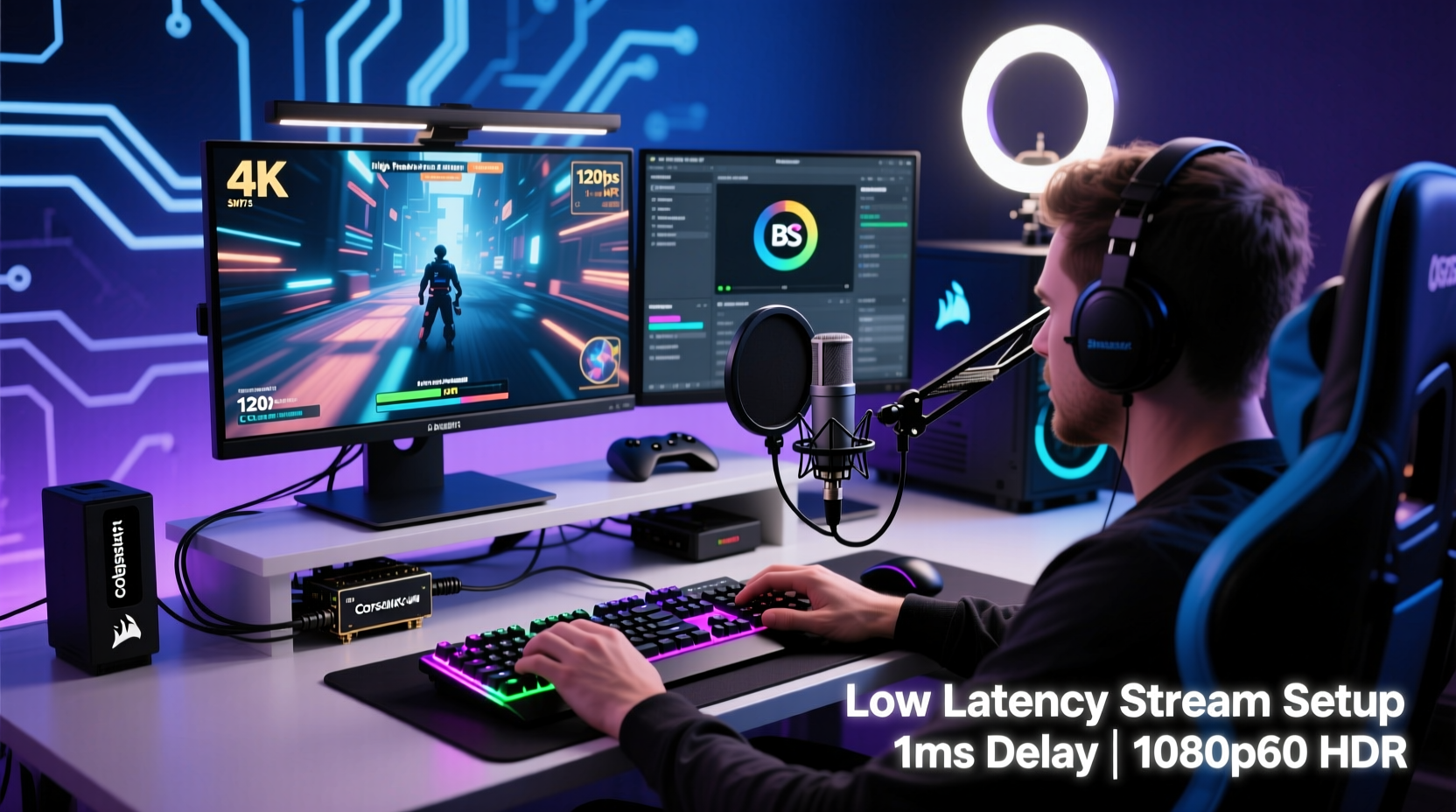
Latency, often referred to as \"stream delay,\" is the time between an action happening on your screen and it appearing in your viewer’s player. High latency disrupts interactivity—critical during live Q&As, multiplayer coordination, or donation alerts. Meanwhile, video quality depends on resolution, bitrate, color depth, and frame rate. Pushing too hard on quality increases data load, risking dropped frames or buffering.
The key is finding equilibrium. A stream at 1080p60 with a bitrate of 6,000 kbps looks excellent but may introduce 15–30 seconds of delay if not properly tuned. Conversely, lowering the bitrate too much sacrifices clarity and motion smoothness. The solution lies in optimizing each component of your setup to reduce overhead without compromising the viewing experience.
“Low-latency streaming isn't about cutting corners—it's about precision tuning. Every millisecond saved in encoding or transmission multiplies into better audience engagement.” — Jordan Lee, Senior Streaming Engineer at Nebula Interactive
Optimize Your Hardware Setup
Your computer is the foundation of your stream. Even the best software can't compensate for bottlenecks in CPU, GPU, RAM, or storage. Here’s how to ensure your system handles both gaming and streaming efficiently:
- CPU: Encoding is primarily CPU-intensive when using x264 (the most common codec). Aim for a modern multi-core processor like Intel Core i7/i9 or AMD Ryzen 7/9. More cores allow game processes and encoding to run simultaneously without contention.
- GPU: If you offload encoding to your graphics card via NVENC (NVIDIA) or AMF (AMD), performance improves significantly. NVIDIA’s RTX series offers superior NVENC quality, making them ideal for streamers.
- RAM: 16GB is the minimum; 32GB is recommended, especially if running multiple applications (chat bots, overlays, music players).
- Storage: Use an SSD for your operating system and streaming software. Fast read/write speeds prevent stutters during scene switching or file loading.
Dual PC vs. Single PC Streaming
For maximum performance, consider a dual-PC setup: one dedicated to gaming, another to encoding and streaming. The gaming PC outputs video via HDMI capture card (e.g., Elgato Cam Link 4K) to the streaming PC, which handles OBS or Streamlabs. This eliminates resource competition entirely.
While costly, this method ensures zero impact on in-game FPS and allows full control over encoding settings. For single-PC setups, enable hardware acceleration features and prioritize encoding threads in Task Manager.
Configure Software Settings for Low-Latency HD Output
Streaming software like OBS Studio, Streamlabs Desktop, or XSplit gives you granular control over output. Proper configuration is essential for balancing speed and quality.
Step-by-Step Guide to Optimal OBS Settings
- Open OBS and go to Settings > Output (Streaming).
- Select “Advanced” mode.
- Set Encoder to NVIDIA NVENC H.264 (or AMD/Intel equivalent if applicable).
- Rate Control: Choose CBR (Constant Bitrate).
- Bitrate: Start with 6,000 kbps for 1080p60. Adjust based on your upload speed (see next section).
- Keyframe Interval: Set to 2 seconds.
- Profile: Use High.
- Preset: Select Quality or Max Quality for best results.
- Look-ahead: Disable (adds ~500ms latency).
- B-Frames: Set to 2.
Under Video settings, set Base and Output Resolution to 1920x1080 and FPS to 60. Use Bilinear scaling unless downscaling, then prefer Lanczos for sharpness.
| Setting | Recommended Value | Purpose |
|---|---|---|
| Encoder | NVENC H.264 | Hardware-accelerated, low-CPU usage |
| Rate Control | CBR | Stable bandwidth use |
| Bitrate | 4,500–6,000 kbps | HD quality without overflow |
| Keyframe Interval | 2s | Faster recovery from packet loss |
| Look-ahead | Off | Reduces encoding delay |
Maximize Network Performance for Real-Time Delivery
No amount of hardware power matters if your internet connection can’t keep up. Most platforms recommend at least 5 Mbps upload for 1080p60, but aiming higher provides headroom.
Checklist: Network Optimization
- Run a speed test using speedtest.net to confirm actual upload speed.
- Use Ethernet instead of Wi-Fi. Even strong wireless signals are prone to interference.
- Disable automatic updates during streams (Windows, Steam, etc.).
- Limit other devices on your network—smart TVs, phones, downloads—all compete for bandwidth.
- Enable QoS (Quality of Service) in your router to prioritize streaming traffic.
- Choose a geographically close server in your streaming software (OBS auto-selects, but manual pick may improve stability).
If your upload speed is below 6 Mbps, consider lowering resolution to 720p60 with a bitrate of 3,500–4,500 kbps. This maintains smooth playback with reduced strain.
For ultra-low latency, enable “Low Latency” mode on platforms like Twitch. This reduces buffer time from ~20 seconds to ~6–8 seconds. Note: this slightly increases risk of rebuffering for viewers with unstable connections, so communicate clearly with your audience.
Real Example: Reducing Delay in Competitive FPS Streams
Mark, a semi-professional CS2 streamer, struggled with 25-second delays during live tournaments. His audience missed crucial moments, and chat reactions lagged far behind gameplay. Despite having a high-end RTX 4080 and Ryzen 9, his single-PC setup was maxing out CPU during intense rounds.
He made three changes:
- Switched from x264 to NVENC in OBS, freeing up CPU for the game.
- Lowered bitrate from 8,000 kbps to 6,000 kbps after confirming his upload capped at 7.2 Mbps.
- Enabled Twitch’s “Low Latency” mode and used the /ll command in chat to notify viewers.
The result? Delay dropped to under 10 seconds, with no visible drop in quality. Viewers reported faster response times in donations and predictions, boosting engagement by 40% over the next two weeks.
Platform-Specific Tips for Minimal Delay
Different platforms handle ingestion and delivery differently. Tailoring your approach per service yields better results.
- Twitch: Use “Auto” server selection or manually pick the closest region. Enable “Concurrent Stream Buffering” only if you have consistent high bitrate. Activate “Low Latency Mode” in dashboard settings.
- YouTube: Offers “Default,” “Low,” and “Ultra-low” latency modes. Ultra-low adds complexity (requires viewer opt-in) but cuts delay to ~4 seconds. Best for interactive streams.
- Facebook Gaming: Generally lower default latency (~8–12 seconds). Supports RTMP custom ingest; use primary server unless directed otherwise.
Always verify your stream health via the platform’s dashboard. Look for indicators like:
- Dropped frames (aim for less than 1%)
- Healthy buffer levels
- Stable bitrate delivery
Frequently Asked Questions
What causes high stream delay?
High delay typically stems from excessive bitrate, inefficient encoding, network congestion, or platform buffering. It can also occur if your PC struggles to encode in real time, causing frame queuing.
Can I stream 4K with low latency?
Technically yes, but it requires exceptional upload speed (15+ Mbps), a top-tier GPU with advanced encoder support, and viewers with robust connections. Most audiences still consume at 720p or 1080p, so prioritize reach over resolution unless targeting a niche 4K audience.
Is wired connection really necessary?
Strongly recommended. Wi-Fi introduces variable latency and packet loss, especially during peak usage. A simple Cat 6 Ethernet cable eliminates these risks and costs under $10.
Final Checklist Before Going Live
- ✅ Confirm upload speed meets target bitrate requirements.
- ✅ Use wired Ethernet connection.
- ✅ Set OBS to NVENC or equivalent hardware encoder.
- ✅ Cap bitrate at 80% of your maximum upload speed.
- ✅ Disable V-sync or limit FPS slightly below refresh rate to avoid stutter.
- ✅ Test stream with “Start Streaming” and check logs.
- ✅ Enable low-latency mode on your platform.
- ✅ Close unnecessary background apps.
Conclusion
Streaming gameplay with minimal delay and high quality is achievable with deliberate optimization across hardware, software, and network layers. You don’t need the most expensive gear—just the right configuration. By prioritizing efficient encoding, stable connectivity, and platform-aware settings, you create a viewing experience that feels immediate and immersive.
Every adjustment, from disabling look-ahead to switching to Ethernet, compounds into a smoother, tighter broadcast. Your audience notices the difference, even if they can’t articulate why. Start implementing these strategies today, test rigorously, and refine iteratively. The gap between amateur and professional streaming isn’t talent alone—it’s attention to technical excellence.




 浙公网安备
33010002000092号
浙公网安备
33010002000092号 浙B2-20120091-4
Comments
No comments yet. Why don't you start the discussion?