
Moving from Android to iPhone is one of the most common smartphone transitions, yet many users hesitate because they fear losing years of personal memories—messages, photos, contacts, calendars, and more. The good news is that with the right tools and preparation, you can make the switch seamlessly. Apple has designed a smooth migration process through its “Move to iOS” app, and when combined with cloud services like Google Photos and iCloud, the transfer becomes not only possible but reliable.
This guide walks you through every critical step to preserve your digital life while upgrading to an iPhone. Whether you’re switching for better performance, ecosystem integration, or simply a change of pace, your data doesn’t have to be left behind.
Understanding the Migration Challenge
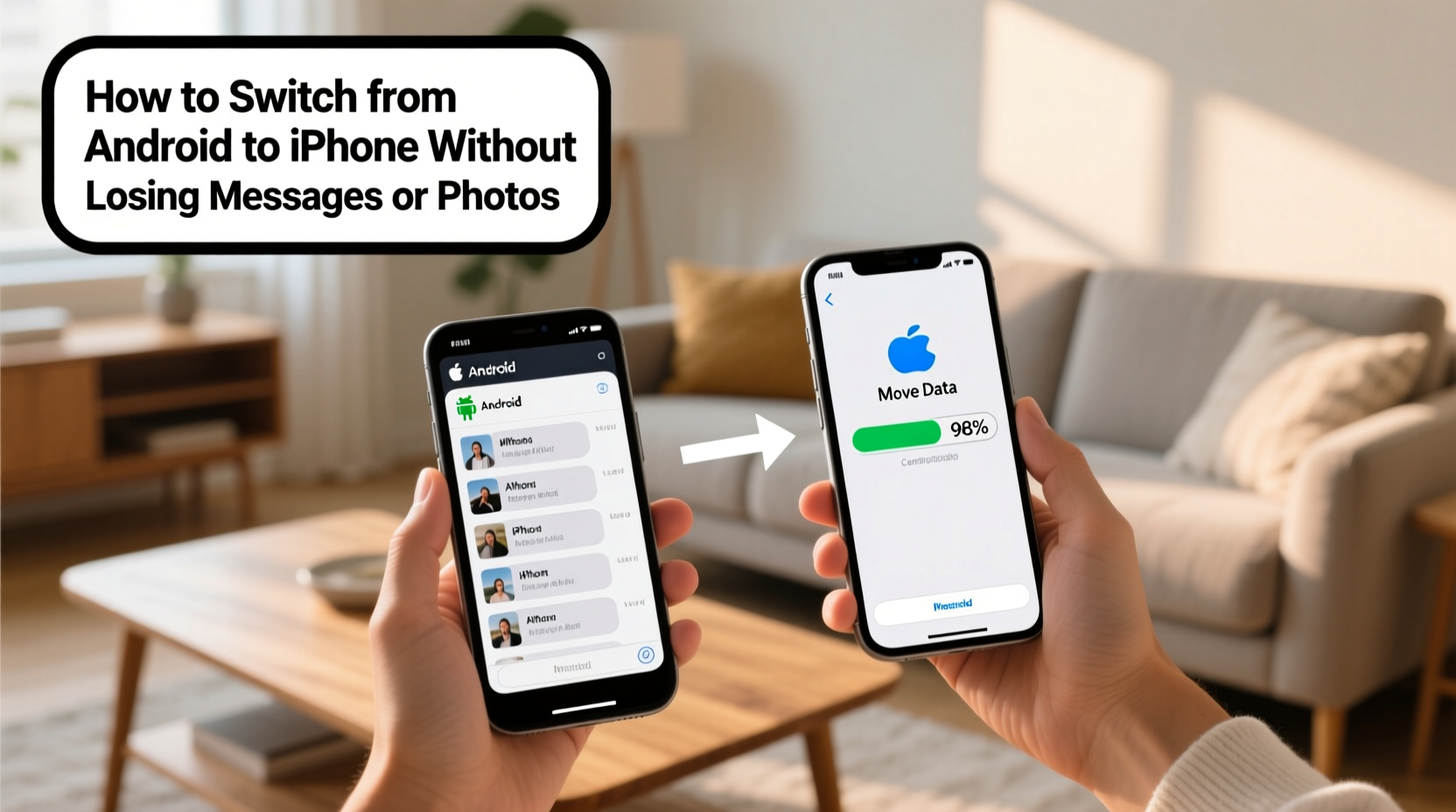
Android and iOS are built on entirely different operating systems, which means direct file sharing isn’t automatic. While both platforms support standard formats for photos and videos, messaging apps present a bigger challenge. Android uses SMS/MMS by default, while iPhones use iMessage—a proprietary Apple system. This distinction affects how message history transfers between devices.
Additionally, photo libraries stored locally on Android may not sync automatically to iCloud unless properly backed up. Contacts, calendars, and app data also require specific handling. Without a structured approach, important moments captured over years could be lost during the transition.
“Data migration between ecosystems has improved dramatically, but user preparation remains the key to a flawless transfer.” — David Lin, Mobile Systems Analyst at TechBridge Insights
Step-by-Step Guide to Switching Safely
The best time to begin the transfer is before setting up your new iPhone. Once the iPhone is activated and set up as a new device, some transfer options become unavailable. Follow this timeline carefully to ensure nothing is missed.
- Prepare your Android phone: Charge it fully, connect to Wi-Fi, and disable battery-saving modes that might interrupt the transfer.
- Download the Move to iOS app: Available free on the Google Play Store, this official Apple tool facilitates secure data transfer.
- Set up your iPhone until 'Apps & Data' screen: During initial setup, choose “Move Data from Android” when prompted.
- Open Move to iOS on Android: Tap Continue and wait for a six- to ten-digit code displayed on the iPhone.
- Enter the code on Android: This creates a private Wi-Fi connection between the two devices.
- Select data to transfer: Choose messages, contacts, calendars, photos, videos, and web bookmarks.
- Wait for completion: Do not close the app or lock either device until the transfer finishes.
- Finish iPhone setup: After transfer, continue setup and sign in with your Apple ID.
What Gets Transferred via Move to iOS?
The Move to iOS app supports several core data types, but not everything moves over. Knowing what is included helps manage expectations and identify gaps that need manual handling.
| Data Type | Transferred? | Notes |
|---|---|---|
| Messages (SMS/MMS) | Yes | Includes attachments up to 2GB total |
| Photos & Videos | Yes | From camera roll; excludes screenshots unless saved there |
| Contacts | Yes | Saved to iPhone's native Contacts app |
| Calendars | Yes | One-time transfer; future sync via Google Calendar recommended |
| Web Bookmarks | Yes | From Chrome to Safari bookmarks |
| App Data | No | You must reinstall apps manually from App Store |
| iMessage History | No | iMessage only works between Apple devices |
| Call History | No | Not supported by Move to iOS |
Backing Up Photos Beyond Move to iOS
While Move to iOS transfers your photo library, relying solely on it carries risk. Large libraries may exceed the app’s limits, or the transfer could fail mid-process. A dual-layer backup strategy ensures your visual memories remain intact.
- Use Google Photos: Enable backup & sync in the Google Photos app. Choose “Original Quality” to preserve resolution. All photos will upload securely to your Google account.
- Verify uploads: Check the Google Photos website to confirm all albums and dates are present.
- Enable iCloud Photos: On your new iPhone, go to Settings > [Your Name] > iCloud > Photos and turn on “iCloud Photos.” If you prefer not to use Google long-term, download your entire library from photos.google.com and import into macOS Photos or Windows PC, then sync to iCloud.
Preserving Message History After the Switch
Text messages are among the most personal and irreplaceable data. While Move to iOS transfers SMS and MMS, iMessage conversations cannot be imported from Android. However, third-party tools and careful planning can help maintain access to older threads.
If you want to keep a permanent archive of Android messages:
- Install a third-party app like SMS Backup & Restore (by SyncTech) on your Android device.
- Back up messages to your Google Drive or local storage.
- Store the XML backup file in a secure location (e.g., encrypted cloud drive).
- Optionally, convert the backup to PDF for long-term readability.
Note: You won’t be able to restore these messages to the iPhone’s native Messages app, but having them archived ensures you can reference past conversations if needed.
Real Example: Maria’s Smooth Transition
Maria had used her Samsung Galaxy S10 for five years, accumulating over 8,000 photos and thousands of text messages with family members. She was excited about switching to an iPhone 15 but anxious about losing cherished memories.
Two weeks before her upgrade, she installed Google Photos and enabled full-resolution backups. It took three days for everything to upload, but she monitored progress daily. On setup day, she downloaded Move to iOS and followed Apple’s instructions precisely. Her messages, contacts, and recent photos transferred successfully during setup.
For older photos still syncing, she accessed them via the Google Photos app on her new iPhone until iCloud completed its own sync. Within a week, her entire library was mirrored across both services. By using a layered approach, Maria avoided data loss and adapted quickly to her new device.
Essential Checklist Before You Switch
To ensure no step is overlooked, follow this pre-migration checklist:
- ✅ Back up Android phone to Google Drive (Settings > Google > Backup)
- ✅ Install and test Google Photos with auto-sync enabled
- ✅ Charge both phones fully before starting
- ✅ Disable any active battery savers or do-not-disturb settings
- ✅ Download “Move to iOS” from Google Play Store
- ✅ Ensure Wi-Fi is stable and both devices are on the same network
- ✅ Note down your Apple ID or create one ahead of time
- ✅ Free up space on iPhone if transferring large media files
- ✅ Remove SIM card from Android if required by carrier
- ✅ Inform contacts you may temporarily lose SMS functionality during porting
Common Pitfalls and How to Avoid Them
Even with proper tools, mistakes happen. Here are frequent issues users encounter—and how to prevent them:
- Transfer fails midway: Often caused by weak Wi-Fi or screen timeout. Keep both devices awake and close together. Use airplane mode on Android to prevent incoming calls from interrupting the connection.
- Photos missing after transfer: Move to iOS only imports media from the Camera folder. If photos were saved elsewhere (e.g., Downloads), move them manually to the DCIM/Camera folder before transfer.
- Duplicate contacts: If you’ve previously synced Google contacts to iCloud, merging duplicates may be necessary. Use the Contacts app on Mac or visit iCloud.com to clean up entries.
- Messages appear scrambled: Long message threads with emojis or multimedia may display formatting errors. This is rare but usually resolves after a restart.
Frequently Asked Questions
Can I transfer WhatsApp chats from Android to iPhone?
Yes, but not through Move to iOS. Starting with iOS 15.5 and later, Apple supports direct WhatsApp migration using the “Move Chat History” feature in WhatsApp settings. Both phones must have the latest version of WhatsApp installed, and the transfer occurs over a direct connection initiated from the Android device.
Will my apps come over automatically?
No. The Move to iOS app does not transfer app data or install Android apps on iPhone. You’ll need to manually download equivalent iOS apps from the App Store and log in to your accounts (e.g., Instagram, Gmail, Spotify). Some services, like Netflix or banking apps, will retain your profile once logged in.
What happens to my old Android phone after the switch?
You can keep it as a backup, sell it, or recycle it. Before disposal, perform a factory reset (Settings > System > Reset options > Erase all data). Remove your Google account first to disable Factory Reset Protection (FRP).
Final Tips for a Stress-Free Switch
The transition from Android to iPhone doesn’t have to be daunting. With Apple’s Move to iOS tool and strategic use of cloud backups, your messages and photos can move safely. The key is preparation: start early, verify each backup, and follow the steps in order.
Remember that some data—like app preferences or call logs—won’t transfer, so adjust your expectations accordingly. Focus on preserving what matters most: your personal memories and communication history.




 浙公网安备
33010002000092号
浙公网安备
33010002000092号 浙B2-20120091-4
Comments
No comments yet. Why don't you start the discussion?