
In today’s hyper-connected world, switching between a laptop for work, a smartphone for calls, and a tablet for media shouldn’t mean constantly reconnecting your Bluetooth headphones. The ability to maintain seamless audio across multiple devices isn’t just convenient—it’s essential for productivity, comfort, and uninterrupted listening. While many assume Bluetooth headphones can only pair with one device at a time, modern technology offers smarter ways to stay connected across platforms without the hassle of manual re-pairing.
The key lies in understanding both your hardware capabilities and the software features built into your devices. Some headphones support multipoint connectivity, while others rely on smart device management or third-party tools to simulate multi-device performance. This guide breaks down the most effective methods to achieve smooth transitions between smartphones, computers, tablets, and even gaming consoles—all without losing your place in a podcast or missing an important call.
Understanding Bluetooth Multipoint Technology
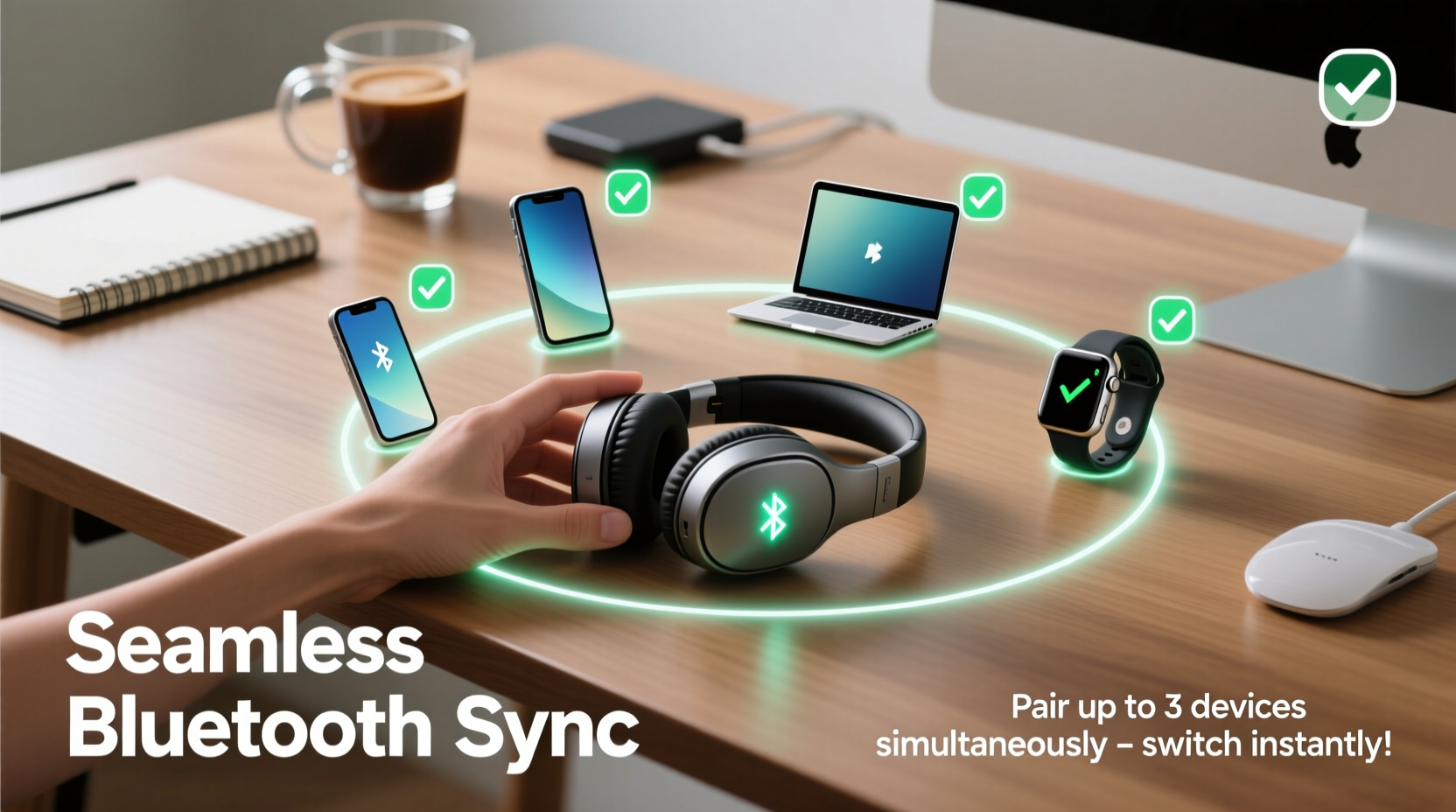
Multipoint Bluetooth is the cornerstone of seamless multi-device syncing. Unlike standard Bluetooth, which allows a headset to be paired to several devices but only actively connected to one at a time, multipoint enables simultaneous connections to two (or sometimes more) devices. When a call comes in on your phone while you’re watching a video on your laptop, the headphones automatically pause the video audio and switch to the incoming call—then revert back once the call ends.
This feature depends heavily on both the headphones and the Bluetooth chipsets involved. Not all “Bluetooth-enabled” headphones support true multipoint functionality. High-end models from brands like Sony, Sennheiser, Jabra, and Apple’s AirPods Pro are more likely to include it. However, even among premium models, implementation varies: some allow only specific combinations (e.g., phone + laptop), while others restrict pairing to certain operating systems.
“Multipoint Bluetooth is no longer a luxury—it’s becoming a necessity for professionals who juggle communication across personal and work devices.” — David Lin, Audio Engineer & Wireless Tech Consultant
To determine if your headphones support multipoint:
- Check the product specifications online or in the user manual.
- Look for terms like “dual connection,” “multi-device pairing,” or “simultaneous connectivity.”
- Search forums or review sites for user experiences with cross-device use.
Step-by-Step Guide to Pairing Headphones with Multiple Devices
Whether your headphones support multipoint or not, the process of connecting them across devices requires precision. Follow this universal sequence to maximize compatibility and minimize connection drops.
- Charge both your headphones and target devices. Low battery can interfere with stable pairing.
- Reset your headphones (if needed). Turn them off, hold the power button for 10–15 seconds until lights flash, then release. This clears old connections.
- Enable Bluetooth on Device A (e.g., smartphone). Place headphones in pairing mode (usually by holding the power button until a blinking blue light appears).
- Select the headphones from the list and complete pairing. Test playback to confirm connection.
- Repeat for Device B (e.g., laptop). Do not disconnect from Device A unless instructed by your headphone’s manual.
- Test switching: Play audio on one device, then initiate sound on the other. Observe whether the headphones switch automatically or require manual disconnection/reconnection.
If your headphones support multipoint, they should now maintain active links to both devices. On subsequent uses, simply turning on the headphones near either device should trigger automatic reconnection based on priority settings.
Configuring Priority and Auto-Reconnect Settings
Most modern operating systems let you manage Bluetooth device priority. For example:
- iOS: Go to Settings > Bluetooth > Tap the (i) icon next to your headphones > Rename or forget devices as needed.
- Android: Long-press the Bluetooth icon in Quick Settings > Select device > Gear icon > Manage connection preferences.
- Windows 10/11: Settings > Bluetooth & devices > Click your headphones > Remove device or adjust default apps.
- macOS: System Settings > Bluetooth > Right-click device > \"Remove\" or check connection history.
Some headphones also come with companion apps (e.g., Sony Headphones Connect, Jabra Sound+), where you can set auto-reconnect order, disable unused profiles, or enable multipoint mode explicitly.
Real-World Example: Seamless Workday Transitions
Sophia, a remote project manager, uses her Jabra Elite 85h headphones throughout the day. Each morning, she starts with a meditation app on her iPad. As her laptop boots up, the headphones automatically connect to her Zoom calendar reminder. During stand-up meetings, incoming Slack calls on her phone seamlessly interrupt the meeting audio, thanks to multipoint connectivity. After the call, audio resumes on Zoom without any input from Sophia.
Later, while reviewing design mockups, she receives a personal call. Her headphones switch instantly, then return to her laptop when the call ends. At no point does she need to open Bluetooth settings or manually disconnect. This fluid experience saves her time and mental energy—critical during back-to-back virtual interactions.
Her setup works because:
- Her headphones support full multipoint Bluetooth.
- All devices are updated to the latest OS versions.
- She previously configured connection priority via the Jabra app.
- She avoids using older Bluetooth protocols (like BT 4.0) on secondary devices.
Sophia’s case illustrates how proper configuration transforms multitasking from frustrating to frictionless.
Workarounds for Non-Multipoint Headphones
Not every user has access to high-end gear. If your headphones lack native multipoint support, there are still strategies to reduce reconnection fatigue.
Use Fast-Switching Apps and Shortcuts
On Android and iOS, create automation routines:
- iPhone (Shortcuts app): Create a shortcut that disconnects from one device and connects to another with a single tap.
- Android (Tasker or Bixby Routines): Trigger Bluetooth switches based on Wi-Fi network detection (e.g., connect to work headphones when joining office Wi-Fi).
Leverage Operating System Features
Apple’s iCloud-synced audio devices allow AirPods to appear across iPhone, iPad, and Mac with near-instant handoff. Similarly, Windows 10+ supports “Bluetooth LE Audio” and “Fast Pair” features that speed up reconnections.
Third-Party Hardware Solutions
USB Bluetooth adapters with dual-mode chips (like the ASUS USB-BT500) can improve stability and reduce latency when used with PCs. These don’t enable true multipoint but enhance reliability when toggling between devices.
| Method | Best For | Limits |
|---|---|---|
| Multipoint Bluetooth | Professionals needing instant switching | Limited to two devices; not all models support it |
| Automation Shortcuts | Budget users with non-multipoint gear | Still requires manual triggers; slight delay |
| iCloud / Fast Pair Ecosystems | Users within Apple or Google ecosystems | Vendor-locked; doesn't work across platforms |
| Dedicated Bluetooth Dongles | Gamers or editors needing low-latency PC audio | No multi-device sync; improves only one link |
Common Pitfalls and How to Avoid Them
Even with the right equipment, poor habits can sabotage seamless syncing.
- Overloading Bluetooth caches: Devices store numerous past connections. Clear old or unused ones regularly to prevent interference.
- Mixing Bluetooth versions: A device running Bluetooth 4.2 may struggle to maintain stable links with headphones designed for 5.0+. Update firmware where possible.
- Ignoring audio profile conflicts: Some headphones use different profiles (A2DP for music, HFP for calls). Inconsistent profile switching causes dropouts.
- Physical obstructions: Walls, metal objects, or even your body can weaken signals. Stay within 10 meters and maintain line-of-sight when feasible.
“Signal interference is the silent killer of Bluetooth performance. Keep routers, microwaves, and cordless phones away from your primary listening area.” — Lena Torres, RF Signal Analyst
Essential Checklist for Multi-Device Sync Success
Before relying on your headphones across devices, run through this checklist:
- ✅ Confirm your headphones support multipoint Bluetooth.
- ✅ Update firmware on headphones and all connected devices.
- ✅ Pair each device in order of priority (primary first).
- ✅ Test audio switching with real scenarios (calls, videos, alerts).
- ✅ Use companion apps to fine-tune auto-reconnect behavior.
- ✅ Disable unnecessary background apps that might hijack audio output.
- ✅ Reboot Bluetooth services weekly to clear cached errors.
Frequently Asked Questions
Can I connect Bluetooth headphones to three or more devices at once?
Currently, most consumer-grade headphones support only two simultaneous connections via multipoint. Connecting to more than two devices typically requires cycling manually. Enterprise or specialized audio gear may offer expanded capabilities, but these are rare in mainstream markets.
Why do my headphones keep disconnecting when I switch devices?
This usually indicates either a lack of multipoint support, outdated Bluetooth drivers, or signal interference. Check your headphone model’s specs, ensure all devices are within range, and remove physical barriers. Also, verify that no other Bluetooth device (like a smartwatch) is attempting to take control of the audio stream.
Do wireless earbuds perform better than over-ear headphones for multi-device use?
Performance depends more on chipset and software than form factor. However, true wireless earbuds like AirPods Pro or Galaxy Buds2 Pro often integrate better with their respective ecosystems (iOS/Android), offering faster handoff and smoother transitions than many over-ear models outside their brand environment.
Final Thoughts: Building a Smarter Audio Ecosystem
Synchronizing Bluetooth headphones across multiple devices isn’t just about convenience—it’s about creating a responsive digital environment that adapts to your life, not the other way around. With the right combination of compatible hardware, updated software, and smart configuration, you can eliminate the daily annoyance of reconnecting, re-pairing, and resetting.
Start by auditing your current gear. If your headphones lack multipoint support, explore upgrades that align with your primary devices. Then, invest 15 minutes setting up automation rules or adjusting connection priorities. Small efforts yield significant long-term gains in focus and efficiency.




 浙公网安备
33010002000092号
浙公网安备
33010002000092号 浙B2-20120091-4
Comments
No comments yet. Why don't you start the discussion?