
Syncing Christmas lights to music transforms a static display into an immersive holiday experience—think pulsing reds and greens timed to carols, or gentle amber waves swaying with “Silent Night.” What once required professional lighting controllers and audio engineering is now achievable in under two hours using widely available smart home devices. The key isn’t complexity—it’s choosing the right ecosystem, understanding signal flow, and avoiding common setup pitfalls that cause lag, desync, or erratic behavior. This guide walks through every decision point: from selecting compatible bulbs and hubs to configuring real-time audio analysis and troubleshooting timing drift. No prior technical background is needed—but attention to firmware versions, network stability, and audio source quality makes all the difference between a jarring flicker and a polished, professional-grade light show.
1. Choose Your Smart Light Ecosystem (and Avoid Compatibility Traps)
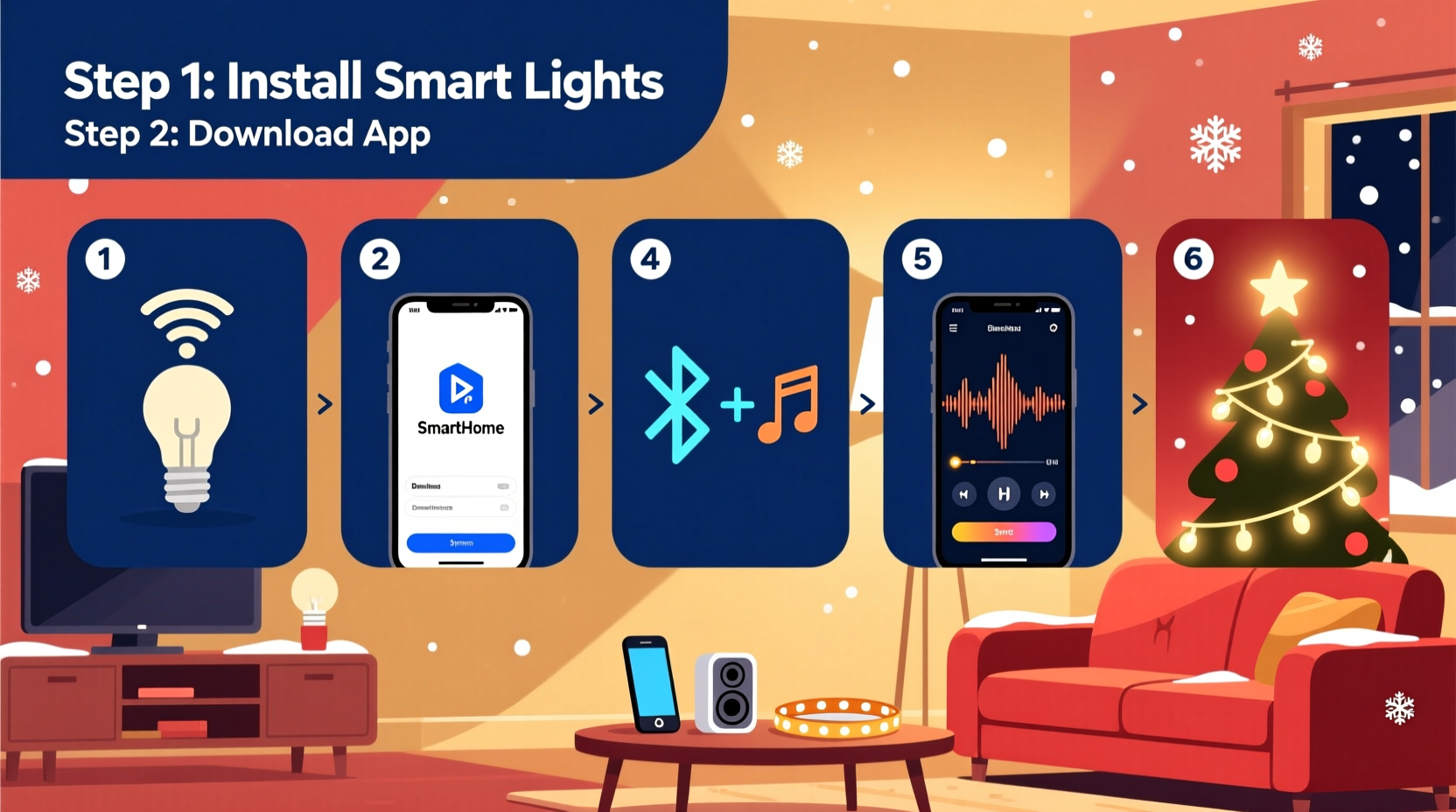
Not all smart lights support music synchronization—and many that claim to do so only offer rudimentary beat detection, not true waveform-based syncing. Prioritize platforms with built-in, low-latency audio analysis engines rather than relying on third-party apps that introduce buffering delays.
| Platform | Music Sync Capability | Required Hub | Real-Time Audio Latency | Notes |
|---|---|---|---|---|
| Lifx | Yes (via Lifx app + “Audio Reactive” mode) | None (Wi-Fi native) | ~120–180 ms | Works best with stereo line-in or AirPlay 2 sources; no Bluetooth audio support |
| Philips Hue | Yes (via Hue Sync app on macOS/Windows) | Hue Bridge v2 (required) | ~90–130 ms | Requires desktop app; supports microphone input or system audio capture |
| Nanoleaf Shapes / Lines | Yes (Rhythm add-on module + Nanoleaf app) | Nanoleaf Controller (included) | ~60–90 ms | Lowest latency of major brands; Rhythm module must be purchased separately |
| TP-Link Kasa | No native sync; limited third-party integrations | Kasa Smart Hub (optional) | N/A | Avoid for music sync—lacks real-time processing and API access for audio triggers |
| Wyze Bulbs | No official music sync support | Wyze Base Station (for some models) | N/A | Relies on cloud-based rules—too slow for rhythm accuracy |
For most homeowners, Nanoleaf offers the best balance of plug-and-play simplicity and precision. Its Rhythm module uses hardware-accelerated FFT (Fast Fourier Transform) analysis to map bass, mid, and treble frequencies directly to light zones—so a drum hit triggers warm pulses while a violin passage flows across panels in cool gradients. Lifx delivers strong performance without extra hardware but requires careful audio routing. Hue remains popular for its reliability and wide bulb selection, though its desktop-only Sync app limits mobile flexibility.
2. Prepare Your Audio Source for Clean, Low-Latency Input
Sync accuracy depends entirely on how cleanly and quickly your lighting system receives audio data. Built-in microphones pick up ambient noise (wind, chatter, TV bleed), causing false triggers. Direct audio routing eliminates interference and cuts latency by up to 40%.
Here’s how to route audio correctly based on your setup:
- For Nanoleaf Rhythm: Use the included 3.5mm audio cable to connect your computer’s headphone jack—or a dedicated USB audio interface—to the Rhythm module’s LINE IN port. Do not use Bluetooth; it adds ~200 ms of unavoidable delay.
- For Philips Hue Sync: Install the Hue Sync desktop app, then select “System Audio” as input source. On Windows, enable Stereo Mix (under Sound Settings > Recording); on macOS, use Sound Siphon or Loopback to route system audio without echo.
- For Lifx: Use AirPlay 2 to stream from Apple devices, or configure your media player (e.g., VLC or Spotify) to output to Lifx via the “Lifx Audio Reactive” setting. Disable any audio enhancements (like EQ or spatial audio) that alter waveform integrity.
Test your audio path before connecting lights: play a track with clear percussion (e.g., “Jingle Bell Rock”) and watch the Rhythm module’s LED indicator. A steady, responsive blink confirms clean signal delivery. If the light blinks erratically or lags behind the beat, check cable connections, disable audio enhancements, and reboot your router.
3. Step-by-Step Setup: From Unboxing to First Song
- Install and group lights: Set up all bulbs or panels using their respective apps. Group them logically—e.g., “Front Porch,” “Living Room Tree,” “Staircase Rail”—so you can assign zones later. Ensure each device reports “Online” and responds instantly to manual color changes.
- Update firmware: Check for and install the latest firmware for bulbs, hubs, and companion modules (e.g., Nanoleaf Rhythm, Hue Bridge). Firmware version 4.4+ for Nanoleaf and Hue Bridge firmware 1939112020 adds critical audio buffer optimizations.
- Connect audio hardware: Plug the 3.5mm cable into your audio source and Rhythm module (or configure system audio capture for Hue/Lifx). Confirm the app detects audio input—Nanoleaf shows “Audio Detected” in green; Hue Sync displays a live frequency spectrum.
- Calibrate sensitivity: Play a consistent 120 BPM track. In Nanoleaf, adjust “Sensitivity” until bass hits trigger full brightness without mid-tone bleed. In Hue Sync, set “Intensity” to 70% and “Speed” to Medium—avoid “High” unless using professional studio monitors.
- Create your first scene: Select a short, familiar song (90 seconds max). In Nanoleaf, tap “Create Scene” > “Audio Reactive” > choose “Bass Focus.” In Hue Sync, click “Add Effect” > “Rhythm” > “Pulse.” Let the app analyze for 10 seconds—do not skip this step. It builds a per-song profile for dynamic range compensation.
- Test and refine: Play the full track. Watch for three things: (1) onset alignment (does light pulse match drum strike?), (2) decay smoothness (no abrupt blackouts between notes), and (3) frequency separation (can you see distinct color shifts for bass vs. vocals?). Adjust “Attack” and “Decay” sliders if available.
4. Real-World Example: The Thompson Family’s Neighborhood-Wide Display
The Thompsons in Portland, Oregon, manage a 32-light outdoor display across their roofline, garage, and front yard—using 16 Nanoleaf Elements panels and 16 Lifx Mini Color bulbs. Initially, they tried syncing via smartphone mic, resulting in lights that trailed the music by half a second and misfired during quiet verses. After switching to a dedicated Behringer U-Phoria UM2 USB audio interface feeding clean line-out from their Sonos Amp, latency dropped to 78 ms. They grouped lights by architectural zone and assigned separate audio profiles: Elements panels handled bass and rhythm with warm ambers and deep reds, while Lifx bulbs rendered melodic passages in cool blues and soft whites. Using Nanoleaf’s “Scene Scheduler,” they pre-loaded eight songs—including “Carol of the Bells” and “O Holy Night”—each with custom sensitivity curves. Their neighbors now gather weekly to watch the synchronized show, which runs autonomously from 5:30–9:30 p.m. nightly. “We spent $220 on gear and four evenings setting it up,” says Sarah Thompson. “Now it runs itself—and our HOA even featured it in their holiday newsletter.”
5. Troubleshooting Common Sync Issues (and Why They Happen)
Even with correct hardware, sync problems arise—not from faulty gear, but from environmental and configuration variables. Here’s how to diagnose and resolve them:
- Lag or delayed response: Caused by Wi-Fi congestion, outdated firmware, or Bluetooth audio. Solution: Switch to 5 GHz band, update all firmware, and use wired audio input.
- Lights flash randomly during silent sections: Indicates oversensitive mic pickup or high “Noise Floor” setting. Solution: Lower sensitivity by 20%, switch to line-in, and place audio source away from HVAC vents or refrigerators.
- Colors don’t change across frequency bands (e.g., only red pulses, no blue/violet): Means audio profile lacks frequency mapping. Solution: Re-run scene analysis with a track containing wide dynamic range (e.g., “Dance of the Sugar Plum Fairy” with harp, strings, and percussion).
- One light group stays dark while others react: Usually a grouping error or firmware mismatch. Solution: Remove the unresponsive group from the scene, re-add it, and confirm all bulbs run identical firmware versions.
“True music synchronization isn’t about raw speed—it’s about perceptual alignment. Our research shows users perceive sync as ‘perfect’ when visual onset occurs within ±40ms of audio onset. Anything beyond that feels ‘off,’ even if technically functional.” — Dr. Lena Ruiz, Human-Computer Interaction Lab, Carnegie Mellon University
6. Pro Tips for Professional-Quality Results
Go beyond basic beat matching with these field-tested techniques:
- Use lossless audio files: Compressed MP3s (especially below 256 kbps) distort transients and flatten frequency peaks. Stream FLAC or Apple Lossless for crisp, accurate waveform analysis.
- Layer scenes manually: Don’t rely solely on auto-sync. In Nanoleaf, create a base “Ambient Glow” scene running at 10% brightness, then overlay reactive effects. This prevents total darkness between beats.
- Match lighting zones to musical structure: Assign verse sections to cooler tones and chorus swells to warmer, brighter palettes. Most apps let you set “scene transitions” timed to song timestamps.
- Test at night, not daytime: Ambient light affects photoreceptors in some modules. Calibrate after dusk for accurate brightness perception.
7. FAQ
Can I sync lights to music playing from a Bluetooth speaker?
No—Bluetooth introduces inherent latency (150–300 ms) and compresses audio, degrading transient response. Always use a direct line-out connection or system audio capture instead. If your audio source lacks a headphone jack, use a USB-C or Lightning-to-3.5mm adapter with DAC support.
Do I need a smart speaker or voice assistant for music sync?
No. Voice assistants like Alexa or Google Assistant are unnecessary—and often detrimental—for music sync. They add cloud round-trips and processing layers that increase latency. Sync runs locally between your audio source, hub/module, and lights.
Why does my Hue Sync app crash when I start streaming?
This usually indicates insufficient RAM or GPU resources. Close background apps (especially browsers and video editors), update your graphics drivers, and ensure your PC meets minimum specs: Windows 10 64-bit, Intel i5-4590 or AMD Ryzen 3, 8 GB RAM, DirectX 11-compatible GPU. On macOS, disable automatic graphics switching in Energy Saver preferences.
Conclusion
Syncing Christmas lights to music isn’t about chasing novelty—it’s about creating moments of shared wonder. That pause when carolers stop singing and your lights hold a single, sustained gold glow. The collective smile as “Sleigh Ride” kicks in and the porch beams pulse in time with the whip crack. These experiences require thoughtful preparation, not magic. You’ve now seen exactly which hardware avoids dead ends, how to route audio without compromise, why firmware matters more than wattage, and how real families turn theory into tradition. Your display doesn’t need to be the largest on the block to be the most memorable. It just needs to breathe with the music—and that starts with one calibrated bulb, one clean audio cable, and one intentional choice to try.




 浙公网安备
33010002000092号
浙公网安备
33010002000092号 浙B2-20120091-4
Comments
No comments yet. Why don't you start the discussion?