
Maintaining a consistent contact list across devices is essential in today’s fast-paced digital world. Yet, many users struggle with the transition between ecosystems—especially when moving from Android to Mac. Apple's ecosystem is tightly integrated, but it doesn’t natively support direct syncing with Android devices. However, that doesn’t mean syncing your contacts has to be complicated. With the right methods and tools, you can transfer and maintain your Android contacts on your Mac seamlessly, without losing data or spending hours troubleshooting.
This guide walks through practical, reliable, and tested approaches to keep your contacts synchronized between your Android phone and Mac. Whether you're switching platforms permanently or simply want access to your mobile contacts on your desktop, these strategies ensure your information stays accurate, secure, and up to date.
Understanding the Challenge: Why Android-to-Mac Sync Isn’t Built-In
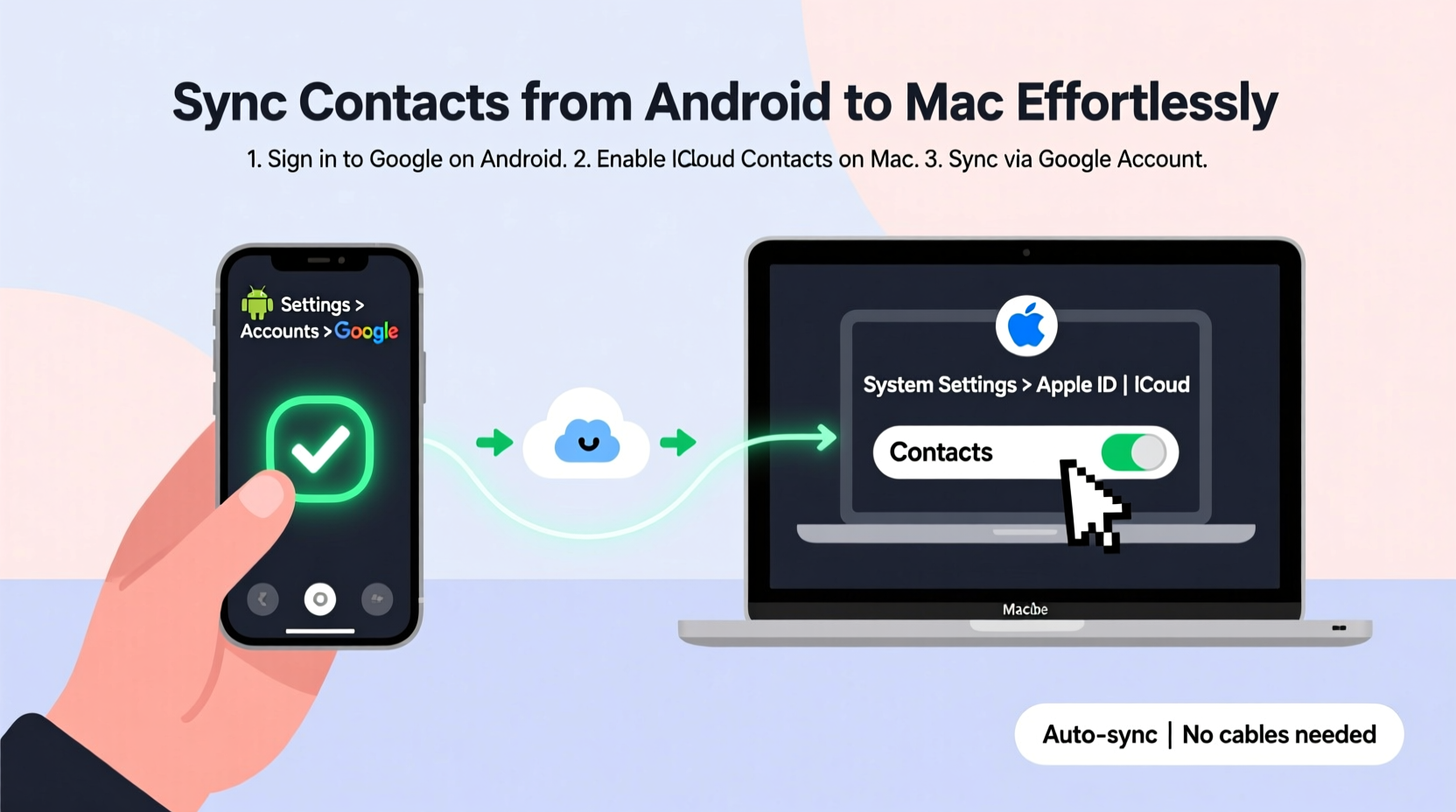
Apple and Google have designed their ecosystems to work best within their own environments. iPhones automatically sync with iCloud, while Android devices default to Google Contacts. When you use both platforms, this creates a natural disconnect. There’s no native way for an Android phone to push contacts directly into macOS’s Contacts app or iCloud.
The key to overcoming this gap lies in leveraging universal services like Google Contacts, which acts as a neutral bridge. By routing your contacts through a shared cloud platform, you create a two-way sync point accessible from both Android and Mac.
“Cross-platform compatibility often hinges on finding common ground in cloud-based services. Google Contacts is the most effective mediator between Android and Apple devices.” — David Lin, Cross-Platform Integration Specialist
Step-by-Step Guide: Sync Android Contacts to Mac Using Google
The most reliable method involves using Google Contacts as the central hub. This approach ensures continuous synchronization and allows for real-time updates across devices.
- Ensure Contacts Are Saved to Google on Your Android
Open the Phone or Contacts app on your Android device. Tap Manage Contacts or Contact Settings, then verify that your contacts are saved under your Google account. If they’re stored locally or under another account (like Samsung), move them to your Google account. - Back Up Contacts to Google
Go to Settings > Google > Backup. Make sure “Sync Contacts” is enabled. You can also manually trigger a sync by going to Accounts > Google > [Your Email] > Sync Now. - Access Google Contacts on Your Mac
Open any browser on your Mac and go to contacts.google.com. Log in with the same Google account used on your Android device. Your contacts should appear within seconds. - Integrate Google Contacts with macOS
Open the Contacts app on your Mac. Click Contacts > Preferences > Accounts. Click the \"+\" button and add your Google account. Choose “Google” as the account type, enter your credentials, and allow access. After a moment, your Android contacts will populate in the Mac Contacts app. - Enable Two-Way Syncing
Once linked, any changes made on either device—adding a number on your Android or editing an address on your Mac—will reflect across both platforms within minutes, provided internet connectivity is stable.
Alternative Method: Using Third-Party Apps for Enhanced Control
If you prefer more automation or need advanced features like batch editing, duplicate merging, or scheduled backups, third-party tools offer powerful alternatives.
Recommended Tools:
- My Contacts Backup: An Android app that exports contacts via email as a .vcf file, which can be imported into Mac Contacts.
- SyncMate: A macOS application that supports full two-way sync between Android and Mac, including contacts, calendars, and messages. Offers free and paid versions.
- AirDroid: Allows wireless file and contact transfers between Android and Mac via a web interface or desktop client.
Using SyncMate for Full Sync Automation
- Download and install SyncMate from the official website.
- Connect your Android device to your Mac via USB or Wi-Fi.
- Select “Contacts” in the SyncMate interface and choose bidirectional sync mode.
- Click “Sync” to begin transferring data. Future changes will sync automatically if the service runs in the background.
While third-party apps simplify complex workflows, always verify their privacy policies and avoid granting unnecessary permissions. Stick to reputable developers with positive user reviews and transparent data handling practices.
Do’s and Don’ts of Contact Syncing: Best Practices Table
| Do’s | Don’ts |
|---|---|
| Always back up contacts before attempting sync | Don’t rely solely on local storage for critical contacts |
| Use the same Google account across devices | Don’t disable auto-sync without checking consequences |
| Regularly clean duplicates using Google Contacts’ merge tool | Don’t import multiple .vcf files without reviewing first |
| Test sync accuracy by adding a dummy contact first | Don’t ignore permission prompts—they may block sync access |
| Enable 2-step verification on linked accounts for security | Don’t leave outdated apps running that could interfere with sync |
Real Example: Sarah’s Smooth Transition from Samsung to MacBook
Sarah, a freelance designer, recently switched from a Samsung Galaxy S22 to a MacBook Pro for her business operations. She needed immediate access to her client list without manual entry. Initially frustrated by the lack of direct sync options, she followed the Google Contacts method outlined above.
She verified all her contacts were saved to her Google account, then added that account to her Mac’s Contacts app. Within ten minutes, over 450 contacts appeared on her desktop. When she later updated a client’s email on her phone, the change reflected on her Mac within three minutes. This seamless experience allowed her to focus on client projects instead of administrative tasks.
For added safety, she exported a .vcf backup file once everything synced correctly—a precaution that gave her peace of mind during the transition.
Checklist: Ensure a Flawless Contact Sync Process
Follow this checklist every time you set up or troubleshoot contact syncing:
- ✅ Confirm your Android contacts are saved to your Google account
- ✅ Perform a manual sync on your Android device
- ✅ Visit contacts.google.com to verify visibility online
- ✅ Add your Google account to the Mac Contacts app
- ✅ Wait 2–5 minutes for initial sync to complete
- ✅ Test by creating or modifying a contact on one device and checking the other
- ✅ Export a .vcf backup file as a failsafe
- ✅ Review for duplicates and use Google’s merge feature if necessary
Frequently Asked Questions
Why aren’t my Android contacts showing up on my Mac?
This usually happens when contacts are saved locally on the Android device instead of the Google account. Check your contact settings and ensure sync is enabled. Also, confirm that the correct Google account is added in the Mac Contacts app preferences.
Can I sync contacts without using Google?
Yes, though less efficiently. You can export contacts as a .vcf file from your Android, transfer it via email or USB, and import it into the Mac Contacts app. However, this method is one-time only and won’t support automatic updates.
Is it safe to use third-party apps for contact syncing?
Many reputable apps are secure, especially those with strong privacy policies and regular updates. Avoid apps requesting excessive permissions (like SMS or call logs) unless absolutely necessary. Always download from official sources—App Store, Google Play, or developer websites.
Final Thoughts: Achieving Effortless Sync Across Platforms
Synchronizing contacts from Android to Mac doesn’t require technical expertise—just the right approach. The Google Contacts method remains the gold standard due to its reliability, ease of setup, and ongoing maintenance. It transforms what seems like a fragmented experience into a cohesive workflow.
Whether you're managing personal relationships or professional networks, keeping your contacts unified across devices saves time, reduces errors, and enhances productivity. Automation eliminates manual re-entry, while cloud backups protect against data loss.
By following the steps, avoiding common pitfalls, and using trusted tools, you establish a system that works quietly in the background—exactly how technology should function.




 浙公网安备
33010002000092号
浙公网安备
33010002000092号 浙B2-20120091-4
Comments
No comments yet. Why don't you start the discussion?