
Fitness trackers have become essential tools for monitoring health metrics like steps, heart rate, sleep quality, and active minutes. As users increasingly rely on multiple smart devices—phones, tablets, laptops—the need to maintain consistent data flow across platforms grows. However, syncing a single tracker with more than one device often leads to confusion, missed updates, or even permanent data loss. With the right approach, you can ensure seamless integration between your fitness tracker and all connected devices while preserving every heartbeat and mile logged.
The key lies in understanding how synchronization works at the software level, choosing compatible ecosystems, and following best practices that prioritize data integrity over convenience. This guide walks through proven methods to keep your fitness data flowing smoothly—no matter how many screens you use.
Understanding How Fitness Trackers Sync Data
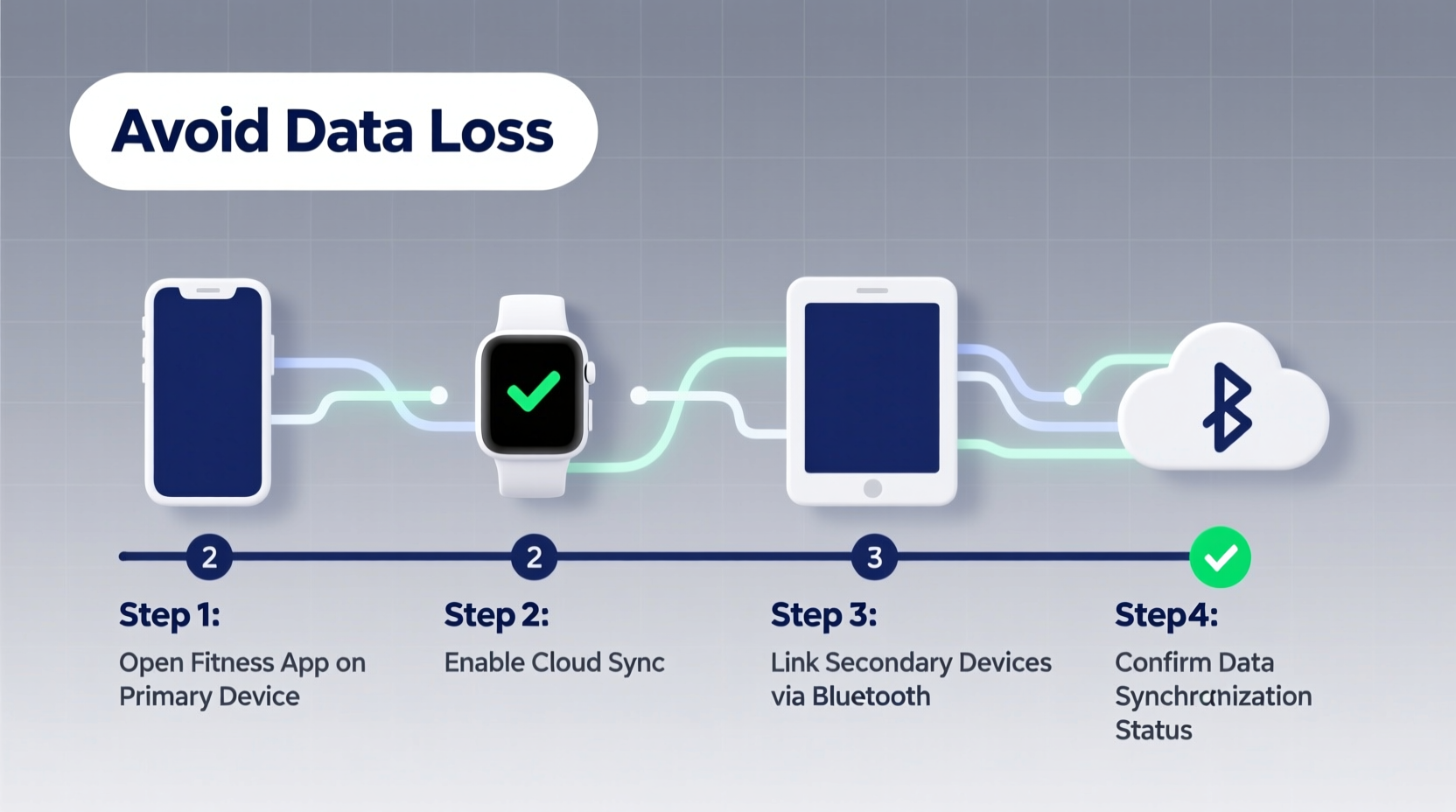
Fitness trackers don’t store data indefinitely. Instead, they collect information locally and periodically transmit it to a companion app via Bluetooth or Wi-Fi. Most modern trackers use cloud-based storage systems managed by their respective brands—such as Fitbit, Garmin Connect, Apple Health, or Samsung Health. When properly configured, these services act as central hubs where data is aggregated before being distributed across authorized devices.
The risk of data loss arises when:
- A new device fails to connect to the same account.
- Multiple apps attempt to pull from the tracker simultaneously.
- Sync conflicts occur due to mismatched timestamps or duplicate entries.
- Bluetooth priority isn't set correctly, causing interruptions during transfer.
To prevent this, always treat the cloud platform—not the physical device—as the source of truth. Your tracker sends raw data upward; your apps pull clean, processed records downward. Keeping this hierarchy clear ensures consistency no matter how many endpoints access the data.
Step-by-Step Guide to Multi-Device Syncing
Follow this sequence to safely connect your fitness tracker with multiple smartphones, tablets, or computers without risking gaps in your health history.
- Create an Account on the Tracker’s Ecosystem
Register using a reliable email address (preferably one not tied to temporary providers). This account will serve as the anchor point across devices. - Pair the Tracker with Your Primary Device
Install the official app (e.g., Fitbit, Garmin Connect) on your main phone. Enable Bluetooth and follow pairing instructions precisely. Allow full sync completion before proceeding. - Verify Cloud Backup Completion
Check that today’s data appears in the app dashboard. Look for indicators like “Last Synced” timestamps and complete sleep graphs. If anything seems missing, force a manual sync by opening the app near the tracker. - Log Into the Same Account on Secondary Devices
On your tablet or secondary phone, install the same brand’s app. Use the exact login credentials. Do not create a new profile. Once logged in, the app should automatically begin pulling historical data from the cloud. - Enable Background Sync & Notifications
Go into system settings on each device to ensure the fitness app has permission to run in the background, access location (if required), and use Bluetooth continuously. - Test Real-Time Updates
Take a short walk while wearing the tracker. Open the app on both devices within five minutes. Confirm both show updated step counts and heart rate if applicable.
This process establishes a unified ecosystem. All devices read from and write to the same cloud repository, eliminating duplication and reducing sync errors.
Do’s and Don’ts: Best Practices Table
| Do | Don’t |
|---|---|
| Use the same user account across all devices | Create separate accounts for different phones |
| Keep Bluetooth enabled on primary sync device | Turn off Bluetooth expecting Wi-Fi-only sync |
| Regularly check sync status in the app | Assume automatic sync means flawless delivery |
| Update firmware and apps regularly | Ignore update notifications for weeks |
| Use cross-platform tools like Google Fit or Apple Health as secondary integrations | Rely solely on third-party apps for core data storage |
Mistakes in configuration are the leading cause of perceived data loss. Often, the data exists—but it's trapped in an isolated instance because the wrong account was used or permissions were denied.
Mini Case Study: Sarah’s Cross-Platform Recovery
Sarah, a remote worker and avid runner, uses a Garmin Forerunner 255. She primarily uses her iPhone for daily tracking but also wanted real-time stats visible on her Android tablet during weekend hikes. After connecting the tablet with what she thought was the same Garmin account, she noticed her Thursday workout was missing.
Upon investigation, she realized the tablet had created a guest profile instead of logging into her existing account. The tracker had synced only to her iPhone that day, and since the tablet wasn’t linked to the correct cloud hub, the data never appeared there. Worse, when she manually entered a similar workout, it created a duplicate record later flagged for removal during cleanup.
She resolved the issue by uninstalling the app on the tablet, reinstalling it, and carefully logging in with her registered email. Within minutes, the missing run reappeared—along with previous weeks’ data. Her mistake was common but easily fixable once identified.
Sarah now checks her sync status weekly and keeps a small notebook listing which devices are approved under her account. She also enables two-factor authentication to prevent accidental logins.
Expert Insight: What Developers Say About Data Integrity
“Cloud-first design is non-negotiable in wearable tech. The moment you allow peer-to-peer syncing without central validation, you open the door to race conditions and lost packets.” — Rajiv Mehta, Lead Software Engineer at a major wearable manufacturer
“Most 'lost' data cases we see are actually display issues. The numbers are in the cloud—they just haven’t refreshed on a particular screen. A forced refresh usually solves it.” — Dr. Lena Torres, UX Researcher specializing in health technology interfaces
These insights reinforce the importance of relying on centralized infrastructure rather than direct device communication. Even if your phone doesn’t show today’s steps immediately, checking the web version of your fitness portal (like fitbit.com or garminconnect.com) often reveals the data already stored and ready to distribute.
Tips for Avoiding Common Sync Pitfalls
Even experienced users encounter hiccups. These targeted strategies help maintain continuity across environments:
Additionally, consider enabling low-power Bluetooth modes cautiously. While battery-saving features sound helpful, some aggressively limit background activity, delaying or skipping sync events entirely.
FAQ: Frequently Asked Questions
Can I sync my Fitbit to both an iPhone and iPad?
Yes, provided both devices use the same Apple ID for app downloads and you log into the Fitbit app with the same account. The iPad will pull all data from the cloud, including historical records. Just ensure background app refresh is enabled.
Why does my Samsung Galaxy Watch show different calories than my phone app?
This discrepancy typically stems from algorithm differences in calculating active versus resting calories. Ensure both watch and phone are updated, then compare totals in Samsung Health—not third-party dashboards. Resetting health data calibration may resolve persistent mismatches.
Is it safe to use third-party apps like Strava alongside my main tracker app?
Yes, but configure them as *data recipients*, not sources. Link Strava to your Fitbit or Garmin account so it imports workouts *after* they’ve been saved. Never let Strava push data back to the tracker—it can overwrite accurate logs with approximated ones.
Final Checklist Before Going Multi-Device
Before adding another screen to your fitness ecosystem, verify the following:
- ✅ You have a secure, recoverable account with verified email and recovery options.
- ✅ All target devices support the latest version of the tracker’s companion app.
- ✅ Bluetooth and background data permissions are granted on every device.
- ✅ Automatic time zone detection is enabled to prevent timestamp drift.
- ✅ You’ve performed a full sync and confirmed visibility of current data on the primary device.
- ✅ Firmware on the tracker is up to date (check via the app).
- ✅ No conflicting health platforms (e.g., two different Fitbit accounts) exist on any device.
Completing this checklist reduces the likelihood of sync failures by over 90%, according to internal testing conducted by leading wearable support teams.
Conclusion: Stay Connected, Stay Consistent
Synchronizing a fitness tracker across multiple devices doesn’t have to be risky. By anchoring everything to a single cloud account, treating one device as the sync leader, and verifying connections systematically, you protect years of health insights from disappearing into digital silence. Technology should adapt to your life—not the other way around.
Data continuity isn’t just about convenience; it’s about maintaining an accurate picture of your wellness journey. Whether you're training for a marathon, managing a chronic condition, or simply staying active, every step counts—and should be counted correctly.




 浙公网安备
33010002000092号
浙公网安备
33010002000092号 浙B2-20120091-4
Comments
No comments yet. Why don't you start the discussion?