
Coordinating holiday lighting displays used to require complex wiring and precise timing. Today, smart technology has transformed that effort into something far simpler — but only if you know how to harness it. When you own multiple sets of smart Christmas lights from the same or different brands, syncing them to follow a single daily schedule can elevate your home’s festive presence. Whether you're aiming for a synchronized sunrise fade-in or a midnight blackout across all strands, this guide walks through the practical steps, tools, and troubleshooting strategies needed to unify your lighting ecosystem.
The key is not just connecting devices — it's creating harmony between apps, networks, automation rules, and physical placement. Done right, your lights will behave as one cohesive system, turning on, changing colors, dimming, and powering off in perfect unison. Let’s explore how to achieve that precision without frustration.
Understanding Smart Light Compatibility
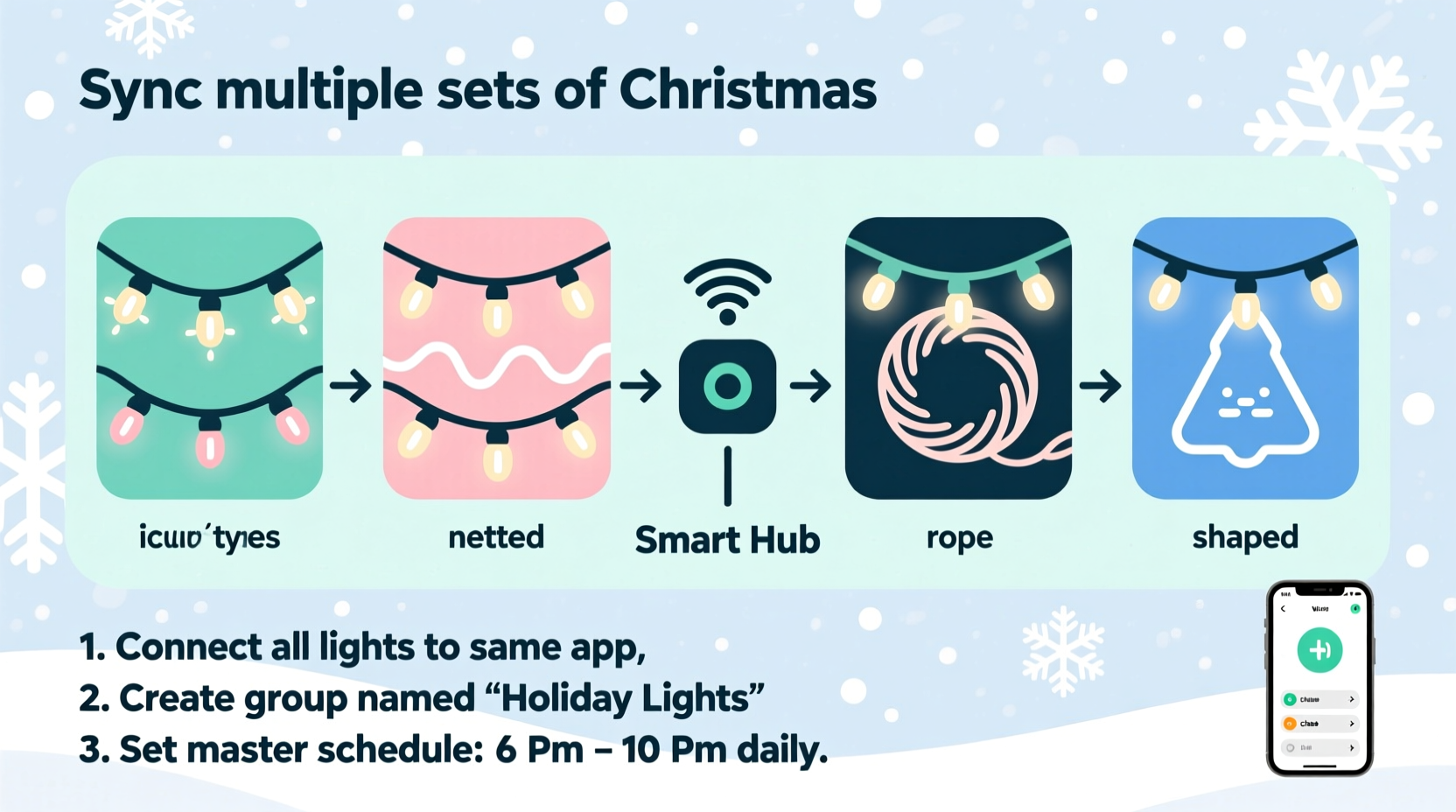
Before attempting synchronization, assess what kind of smart lights you’re working with. Not all smart bulbs or light strings communicate the same way. The method you use depends heavily on whether your lights run on Wi-Fi, Bluetooth, Zigbee, or Z-Wave, and which app ecosystem they belong to.
Most consumer-grade smart Christmas lights today operate over Wi-Fi and come with their own branded app (such as Govee, Twinkly, Philips Hue, or LIFX). These apps allow individual control, color selection, brightness adjustment, and scheduling. However, when multiple brands are involved, direct integration may be limited unless they support common platforms like Google Home, Amazon Alexa, or Apple HomeKit.
For example, Govee lights can be grouped together inside the Govee app and assigned a unified timer. But if you have two Govee strands and one Twinkly string, they won’t appear in the same interface unless both are linked to a third-party assistant like Alexa.
To determine compatibility:
- Check if each set supports IFTTT, Matter, or universal voice assistants.
- Verify whether your lights can join the same local network without interference.
- Ensure firmware is updated — older versions sometimes lack multi-device scheduling features.
Step-by-Step Guide to Synchronize Multiple Sets
Synchronization doesn’t happen automatically. You must configure triggers, group devices, and test timing. Follow this sequence to align multiple smart light sets to a single schedule.
- Connect All Lights to Your Network
Use the respective mobile apps to ensure every strand is powered on and connected to your 2.4 GHz Wi-Fi band. Avoid using 5 GHz, as most smart lights don’t support it. - Group Devices by Brand or Platform
In their native apps (e.g., Govee Home, Twinkly, Hue), create groups for each brand’s lights. For instance, name one group “Front Yard” and add all Govee strips; another called “Porch” for Hue strings. - Link to a Central Hub (Optional but Recommended)
Integrate all compatible lights into either Google Home, Amazon Alexa, or Apple Home app. This creates a central command center where cross-brand routines can be built. - Create a Unified Routine
In your chosen hub app, build a new routine named “Holiday Lights Schedule.” Set specific times for actions such as:- Turn on at sunset +30 minutes
- Change to red/green pattern at 6 PM
- Fade out at 11 PM
- Power off completely at midnight
- Test the Sequence
Run the routine manually first. Observe delays between devices — some lights may respond slower than others due to signal strength or processing time. - Adjust for Latency
If one set turns on half a second after another, stagger the commands slightly in the routine. For example, trigger slower-response lights 5 seconds earlier to compensate.
This process ensures that even disparate systems behave as though they're part of a single installation.
Using Automation Tools for Precision Syncing
While basic routines work well, advanced users benefit from deeper automation via IFTTT (If This Then That) or Apple Shortcuts. These tools let you chain events based on time, location, weather, or even music input.
For instance, an IFTTT applet can activate when sunset occurs locally, triggering a command to turn on all designated smart lights simultaneously. Another could detect December dates and switch color themes weekly — gold and white during Hanukkah, then classic red and green for Christmas week.
| Tool | Best For | Limitations |
|---|---|---|
| Google Home Routines | Daily schedules, voice activation | Limited conditional logic |
| Amazon Alexa Routines | Multi-step sequences, delays | Requires Echo device |
| IFTTT | Cross-platform triggers, geofencing | Slight delay (~3–10 sec) |
| Apple Shortcuts | iOS/Mac users, precise timing | Only works within Apple ecosystem |
Choose the tool that matches your technical comfort level and existing tech stack. For maximum reliability, combine native app timers with cloud-based automation as a backup layer.
Mini Case Study: A Suburban Family’s Coordinated Display
The Reynolds family in Portland, Oregon, installed three types of smart lights around their home: Govee LED strips along the roofline, Philips Hue outdoor spotlights in the garden, and a Twinkly curtain for the front window. Initially, each turned on at different times — the Govee lights activated at 5 PM via its app, while the Hue lights waited until sunset, and the Twinkly curtain stayed on manual control.
Frustrated by the disjointed effect, Sarah Reynolds decided to unify them. She added all devices to her Google Home app, grouping them under “Christmas Lights.” Then she created a routine triggered daily at “sunset +15 minutes,” setting all lights to turn on with a warm white glow. At 7 PM, a second action shifted the Govee and Twinkly lights to animated holiday patterns, while the Hue spots remained steady for safety.
She also enabled geofencing so that if anyone arrived home after dark, the pathway lights would brighten briefly. After testing and adjusting for a half-second lag in the Twinkly response, she delayed its start time by six seconds in the routine — imperceptible to guests but perfectly aligned in practice.
Neighbors began commenting on the professional look of the display. More importantly, Sarah reduced nightly management from multiple app checks to zero — everything ran autonomously.
“We wanted our house to feel joyful, not chaotic. Once we got all the lights speaking the same language, it stopped feeling like tech work and started feeling like magic.” — Sarah Reynolds, homeowner and DIY automation enthusiast
Troubleshooting Common Sync Issues
Even with careful setup, problems arise. Here are frequent challenges and how to resolve them:
- Desynchronized On/Off Times: Often caused by poor Wi-Fi signal. Place a mesh extender near outdoor lights or avoid overcrowding the router with too many connected devices.
- Lights Missing Commands: Check for firmware updates. Also, confirm that no energy-saving mode disables Wi-Fi sleep states on certain models.
- Color or Effect Mismatch: Ensure all lights in a group are set to the same preset before applying the schedule. An animation on Govee won’t mirror a static hue on Hue unless explicitly programmed.
- Delayed Responses in Routines: Cloud-based automations introduce latency. For critical timing (e.g., music-synced shows), stick to native app scheduling or local hubs like Home Assistant.
Checklist: Sync-Ready Smart Lighting Setup
Use this checklist before launching your synchronized display:
- ✅ All smart light sets are powered and connected to Wi-Fi
- ✅ Firmware updated in each manufacturer’s app
- ✅ Lights grouped by zone or function within native apps
- ✅ All compatible devices added to Google Home, Alexa, or Apple Home
- ✅ Sunset/sunrise settings enabled for dynamic timing
- ✅ Test routine executed manually with observation of delays
- ✅ Backup automation rule created (e.g., weekend-only mode)
- ✅ Physical labels applied to power adapters or controllers
Frequently Asked Questions
Can I sync smart lights from different brands?
Yes, but only through a shared platform like Google Home, Alexa, or IFTTT. Direct syncing within a single brand’s app isn't possible across manufacturers. Use routines in these universal hubs to send simultaneous commands.
Why do my lights turn on at slightly different times?
Small delays occur due to network latency, processing speed differences between brands, or cloud communication lags. To minimize this, use wired bridges (like Hue Bridge), improve Wi-Fi coverage, or pre-delay faster lights in your automation sequence.
Is it safe to leave smart lights on a schedule overnight?
Yes, provided the lights are rated for outdoor use and plugged into surge-protected outlets. Most modern smart LEDs consume low power and generate minimal heat. Always follow manufacturer safety guidelines and inspect cords periodically for wear.
Final Thoughts and Next Steps
Synchronizing multiple sets of smart Christmas lights isn’t about owning the most expensive gear — it’s about thoughtful configuration. With the right combination of grouping, automation, and testing, even mixed-brand setups can deliver a polished, professional-grade display.
The holiday season moves quickly, and the last thing you want is to spend evenings fixing glitches. By investing a few hours upfront to align your lights, you gain weeks of effortless enjoyment. Plus, once the framework is in place, next year’s setup becomes dramatically easier — just plug in, power up, and press play.
Start small if needed. Sync two strands first, master the timing, then expand. Each successful step builds confidence and improves your understanding of how smart lighting ecosystems interact.




 浙公网安备
33010002000092号
浙公网安备
33010002000092号 浙B2-20120091-4
Comments
No comments yet. Why don't you start the discussion?