
Coordinating a holiday light show across multiple smart lighting brands used to be a technical nightmare—different apps, incompatible protocols, and unsynchronized timing made seamless displays nearly impossible. But today, with the right tools and planning, it’s entirely feasible to blend Philips Hue, Govee, Twinkly, LIFX, Nanoleaf, and other systems into a single, synchronized spectacle. Whether you're decorating a rooftop, wrapping trees, or animating your porch railings, a unified light show enhances visual impact and simplifies control.
The key lies not in replacing your existing gear, but in integrating it through compatible platforms, smart hubs, and automation ecosystems. This guide walks through practical methods, real-world strategies, and expert-backed techniques to unify diverse smart lights under one command structure.
Understanding the Challenge: Why Brands Don’t Sync by Default
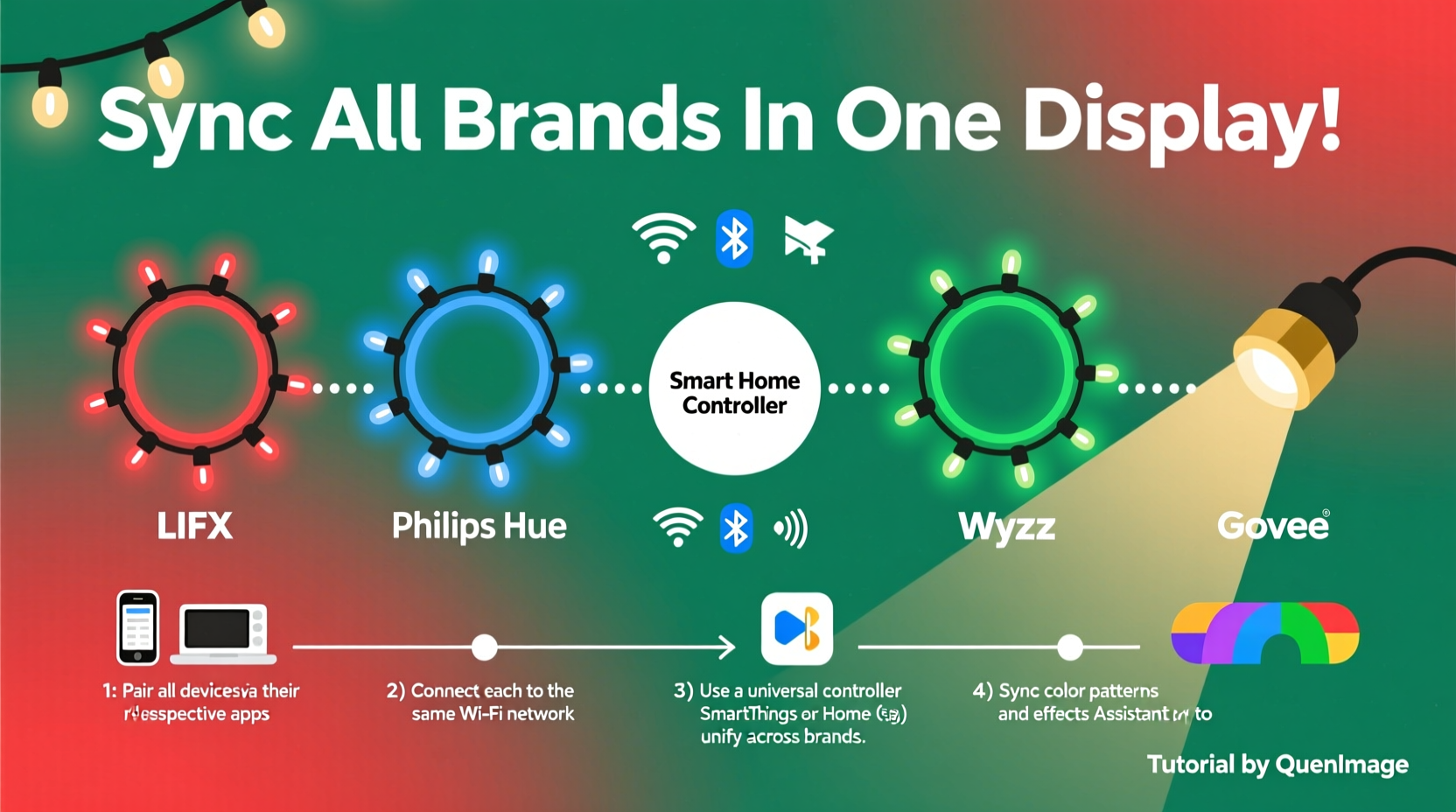
Each smart lighting brand uses its own app, cloud infrastructure, and communication protocol. For example:
- Philips Hue relies on Zigbee and its proprietary Hue Bridge.
- Govee primarily uses Bluetooth and Wi-Fi with limited third-party access.
- Twinkly operates over Wi-Fi with frame-by-frame LED control via its dedicated app.
- LIFX uses Wi-Fi directly without a hub, relying on local network commands.
These differences mean that out of the box, lights from different manufacturers won’t recognize each other. Even if both are “smart,” they speak different digital languages. Without a universal translator, syncing color changes, effects, or music reactivity across brands is unachievable through native apps alone.
“True synchronization isn’t just about turning lights on at the same time—it’s precise timing down to the millisecond, especially for music-reactive sequences.” — Derek Lin, Smart Home Integration Specialist
Choosing the Right Integration Platform
To bridge the gap between brands, you need a central platform capable of communicating with multiple ecosystems. The most effective solutions are:
- Home Assistant (Open Source): A self-hosted home automation platform that supports thousands of integrations via community drivers. Offers granular control and local processing.
- Apple HomeKit: Supports select brands like Hue, LIFX, and Nanoleaf. Limited music sync but excellent for scheduled routines.
- Google Home / Google Assistant: Broad compatibility; allows grouping devices across brands for basic commands.
- Amazon Alexa: Strong support for voice-triggered scenes and IFTTT-based automations.
- IFTTT (If This Then That): Useful for simple triggers (e.g., “When Spotify starts playing, turn on all lights”) but lacks precision for complex animations.
For high-fidelity synchronization—especially music-driven shows—Home Assistant is the gold standard. It can pull data from Hue APIs, Govee webhooks, and Twinkly UDP streams, then issue coordinated commands with sub-second accuracy.
Step-by-Step Guide to Sync Multiple Brands
Follow this sequence to unify your multi-brand display:
- Inventory Your Devices: List all smart lights, their brands, connectivity types (Wi-Fi, Zigbee, Bluetooth), and required hubs.
- Ensure Network Stability: All devices must be on the same 2.4GHz Wi-Fi network. Avoid overcrowding channels—use a Wi-Fi analyzer app to pick the least congested channel.
- Set Up a Central Hub: Install Home Assistant OS on a Raspberry Pi or virtual machine. Alternatively, use a pre-built solution like Home Assistant Blue.
- Add Integrations: In Home Assistant, go to Settings > Devices & Services > Add Integration. Search for and configure each brand (e.g., “Hue,” “Govee,” “Twinkly”).
- Test Individual Controls: Verify you can turn each set of lights on/off and change colors through the Home Assistant dashboard.
- Create a Unified Light Group: Define a group entity in YAML or via the UI that includes all relevant lights. Example:
light: - platform: group name: \"Holiday Display\" entities: - light.hue_tree_lights - light.govee_roof_strip - light.twinkly_fence - light.lifx_porch_bulbs - Design Synchronized Scenes or Automations: Use the Automation Editor to trigger color transitions, brightness changes, or effects simultaneously. For music sync, pair with a tool like MusikCube or ESPHome LED Music Sync.
- Test with Real Conditions: Run a short animation loop at night to check for lag, dropped signals, or desynchronization.
This method ensures all lights respond within milliseconds of each other, critical for smooth wave effects or beat-matching.
Real Example: A Suburban Multi-Brand Holiday Display
In Portland, Oregon, homeowner Maria Tran runs a neighborhood-famous Christmas display combining five brands:
- Hue outdoor spotlights (Zigbee)
- Govee RGBIC roof strips (Wi-Fi/Bluetooth)
- Twinkly curtain lights (Wi-Fi)
- Nanoleaf Shapes wall panels (Thread)
- LIFX Mini Day & Dusk porch bulbs (Wi-Fi)
Initially, she controlled them separately—manually launching each app at dusk. After installing Home Assistant on an old Intel NUC, she integrated all systems. Now, a single automation triggers at 5:00 PM daily: all lights fade in with a warm white glow, transition to festive red/green at 6:30 PM, and switch to music-reactive mode when her smart speaker detects holiday tracks.
“It took a weekend to set up,” she says, “but now my kids can say, ‘Hey Google, start the Christmas show,’ and everything moves together—even the Twinkly lights dance to the beat.”
Do’s and Don’ts When Syncing Multiple Brands
| Do | Don’t |
|---|---|
| Use a stable, low-latency router with QoS enabled for IoT devices | Overload a single Wi-Fi band with too many lights |
| Update firmware on all smart light hubs and bulbs regularly | Assume all brands support scene syncing via voice assistants |
| Label devices clearly in your integration platform (e.g., “Front Tree – Govee”) | Use Bluetooth-only devices beyond 30 feet from the controller |
| Test timing with stopwatch or video recording to detect lag | Run long animations without monitoring power draw |
| Back up your configuration (especially Home Assistant YAML files) | Ignore heat buildup in enclosed fixtures with dense LED strips |
Enhancing Sync with Advanced Tools
For professional-level coordination, consider these advanced options:
- Art-Net or sACN Support: Some platforms (like xLights or Falcon Player) convert DMX lighting signals over Ethernet. With proper gateways, you can drive Govee or Hue lights via Art-Net bridges.
- xLights Sequencer: Free software used by top-tier Christmas display creators. It allows frame-accurate sequencing across hundreds of channels, including mixed-brand setups when paired with appropriate controllers.
- Node-RED Flows: Integrated with Home Assistant, Node-RED enables logic-based automation. You can build flows that adjust light speed based on audio input or weather conditions.
While these tools have steeper learning curves, they offer unmatched precision. One user in Colorado reported syncing 1,200 LEDs across three brands using xLights and ESP8266 microcontrollers acting as protocol translators.
Frequently Asked Questions
Can I sync smart lights from different brands using only Alexa?
Yes, but with limitations. Alexa can group devices from supported brands (e.g., Hue, LIFX, Govee) into a “Scene” that turns them on/off or sets static colors simultaneously. However, dynamic effects, music sync, or gradient transitions cannot be precisely coordinated across brands via Alexa alone.
Why do my Govee and Hue lights stay out of sync even after grouping?
This usually stems from network latency or polling delays. Govee’s cloud API may respond slower than Hue’s local bridge. To fix this, use a local platform like Home Assistant with direct LAN access to Hue and optimized Govee polling intervals. Also ensure both systems are on the same subnet.
Is it safe to run multiple brands on the same circuit?
Yes, electrically speaking, as long as total wattage stays below the circuit’s rating (typically 1,440W for a 15A circuit). However, avoid daisy-chaining more than 3–4 high-density LED strips. Use separate power supplies and consider a surge protector with individual switches.
Checklist: Preparing for a Unified Light Show
- ☐ Audit all smart lights: brand, model, connectivity type
- ☐ Confirm all devices are on the same Wi-Fi network
- ☐ Update firmware on hubs and bulbs
- ☐ Choose a central platform (e.g., Home Assistant, Google Home)
- ☐ Set up and test integrations individually
- ☐ Create a master light group or scene
- ☐ Design and test at least one synchronized animation
- ☐ Schedule daily on/off times or voice activation
- ☐ Perform a full-night stress test before public display
- ☐ Back up configuration files and note login credentials
Final Thoughts: Harmony Over Homogeneity
You don’t need to buy all your lights from one brand to achieve a stunning, synchronized holiday display. In fact, mixing brands often gives you the best of each world—Hue’s reliability, Govee’s affordability, Twinkly’s animation quality, and LIFX’s brightness. The real magic happens when technology serves creativity, not the other way around.
With careful planning, the right integration tools, and a bit of technical patience, disparate systems can perform in harmony. The result isn’t just a light show—it’s a personalized celebration that reflects your effort, taste, and joy.




 浙公网安备
33010002000092号
浙公网安备
33010002000092号 浙B2-20120091-4
Comments
No comments yet. Why don't you start the discussion?