
Maintaining access to your favorite music on every device—phone, tablet, laptop, desktop—should be seamless. Yet many people lose hours of curation when switching platforms or upgrading hardware. The frustration of rebuilding a playlist from scratch after a phone upgrade or discovering missing tracks on a secondary device is all too real. The good news: with the right tools and strategies, you can maintain perfect musical continuity across all your gadgets. This guide walks through reliable methods to keep your music library synchronized, your playlists intact, and your listening experience uninterrupted.
Why Music Syncing Fails (And How to Prevent It)
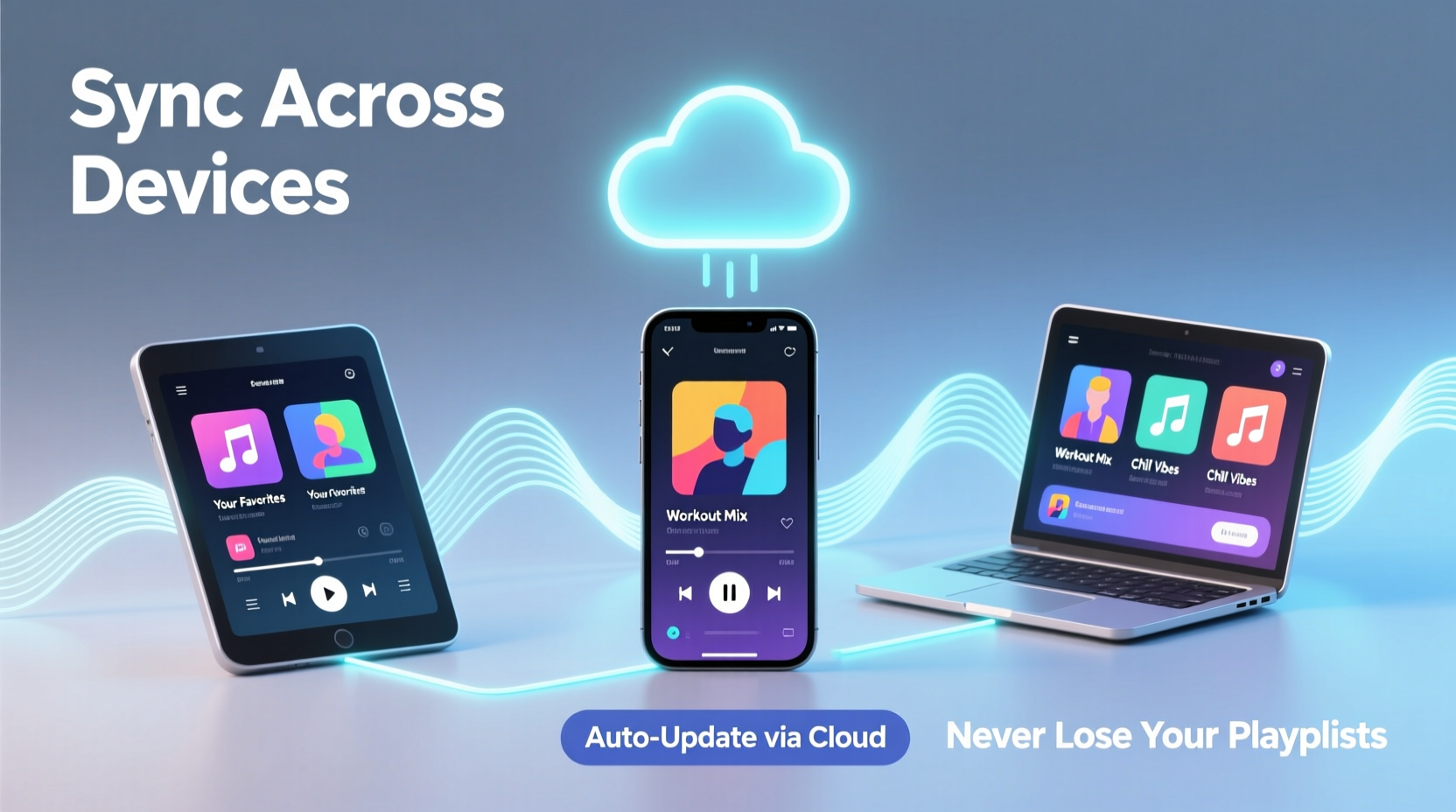
The root cause of lost playlists often lies in fragmented storage and inconsistent syncing mechanisms. When music lives only on one device’s local storage, it becomes vulnerable to data loss during resets, transfers, or OS updates. Cloud-based services help, but misconfigured settings or account mismatches can still break the chain.
Common pitfalls include:
- Using different Apple IDs or Google accounts across devices
- Downloading music outside official apps (e.g., third-party rippers or file drops)
- Not enabling automatic sync features
- Relying solely on manual file transfers via USB
Syncing isn’t just about copying files—it's about maintaining metadata, play counts, ratings, and playlist order. A true sync preserves not just audio, but context.
Choosing the Right Cloud Music Service
The foundation of cross-device music sync is a dependable cloud-based platform. The best services automatically update libraries across devices and preserve playlist integrity. Below is a comparison of top options:
| Service | Free Tier? | Offline Access | Playlist Sync Speed | Cross-Platform Support |
|---|---|---|---|---|
| Apple Music | No | Yes (with subscription) | Fast (within minutes) | iOS, macOS, limited Android |
| Spotify | Yes (ad-supported) | Yes (Premium only) | Near real-time | Android, iOS, Windows, macOS, Linux |
| YouTube Music | Yes (ads) | Yes (Premium) | Fast | All major platforms |
| Amazon Music Unlimited | No | Yes | Moderate | Good on Fire OS, decent elsewhere |
| Tidal | No | Yes | Fast | iOS, Android, desktop apps |
For most users, Spotify offers the most balanced combination of speed, reliability, and multi-platform support. However, if you're deeply embedded in the Apple ecosystem, Apple Music ensures flawless integration between iPhone, iPad, Mac, and Apple Watch.
“Consistent account usage and automatic sync settings are the two most overlooked factors in music preservation.” — David Lin, Audio Systems Architect at Sonos
Step-by-Step Guide to Seamless Syncing
Follow this process to ensure your music—and especially your playlists—stay intact across all devices.
- Choose Your Primary Music Platform: Pick one service (e.g., Spotify) as your central hub. Avoid splitting your library across multiple paid services unless necessary.
- Consolidate Existing Playlists: If you’ve been using different apps, export playlists where possible. For example, use tools like Soundiiz or TransferWise for Music to migrate from iTunes to Spotify.
- Enable Automatic Syncing: In your chosen app, go to Settings > Music > Sync Library (or equivalent) and turn it on. On Spotify, ensure “Sync Collection” is active under Storage settings.
- Standardize Device Logins: Make sure every device uses the same account credentials. Double-check email addresses and sign out of old or shared accounts.
- Download for Offline Use: On each device, open your main playlists and tap “Download” or “Make Available Offline.” This forces the app to cache the latest version.
- Test Across Devices: Add a new song to a playlist from your phone. Wait five minutes, then check if it appears on your tablet and computer.
- Set Up Regular Maintenance: Once a month, review your synced devices and remove outdated ones to prevent conflicts.
This sequence minimizes human error and leverages automation to do the heavy lifting. Once configured, syncing should require no daily intervention.
Preserving Custom Playlists During Transitions
Upgrading phones or switching operating systems (e.g., Android to iPhone) poses the greatest risk to playlist integrity. Without proper migration, custom lists—especially those with rare tracks or personal annotations—can vanish.
Consider Sarah, a college student who built a year-long study playlist on her Android phone using local MP3s and YouTube downloads. When she switched to an iPhone, none of her music transferred. Her solution? She uploaded her local files to Google Drive, used the Music Transfer feature in YouTube Music, and manually recreated playlists by searching for each track. It took six hours—but afterward, she enabled auto-sync and now all new additions appear instantly on her iPad and MacBook.
Her story highlights a critical point: one-time migrations require effort, but setting up ongoing sync prevents future losses.
Manual vs. Automated Playlist Backup
If your service doesn’t offer native export, consider third-party tools:
- Soundiiz: Allows bidirectional playlist transfers between 25+ platforms, including backup exports.
- Backupify for Spotify: Saves playlist names, track URIs, and order to JSON or CSV.
- iTunes Export Scripts: Free AppleScript tools can generate text files listing all songs in a playlist.
These backups act like insurance. Even if your primary sync fails, you can restore your structure quickly.
Avoiding Common Sync Pitfalls
Even with the right tools, mistakes happen. Here are frequent errors and how to avoid them:
| Do | Don’t |
|---|---|
| Use one primary account across all devices | Log in with different emails on different gadgets |
| Enable “Sync Library” or equivalent in settings | Assume syncing happens automatically by default |
| Download playlists for offline access regularly | Rely solely on streaming without caching |
| Verify playlist updates across devices weekly | Wait months before noticing missing tracks |
| Back up custom playlists externally once a quarter | Store playlist data only within the app |
One often-overlooked issue is Wi-Fi-only syncing. Some apps default to syncing only over Wi-Fi to save data. While sensible, this can delay updates if one device rarely connects to Wi-Fi. Adjust this setting based on your usage pattern—especially if you travel frequently.
Advanced Strategy: Hybrid Local + Cloud Libraries
For audiophiles with large local collections (e.g., FLAC files or rare recordings), pure cloud services may fall short. In such cases, a hybrid model works best:
- Use a media server like Plex or Navidrome to host your personal library on a home NAS or PC.
- Install compatible apps (Plex, JetAudio, Musicolet) on mobile devices to stream or download your collection.
- Link playlists via naming conventions or tags so they’re easily replicable across devices.
This method keeps full control of your files while enabling synchronization through a centralized server. Changes made on one device—like adding a track to a playlist—can be reflected everywhere once the server updates.
Note: This approach requires more technical setup but is ideal for users with extensive, non-commercial music collections.
FAQ
What happens to my playlists if I cancel my subscription?
It depends on the service. Spotify and Apple Music will hide your playlists and downloaded music, though they remain in your account. Once you resubscribe, everything returns. However, locally stored playlists not backed up elsewhere will be lost if deleted from the device.
Can I sync music without a subscription?
Yes, but with limitations. You can manually transfer files via USB or cloud storage (e.g., Dropbox), but playlist order and metadata may not carry over. Apps like VLC or Evermusic support playlist import from folders, offering partial sync without a paid plan.
Why does my playlist show “Unavailable” on one device?
This usually means the track isn’t available in that region or was removed from the streaming catalog. It can also occur if the device hasn’t completed syncing. Try refreshing the playlist or toggling airplane mode to force a recheck.
Checklist: Ensure Your Music Stays Synced
Use this checklist monthly to maintain flawless music continuity:
- ✅ All devices use the same login credentials
- ✅ “Sync Library” is enabled on every device
- ✅ Key playlists are downloaded for offline use
- ✅ At least one full backup of custom playlists exists in cloud storage
- ✅ No outdated or unused devices are linked to the account
- ✅ Cross-device test performed: add a song, confirm appearance elsewhere
- ✅ App versions are up to date on all platforms
Conclusion
Synchronized music shouldn’t be a luxury—it should be the standard. With deliberate setup and routine checks, you can enjoy your curated playlists anywhere, on any device, without fear of loss. Whether you rely on Spotify’s ecosystem, Apple’s tight integration, or a self-hosted library, consistency is key. The time invested in configuring proper sync today saves hours of recreation tomorrow.




 浙公网安备
33010002000092号
浙公网安备
33010002000092号 浙B2-20120091-4
Comments
No comments yet. Why don't you start the discussion?