
In an age where we juggle smartphones, tablets, laptops, and desktops daily, keeping your personal music library in sync can feel like a constant battle. Whether you're transitioning from work to commute or switching between home and gym, losing access to your favorite tracks breaks the rhythm. The good news? You don’t need a paid subscription or proprietary ecosystem to keep your music available everywhere. With the right combination of free tools and smart workflows, seamless cross-device music syncing is not only possible—it’s surprisingly simple.
This guide walks through practical, tested methods to unify your music collection across Android, iOS, Windows, macOS, and Linux—without spending a dime. From cloud storage hacks to open-source synchronization software, these strategies prioritize privacy, control, and reliability.
Why Free Syncing Matters
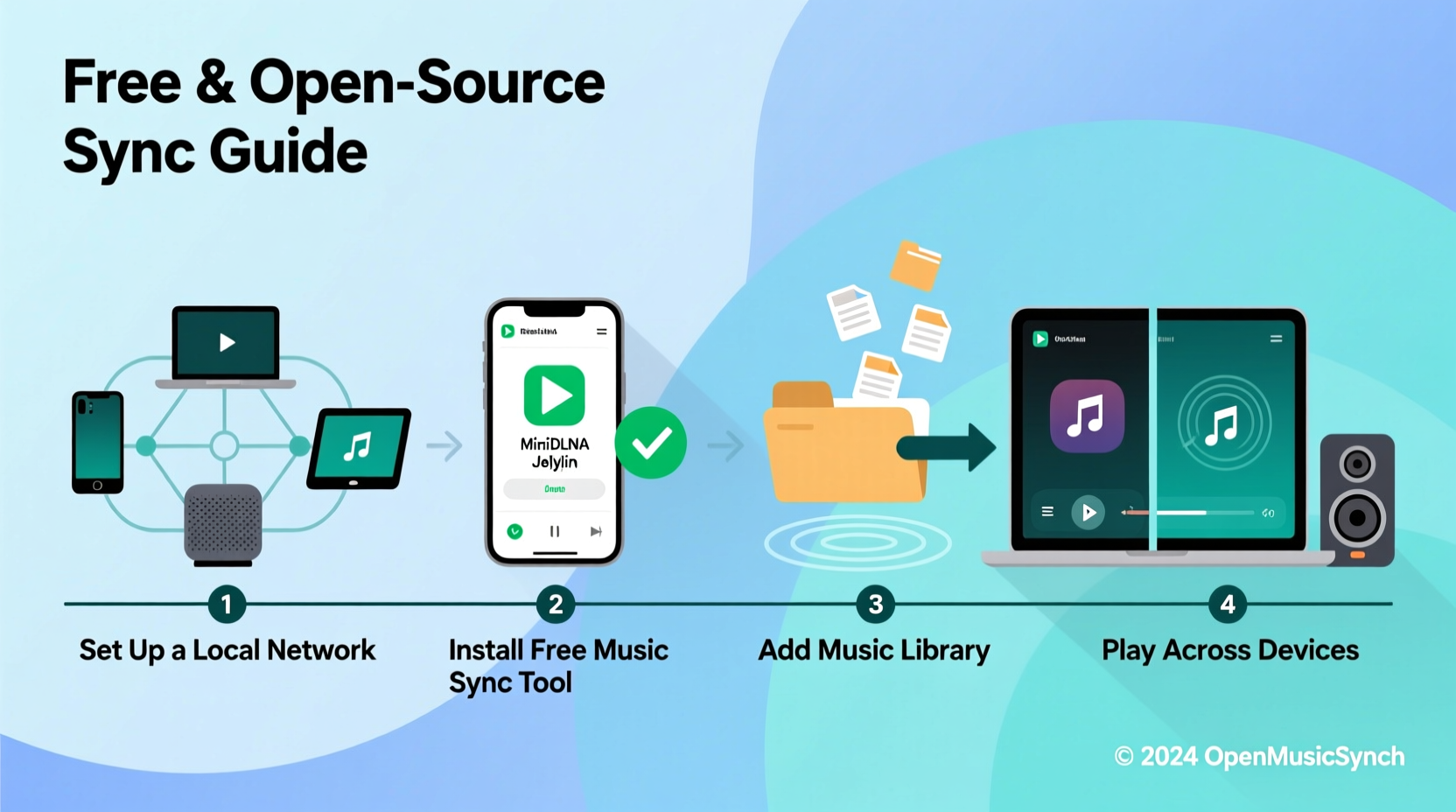
Paid services like Apple Music or Spotify offer convenience but come with trade-offs: subscription fatigue, limited offline access, and lock-in to specific platforms. More importantly, they often discourage ownership. When your music lives in the cloud under someone else’s terms, you risk losing access if a service shuts down or changes its policies.
Syncing your own music library using free tools puts you back in control. You retain full ownership of your files, avoid recurring fees, and ensure your collection travels with you—regardless of device or internet connectivity. Plus, many free syncing tools support high-quality formats like FLAC and ALAC, preserving audio fidelity that streaming platforms compress.
“True digital freedom means owning your media—not renting it.” — Leo Zimmermann, Open-Source Digital Archivist
Choose the Right Syncing Method for Your Workflow
Not all syncing methods are created equal. The best choice depends on your devices, preferred file formats, and tolerance for technical setup. Below are four reliable approaches, each suited to different needs.
1. Cloud Storage + Music Player Apps (Beginner-Friendly)
The simplest way to sync music across devices is by combining a free cloud storage provider with a compatible music player app. This method requires minimal setup and works well for users who want plug-and-play functionality.
- Tools needed: Google Drive, Dropbox, or OneDrive + VLC, Musicolet, or SyncPlayer
- Best for: Casual listeners with moderate libraries (under 20GB)
- How it works: Upload your music folder to the cloud; use a mobile app to stream or download tracks locally.
On Android, apps like Musicolet can directly access files stored in Dropbox or Google Drive. On iOS, use the Files app integration with third-party players such as VLC for Mobile. While real-time streaming depends on internet speed, most apps allow pre-downloading albums for offline playback.
2. Resilio Sync (Peer-to-Peer Syncing)
Resilio Sync uses BitTorrent’s peer-to-peer technology to transfer files directly between your devices—no cloud server required. Once configured, folders stay in sync automatically, even when one device is offline.
This tool is ideal for large libraries or users concerned about privacy. Since data never passes through a third-party server, your music remains private and encrypted during transfer.
- Download and install Resilio Sync on all devices (Windows, macOS, Linux, Android, iOS).
- Create a shared folder (e.g., “Music”) on your primary device.
- Generate a read-write link (secret key) for the folder.
- Add the same secret key on other devices to join the sync network.
- Wait for initial sync—future changes update in near real time.
Unlike traditional cloud syncing, Resilio doesn’t count against storage quotas. It also supports selective syncing per device, so you can exclude certain subfolders (like live recordings or demos) on smaller phones.
3. Syncthing (Open-Source Alternative)
Syncthing takes the philosophy of decentralization further. As fully open-source software, it offers complete transparency and runs on nearly any platform—including NAS devices and Raspberry Pi setups.
While slightly more technical than Resilio, Syncthing gives advanced users granular control over sync behavior, encryption, and bandwidth usage. It's perfect for building a self-hosted music hub at home that automatically pushes updates to your portable devices when connected to the same Wi-Fi.
| Feature | Resilio Sync | Syncthing |
|---|---|---|
| Cost | Free for basic use (pro version paid) | Completely free and open-source |
| Encryption | End-to-end (proprietary protocol) | End-to-end TLS encryption |
| User Interface | Polished, beginner-friendly | Web-based, more technical |
| Mobile Support | iOS & Android apps available | Android only (iOS via community ports) |
| LAN Speed Sync | Yes | Yes |
If you value long-term sustainability and distrust closed systems, Syncthing is the better investment. Though it lacks native iOS support, pairing it with a home server and using cloud bridges (like SFTP mounts) can extend access to iPhones.
4. Git + Lightweight Hosting (For Audiophiles & Minimalists)
Yes, Git—the developer tool—is viable for small, curated music collections. If you maintain a meticulously organized library of rare vinyl rips or lossless singles, treating your music as version-controlled data ensures integrity and traceability.
Platforms like GitHub, GitLab, or Codeberg offer free private repositories up to several gigabytes. Using git-annex or similar extensions, you can manage large binary files efficiently without bloating your repo.
This method isn’t practical for large libraries due to size limits and slow pull/push times, but it shines for archiving definitive versions of albums or playlists. Combine it with a script that auto-syncs new commits to local folders on trusted devices.
Step-by-Step Guide: Setting Up Resilio Sync for Music
Let’s walk through a real-world setup using Resilio Sync—a balance of ease and power suitable for most users.
- Install Resilio Sync
Visithttps://www.resilio.com/individuals/and download the app for each device: PC, Mac, phone, etc. - Launch and Set Folder Preferences
Open the app and click “Add Folder.” Select your main music directory (e.g.,C:\\Users\\Name\\Music). - Generate Secret Link
After adding the folder, Resilio generates a unique secret key. Choose “Read & Write” access for full syncing. - Enable Auto-Sync Options
In settings, enable “Start on boot” and “Sync over LAN only” if you want to minimize data usage. - Connect Secondary Devices
On your phone or laptop, open Resilio Sync, tap “Add Folder,” then “Enter Key.” Paste the secret and select a destination path. - Verify Initial Sync
Wait for files to transfer. Monitor progress in the app. Large libraries may take hours over Wi-Fi. - Test Playback
Use a local music player (VLC, Foobar2000, Musicolet) to confirm tracks play correctly. - Maintain Consistency
Always add or edit music on one device first to prevent conflicts. Avoid simultaneous edits to the same file.
Once established, this system runs silently in the background. New albums added to your desktop appear on your phone within minutes when both are online.
Mini Case Study: A Student’s Cross-Campus Setup
Maya, a university student, uses three devices daily: a Windows laptop for studying, an Android phone for commuting, and a shared family iPad for presentations. She refuses to pay for streaming services and owns over 15GB of downloaded concert recordings and indie albums.
She chose Resilio Sync after trying Google Drive, which kept re-downloading files and draining her mobile data. By setting up a dedicated “Campus Music” folder synced across all devices, she now adds new music only on her laptop. Within 10 minutes of connecting to campus Wi-Fi, her phone receives updates. She uses Musicolet to organize playlists and disable syncing for low-priority folders during exams.
“It took me one evening to set up,” she says. “Now I never worry about whether my playlist will work on the bus.”
Essential Checklist for Seamless Syncing
Follow this checklist before launching your multi-device music system:
- ✅ Organize your music into a single root folder (e.g., “Music/Library”)
- ✅ Standardize file naming: Artist/Album/Track Number - Title.mp3
- ✅ Convert incompatible formats (e.g., WMA → MP3) using free tools like Audacity or FFmpeg
- ✅ Backup your library externally before syncing
- ✅ Install the same syncing tool on all target devices
- ✅ Test with a small subset of songs first
- ✅ Enable battery-efficient sync modes on mobile (e.g., Wi-Fi only)
- ✅ Exclude unnecessary files (thumbnails, logs) from sync paths
Skipping organization leads to duplicate entries, broken metadata, and failed transfers. Take time to clean up tags using free software like MP3Tag or EasyTAG.
Common Pitfalls and How to Avoid Them
Even well-designed sync systems fail when misconfigured. Watch out for these frequent issues:
- Two-way conflict loops: Editing the same file on two devices simultaneously creates conflicting copies. Always designate a “primary” device for edits.
- Storage overload: Full hard drives halt syncing. Regularly audit device space and use selective folder sync.
- Battery drain: Background syncing can reduce battery life. Schedule syncs during charging or idle periods.
- Metadata loss: Some apps rewrite ID3 tags incorrectly. Use tag editors that preserve original formatting.
- Wi-Fi-only limitations: Mobile plans often restrict background downloads. Adjust app settings to allow cellular sync if needed.
“Syncing isn't magic—it's consistency. Treat your music like important documents, and it’ll behave reliably.” — Dana Patel, Digital Media Consultant
FAQ
Can I sync music between iPhone and Android for free?
Yes. Use Resilio Sync or push files via a shared cloud folder (Dropbox, OneDrive). On iPhone, access files through VLC or Documents by Readdle. No direct file system access is needed.
Will syncing use a lot of data?
Initial sync can consume significant bandwidth, especially with large libraries. Afterward, only changed files transfer. To minimize impact, schedule syncing over Wi-Fi and enable “LAN-only mode” when possible.
What happens if I lose internet connection during sync?
Most tools queue pending transfers and resume automatically when reconnected. Peer-to-peer tools like Resilio Sync and Syncthing will continue syncing once devices are back on the same network.
Conclusion: Take Control of Your Soundtrack
Your music is personal. It reflects your memories, moods, and moments. Letting algorithms or subscription models dictate access diminishes that connection. With free syncing tools, you reclaim ownership—building a resilient, flexible library that moves with you, not against you.
The methods outlined here require a modest upfront effort but deliver lasting freedom. Whether you choose the simplicity of cloud storage or the autonomy of peer-to-peer networks, the goal remains the same: seamless access without compromise.




 浙公网安备
33010002000092号
浙公网安备
33010002000092号 浙B2-20120091-4
Comments
No comments yet. Why don't you start the discussion?