
In today’s connected world, music follows us—from morning commutes on smartphones to evening relaxation through home speakers and late-night editing sessions on laptops. Yet, maintaining a consistent music library across all your devices remains a common frustration. Songs go missing, playlists don’t update, or offline access fails when you need it most. The good news? With the right tools and setup, syncing music can be effortless, automatic, and nearly invisible.
The key lies not in owning every device from a single brand, but in understanding synchronization mechanics, choosing compatible platforms, and setting up intelligent workflows. Whether you're an Apple devotee, Android loyalist, or platform-agnostic listener, seamless music syncing is within reach.
Understanding Music Sync: What It Really Means
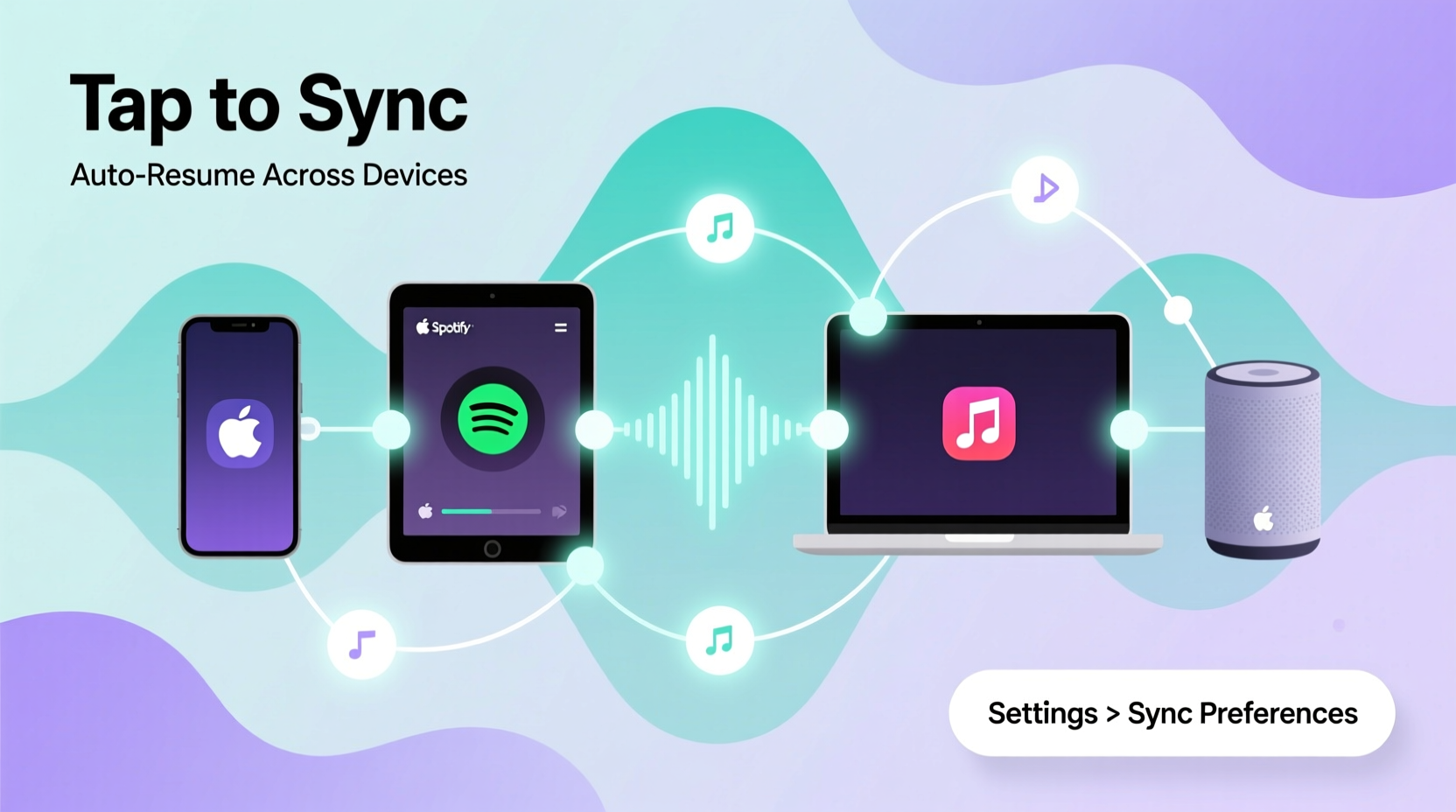
Synchronization isn’t just copying files. True music sync ensures that your entire audio ecosystem—playlists, recently played tracks, playback positions, likes, downloads, and even queue history—remains consistent no matter which device you pick up.
This requires three core components:
- Centralized Library: A master collection stored either locally or in the cloud.
- Sync Engine: Software or service that detects changes and pushes updates.
- Device Compatibility: Apps and hardware that support the same formats and protocols.
Without all three, you risk fragmentation. For example, adding a song to your iPhone playlist won’t appear on your Windows PC unless both use the same account and sync settings are enabled.
“Seamless sync removes friction between intent and experience. When users switch devices, the music should continue as if nothing changed.” — Lena Patel, Audio Experience Designer at SoundFlow Labs
Choose the Right Cloud-Based Music Service
The easiest path to cross-device harmony is leveraging a cloud-based streaming platform. These services store your library remotely and deliver it on demand, reducing reliance on manual file transfers.
Top contenders include:
| Service | Offline Sync? | Cross-Platform Support | Local File Uploads? |
|---|---|---|---|
| Spotify | Yes (Premium) | iOS, Android, Web, Desktop (macOS/Windows), Smart TVs | Limited (via “Local Files”) |
| Apple Music | Yes (iCloud Music Library) | iOS, macOS, limited Android support via web player | Yes (syncs iTunes imports) |
| YouTube Music | Yes (Premium) | Full mobile, desktop, and embedded device support | Yes (up to 100,000 songs) |
| Amazon Music Unlimited | Yes (with app download) | Android, iOS, Fire OS, Web, Alexa devices | Yes (unlimited personal uploads) |
If you own a mix of Apple and non-Apple devices, YouTube Music or Amazon Music offer broader compatibility. Spotify leads in social features and algorithmic playlists but lags slightly in handling local files.
Step-by-Step: Setting Up Automatic Sync Across Devices
Follow this sequence to achieve true synchronization regardless of your chosen platform.
- Pick a primary music service – Choose one provider as your central hub. Avoid splitting libraries across multiple paid accounts unless necessary.
- Upload or import your existing collection – Use desktop apps to drag-and-drop folders or enable auto-upload for local files.
- Enable cloud syncing – In settings, turn on iCloud Music Library (Apple), Downloaded Music (Spotify), or Upload & Match (YouTube Music).
- Install the app on all devices – Log in with the same credentials everywhere: phone, tablet, laptop, smart speaker.
- Set up offline availability – Mark frequently used playlists for download so they’re accessible without internet.
- Test consistency – Add a song on one device, wait 30 seconds, and check if it appears on another.
For best results, keep all apps updated. Outdated versions may lack sync triggers or bug fixes critical for reliability.
Managing Local Files and Mixed Libraries
Many users maintain personal rips, rare recordings, or purchased MP3s outside mainstream catalogs. These require special handling because streaming platforms don’t always index them correctly.
Here’s how to integrate local files without breaking sync:
- Standardize file formats: Convert everything to AAC or MP3. FLAC is high quality but often unsupported on mobile apps.
- Organize metadata: Use tools like MusicBrainz Picard or Kid3 to fix artist names, album art, and track numbers. Clean tags improve recognition during upload.
- Store in designated folders: Keep all music in one root directory (e.g., “Music/Library”) to simplify scanning.
- Verify upload completion: Check your service’s web interface to confirm all files were matched or uploaded.
Some platforms, like YouTube Music, display uploaded tracks separately from streamed ones. To unify the experience, create playlists combining both types under consistent naming (e.g., “Master Collection Vol. 1”).
“Metadata accuracy is the silent foundation of smooth syncing. Misnamed tracks often fail to sync because systems treat them as duplicates or unknowns.” — Marcus Reed, Digital Archivist at AudioVault Inc.
Real-World Example: A Multi-Device Listener’s Workflow
Consider Sofia, a freelance designer who listens while working on her MacBook Pro, commuting via Pixel phone, and relaxing on her iPad. She owns hundreds of imported jazz and indie tracks alongside curated Spotify playlists.
Her solution:
- She uses YouTube Music as her central platform due to its robust local file support and equal performance across operating systems.
- All music files were tagged and converted to 320kbps MP3 before uploading.
- She created a “Daily Mix” playlist that combines algorithmic recommendations and her favorite deep cuts.
- On each device, she downloaded this playlist for offline access.
- She enabled background sync over Wi-Fi so new additions appear within minutes.
Now, when she discovers a track on her laptop, it’s already in her commute playlist by the time she leaves home. No extra steps. No delays.
Advanced Tips for Power Users
Beyond basic setup, advanced optimizations can eliminate lingering inconsistencies.
Additional strategies:
- Leverage automation tools: On iOS, Shortcuts can trigger playlist updates or initiate sync checks. Android users can use Tasker to force-refresh music libraries after network connection.
- Monitor storage usage: Large libraries consume significant space. Periodically audit downloaded content and remove obsolete offline saves.
- Use network-based sync for computers: Tools like Syncthing or Resilio Sync can mirror local music folders across Mac and PC machines, ensuring the source library stays uniform before cloud upload.
- Label devices clearly: In your music app settings, rename devices (“Work Laptop,” “Commuter Phone”) to easily identify where downloads are active.
Troubleshooting Common Sync Failures
Even well-configured systems occasionally break. Here’s how to diagnose and fix frequent issues.
Symptom: New songs aren’t appearing on other devices
Solution: Check internet connectivity and ensure background data isn’t restricted. Force-close and reopen the app. Verify account login status. Wait up to five minutes—some services batch sync operations.
Symptom: Offline downloads disappear unexpectedly
Solution: This often occurs when storage thresholds are exceeded. Adjust download limits in app settings or manually delete older offline content. Some apps auto-remove infrequently accessed downloads to free space.
Symptom: Playlists out of order or missing tracks
Solution: Re-download the playlist. If tracks are grayed out, they may not have synced properly. Try removing and re-adding the affected songs.
Checklist: Achieve Seamless Music Sync in 7 Steps
Use this checklist to verify your setup is optimized:
- ✅ Chosen one primary music platform
- ✅ Imported or uploaded full music library
- ✅ Enabled cloud sync on all devices
- ✅ Logged into same account universally
- ✅ Standardized file formats and cleaned metadata
- ✅ Set essential playlists to offline/downloaded
- ✅ Tested sync flow across at least two devices
Frequently Asked Questions
Can I sync music without a subscription?
Yes, but with limitations. Free tiers usually block offline downloads and restrict background sync. You can manually transfer files via USB or cloud storage (e.g., Dropbox), but real-time updates won’t occur. True seamless sync requires a premium plan.
Why does Apple Music not work well on Android?
While Apple Music runs on Android, its functionality is pared down compared to iOS. Features like Siri integration, HomePod control, and full iCloud sync depth are unavailable. For mixed ecosystems, third-party services like YouTube Music offer better neutrality.
How do I stop my phone from deleting downloaded songs?
Go to your music app settings and disable auto-cleanup features. In Spotify, turn off “Delete unused downloads.” In YouTube Music, ensure “Smart Downloads” is toggled off unless desired. Also, avoid low-storage conditions—apps prioritize system functions over cached music.
Maintain Harmony Across Your Digital Life
Music is personal, emotional, and deeply tied to our daily rhythms. When technology interrupts that flow—forcing us to search, redownload, or replay—it diminishes the experience. But with deliberate configuration, your devices can act as unified extensions of a single, intelligent audio environment.
The effort invested in setting up reliable sync pays dividends every day: a playlist resuming exactly where you left off, a newly added track ready on your headphones, or a favorite album waiting during a flight—all without intervention.




 浙公网安备
33010002000092号
浙公网安备
33010002000092号 浙B2-20120091-4
Comments
No comments yet. Why don't you start the discussion?