
For many, the iPod is more than a relic—it’s a symbol of musical independence and personal curation. But as Apple has phased out iTunes in favor of the Music app and cloud-based services, syncing music to older iPod models—especially the classic iPod, iPod Nano (1st–4th gen), or iPod Classic—has become increasingly difficult. The good news? You don’t need a functioning iTunes installation to breathe new life into your vintage iPod. With the right tools and techniques, you can transfer music directly, manage playlists, and keep your favorite portable player alive.
This guide explores practical, tested methods to sync music to an old iPod without relying on iTunes, whether it’s no longer supported on your operating system or simply refuses to cooperate. From third-party software to manual file transfers, we’ll walk through every step to ensure your iPod stays stocked with your favorite tracks.
Why iTunes No Longer Works for Old iPods
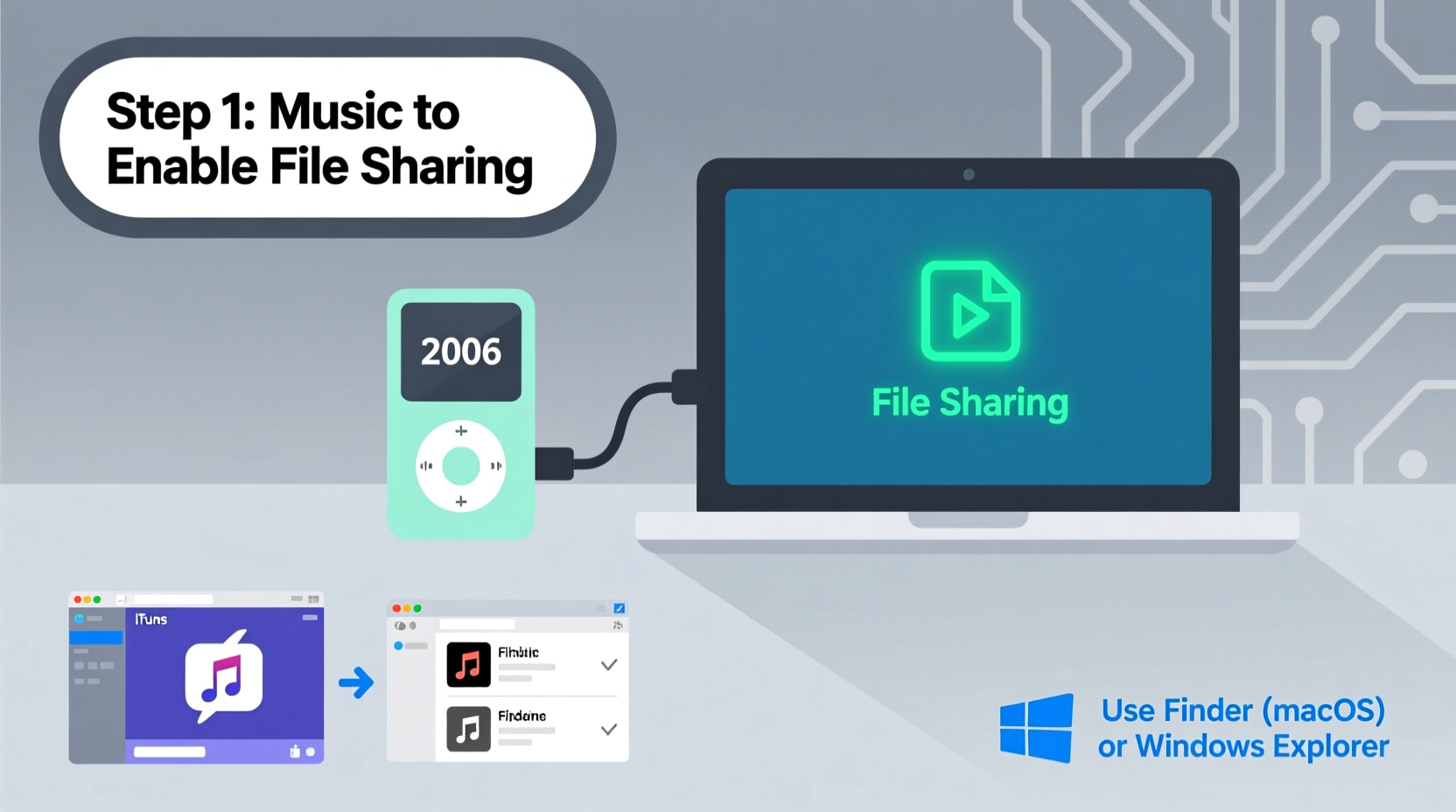
iTunes was once the only way to manage an iPod. However, Apple discontinued standalone iTunes in 2019. On macOS Catalina and later, it was replaced by the separate Music, Podcasts, and TV apps. Windows users still have access to iTunes, but even there, support for older iPod models has degraded over time. Many users report sync failures, recognition issues, or complete refusal from their computers to detect legacy devices.
The root of the problem lies in outdated drivers and firmware compatibility. Apple no longer updates the software components needed to communicate with pre-2010 iPods. As operating systems evolve, these older USB protocols and disk-mode behaviors fall out of alignment.
“Apple’s shift to ecosystem-driven streaming has left hardware enthusiasts to fend for themselves when maintaining older devices.” — Daniel Park, Digital Archivist & Retro Tech Specialist
But obsolescence isn’t inevitable. Millions still use their iPods daily—for workouts, travel, or simply enjoying music without distractions. The solution lies outside Apple’s official channels.
Method 1: Use Third-Party Software Designed for Legacy iPods
Dedicated third-party applications have filled the gap left by iTunes’ decline. These tools are specifically engineered to recognize and manage older iPod models without requiring iTunes to be installed or functional.
Top Recommended Tools:
- Winamp (with ml_ipod plugin) – A nostalgic favorite, Winamp supports iPod syncing via a free plugin that enables drag-and-drop functionality.
- MusicBee – Free for Windows, MusicBee detects iPods as external drives and allows full library and playlist management.
- DoubleTwist – Offers a clean interface and automatic syncing similar to iTunes. Available for Windows and macOS.
- TouchCopy – Primarily used for data extraction, but also supports music transfer to iPods in certain modes.
Step-by-Step: Syncing with MusicBee
- Download and install MusicBee from the official website (musicbee.com).
- Launch MusicBee and connect your iPod via USB.
- Wait for the auto-detection prompt. If it doesn’t appear, go to Devices > Rescan Devices.
- Once recognized, click on your iPod under the Devices tab.
- Select music from your library and drag it to the iPod panel.
- To manage playlists, right-click a playlist and choose “Send to Device.”
- Eject safely using the eject icon next to the device name.
MusicBee preserves metadata such as album art, track numbers, and genres, ensuring your music appears correctly on the iPod’s screen.
Method 2: Manual File Transfer (For Advanced Users)
If you’re comfortable navigating hidden files and system settings, you can transfer music manually—without any additional software. This method treats the iPod as a standard USB mass storage device, much like a flash drive.
However, this only works if your iPod is set to “Disk Mode” and your computer recognizes it as a drive. Older iPods must have this mode enabled either through past iTunes use or by forcing disk mode during connection.
Enabling Disk Mode on an Old iPod
- Power off the iPod completely.
- Hold down the Menu and Select buttons simultaneously until the Apple logo appears.
- Immediately after the logo, hold the Play/Pause button for 5–10 seconds.
- If successful, the iPod will display a cable icon and “Do Not Disconnect,” indicating disk mode.
Once in disk mode, connect to your computer. It should appear as a removable drive.
Transferring Files Manually
- Navigate to the iPod drive in File Explorer (Windows) or Finder (macOS).
- Look for a folder named
iPod_Control. This is where all music is stored. - Inside, you’ll see folders labeled
F00,F01, etc. These contain encoded audio files. - Directly copying MP3s into these folders will not work—they must be properly indexed.
Instead, use a tool like iMazing HEIC Converter or iPod Music Manager to generate correctly formatted files and database entries. Alternatively, extract the existing iTunesDB file, modify it with compatible software, and re-upload it.
iTunesDB file. It contains the entire music library index. Losing it may render your music unplayable.
Method 3: Revive an Old Computer with Legacy Software
Sometimes, the most reliable path forward is backward. If you have access to an older computer running Windows 7 or macOS Mojave or earlier, you can reinstall a compatible version of iTunes and use it solely for iPod management.
This approach ensures full compatibility and avoids the risks of third-party tools. It’s especially useful if you plan to maintain multiple legacy Apple devices.
Checklist: Setting Up a Legacy Sync Station
- ✅ Source a dedicated machine (e.g., old laptop or desktop).
- ✅ Install a supported OS (Windows 7 SP1, macOS High Sierra).
- ✅ Download and install iTunes 12.9 or earlier (last version supporting iPod Classic).
- ✅ Disable automatic updates to prevent OS or iTunes upgrades.
- ✅ Back up the system image for future restoration.
- ✅ Use this machine exclusively for iPod syncing and media transfers.
This setup may sound extreme, but for collectors, audiophiles, or those with large offline libraries, it’s a sustainable long-term solution.
Comparison of Sync Methods
| Method | Difficulty | Cost | Metadata Support | Best For |
|---|---|---|---|---|
| Third-Party Software | Easy to Moderate | Free–$30 | Yes | Most users; balanced ease and functionality |
| Manual Transfer | Advanced | Free | Limited (requires extra tools) | Tech-savvy users comfortable with file systems |
| Legacy Computer + iTunes | Moderate | $0 (if you own hardware) | Full | Collectors or frequent syncers |
| Cloud-to-iPod Workarounds | Complex | Varies | Partial | Those syncing small playlists occasionally |
Real Example: Sarah’s iPod Classic Revival
Sarah, a college professor and vinyl enthusiast, inherited her brother’s 160GB iPod Classic after he switched to streaming. She wanted to load it with high-bitrate rips from her record collection—music not available on Spotify or Apple Music.
Her MacBook Air ran macOS Sonoma, which lacks iTunes. Initial attempts with DoubleTwist failed due to driver conflicts. After researching, she installed MusicBee on an old Windows 10 laptop she kept for photo editing. Within 20 minutes, she had transferred over 4,000 tracks, organized into genre-based playlists. Album art synced perfectly, and the iPod navigated smoothly.
“I didn’t think I’d ever use an iPod again,” she said. “Now it’s my go-to for hiking and flights. No ads, no buffering—just music.”
FAQ
Can I sync music from Spotify or Apple Music to an old iPod?
No—not directly. Subscription-based music is protected by DRM and cannot be transferred. However, you can record audio output (using line-in or analog capture) or use legally purchased MP3s from other sources. Always respect copyright laws.
Why won’t my computer recognize my iPod?
Common causes include outdated USB drivers, damaged cables, disabled disk mode, or corrupted firmware. Try a different USB port, use the original Apple cable, and ensure the iPod is in disk mode. On Windows, check Device Manager for unrecognized hardware.
Will these methods work on iPod Touch?
No. This guide applies only to non-touch iPod models (Classic, Nano, Mini). iPod Touch runs iOS and requires different procedures, typically involving iCloud or app-based syncing—even if iTunes is no longer used.
Conclusion: Keep Your iPod Alive Without iTunes
The end of iTunes doesn’t mean the end of your iPod. Whether you choose third-party software like MusicBee, dive into manual file management, or set up a legacy sync station, the tools exist to keep your classic player loaded with music. These methods restore control over your digital library in an age of algorithmic playlists and internet dependency.
Your iPod represents a time when music ownership meant something tangible. With a little technical know-how, it can remain a functional part of your daily routine—free from subscriptions, notifications, and data usage. Don’t let outdated software dictate what hardware you can use. Take back your music library, one sync at a time.




 浙公网安备
33010002000092号
浙公网安备
33010002000092号 浙B2-20120091-4
Comments
No comments yet. Why don't you start the discussion?