
Synchronizing notes across devices is essential for productivity, whether you're capturing ideas on a phone, refining them on a tablet, or organizing them on a desktop. While iCloud and Google Keep are common solutions, they come with trade-offs: data privacy concerns, ecosystem lock-in, and limited control over where your information resides. For users who value autonomy, security, and cross-platform flexibility, there are effective alternatives that don’t rely on corporate cloud services.
This guide explores practical, open-source, and self-hosted methods to keep your notes in perfect sync—without handing your data to Apple or Google. From peer-to-peer syncing tools to personal cloud servers, you’ll learn how to build a note-syncing system tailored to your needs, values, and technical comfort level.
Why Avoid iCloud and Google for Note Syncing?
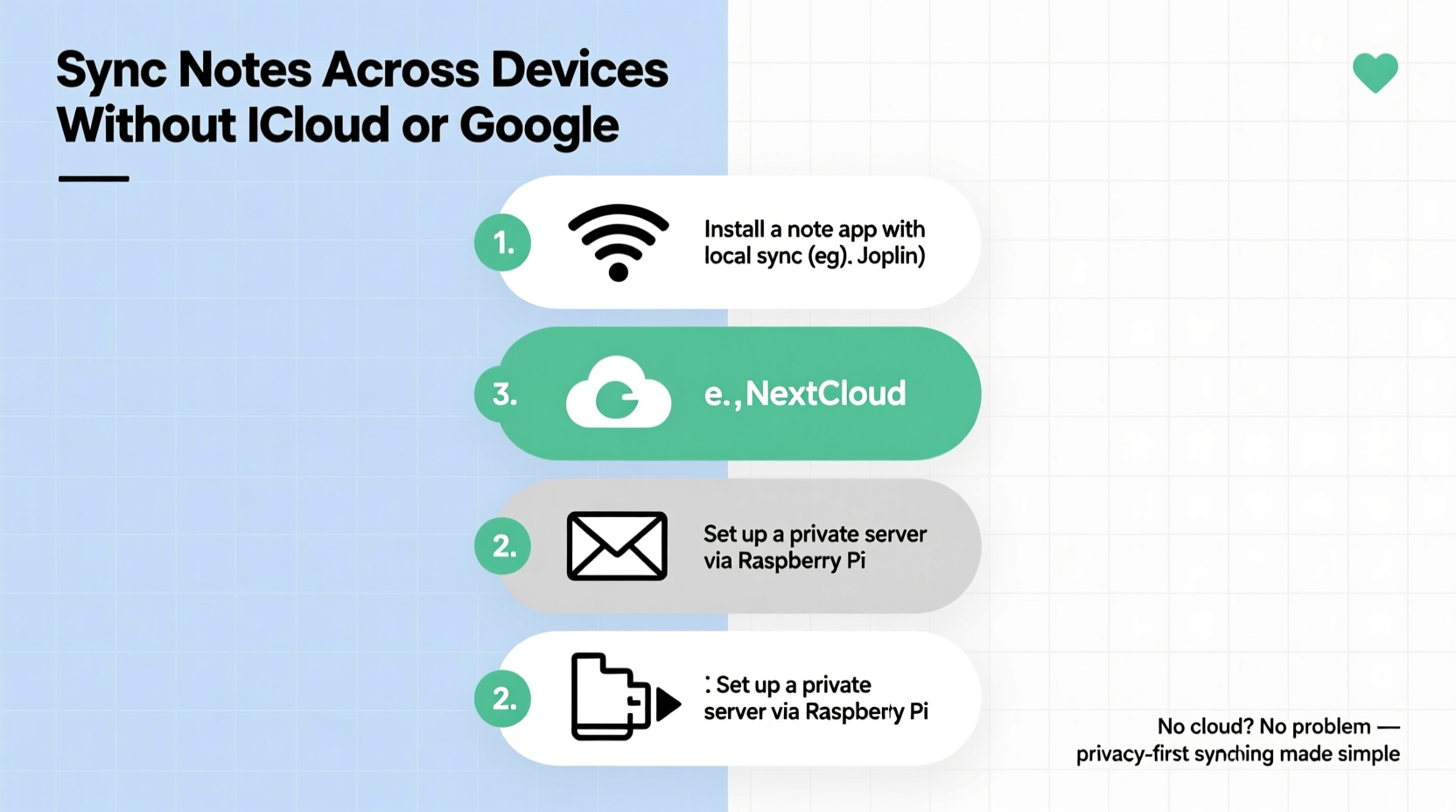
iCloud and Google Drive offer convenience, but their centralized nature raises several concerns:
- Data Privacy: Both companies scan user content for advertising (Google) or automated processing (Apple), potentially exposing sensitive personal or professional notes.
- Ecosystem Lock-In: iCloud works best within Apple’s ecosystem; Google favors Android and ChromeOS. Switching platforms becomes difficult.
- Limited Customization: You can't modify backend behavior, encryption standards, or storage locations.
- Subscription Costs: Free tiers are limited; expanding storage requires ongoing fees.
For individuals handling confidential information—writers, researchers, legal professionals, or privacy-conscious users—these drawbacks make third-party solutions less than ideal.
“True digital sovereignty begins with controlling where your data lives and who can access it.” — Dr. Lena Torres, Cybersecurity Researcher at OpenNet Institute
Top Alternatives for Cross-Device Note Syncing
The key to syncing notes without iCloud or Google lies in decoupling the note-taking app from the syncing mechanism. Instead of relying on proprietary clouds, use open protocols and decentralized tools that give you full ownership.
Below are the most reliable approaches, ranked by ease of use and technical requirements.
1. Use Syncthing for Peer-to-Peer File Syncing
Syncthing is an open-source, decentralized file synchronization tool that securely replicates folders across devices without any central server. It runs directly on your computers, phones, and tablets, creating a private mesh network.
How it works: Install Syncthing on each device, link them via QR codes or device IDs, and designate a folder (e.g., “Notes”) to sync. Any change made to a file in that folder is instantly encrypted and pushed to all connected devices.
Syncthing uses TLS encryption for all transfers and doesn’t store your data anywhere—making it one of the most secure syncing options available.
2. Set Up a Personal Cloud with Nextcloud or OwnCloud
Nextcloud and OwnCloud are self-hosted cloud platforms that replicate Dropbox-like functionality on your own server. Once installed, you can sync files—including notes—across devices while retaining full control.
You can host Nextcloud on a home server (like a Raspberry Pi), a virtual private server (VPS), or a dedicated NAS (Network Attached Storage). After setup, install the mobile and desktop clients, log in, and select which directories to sync.
Many note-taking apps integrate directly with Nextcloud, including:
- Nextcloud Notes: A lightweight web and mobile app built into the platform.
- Joplin: Supports direct syncing with Nextcloud WebDAV.
- Standard Notes: Offers optional integration via WebDAV or custom endpoints.
Because you control the server, you decide who accesses your data, how long it's retained, and whether backups are encrypted.
3. Leverage Standard Notes for End-to-End Encrypted Sync
Standard Notes is a minimalist, privacy-first note-taking app that supports multiple syncing options—including self-hosted ones. While it offers its own paid hosting, you can also sync via local folders, WebDAV, or SFTP.
Its standout feature is end-to-end encryption: every note is encrypted on your device before syncing, meaning even if someone intercepts the data, they can't read it without your password.
To avoid Google or iCloud, configure Standard Notes to sync through a locally managed folder shared via Syncthing or a private WebDAV server.
4. Use Joplin with Custom Sync Targets
Joplin is one of the most powerful open-source note apps available. It supports Markdown, notebooks, tags, and rich media—all while allowing complete freedom over syncing.
Unlike most apps, Joplin lets you choose your sync destination. Supported options include:
- File system (local or network drive)
- WebDAV (Nextcloud, ownCloud, etc.)
- SFTP (Secure File Transfer Protocol)
- OneDrive (if preferred, though still third-party)
By selecting “File System” as your sync target and placing the folder under Syncthing or a mounted NAS share, you eliminate reliance on external cloud providers entirely.
Step-by-Step Guide: Sync Notes Using Syncthing + Joplin
Here’s a complete walkthrough to set up a fully independent note-syncing system using Joplin and Syncthing.
- Install Joplin on all devices (desktop, phone, tablet) from joplinapp.org.
- Create a dedicated notes folder on your primary device (e.g., ~/Documents/JoplinNotes).
- Open Joplin Settings > Synchronization and set Type to “File System”.
- Set the synchronization target path to the folder created in step 2.
- Enable Two-Way Sync and run the first sync to initialize the profile.
- Install Syncthing on all devices from syncthing.net.
- Add the JoplinNotes folder in Syncthing and share it with your other devices.
- Approve connections on each device using device IDs or QR codes.
- Wait for initial sync completion—this may take time depending on note volume.
- Repeat steps 3–5 on secondary devices, pointing Joplin to the now-synced folder.
Once complete, any note created or edited on one device will appear on all others within seconds—without touching iCloud, Google, or any public cloud infrastructure.
Comparison of Sync Methods
| Method | Privacy Level | Setup Difficulty | Cost | Best For |
|---|---|---|---|---|
| Syncthing + Plain Text | Very High | Moderate | Free | Minimalists, tech-savvy users |
| Joplin + WebDAV (Nextcloud) | High | Moderate to High | Free (self-hosted) or low-cost VPS | Power users needing rich features |
| Standard Notes + SFTP | Very High (E2EE) | Moderate | Free (self-hosted) | Security-focused professionals |
| Manual USB/File Copy | High | Low | Free | Occasional users, air-gapped systems |
| iCloud / Google (for comparison) | Low to Moderate | Very Easy | Free (limited), then subscription | General users prioritizing convenience |
Real-World Example: A Freelance Writer’s Workflow
Maya is a freelance journalist who writes investigative pieces involving sensitive sources. She refuses to store her drafts on corporate clouds due to surveillance risks. Her solution:
She uses Joplin on her MacBook, iPhone, and Linux laptop. All notes are stored in Markdown and synced via a Syncthing-managed folder. Her writing environment is entirely offline-capable, and she enables Joplin’s password protection for additional security.
When traveling, she disables Syncthing on public Wi-Fi and re-enables it upon returning home. This ensures no data leaks during transit. Backups are automatically made nightly to an encrypted external drive.
Over two years, her system has remained stable, fast, and completely under her control—proving that robust, private syncing is achievable without mainstream cloud services.
Essential Checklist for Secure Note Syncing
Before deploying your own syncing solution, follow this checklist to ensure reliability and security:
- ✅ Choose a plain-text or open format (Markdown, TXT, JSON)
- ✅ Encrypt sensitive notes (use apps with E2EE like Standard Notes)
- ✅ Test sync consistency across all devices
- ✅ Enable automatic backups to an external drive or separate location
- ✅ Use strong passwords and device-level encryption
- ✅ Document your setup process for future recovery
- ✅ Monitor sync status regularly (especially after updates)
Frequently Asked Questions
Can I sync notes between iOS and Android without Google?
Yes. Tools like Syncthing (via community apps like “SyncThing-Fork” on Android and “Syncthing” on iOS) allow direct folder syncing. Pair this with a compatible note app like Joplin or FSNotes (iOS) and Markor (Android), both supporting file-based storage.
Is self-hosting safe for non-tech users?
Self-hosting requires some technical effort, but platforms like Nextcloud offer guided installers (e.g., Snap packages, Docker images) that simplify setup. For those uncomfortable with servers, Syncthing with local folder syncing offers a middle ground—secure and manageable without deep sysadmin knowledge.
What happens if my internet goes down?
Unlike cloud-dependent services, decentralized tools like Syncthing work over local networks. If devices are on the same Wi-Fi, syncing continues uninterrupted. When offline, changes queue and sync once connectivity resumes—ensuring no data loss.
Take Control of Your Digital Notes
Syncing notes across devices shouldn’t require surrendering your privacy or locking yourself into a single tech ecosystem. With tools like Syncthing, Joplin, and Nextcloud, you can create a personalized, secure, and efficient workflow that respects your autonomy.
The initial setup may demand more effort than tapping “Sign in with Apple,” but the long-term benefits—data ownership, reduced tracking, and platform independence—are invaluable. Whether you're a student, writer, developer, or just someone who values digital freedom, building your own syncing system is a step toward true technological self-reliance.




 浙公网安备
33010002000092号
浙公网安备
33010002000092号 浙B2-20120091-4
Comments
No comments yet. Why don't you start the discussion?