
Transforming your holiday decor into an immersive experience doesn’t stop at twinkling lights and synchronized music. With the right tools and a bit of technical creativity, you can integrate modern tech like your PS5 DualSense controller into your Christmas light show. By syncing the controller’s built-in RGB lighting to match your outdoor or indoor display, you create a unified, dynamic atmosphere that bridges gaming and seasonal festivities. While Sony hasn’t built in native support for linking the controller to holiday displays, third-party software, smart lighting systems, and audio-reactive setups make it entirely possible.
The DualSense controller features a light bar on the front that typically indicates player number or in-game status. However, with customization tools, this light bar can reflect any color—red, green, gold, blue, or even cycling rainbow effects—to align with your holiday theme. Whether you’re hosting a neighborhood light tour or just want a cozy, themed gaming night under the glow of synchronized colors, this guide walks through practical methods to bring your vision to life.
Understanding the DualSense Light Bar Capabilities
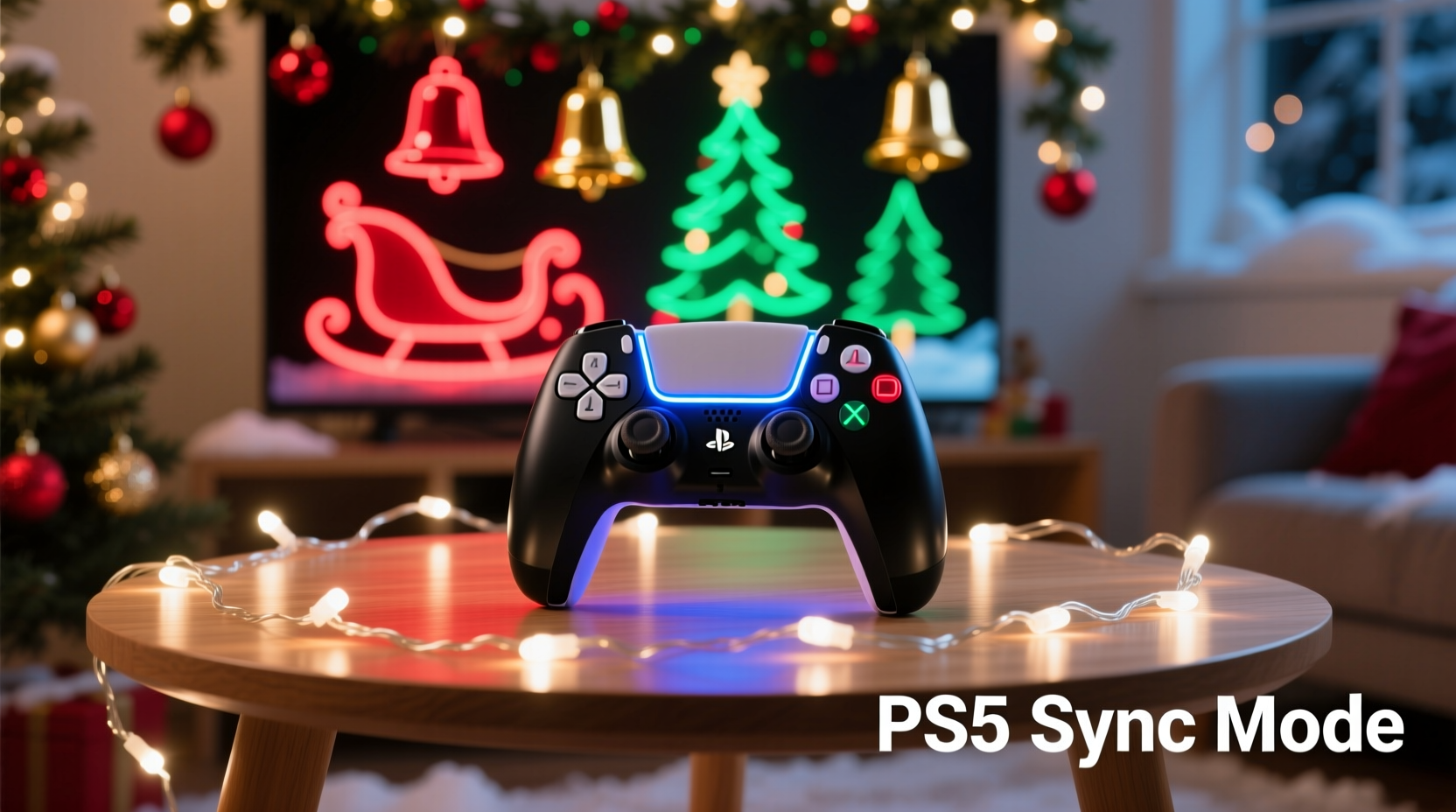
The PS5 DualSense controller includes a programmable light bar located above the touchpad. Unlike the PS4’s DualShock, which had limited color control primarily for player identification, the DualSense allows more nuanced adjustments via compatible software. The light bar supports a wide spectrum of colors, though brightness is fixed and cannot be dimmed independently through official channels.
To manipulate the light bar externally, you’ll need to bypass the console’s default behavior. This requires either connecting the controller to a PC via USB or Bluetooth and using third-party applications capable of overriding the standard lighting output. Keep in mind: while Sony does not officially support full RGB customization beyond developer-defined game states, many apps have reverse-engineered access to the light bar controls.
Step-by-Step Guide: Syncing Controller Lights to Your Display
Synchronizing your PS5 controller with your Christmas lights involves three core components: your lighting setup, audio or signal input, and the DualSense controller itself. Below is a detailed timeline to achieve real-time color coordination.
- Assess your current Christmas lighting system. Determine whether your lights are static, manually controlled, or part of a smart ecosystem (e.g., Philips Hue, Nanoleaf, or WLED).
- Connect your PS5 controller to a Windows PC. Use a high-quality USB-C cable or pair it via Bluetooth through Settings > Devices > Bluetooth & other devices.
- Install DS4Windows or a compatible alternative. Despite the name, DS4Windows supports DualSense controllers and allows extensive customization, including light bar color overrides.
- Set up a synchronization bridge between lights and audio. If your display reacts to music, use audio-reactive software such as VU Meter or Aurora HDR to translate sound frequencies into lighting commands.
- Link lighting software to DS4Windows. Tools like OpenRGB or SignalRGB can push color data from ambient lighting programs directly to the DualSense light bar.
- Test and calibrate timing. Ensure there’s minimal lag between the display change and the controller response. Adjust buffer settings if necessary.
- Launch your holiday playlist or animation sequence. Sit back and enjoy a fully synced environment where every beat shifts both your display and controller hues.
This process works best when all devices operate on the same network and low-latency connections are maintained. For instance, using a wired USB connection for the controller reduces input delay compared to Bluetooth.
Smart Lighting Integration Options
Not all Christmas displays are created equal. The method you choose depends heavily on your existing setup. Here's a comparison of common lighting platforms and their compatibility with external device syncing.
| Lighting System | Audio Reactive? | PC Software Support? | DualSense Sync Feasibility |
|---|---|---|---|
| Philips Hue | Yes (via Hue Sync app) | Yes (Hue API) | High – integrates well with OpenRGB |
| Nanoleaf Shapes / Panels | Yes (Music mode) | Limited (requires Node-RED or IFTTT) | Moderate – needs automation layer |
| WLED (DIY LED strips) | Yes (built-in FFT audio analysis) | Full (open-source, API access) | Very High – ideal for precise sync |
| Standard Timed Lights | No | No | Low – manual override only |
| Christmas Tree with Static LEDs | No | No | None – no dynamic input possible |
For maximum flexibility, WLED-based installations offer the most robust integration path. These Wi-Fi-enabled LED controllers run open-source firmware that responds to audio input and can broadcast color state data across a local network. Using MQTT or HTTP requests, you can feed that same color information to DS4Windows or SignalRGB to mirror the effect on your controller.
Real Example: A Gamer’s Holiday Setup
Consider Mark, a hobbyist programmer and avid gamer from Portland, who wanted his annual rooftop light display—featuring over 3,000 nodes of WLED-controlled LEDs—to include interactive elements. He connected his PS5 controller to a secondary laptop running alongside his main display computer. Using a Python script, he captured the dominant color output from the WLED server every 200 milliseconds and converted it into an RGB command sent via OpenRGB to his DualSense.
The result? As the lights pulsed red and green during “Jingle Bell Rock,” so did the controller. During slower songs like “Carol of the Bells,” cool blues washed over both the house and the handheld device. Guests could pick up the controller and feel immersed—not just watching the show, but holding a piece of it.
Mark noted one challenge: initial latency made the controller lag by nearly half a second. After switching from Bluetooth to a direct USB connection and optimizing packet transmission frequency, he reduced the delay to under 100ms—nearly imperceptible.
“Blending personal tech with holiday tradition opens new ways to engage people emotionally. When someone picks up a glowing controller that matches the sky above, it creates magic.” — Dr. Lena Pruitt, Interactive Experience Designer
Tips for Optimal Synchronization
- Use a dedicated PC or mini-PC near your display hub to reduce network hops.
- Avoid wireless interference by keeping USB dongles and Wi-Fi routers spaced apart.
- Choose controllers with healthy batteries; low power may affect light consistency.
- Test color accuracy in low-light conditions—the perceived hue can shift based on ambient brightness.
- Keep cables organized and protected from weather if used outdoors, even temporarily.
Checklist: Ready Your Setup in 7 Steps
Follow this concise checklist to ensure nothing is missed when building your synchronized system:
- ✅ Confirm your Christmas lights are smart or audio-reactive
- ✅ Connect DualSense to a PC (wired preferred)
- ✅ Install DS4Windows or SignalRGB
- ✅ Install OpenRGB or equivalent if using smart bulbs <4>✅ Link lighting software to audio source (e.g., Spotify, MP3 folder)
- ✅ Configure color mirroring between light system and controller
- ✅ Perform a live test with holiday music
If any step fails, double-check driver installation and firewall permissions—some RGB tools require network access to function properly.
Frequently Asked Questions
Can I sync my PS5 controller lights without a PC?
Currently, no. There is no official PlayStation feature or mobile app that allows direct RGB reprogramming of the DualSense light bar outside of in-game contexts. All advanced customization requires a PC intermediary running third-party software.
Will syncing damage my controller?
No evidence suggests that changing the light bar color damages the hardware. The LEDs are designed for continuous use, and software overrides do not exceed standard operating parameters. However, prolonged exposure to peak brightness may contribute to gradual wear over years—not a concern for seasonal usage.
Can multiple controllers be synced simultaneously?
Yes, provided each is connected to the host PC (via USB or Bluetooth) and recognized by the control software. DS4Windows and SignalRGB support managing multiple controllers, allowing you to assign identical or patterned lighting across several devices—ideal for multiplayer holiday gaming nights.
Alternative Uses and Creative Extensions
Once you’ve mastered syncing for Christmas, consider expanding the concept. Use the same framework to match controller lighting to:
- Team colors during sports-themed parties
- Movie scenes via ambient TV lighting (similar to Philips Ambilight)
- Weather alerts—pulse orange for storms, blue for cold fronts
- Birthday celebrations with pulsing party palettes
The underlying principle—using software to translate environmental data into visual feedback on the controller—applies far beyond the holidays. It turns a gaming peripheral into a dynamic mood indicator, enhancing immersion in any scenario.
Conclusion: Bring the Holidays Into Your Hands
Synching your PS5 controller lights to your Christmas display isn’t just a technical stunt—it’s a celebration of personalization and interactivity. In an age where homes glow with programmable precision, extending that brilliance to everyday objects deepens the sense of wonder. With accessible tools and a willingness to experiment, you can turn a simple gamepad into a festive beacon that pulses in harmony with your surroundings.
This holiday season, don’t just watch the lights dance—hold them. Let every chord in “All I Want for Christmas Is You” ripple through your fingertips in radiant color. Whether you're entertaining guests, streaming your display online, or simply enjoying quiet time with family, this fusion of tech and tradition adds a unique spark.




 浙公网安备
33010002000092号
浙公网安备
33010002000092号 浙B2-20120091-4
Comments
No comments yet. Why don't you start the discussion?