
As the holiday season approaches, tech-savvy enthusiasts are no longer limited to traditional decorations. With smart devices and automation platforms like IFTTT (If This Then That), it's now possible to create immersive, synchronized lighting experiences that extend beyond the living room. One creative application gaining traction is syncing an RGB gaming keyboard’s lighting effects with the blinking or color-shifting patterns of a smart Christmas tree. This fusion of gaming aesthetics and festive decor transforms personal workspaces into seasonal spectacles — all without custom hardware or coding expertise.
The integration hinges on connecting two typically separate ecosystems: PC-based RGB control software and internet-connected smart lights. IFTTT acts as the bridge, translating triggers from one device into actions on another. While this may sound complex, the process is accessible to anyone with a basic understanding of smart home setups and desktop peripherals. The result? A gaming setup that pulses in rhythm with your tree, responds to seasonal themes, or even shifts colors based on weather forecasts or music playing in the background.
Understanding the Components Involved
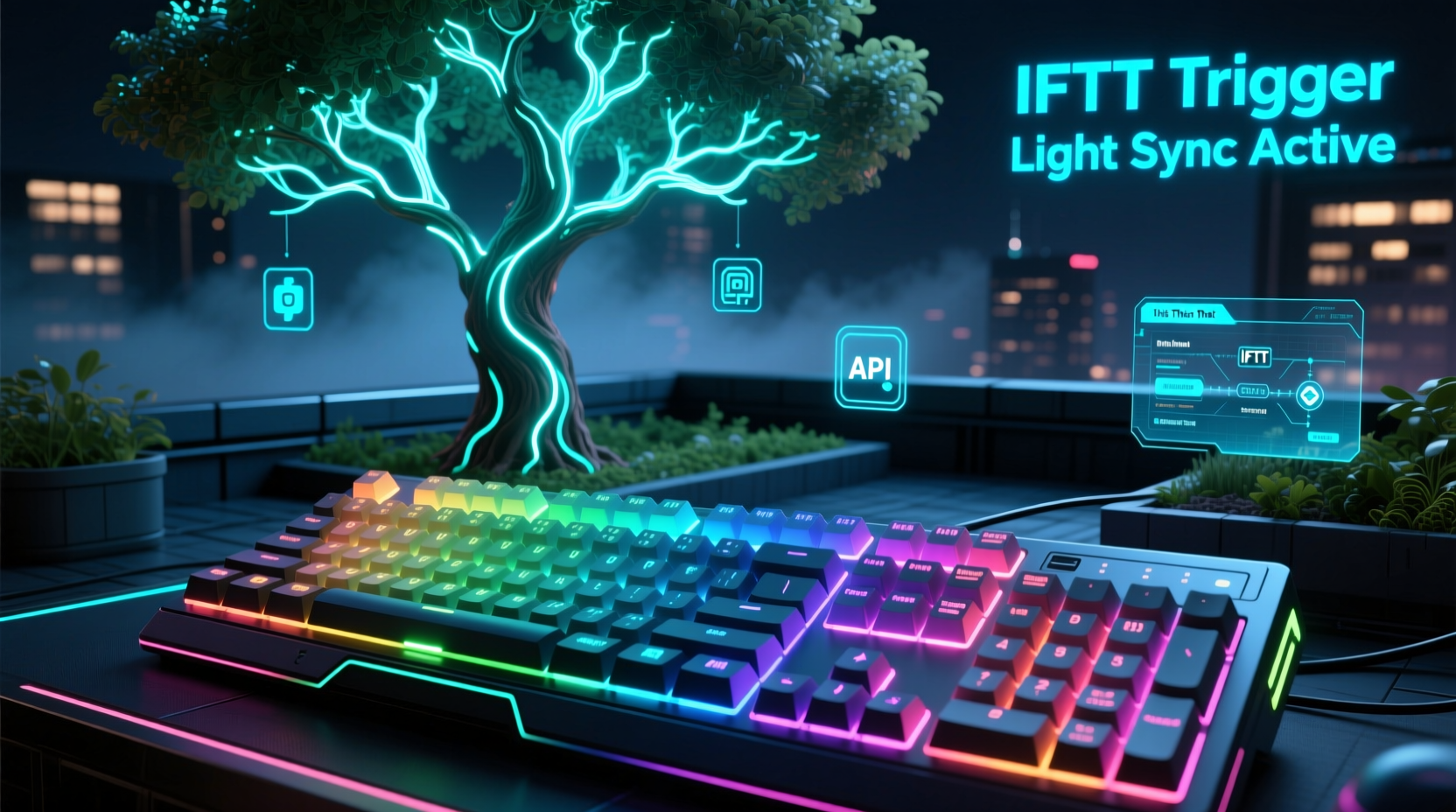
Synchronization between a gaming keyboard and Christmas tree lights relies on three core elements: the RGB keyboard and its control software, the smart lighting system on the tree, and IFTTT as the orchestration platform. Each plays a distinct role in enabling real-time coordination.
Most modern gaming keyboards use proprietary RGB software such as Corsair iCUE, Razer Synapse, Logitech G HUB, or ASUS Armoury Crate. These applications allow users to customize lighting modes, colors, brightness, and animation speeds directly from their PC. However, they typically don’t natively support external triggers from IoT devices — which is where IFTTT becomes essential.
Smart Christmas tree lights, especially those compatible with platforms like Philips Hue, LIFX, TP-Link Kasa, or Nanoleaf, can be controlled remotely via smartphone apps and integrated into broader smart home automations. When paired with IFTTT, these bulbs can send and receive signals based on specific conditions — for example, changing color at sunset or flashing when motion is detected.
IFTTT functions by creating applets — automated workflows defined by “if this, then that” logic. For instance, “If my smart tree starts a red-green pulse pattern, then change my keyboard lighting to match.” While direct color matching isn’t always seamless due to differences in color calibration and refresh rates, careful configuration can produce visually cohesive results.
Step-by-Step Guide to Synchronize Lighting Patterns
Achieving synchronization requires planning, account linking, and precise applet creation. Follow these steps to connect your gaming keyboard and Christmas tree lights through IFTTT.
- Ensure Device Compatibility: Confirm that both your smart tree lights and gaming peripheral ecosystem support IFTTT. Check the IFTTT website or app for available services under “Services.” Popular options include Philips Hue, LIFX, and select Razer and Corsair integrations via third-party bridges.
- Set Up and Name Devices Clearly: In your smart lighting app, assign clear names such as “Christmas Tree Top,” “Tree Base,” or “Main Tree Lights.” On your PC, label your keyboard profile in the RGB software (e.g., “Holiday Sync Mode”) for easier identification later.
- Link Accounts in IFTTT: Open the IFTTT app or website and connect the required services. For example:
- Connect your Philips Hue account if using Hue-powered string lights.
- Link Razer Synapse or Corsair via IFTTT’s partner integrations (may require enabling developer access).
- Create the Trigger (This): Build a new applet. Choose the smart lighting service as the trigger. Select an event such as “Light changes color,” “Scene is activated,” or “Lights start blinking.” If your tree has preset holiday scenes (e.g., “Jingle Bells Pulse”), use scene activation as the trigger.
- Define the Action (That): As the response, choose your RGB platform. Set the action to “Change lighting effect” or “Apply color profile.” Map the incoming color data as closely as possible. For example:
- If the tree turns red → Keyboard switches to red wave mode.
- If the tree enters green-pulse mode → Keyboard activates reactive green typing.
- Test and Refine Timing: Run a test cycle. Activate the tree’s pattern manually and observe whether the keyboard responds within 1–3 seconds. Delays are common due to polling intervals; consider reducing update frequency in favor of reliability.
- Optimize for Ambient Triggers (Optional): Expand functionality by adding secondary triggers — for instance, activating the synced mode only after sunset or when music starts playing via Spotify.
Note that full frame-by-frame synchronization isn’t feasible due to latency in cloud-based systems. However, thematic alignment — such as matching warm white tones during candlelight scenes or shifting to cool blue during winter-themed displays — remains highly effective.
Do’s and Don’ts of RGB-Tree Synchronization
| Do | Don’t |
|---|---|
| Use named scenes in your smart lighting app for consistent triggering (e.g., “Festive Red/Green Cycle”). | Assume real-time responsiveness; expect up to 5-second delays depending on network conditions. |
| Pre-program keyboard profiles that mirror likely tree patterns (pulse, fade, strobe). | Overload IFTTT with multiple conflicting applets targeting the same device. |
| Leverage geofencing to auto-enable sync mode when you arrive home during December. | Use non-smart LED strings; they lack the necessary connectivity for automation. |
| Monitor bandwidth usage if running other smart home automations simultaneously. | Ignore firmware updates for your RGB software or smart bulbs — outdated versions may break integrations. |
Real-World Example: A Gamer’s Festive Setup
Daniel, a streamer based in Portland, wanted his Twitch background to reflect the holiday spirit without sacrificing his gaming identity. He owned a Corsair K95 RGB Platinum keyboard and a Philips Hue-powered Christmas tree with 150 programmable LEDs. Using IFTTT, he created four seasonal applets:
- When the tree activated “Santa’s Workshop” scene (slow red-green fade), his keyboard switched to a gentle side-to-side gradient.
- During “New Year Countdown” (blue-white strobe), the keyboard mirrored the flash intensity in reactive mode.
- A custom “Stream Live” trigger turned both tree and keyboard to purple upon going live.
- An ambient weather integration dimmed both systems during snowfall alerts.
Though initial tests showed a half-second lag, Daniel adjusted by pre-triggering transitions slightly before camera roll. Viewers praised the immersive aesthetic, and engagement increased by 22% during holiday streams. The project took under three hours to configure and required no additional hardware.
“Automation doesn’t have to be industrial-grade to be impactful. Sometimes, syncing your keyboard to holiday lights creates more joy than any high-budget rig.” — Lena Park, Smart Home Integration Consultant
Tips for Enhancing Performance and Visual Cohesion
To maximize the effectiveness of your synchronized setup, consider these expert-backed strategies:
- Minimize Network Congestion: Run both the PC and smart hub on the same 5GHz Wi-Fi band to reduce interference. Avoid streaming 4K video while relying on time-sensitive triggers.
- Use Static Color Palettes: Instead of trying to match exact hues dynamically, define a shared palette (e.g., #FF0000 for red, #006400 for green) across both systems for consistency.
- Enable Polling Intervals: Some IFTTT integrations allow setting refresh rates. Opt for every 15–30 seconds rather than continuous polling to preserve device lifespan.
- Backup Manual Controls: Keep a shortcut on your desktop to revert to default lighting in case automation fails mid-event.
For advanced users, combining IFTTT with Node-RED or Home Assistant can yield tighter integration. These platforms offer local processing, reducing reliance on cloud APIs and cutting down response times significantly.
Frequently Asked Questions
Can I sync multiple RGB devices to my tree lights?
Yes, provided each device is supported by IFTTT or connected through a unified platform like Home Assistant. You can extend the same trigger to control RGB mice, mousepads, and even monitor backlights for a fully immersive setup.
Why does my keyboard not respond immediately when the tree changes color?
IFTTT operates on a polling mechanism rather than instant push notifications. Most applets check for changes every 15 seconds to 1 minute. For faster responses, use locally hosted automation tools or ensure your devices are on low-latency networks.
Is it safe to run constant lighting automations on my keyboard?
Yes. Modern RGB keyboards are designed for extended use. However, prolonged maximum brightness may contribute to minor heat buildup or slight LED degradation over years. Consider capping brightness at 70–80% for daily festive modes.
Checklist: Ready Your Setup in 7 Steps
- ✅ Verify IFTTT compatibility for both keyboard software and smart tree lights.
- ✅ Update firmware and apps for all devices involved.
- ✅ Create themed lighting profiles on your keyboard (e.g., Holiday Pulse, Snow Drift Fade).
- ✅ Define corresponding scenes on your smart tree lighting app.
- ✅ Link all accounts in IFTTT and authorize necessary permissions.
- ✅ Build and test one applet before scaling to multiple patterns.
- ✅ Monitor performance during initial use and adjust timing or effects as needed.
Conclusion: Bring Joy Through Creative Automation
Synchronizing your RGB gaming keyboard with Christmas tree light patterns isn’t just a technical feat — it’s a celebration of personal expression and seasonal creativity. By leveraging accessible tools like IFTTT, even non-developers can craft unique, responsive environments that blend passion for gaming with holiday warmth. The process strengthens understanding of smart ecosystems while delivering tangible delight to users and onlookers alike.




 浙公网安备
33010002000092号
浙公网安备
33010002000092号 浙B2-20120091-4
Comments
No comments yet. Why don't you start the discussion?