
Transform your home into a holiday spectacle by syncing smart Christmas lights with music. When done right, synchronized light shows captivate neighbors, spread seasonal cheer, and even go viral online. No longer limited to professional installations, today’s affordable smart lighting systems allow homeowners to create dynamic, beat-responsive displays with minimal technical expertise. From selecting compatible hardware to programming sequences that dance to the rhythm of your favorite carols, this guide walks you through every step of building a music-synced light show that dazzles.
Understanding Smart Lighting Systems
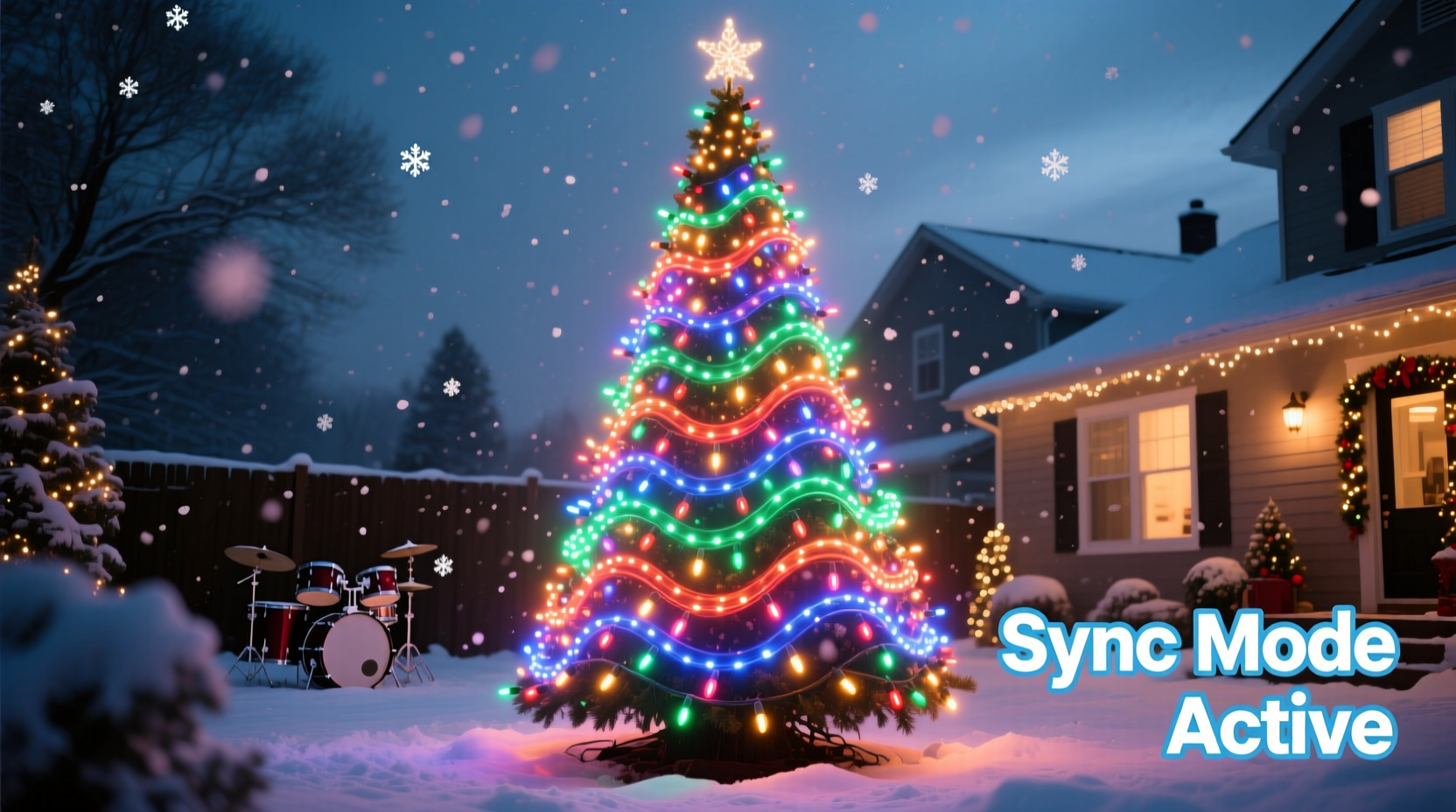
Smart Christmas lights are LED strings that connect to Wi-Fi, Bluetooth, or proprietary hubs, allowing remote control via smartphone apps or automation platforms. Unlike traditional lights, they can change color, brightness, and animation patterns on command. For music synchronization, not all smart lights are equal. The key is choosing a system capable of real-time responsiveness and granular control over individual bulbs or segments.
Popular brands like Philips Hue, Govee, Twinkly, and Nanoleaf offer varying levels of music integration. While some rely on ambient audio detection, others support advanced sequencing through third-party software. Lights with high refresh rates (60Hz or higher) and segmentable zones deliver smoother transitions and better alignment with musical beats.
Essential Equipment and Setup Requirements
A successful music-synced display begins with the right combination of hardware and connectivity. Below is a checklist of what you’ll need to get started:
- Smart lights – Preferably Wi-Fi-enabled with app support and music modes
- Music source – Smartphone, tablet, or computer with audio playback capability
- Controller or hub – Some systems require a bridge (e.g., Twinkly Controller)
- Power supply – Ensure adequate outdoor-rated extension cords and surge protectors
- Stable Wi-Fi network – Critical for real-time sync; avoid signal dropouts
- Mounting materials – Clips, gutter hooks, or adhesive mounts for secure placement
For larger displays, consider splitting lights into zones controlled by separate channels. This allows different sections of your house—roofline, trees, porch railings—to react uniquely to various parts of the music, creating depth and motion.
“Precision in timing separates amateur flickers from professional-grade light choreography.” — Daniel Reeves, Smart Home Lighting Designer
Step-by-Step Guide to Syncing Lights with Music
Follow this structured process to build a seamless, music-responsive light display:
- Install and test your lights – Hang them securely and confirm each string connects to the app and responds to basic commands.
- Connect to a stable network – Use a 2.4GHz Wi-Fi band (most smart lights don’t support 5GHz). Position your router or use a Wi-Fi extender if needed.
- Select a music-sync method – Decide whether to use real-time audio response or pre-programmed sequences.
- Choose your music track – Pick a song with clear beats and dynamic range. Instrumental versions often work best to avoid vocal distractions.
- Use the manufacturer’s app – Open the music mode (e.g., Govee’s “Music Mode,” Twinkly’s “Live” function) and play the track through your device’s microphone or direct audio feed.
- Adjust sensitivity and effects – Fine-tune brightness, color transitions, and beat detection thresholds to match the mood of the song.
- Test at night – Observe how the lights behave in darkness and tweak settings accordingly.
- Automate for repeat performances – Schedule daily shows using app timers or voice assistant routines.
For greater control, especially across multiple songs or complex arrangements, export your sequence to advanced software like xLights or Falcon Player. These tools allow frame-by-frame editing, enabling lights to pulse exactly on snare hits or fade during quiet verses.
Advanced Techniques for Professional Results
While built-in music modes provide instant gratification, true customization requires deeper engagement. Here are several strategies used by seasoned light show creators:
Create Beat-Mapped Sequences
Beat mapping involves identifying exact timestamps where musical events occur—like drum hits, chord changes, or crescendos—and assigning corresponding light actions. Software such as xLights lets you import an audio file, visualize its waveform, and manually assign colors, fades, chases, and flashes to specific beats.
This method demands more time but yields stunning precision. A well-mapped sequence can make lights appear to “bounce” off rooftops or ripple down a tree in perfect harmony with orchestral swells.
Layer Multiple Effects
Instead of applying one effect to all lights, layer animations across zones. For example:
- Roofline lights flash red and green on strong beats
- Porch columns slowly rotate rainbow hues during instrumental bridges
- Front yard trees pulse white outward from the base on cymbal crashes
Layering adds complexity and visual interest, mimicking the multi-instrument nature of music itself.
Integrate Voice Assistants and Automation
Link your display to Alexa, Google Assistant, or Apple HomeKit for hands-free activation. Set up routines like “Holiday Lights On” that power up the system and start playing a predefined playlist with synced lighting.
You can also integrate weather sensors or motion detectors to disable the show during heavy rain or activate only when visitors approach.
| Feature | Beginner-Friendly Option | Advanced Option |
|---|---|---|
| Music Sync Method | In-app live audio detection | Beat-mapped sequences in xLights |
| Control Precision | Whole-string effects | Per-bulb or per-segment control |
| Setup Time | Under 30 minutes | Several hours to days |
| Best For | Daily festive ambiance | Public holiday displays, YouTube content |
Real Example: A Neighborhood Favorite Comes to Life
In suburban Denver, Mike Tran spent six weekends designing a 3,200-light display synced to eight classic holiday tracks. He began with Govee RGBIC strips along his roofline and upgraded to Twinkly tree wraps for better responsiveness. Using the Twinkly app, he tested real-time music sync but found delays between beats and light reactions.
Determined to improve accuracy, Mike installed xLights on an old laptop, mapped each channel manually, and created custom sequences aligned to the tempo of “Jingle Bell Rock” and “Carol of the Bells.” He added a small outdoor speaker powered separately so neighbors could enjoy the full experience.
The result? Over 12,000 views on YouTube, visits from local news crews, and a tradition now expected yearly by families on his block. “It’s not about showing off,” Mike says. “It’s about bringing people together during a dark time of year. When the lights hit just right on the final bell ring—it feels magical.”
Tips for a Reliable and Safe Display
As impressive as synchronized lights can be, safety and reliability should never be compromised. Follow these practical tips to ensure a smooth season:
- Always use outdoor-rated lights and electrical components
- Keep connections elevated and covered to prevent water damage
- Limits show duration to 4–6 hours per night to reduce heat buildup and energy costs
- Monitor power load—don’t exceed 80% of circuit capacity
- Backup your sequences and configurations in cloud storage or external drives
Frequently Asked Questions
Can I sync different brands of smart lights together?
Direct integration between brands is rare, but possible through unified platforms like Home Assistant or xLights. You’ll need compatible controllers and may lose some brand-specific features. For simplicity, stick to one ecosystem when starting out.
Why do my lights lag behind the music?
Lag typically stems from Wi-Fi latency, low processing speed in the controller, or audio input delay. Reduce distance between devices, close background apps, or switch to wired Ethernet via a Raspberry Pi-based setup for tighter sync.
Do I need speakers for the display?
If viewers are nearby (e.g., sidewalk spectators), external speakers enhance the experience. For distant audiences, post videos online instead. Avoid excessive volume to respect noise ordinances and neighbors.
Conclusion: Bring Your Holiday Vision to Life
Synching smart Christmas lights with music blends technology, creativity, and tradition into something truly special. Whether you’re illuminating a single window or transforming your entire property into a winter wonderland, the tools have never been more accessible. Start simple with app-based music modes, then explore advanced sequencing as your confidence grows. With careful planning and attention to detail, your display can become a cherished community highlight—one beat, one bulb, and one joyful reaction at a time.




 浙公网安备
33010002000092号
浙公网安备
33010002000092号 浙B2-20120091-4
Comments
No comments yet. Why don't you start the discussion?