
As the holiday season approaches, many homeowners are upgrading their traditional Christmas light displays with smart lighting systems that can be controlled using voice assistants like Amazon Alexa and Google Assistant. Syncing your Christmas lights to Alexa or Google Home not only adds convenience but also enhances the festive experience—imagine dimming your outdoor lights with a simple voice command or scheduling them to turn on at sunset every evening. This guide walks you through everything you need to know to connect, control, and automate your holiday lights using voice commands.
Understanding Smart Christmas Lights and Voice Assistants
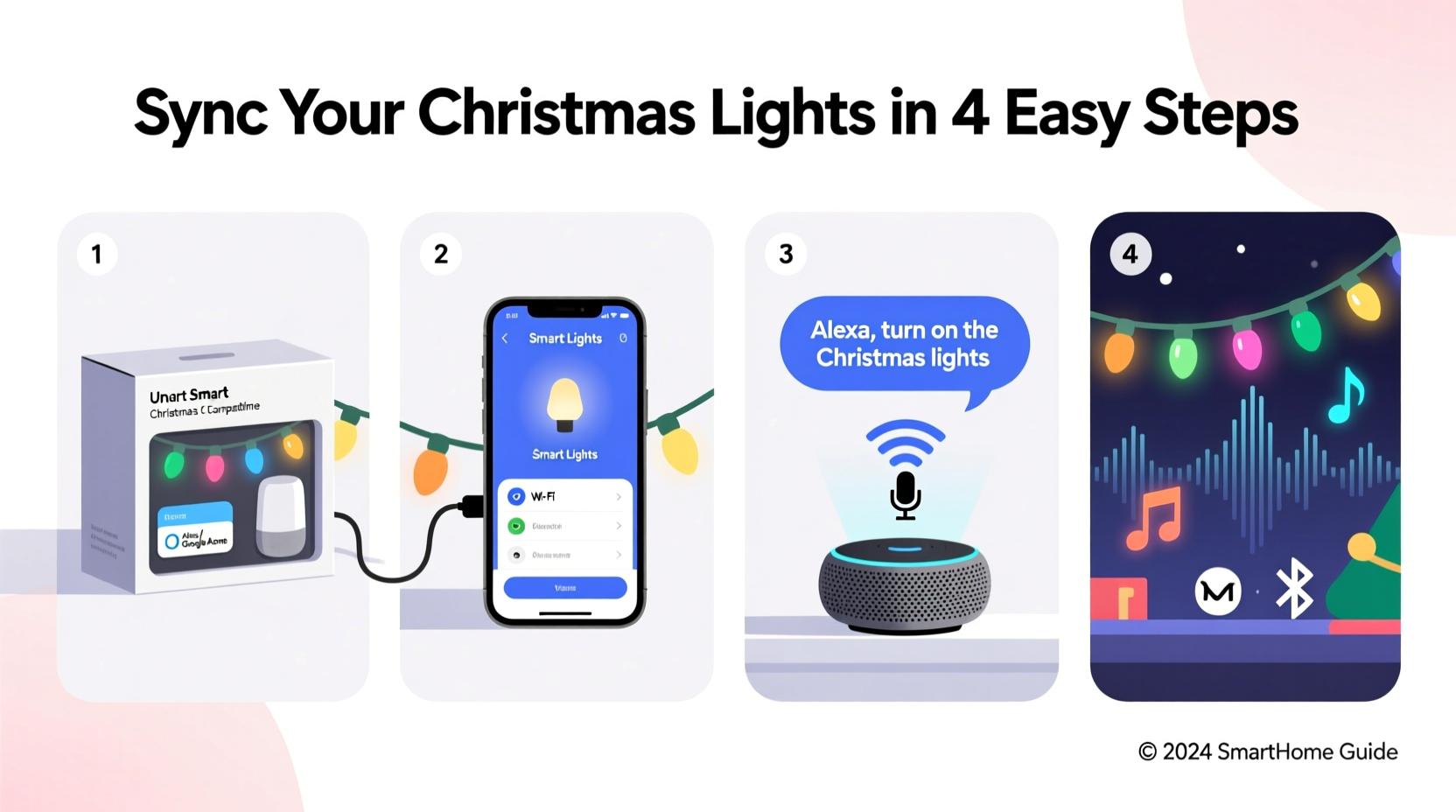
Smart Christmas lights are LED string lights embedded with Wi-Fi or Bluetooth connectivity, allowing them to be managed via smartphone apps or integrated into smart home ecosystems. Most modern smart lights support either Amazon Alexa, Google Assistant, or both. These voice assistants act as central hubs, enabling users to control lights through spoken commands, routines, and automation schedules.
The integration works by connecting the lights to a compatible smart plug or purchasing smart light strings that communicate directly with your home network. Once linked to your Alexa or Google account, you can issue commands such as “Alexa, turn on the Christmas lights” or “Hey Google, set the tree lights to red.”
It’s important to note that not all Christmas lights are smart-enabled. Traditional incandescent or non-connected LED strings cannot be voice-controlled unless plugged into a smart outlet. Always verify compatibility before purchasing hardware.
Required Equipment and Setup Prerequisites
Before syncing your lights, ensure you have the necessary components. The exact setup depends on whether you're using standalone smart bulbs, addressable LED strips, or smart plugs with conventional lights.
| Component | Purpose | Examples |
|---|---|---|
| Smart Christmas Lights | Lights with built-in Wi-Fi or Bluetooth for direct app/voice control | GE Cync Color, Philips Hue Lightstrings, Twinkly LED Strips |
| Smart Plug (if using regular lights) | Enables power control of standard light strings via voice | Kasa Smart Plug, TP-Link Kasa, Wemo Mini, Eve Energy |
| Voice Assistant Device | Hardware that processes voice commands | Amazon Echo, Google Nest Hub, Echo Dot, Google Home |
| Stable Wi-Fi Network | Ensures reliable communication between devices | 2.4 GHz band recommended; avoid weak signal areas |
| Smart Home App | Used for initial configuration and device linking | Amazon Alexa app, Google Home app, manufacturer-specific apps |
Ensure all devices are on the same Wi-Fi network. Many smart lights do not support 5 GHz networks, so confirm your router is broadcasting a 2.4 GHz signal. Also, update firmware on your voice assistant devices and smart lights regularly to maintain compatibility and security.
Step-by-Step Guide to Syncing with Alexa
Follow this sequence to link your Christmas lights to Amazon Alexa:
- Plug in your smart lights or smart plug – If using a smart plug, insert it into an outlet and connect your Christmas lights to it. For dedicated smart light strings, follow the manufacturer’s power-up instructions.
- Download the required app – Install the companion app (e.g., Kasa, Cync, or Twinkly) and complete device setup according to the app’s prompts. Name your lights descriptively (e.g., “Front Porch Lights”) for easier voice control later.
- Open the Alexa app – On your smartphone or tablet, launch the Amazon Alexa app and sign in to your account.
- Add a new device – Tap “Devices” > “+” > “Add Device” > “Light” (or “Plug” if using a smart plug). Select the brand of your device from the list.
- Follow pairing instructions – Alexa will search for available devices. Make sure your smart lights or plug are in pairing mode (usually indicated by a blinking light).
- Discover devices – After linking the skill (if required), say “Alexa, discover my devices” or manually trigger discovery in the app under “Settings” > “Device Discovery.”
- Test the connection – Say, “Alexa, turn on the Christmas lights,” and confirm the response. Adjust names in the Alexa app if needed for clarity.
Once synced, you can create routines—for example, “When I say ‘Goodnight,’ turn off all lights”—and assign your Christmas lights to specific rooms in the Alexa app for group control.
“Voice integration transforms holiday decor from static to dynamic. With Alexa, users gain precise control without lifting a finger.” — Daniel Reyes, Smart Home Integration Specialist
Syncing Your Lights with Google Home
Connecting your lights to Google Assistant follows a similar process but uses the Google Home ecosystem:
- Set up your lights in their native app – As with Alexa, begin by configuring your smart lights or smart plug using the manufacturer’s app.
- Launch the Google Home app – Open the app on your mobile device and ensure you’re logged into the correct Google account.
- Add a device – Tap the “+” icon in the top-left corner, then select “Set up device.” Choose “Have something already set up?”
- Link your service – Search for your device brand (e.g., “Philips Hue,” “Kasa,” “Twinkly”) and sign in to your account if prompted.
- Follow on-screen instructions – Google will scan for connected devices. Confirm the addition of your Christmas lights.
- Assign to a room – Place the lights in a location like “Living Room” or “Front Yard” for organized control.
- Test with voice – Say, “Hey Google, turn on the tree lights,” and verify responsiveness.
You can also use Google Routines to automate actions. For instance, create a routine named “Holiday Mode” that turns on the lights, plays Christmas music, and sets the thermostat to a cozy temperature—all triggered by one phrase.
Real Example: A Family Automates Their Holiday Display
The Thompson family in Denver wanted to simplify their annual Christmas light ritual. They had four sets of outdoor lights, a pre-lit tree, and decorative indoor string lights. Every year, they struggled with remembering to turn the lights on and off, especially when traveling.
This season, they invested in three Kasa smart plugs and a set of GE Cync color-changing lights for the tree. Each smart plug was labeled for a specific area: “Front Lawn,” “Porch,” and “Garland.” They followed the Alexa setup process, linking each device through the Kasa and Cync skills.
They created an Alexa routine called “Festive Time” that activates at 5 PM daily from December 1 to December 26, turning on all lights and setting the tree to a warm white glow. Another routine, “Bedtime,” shuts everything down at 10 PM. When guests arrive, they simply say, “Alexa, turn on welcome lights,” which brightens the porch display.
The result? A seamless, energy-efficient, and festive experience without manual intervention. “It’s like having a holiday assistant,” said Sarah Thompson. “We save time, reduce stress, and the kids love giving commands to Alexa.”
Advanced Tips and Automation Ideas
Beyond basic on/off commands, you can enhance your display with creative automation:
- Color Cycling: If using RGB smart lights, program them to cycle through holiday colors (red, green, gold) automatically.
- Sunset/Sunrise Triggers: Set lights to turn on at dusk and off at dawn using geolocation-based automations in the Alexa or Google Home app.
- Music Syncing: Some advanced systems like Twinkly or Philips Hue Sync can make lights pulse to holiday music playing on your speaker.
- Vacation Mode: Randomize light schedules while away to simulate occupancy and improve home security.
- Guest Activation: Create a custom phrase like “Santa has arrived” that triggers a twinkling effect on all lights.
For multi-room setups, group your lights into zones. In the Google Home app, you can create a “Holiday Lights” device group that controls all festive lighting with one command.
Troubleshooting Common Issues
Even with proper setup, issues may arise. Here are common problems and solutions:
- Lights not discovered during setup
- Ensure the device is powered and in pairing mode. Restart your router and try again. Move the device closer to your Wi-Fi router during setup.
- Voice commands not recognized
- Check that the device name isn’t too similar to other smart devices. Rename it to something unique like “Red Roof Lights” instead of just “Lights.”
- Lights disconnect frequently
- Weak Wi-Fi signal is often the culprit. Consider using a Wi-Fi extender or switching to a less congested channel. Avoid overcrowding your network with too many smart devices.
- Delayed response
- Delays can occur due to internet latency. Ensure your broadband connection is stable. Devices relying on cloud processing (like most Alexa-compatible products) require consistent online access.
Frequently Asked Questions
Can I sync non-smart Christmas lights to Alexa or Google?
Yes, but only if they are plugged into a smart plug. The smart plug acts as a bridge, allowing voice control over any connected light string. Just ensure the total wattage of the lights does not exceed the smart plug’s maximum load.
Do I need a hub for my smart Christmas lights?
Most plug-and-play smart lights (especially those marketed for holiday use) connect directly to Wi-Fi and do not require a separate hub. However, some systems like Philips Hue require a Hue Bridge for full functionality, including advanced scenes and faster response times.
Can Alexa and Google Home control the brightness and color of my lights?
Yes, if your lights support dimming or color changes. You can say, “Alexa, set the tree lights to 50% brightness” or “Hey Google, change the roof lights to blue.” Compatibility depends on the light model—check product specifications before purchase.
Final Checklist Before Going Live
Before activating your voice-controlled display, run through this checklist:
- ✅ All lights and smart plugs are securely installed and powered
- ✅ Devices are connected to the 2.4 GHz Wi-Fi network
- ✅ Named clearly in the Alexa or Google Home app
- ✅ Successfully tested with voice commands
- ✅ Grouped into logical rooms or zones
- ✅ Automation routines created and scheduled
- ✅ Outdoor lights are weatherproof and properly insulated
Conclusion: Bring Magic to Your Holidays with Voice Control
Synching your Christmas lights to Alexa or Google Home is more than a tech upgrade—it's a way to infuse joy, convenience, and personalization into your holiday traditions. Whether you're managing a modest indoor display or a full-yard spectacle, voice control simplifies operation and opens the door to creative lighting experiences. With the right equipment, a few minutes of setup, and a little imagination, you can transform your home into a responsive, festive environment that listens—and responds—to your voice.




 浙公网安备
33010002000092号
浙公网安备
33010002000092号 浙B2-20120091-4
Comments
No comments yet. Why don't you start the discussion?