
Transforming your home into a synchronized holiday light show used to require complex wiring, audio mixers, and technical know-how. Today, thanks to smart lighting systems and intuitive apps, anyone can create a professional-grade musical light display with minimal effort. Whether you're aiming for a subtle porch rhythm or a full-front-yard spectacle, syncing your Christmas lights to music is more accessible than ever. This guide walks you through the entire process—from choosing compatible devices to programming dynamic effects—so you can impress neighbors and spread festive cheer.
Select Compatible Smart Lighting Devices
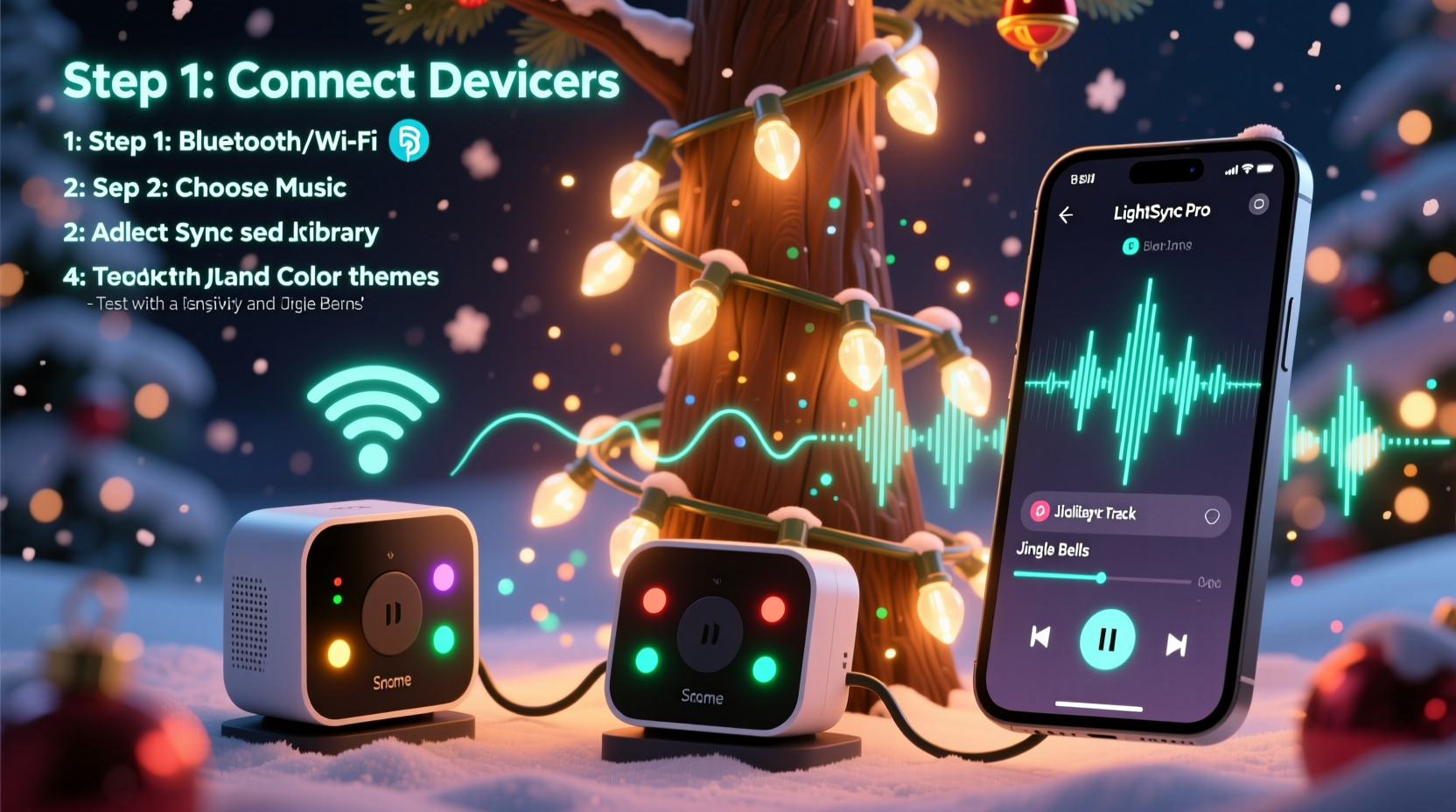
The foundation of any synchronized light setup is reliable, programmable hardware. Not all smart bulbs or light strips support rapid color changes or precise timing, so selecting the right equipment is crucial. Look for products that offer:
- High refresh rates (at least 30 updates per second)
- Support for music-reactive modes
- Integration with popular smart home platforms like Google Home, Amazon Alexa, or Apple HomeKit
- Outdoor-rated durability if installing outside
Popular brands include Philips Hue, LIFX, Govee, Nanoleaf, and TP-Link Kasa. Each offers unique advantages: Hue excels in ecosystem integration, Govee provides affordable addressable strips, and Nanoleaf features modular panels ideal for rhythmic wall displays.
Plan Your Light Layout and Zones
Before plugging in a single strand, sketch a layout of where your lights will go. Divide them into logical zones—such as roofline, tree, driveway, and front door—to allow independent control and layered effects. For example, flashing red and green on the roof while pulsing white along the walkway adds depth and visual interest.
Use weatherproof extension cords and power strips rated for outdoor use. Ensure each circuit doesn’t exceed 80% of its maximum load to prevent tripping breakers. If using multiple strands, stagger their connection points rather than daisy-chaining too many together.
“Zoning your lights isn’t just about safety—it’s the key to creating cinematic moments in your display.” — Daniel Reyes, Smart Home Lighting Designer
Connect Devices to Your Network
Once installed, connect each lighting device to your home Wi-Fi network. Most systems come with companion apps that guide you through setup via QR code scanning or manual entry. During this phase:
- Power on the device and place it within range of your router.
- Open the manufacturer’s app (e.g., Hue Sync, Govee Home, Nanoleaf App).
- Follow prompts to link the device to your account.
- Name each zone clearly (e.g., “Front Roof,” “Porch Columns”).
- Test basic functions like turning on/off, dimming, and color changes.
If you’re integrating voice assistants, now is the time to link accounts. In the Alexa app, for instance, enable the corresponding skill and discover devices. Repeat for Google Assistant or Siri shortcuts if desired.
Choose Music-Sync Software or App Features
This is where the magic happens. While some bulbs have built-in reactive modes, advanced synchronization requires dedicated software. Here are three primary methods:
1. Built-In Music Modes (Beginner-Friendly)
Many consumer-grade apps include simple audio-reactive settings. In the Govee Home app, tap “Music” mode, grant microphone access, and let the lights pulse to ambient sound. Similarly, LIFX offers a “Live” mode that adjusts brightness and hue based on nearby noise levels.
These work well for indoor parties but lack precision for choreographed outdoor shows.
2. Desktop Applications (Intermediate)
For greater control, use desktop tools like Hue Sync (for Philips Hue) or LightDJ. These programs analyze audio files in real time and translate beats, volume, and frequency into lighting commands.
Hue Sync, for example, lets you adjust sensitivity sliders for bass, midtones, and treble, allowing warm glows during vocals and bright flashes on drum hits. You can also choose from preset styles like “Energy,” “Cinema,” or “Relax” depending on the mood.
3. Advanced Sequencing Platforms (Expert Level)
To fully choreograph lights to specific songs—flashing exactly on the chorus or fading during quiet verses—use specialized software such as xLights or Falcon Player. These open-source tools let you map individual LED pixels to timelines, assign colors to instruments, and export sequences to run automatically.
While steeper in learning curve, xLights powers many award-winning neighborhood displays. It supports thousands of channels, MIDI input, and even animated effects like chasing snowflakes or twinkling stars.
Create and Test Your First Synchronized Sequence
Let’s walk through setting up a basic outdoor show using Govee lights and the Govee Home app. This timeline assumes your lights are already installed and connected.
Step-by-Step Guide: Syncing Govee Lights to a Holiday Song
- Launch the Govee Home app on your smartphone.
- Select your main outdoor strip or group of lights.
- Tap the “Music” icon at the bottom of the screen.
- Grant microphone permission when prompted.
- Play a test track like “Jingle Bell Rock” from a nearby speaker.
- Adjust sensitivity using the slider—higher values make lights respond to softer sounds.
- Choose a theme such as “Festive Pulse” or “Rainbow Beat.”
- Observe the reaction—do lights flash too aggressively? Lower the gain.
- Save the scene under a custom name like “Holiday Party Mode.”
- Test remotely by triggering the scene via voice command: “Hey Google, turn on Holiday Party Mode.”
Repeat this process for different zones, adjusting themes to complement each area. The roof might feature bold red-green strobes, while window outlines gently breathe white.
Troubleshooting Common Issues
- Lights lag behind music? Reduce the number of devices per group or upgrade your router’s QoS settings.
- No response at all? Check Wi-Fi signal strength near the lights; consider adding a mesh node.
- Inconsistent colors? Calibrate all bulbs to the same white balance in the app.
Compare Top Smart Lighting Options for Music Sync
| Brand & Model | Music Sync Method | Outdoor Rated? | Max Zones Supported | App Reliability |
|---|---|---|---|---|
| Philips Hue + Hue Sync | Desktop app with real-time analysis | Yes (with outdoor fixtures) | Up to 50 lights | Excellent |
| Govee RGBIC Strip | App-based mic detection | Yes (IP65) | Unlimited (via groups) | Good |
| Nanoleaf Shapes | Live mode in app + Rhythm Module | No | Up to 30 panels | Very Good |
| LIFX Mini Day & Dusk | Live mode with EQ controls | Yes (sealed design) | ~20 bulbs per network | Good |
| TP-Link Kasa KL430 | Basic music mode in app | No | 10+ with stable Wi-Fi | Fair |
This comparison highlights trade-offs between ease of use, scalability, and environmental resilience. For all-around performance, Philips Hue paired with Hue Sync delivers the most polished experience, though at a higher price point.
Real Example: A Suburban Family’s First Light Show
The Thompsons in Columbus, Ohio, wanted to surprise their community with a holiday light concert. They began with 100 feet of Govee LED strips along their roofline and porch railings, plus two smart floodlights for the trees. Using the Govee app, they tested several songs and settled on a medley of “Sleigh Ride,” “All I Want for Christmas Is You,” and “Carol of the Bells.”
They discovered early on that wind caused flickering due to loose connections. After securing all clips and adding surge protectors, stability improved. On opening night, they played the music through an outdoor Bluetooth speaker and activated the synchronized scenes via Google Assistant.
Neighbors gathered across the street, children danced, and the local newspaper featured them in a weekend story. “We spent less than $200 and about four hours total,” said Mark Thompson. “It felt like we brought a little joy to everyone passing by.”
Essential Checklist Before Going Live
- ✅ Confirm all lights are securely mounted and weatherproofed
- ✅ Test every bulb and zone individually
- ✅ Ensure strong Wi-Fi coverage outdoors (use extender if needed)
- ✅ Rehearse the full sequence with actual speakers
- ✅ Set a consistent start time (e.g., 5 PM daily)
- ✅ Inform neighbors of scheduled shows to avoid noise complaints
- ✅ Program an automatic off-time (e.g., 10 PM) for energy savings
Frequently Asked Questions
Can I sync non-smart Christmas lights to music?
Not directly. Traditional incandescent or unconnected LED strings lack the processing capability to react to audio. However, you can use a smart plug to turn them on/off in rhythm with music—but without color changes or beat precision. For true synchronization, invest in addressable smart LEDs.
Do I need a computer to run the show?
Only if using advanced software like xLights. For simpler setups, your smartphone or tablet is sufficient. Once programmed, many systems can run autonomously via schedules or voice triggers without requiring a host device to stay active.
Will my internet slow down with dozens of smart lights?
Typically not. Modern Wi-Fi networks handle multiple IoT devices efficiently. To minimize congestion, assign lights to a separate 2.4 GHz band if your router supports dual-band separation. Alternatively, use Zigbee hubs (like Hue Bridge) that reduce direct Wi-Fi traffic.
Final Thoughts: Turn Your Home Into a Holiday Experience
Synchronizing your Christmas lights to music isn’t just a tech project—it’s a way to create shared moments during the season. With thoughtful planning and the right tools, you can craft a display that delights both young and old. Start small, experiment often, and don’t be afraid to tweak effects until they feel just right.
As smart home technology continues to evolve, the barrier to entry keeps falling. What once required engineering expertise now fits within a weekend DIY project. And the reward—seeing strangers pause, smile, and record videos of your home—is priceless.




 浙公网安备
33010002000092号
浙公网安备
33010002000092号 浙B2-20120091-4
Comments
No comments yet. Why don't you start the discussion?