
In today’s connected homes, convenience lies in integration. Many households use both Google Home and Amazon Alexa—each offering unique strengths in voice control, routines, and ecosystem compatibility. But managing smart devices across two platforms can become fragmented without proper synchronization. When lights, thermostats, or cameras don’t respond consistently across assistants, the promise of a seamless smart home fades. The good news is that with the right setup, you can unify your ecosystem so both Google Assistant and Alexa work together smoothly, giving you full control no matter which voice you prefer.
Understanding the Challenge: Why Dual Ecosystems Don’t Sync Automatically
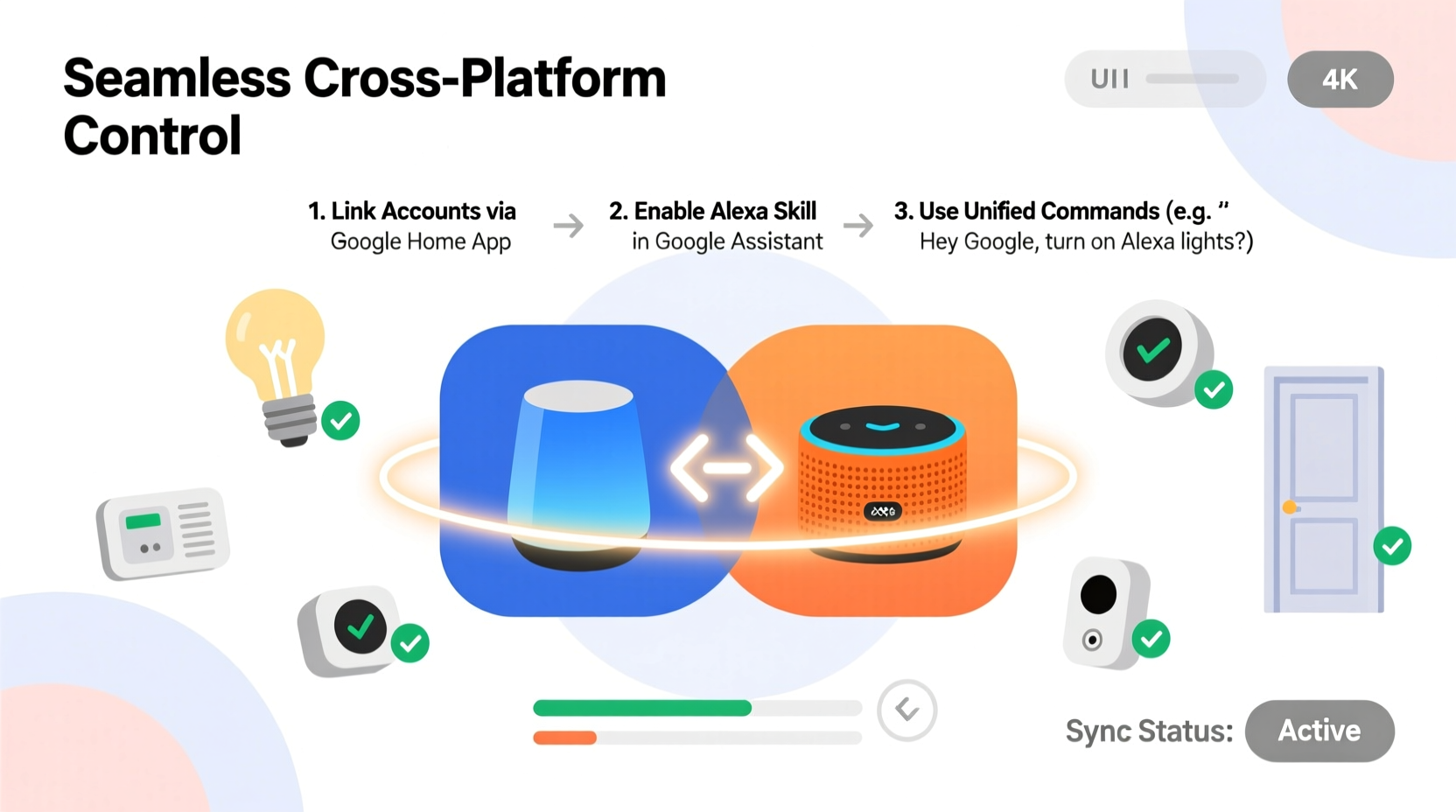
Google Home and Alexa operate on separate infrastructures. Each uses its own cloud services, app ecosystems, and authentication protocols. While they support many of the same smart devices—like Philips Hue bulbs, Nest thermostats, or Ring doorbells—they maintain independent connections to those devices. This means that adding a device to one platform doesn’t automatically register it with the other.
Furthermore, neither Google nor Amazon natively allows direct communication between their assistants. You can't ask Alexa to trigger a Google-created routine or tell Google Assistant to start an Alexa Guard sequence. However, this doesn’t mean integration is impossible—it just requires intentional configuration.
“Smart home fragmentation is real, but interoperability is achievable through careful device linking and third-party tools.” — David Lin, IoT Integration Specialist at HomeTech Labs
Step-by-Step Guide to Sync Devices Across Google Home and Alexa
Synchronizing your devices isn’t about merging Google and Alexa into one system—it’s about ensuring both platforms have access to the same hardware and can act independently when needed. Follow these steps to achieve seamless cross-platform functionality.
- Ensure Device Compatibility: Confirm that each smart device supports both Google Assistant and Amazon Alexa. Check manufacturer websites or packaging for compatibility badges.
- Set Up Devices in One Ecosystem First: Install and configure all devices using their native app (e.g., Kasa for TP-Link, Home app for Apple-compatible devices).
- Add Devices to Google Home:
- Open the Google Home app.
- Tap “Add” > “Set up device” > “Works with Google”.
- Search for the brand (e.g., “LIFX”, “Ecobee”) and sign in to your account.
- Follow prompts to import devices.
- Add Devices to Alexa:
- Open the Alexa app.
- Go to “Devices” > “+” > “Add Device”.
- Select the category (Light, Thermostat, etc.), then choose the brand.
- Log in to your account and sync devices.
- Verify Device Names and Groups: Use consistent naming conventions (e.g., “Kitchen Light” not “Kitchen” on Google and “Main Light” on Alexa) to avoid confusion.
- Test Voice Commands: Say “Hey Google, turn on the kitchen light” and “Alexa, turn on the kitchen light” to confirm both respond correctly.
Best Practices for Maintaining Synchronization
Once devices are added to both platforms, ongoing maintenance ensures long-term reliability. Here’s how to keep everything aligned.
Use Consistent Naming and Grouping
Conflicting names cause miscommunication. If Google recognizes a lamp as “Reading Lamp” and Alexa knows it as “Bedside Light,” voice control becomes unreliable. Standardize names across both systems and group devices by room for better context awareness.
Leverage Routines Strategically
While routines can’t be shared directly between platforms, you can duplicate them. For example:
- Create a “Good Morning” routine in Google Home that turns on lights, adjusts the thermostat, and reads the weather.
- Build an identical routine in Alexa with the same triggers and actions.
Update Firmware Regularly
Manufacturers often release firmware updates that improve compatibility with both Google and Alexa. Enable auto-updates where available, or check device apps monthly for patches.
Minimize Overlapping Triggers
Avoid setting up automations that trigger each assistant based on the other’s output. For instance, don’t configure Google Assistant to turn on a light if Alexa detects motion—this creates feedback loops and delays.
Comparison Table: Google Home vs. Alexa Integration Capabilities
| Feature | Google Home | Alexa |
|---|---|---|
| Supported Smart Devices | Over 50,000 models from 1,000+ brands | Over 150,000 devices from 10,000+ brands |
| Multi-Room Audio Sync | Yes, via Google Cast | Yes, via Stereo & Multi-Room Music |
| Geofencing Automation | Yes, with phone location | Yes, with Alexa Anywhere |
| Direct Interoperability | No native bridge | No native bridge |
| Third-Party Integration Tools | IFTTT, Stringify, Home Assistant | IFTTT, Alexa Routines + Webhooks, Home Assistant |
Using Third-Party Tools for Advanced Syncing
When native options fall short, third-party automation platforms can bridge the gap. These tools allow conditional logic between Google and Alexa, enabling more advanced workflows.
IFTTT (If This Then That)
IFTTT connects apps and devices using simple conditional statements. For example:
- If Google Assistant says “Start movie time,” then tell Alexa to dim the lights and close the blinds.
- If Alexa detects a smoke alarm via a compatible camera, trigger a Google Assistant broadcast on all Nest speakers.
- Sign up at
ifttt.com. - Connect both Google Assistant and Alexa as services.
- Create applets using triggers and actions across platforms.
Home Assistant
For tech-savvy users, Home Assistant offers complete local control over smart devices. It can pull data from both Google and Alexa ecosystems and create unified dashboards, automations, and voice command proxies. While it requires a Raspberry Pi or dedicated server, it eliminates cloud dependency and enhances privacy.
Real-World Example: A Family Balances Two Assistants
The Rivera family uses Google Nest devices in the kitchen and master bedroom but relies on Alexa in the kids’ rooms due to parental controls and music preferences. Initially, turning off all lights at bedtime required multiple commands: “Hey Google, goodnight” and “Alexa, turn off upstairs.”
To streamline, they renamed all lights uniformly (“Kitchen Light,” “Upstairs Hallway”), grouped rooms identically, and created mirrored routines. They also used IFTTT to link a single physical button press (via a Flic smart button) to both a Google Home action and an Alexa scene. Now, one tap triggers lights off, thermostat adjustment, and door lock checks across both ecosystems—without needing to speak to either assistant.
This hybrid approach gave them the best of both worlds: Google’s superior display interface and Alexa’s robust kid-friendly features—all synchronized behind the scenes.
Common Pitfalls and How to Avoid Them
Even with careful planning, issues arise. Here are frequent problems and their solutions.
- Device Not Showing Up in App: Re-authenticate the service link. In Google Home or Alexa, go to settings, find the connected service (e.g., “Philips Hue”), and disconnect/reconnect.
- Voice Commands Misfire: Avoid similar-sounding names (e.g., “Hallway” and “Wall Light”). Use distinct identifiers.
- Delayed Responses: Network congestion slows responses. Ensure strong Wi-Fi coverage and consider a mesh system.
- Routine Doesn’t Trigger: Check time zones, user permissions, and device status. Some routines only run if the triggering device is active.
Frequently Asked Questions
Can Google and Alexa talk to each other directly?
No. There is no built-in feature that allows Google Assistant and Alexa to communicate or share commands natively. Any interaction must be mediated through third-party tools like IFTTT or a local automation server like Home Assistant.
Do I need to buy duplicate devices for each platform?
No. Most modern smart devices support both Google Assistant and Alexa simultaneously. You don’t need two separate lamps—one LIFX bulb can be linked to both ecosystems and controlled independently.
What happens if one service goes down?
If Google’s servers are unreachable, Google Home won’t respond—but Alexa will still function normally, provided your devices remain online. Local control hubs (like Home Assistant) reduce reliance on cloud uptime.
Checklist: Achieving Seamless Cross-Platform Sync
- Confirm all devices support both Google Assistant and Alexa
- Set up devices in their native app first
- Add devices to Google Home via “Works with Google”
- Add same devices to Alexa via “Add Device”
- Use identical names and room assignments in both apps
- Create matching routines for common tasks (e.g., “Good Morning”)
- Test voice commands on both platforms
- Use IFTTT for cross-assistant triggers (optional)
- Monitor for firmware updates monthly
- Consider Home Assistant for advanced users
Conclusion: Unified Control Starts with Intentional Setup
Synchronizing smart home devices across Google Home and Alexa isn’t automatic, but it’s entirely achievable with deliberate planning. By standardizing device names, duplicating key routines, and leveraging tools like IFTTT or Home Assistant, you can enjoy the flexibility of two powerful platforms without sacrificing cohesion. The goal isn’t to favor one assistant over the other, but to design a system where both coexist harmoniously—responding reliably, automating effectively, and enhancing daily life.




 浙公网安备
33010002000092号
浙公网安备
33010002000092号 浙B2-20120091-4
Comments
No comments yet. Why don't you start the discussion?