
In an age where digital privacy is increasingly fragile, the idea that someone might be accessing your laptop without permission is not just paranoia—it's a real possibility. Whether it's a hacker, stalker, employer, or even someone within your household, unauthorized remote access can compromise your personal data, financial accounts, and online identity. The good news: there are clear indicators and tools you can use to detect such intrusions. This guide walks you through the technical and behavioral red flags, provides actionable detection methods, and outlines steps to secure your device before damage escalates.
Recognizing the Warning Signs
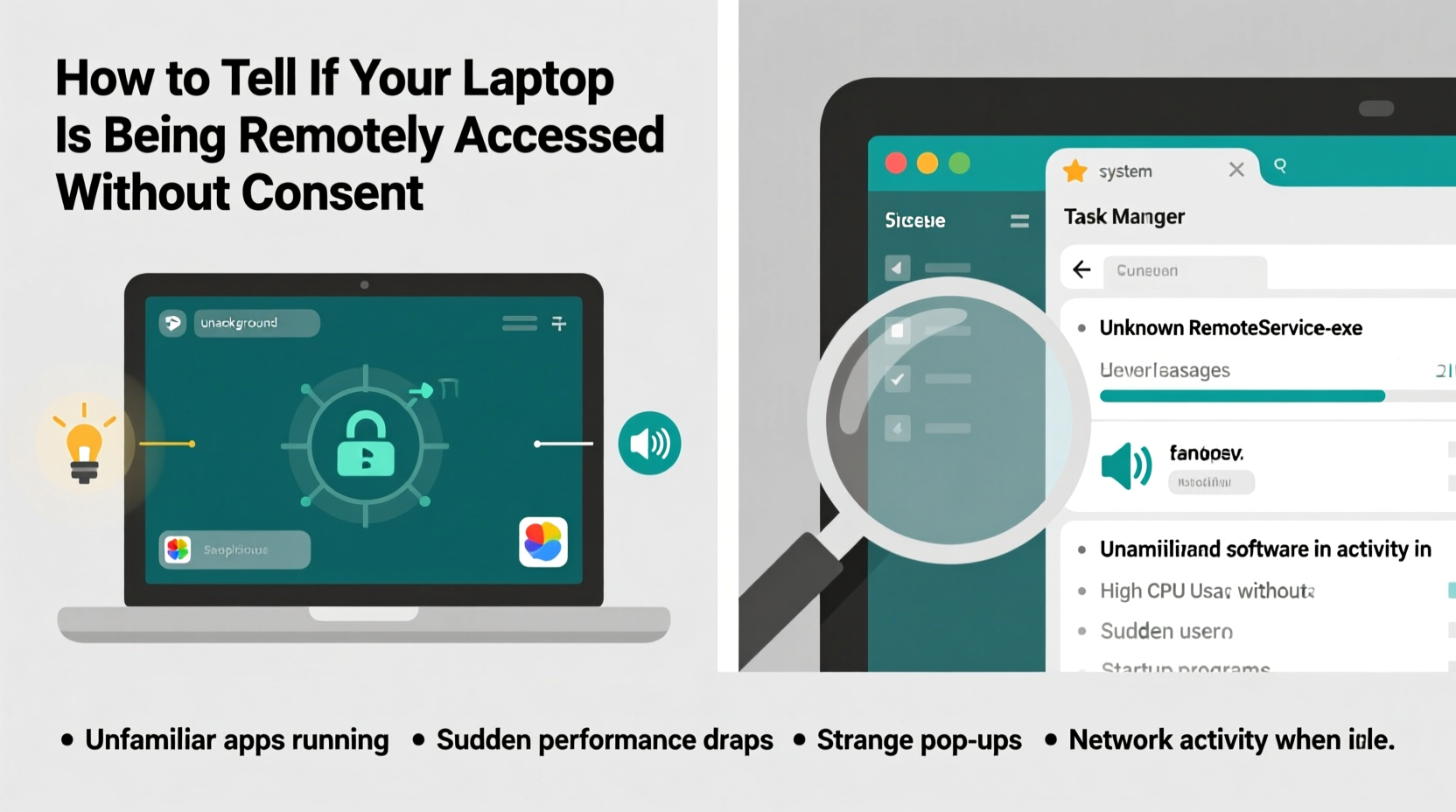
Remote access tools (RATs) allow someone to control your computer from afar—view your screen, move your mouse, open files, and even activate your webcam or microphone. When used legitimately, these tools support IT help desks and remote work. But when deployed without consent, they become invasive surveillance instruments.
The first line of defense is awareness. Unusual behavior on your laptop may not always point to malware, but certain patterns should trigger immediate investigation:
- Unfamiliar programs running at startup: Check Task Manager (Windows) or Activity Monitor (macOS) for processes you don’t recognize.
- Mouse moving or clicking on its own: A classic sign of active remote control.
- Webcam or microphone indicator lights turning on unexpectedly: Many laptops have physical or software-based LED indicators that signal when these sensors are active.
- Files opening or closing automatically: Documents, browsers, or apps launching without input suggest external control.
- Unusual network activity: High bandwidth usage when idle could mean data is being exfiltrated.
- Passwords failing without explanation: If previously working passwords stop working, someone may have changed them after gaining access.
Technical Detection Methods
Behavioral clues can raise suspicion, but only technical verification confirms unauthorized access. Here’s how to investigate using built-in system tools and trusted third-party software.
Check Active Network Connections
Every remote connection requires a network pathway. Monitoring active connections helps identify suspicious outgoing or incoming links.
On Windows:
- Press Ctrl + Shift + Esc to open Task Manager.
- Go to the “Performance” tab and click “Open Resource Monitor.”
- Select the “Network” tab and review “TCP Connections.”
- Look for unfamiliar IP addresses or high volumes of data sent to unknown destinations.
On macOS:
- Open Terminal from Applications > Utilities.
- Type
lsof -iand press Enter. - Review the list of open internet connections. Pay attention to services like “ScreenSharing,” “vnc,” or “rdp” linked to unknown IPs.
Analyze Running Processes
Malicious remote access tools often disguise themselves as legitimate software. Use process analysis to uncover hidden threats.
| Suspicious Process Name | Potential Remote Tool | Action |
|---|---|---|
| TeamViewer_Service.exe | TeamViewer (if not installed by you) | Uninstall immediately via Control Panel |
| AnyDesk.exe | AnyDesk (unauthorized) | End task and remove from startup |
| UltraVnc_Server.exe | UltraVNC (remote desktop) | Delete and scan system |
| netstat.exe (high CPU) | Command-line tunneling tool | Investigate further with antivirus |
If you find any of these processes and didn’t install the associated software, treat it as a breach.
Scan for Malware and RATs
Dedicated anti-malware tools are essential. Standard antivirus may miss sophisticated remote access trojans.
Recommended tools:
- Malwarebytes: Excellent at detecting RATs and PUPs (potentially unwanted programs).
- ESET Online Scanner: Deep scans for rootkits and stealthy backdoors.
- HitmanPro: Cloud-assisted second-opinion scanner.
Run full system scans with at least two of these tools in Safe Mode to prevent interference from active malware.
“Many remote access tools are designed to evade detection. Behavioral analysis—like monitoring network traffic and process anomalies—is often more effective than signature-based scanning alone.” — Dr. Lena Torres, Cybersecurity Researcher, MITRE Corporation
Step-by-Step Guide to Secure Your Laptop
If you suspect unauthorized access, act quickly. Follow this timeline to isolate, investigate, and secure your system.
- Disconnect from the internet
Unplug Ethernet or disable Wi-Fi to cut off remote control. - Boot into Safe Mode
Prevents most non-essential programs—including malware—from loading. - Check user accounts
Ensure no unknown local or admin accounts exist.
Windows: Settings > Accounts > Family & other users
macOS: System Settings > Users & Groups - Review startup programs
Remove anything unfamiliar from login items or startup folders. - Run malware scans
Use Malwarebytes and another secondary scanner as described above. - Change all passwords
Do this from a clean device. Prioritize email, banking, and cloud storage accounts. - Enable two-factor authentication (2FA)
Add an extra layer of security to critical accounts. - Update your OS and software
Patch known vulnerabilities that attackers exploit. - Reinstall the operating system (if necessary)
If infection persists, backup only essential files (after scanning), then wipe and reinstall.
Real-World Example: A Case of Covert Surveillance
Jessica, a marketing professional in Chicago, began noticing her laptop fan running constantly despite minimal usage. Her cursor occasionally moved on its own, and once, she saw her Skype window open and initiate a call log she didn’t make. Alarmed, she disconnected from Wi-Fi and ran a Malwarebytes scan, which flagged “AmmyyAdmin”—a remote administration tool she’d never heard of.
Further investigation revealed the software had been installed six weeks earlier, likely through a phishing email disguised as an invoice. Jessica discovered her webcam had been activated multiple times during evening hours. She immediately uninstalled the program, changed all passwords from a different device, and reset her router. A follow-up scan with ESET confirmed the threat was removed. She later learned a former colleague had installed the tool during a visit under the guise of helping set up her printer.
This case underscores how easily remote access can be abused—even by people with temporary physical access—and why vigilance matters.
Prevention Checklist
Protecting your laptop starts long before suspicion arises. Integrate these habits into your routine:
- ✅ Install reputable antivirus software with real-time protection.
- ✅ Regularly update your operating system and applications.
- ✅ Avoid downloading software from untrusted sources or pirated sites.
- ✅ Never leave your laptop unlocked in public or shared spaces.
- ✅ Disable remote desktop features (RDP, VNC, etc.) unless actively needed.
- ✅ Use strong, unique passwords and enable 2FA across all platforms.
- ✅ Physically cover your webcam when not in use.
- ✅ Monitor account login alerts (e.g., Gmail notifies of new devices).
Frequently Asked Questions
Can someone remotely access my laptop if it’s turned off?
No, remote access requires the device to be powered on and connected to a network. However, some advanced systems support Wake-on-LAN, which allows a machine to be turned on remotely—but this feature must be enabled manually and is rarely exploited outside corporate environments.
Is remote access the same as hacking?
Not exactly. Hacking refers to unauthorized entry into a system, while remote access is a method. Legitimate remote access (like tech support) is authorized. Unauthorized remote access is a form of hacking, often achieved through malware, phishing, or weak credentials.
How can I tell if my webcam is being accessed?
Most laptops have an LED light next to the camera that turns on when active. If it lights up unexpectedly, close the app or shut down the device. You can also check processes in Task Manager for applications using the camera (e.g., “Camera App,” “Skype,” or unknown executables). Third-party tools like WhoCrashed or Webcam Lock can monitor unauthorized access attempts.
Conclusion: Take Control of Your Digital Privacy
Discovering that your laptop may have been remotely accessed is unsettling, but knowledge is power. By learning the signs, using the right tools, and adopting proactive security habits, you can detect intrusions early and respond effectively. Don’t wait for obvious symptoms—regular maintenance and awareness are your best defenses.
Your laptop holds sensitive information: personal photos, messages, financial records, and private communications. Protecting it isn’t just about technology; it’s about preserving your autonomy in a connected world. Start today by reviewing your startup programs, scanning for malware, and covering your webcam. Small actions now can prevent major breaches later.




 浙公网安备
33010002000092号
浙公网安备
33010002000092号 浙B2-20120091-4
Comments
No comments yet. Why don't you start the discussion?