
In an era where smartphones store everything from personal messages to banking details, digital privacy is no longer optional—it's essential. Spyware, a type of malicious software designed to secretly monitor your activity, can infiltrate your device without your knowledge. Once installed, it may record your calls, track your location, steal passwords, or access your photos and messages. The danger lies in its stealth: most spyware operates silently, leaving few obvious signs. But with the right awareness and tools, you can detect and eliminate these threats before they compromise your life.
Common Signs Your Phone May Be Infected with Spyware
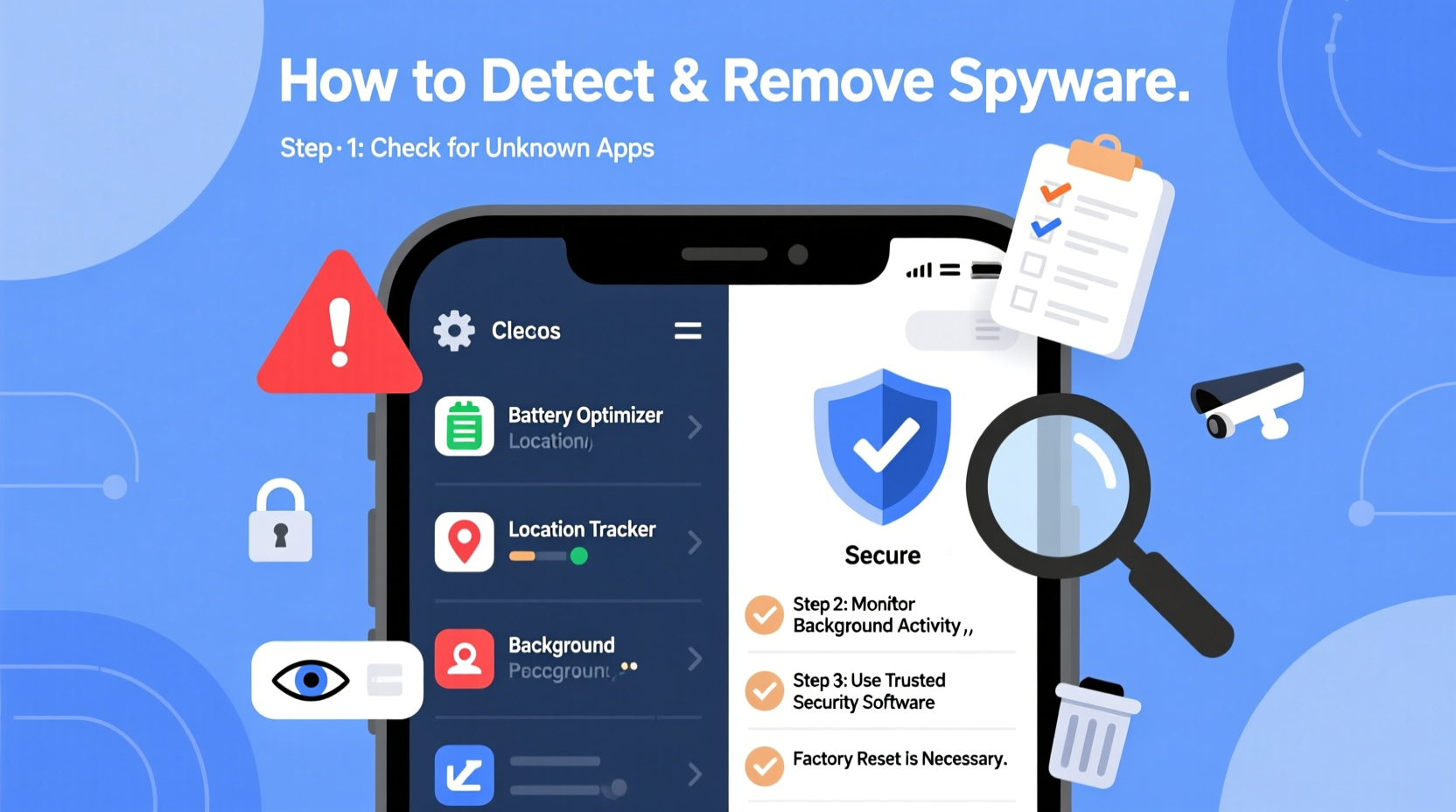
Spyware often disguises itself as legitimate software or hides within seemingly harmless apps. However, subtle changes in your phone’s behavior can signal a deeper issue. Watch for these red flags:
- Rapid battery drain: If your battery depletes significantly faster than usual—especially when idle—it could mean background processes are running without your consent.
- Unusual data usage spikes: Spyware transmits data to remote servers, which increases mobile data consumption. Check your settings to see if any app is using abnormally high data.
- Overheating without cause: Excessive CPU usage from hidden tracking processes can make your phone hot, even when not in active use.
- Strange background noises during calls: Clicking, echoing, or static may indicate call interception.
- Unfamiliar apps or icons: Look for apps you don’t remember installing, especially those with generic names like “System Update” or “Service Manager.”
- Sluggish performance: Lagging, freezing, or delayed responses can result from resource-heavy spyware.
- Unexpected reboots or shutdowns: Malware sometimes forces restarts to maintain persistence or hide traces.
- Increased ad pop-ups: While often linked to adware, intrusive ads can also stem from spyware bundled with shady apps.
- Web browser redirects: Being redirected to unfamiliar websites suggests malicious code manipulating your traffic.
- Messages or emails sent without your knowledge: Spyware with SMS/email access might send premium-rate messages or forward your data.
How Spyware Gets Installed on Your Phone
Understanding how spyware enters your device is key to prevention. Unlike viruses that spread automatically, spyware typically relies on user action or exploitation of security flaws. Common infection methods include:
- Phishing links: Clicking on suspicious links in texts, emails, or social media can download malware or redirect you to fake login pages.
- Malicious apps: Third-party app stores or unofficial websites often host infected apps disguised as games, utilities, or cracked software.
- Physical access: Someone with temporary access to your unlocked phone can install spyware in minutes using commercial monitoring tools.
- Exploiting unpatched vulnerabilities: Outdated operating systems or apps may have security holes that spyware exploits remotely.
- Bluetooth or Wi-Fi attacks: In rare cases, attackers use nearby wireless connections to deliver payloads if your device is discoverable.
Commercial spyware like mSpy, FlexiSPY, or Cocospy is often marketed as parental control software but can be misused for surveillance. These tools require physical installation but then operate invisibly, syncing data to online dashboards accessible by the attacker.
Detection and Removal: A Step-by-Step Guide
If you suspect spyware, act quickly. Follow this structured approach to confirm and eliminate the threat.
Step 1: Boot into Safe Mode
Safe Mode disables all third-party apps, helping isolate whether the issue stems from a downloaded application.
- Android: Press and hold the power button, then long-press “Power off” until “Reboot to safe mode” appears. Tap OK.
- iOS: iPhones do not support Safe Mode, but restarting the device can temporarily halt some processes.
If symptoms disappear in Safe Mode, a third-party app is likely responsible.
Step 2: Review Installed Apps
Navigate to Settings > Apps (or Application Manager) and sort by recent installations. Look for anything unfamiliar or suspicious. Pay attention to apps requesting excessive permissions (e.g., accessibility services, SMS access).
Step 3: Check for Unknown Device Administrators
Spyware often grants itself administrator privileges to avoid uninstallation.
- Go to Settings > Security > Device administrators (Android).
- Disable admin rights for any unrecognized entries.
- Then return to Apps and uninstall them.
Step 4: Run a Reputable Antivirus Scan
Use trusted mobile security apps such as Bitdefender, Malwarebytes, or Norton Mobile Security. These tools scan for known spyware signatures and behavioral patterns.
Step 5: Update Your Operating System
Install the latest OS updates. Patches often fix critical security flaws exploited by spyware.
Step 6: Factory Reset (Last Resort)
If the infection persists, back up essential data (after scanning for malware), then perform a factory reset.
- Go to Settings > System > Reset options > Erase all data (factory reset).
- After resetting, avoid restoring backups immediately—they may contain the same malware.
- Set up the phone manually, reinstall only necessary apps from official stores.
Do’s and Don’ts: Preventing Future Infections
| Do’s | Don’ts |
|---|---|
| Install apps only from Google Play Store or Apple App Store. | Download APK files or sideload apps from unknown websites. |
| Regularly update your phone’s OS and apps. | Ignore system update notifications. |
| Review app permissions before installation. | Grant unnecessary permissions like SMS or microphone access to non-essential apps. |
| Use strong passwords and two-factor authentication. | Share your unlock PIN or leave your phone unattended. |
| Enable Find My Device (Android) or Find My iPhone (iOS). | Disable location services entirely to avoid tracking—this harms usability and isn't effective against spyware. |
Real-World Example: A Partner’s Privacy Breach
Jamie, a 32-year-old marketing professional, noticed her phone was draining unusually fast and occasionally rebooting overnight. She dismissed it at first—until she realized her partner knew details about meetings she hadn’t shared. Suspicious, she checked her installed apps and found “Battery Saver Pro,” which she didn’t recall downloading. Further investigation revealed it had full accessibility permissions. After disabling it as a device administrator and uninstalling it, the odd behavior stopped. A subsequent antivirus scan confirmed the app was a known spyware variant used for covert monitoring. Jamie changed all her passwords, updated her phone, and enabled two-factor authentication across accounts. The experience prompted her to set clearer digital boundaries and regularly audit her device’s security.
“Many spyware infections go unnoticed because users don’t know what to look for. A sudden change in device behavior should never be ignored—it could be the only warning sign.” — Dr. Lena Patel, Cybersecurity Researcher at SecureMobile Labs
FAQ: Common Questions About Phone Spyware
Can spyware be installed remotely without physical access?
Yes, though it’s less common. Advanced spyware like Pegasus can exploit zero-click vulnerabilities via iMessage or WhatsApp, infecting devices without any user interaction. These attacks typically target high-profile individuals but underscore the importance of timely updates.
Does a factory reset remove all spyware?
In most cases, yes. A factory reset wipes the internal storage and reinstalls the OS, eliminating persistent malware. However, if you restore a backup containing the original spyware, reinfection can occur. Always scan backups or set up the device fresh.
Are iPhones immune to spyware?
No. While iOS has stronger sandboxing and app review processes, spyware can still infiltrate through compromised apps, phishing, or physical access. Jailbroken iPhones are especially vulnerable, as they bypass Apple’s security model.
Protecting Yourself Long-Term
Prevention is more effective than remediation. Make digital hygiene part of your routine. Start by auditing your apps quarterly—remove unused ones and revoke unnecessary permissions. Enable automatic updates so your phone stays protected against emerging threats. Use a reputable mobile security suite, particularly if you frequently download apps or click external links.
Be cautious about who handles your phone. Even brief access can allow someone to install monitoring software. If you're in a situation where you suspect ongoing surveillance—especially in cases of domestic tension—seek help from a trusted friend, legal advisor, or cybersecurity professional. Organizations like the National Network to End Domestic Violence offer resources for tech-related abuse.
Finally, trust your instincts. If something feels off about your phone’s behavior, investigate it. Early detection drastically reduces the damage spyware can cause.
Conclusion: Take Control of Your Digital Privacy
Your smartphone is one of your most personal devices—guarding access to your thoughts, relationships, and finances. Recognizing the signs of spyware and knowing how to respond empowers you to protect what matters most. From monitoring battery usage to performing secure resets, every step you take strengthens your digital resilience. Don’t wait for a crisis to act. Audit your phone today, remove suspicious apps, and commit to safer habits. Your privacy isn’t just a setting—it’s a practice.




 浙公网安备
33010002000092号
浙公网安备
33010002000092号 浙B2-20120091-4
Comments
No comments yet. Why don't you start the discussion?