
If your internet feels sluggish, devices frequently disconnect, or video calls freeze at the worst moments, your router might be silently holding you back. Most people assume the issue lies with their internet service provider, but often, the culprit is a router that’s past its prime. Upgrading your router can dramatically improve speed, coverage, and reliability—without increasing your monthly bill. The good news? You don’t need technical expertise to determine whether it’s time for a replacement. By observing a few key signs and testing your network behavior, you can confidently decide when to invest in a new model.
Signs Your Router Is Struggling
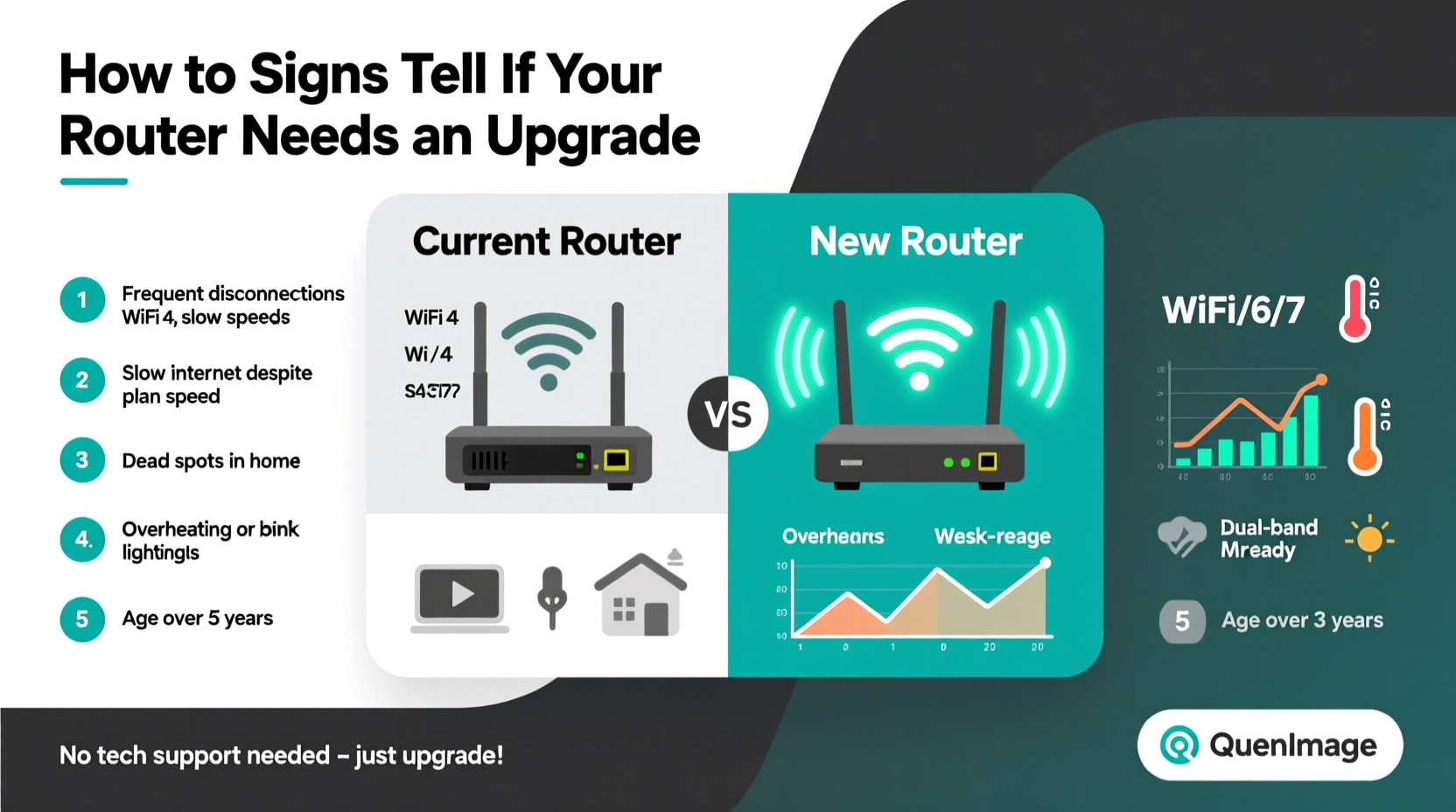
Routers, like all electronics, degrade over time. Even if they continue to power on, their ability to manage modern demands diminishes. Recognizing early warning signs helps prevent ongoing frustration and wasted time troubleshooting.
- Slow speeds despite high-speed internet: If your ISP promises 300 Mbps but your actual speeds are consistently below 50 Mbps on wired connections, your router may not be capable of handling current bandwidth.
- Frequent disconnections: Devices dropping off Wi-Fi unexpectedly, especially during critical tasks like streaming or gaming, suggest instability.
- Limited range or dead zones: Areas of your home that once had strong signal now experience weak or no connectivity, even after repositioning the router.
- Overheating or constant rebooting: A router that feels hot to the touch or restarts itself multiple times a day is likely struggling under load or failing internally.
- Only one device works well at a time: Modern homes have dozens of connected devices. If performance tanks as soon as more than two devices are active, your router lacks sufficient processing power or RAM.
Check Your Router’s Age and Specifications
The lifespan of a typical consumer-grade router is about 3–5 years. After this point, technology advances make older models functionally obsolete. But age alone isn’t enough—know what specs matter.
Look for these indicators on your router’s label or admin interface:
| Specification | Outdated (Needs Upgrade) | Modern Standard (Recommended) |
|---|---|---|
| Wi-Fi Generation | 802.11n (Wi-Fi 4) or earlier | Wi-Fi 6 (802.11ax) or Wi-Fi 6E |
| Frequency Bands | Single-band (2.4 GHz only) | Dual-band or tri-band (2.4 GHz + 5 GHz + 6 GHz) |
| Processor & RAM | Under 500 MHz CPU, less than 128 MB RAM | 800 MHz+ CPU, 256 MB+ RAM |
| Ethernet Ports | 10/100 Mbps ports | Gigabit (1000 Mbps) Ethernet |
| Security Protocol | WEP or WPA | WPA3 or WPA2/WPA3 mixed mode |
If your router supports only Wi-Fi 4 or older standards, it cannot take full advantage of today’s faster internet plans or handle interference from neighboring networks efficiently. Similarly, single-band routers congest the 2.4 GHz spectrum, leading to slower speeds and latency.
“Routers from five years ago weren’t designed for the number of smart devices we use today. Even if they still work, they’re operating far below modern performance expectations.” — David Lin, Network Infrastructure Analyst at Broadband Insights Group
Assess Your Home Network Usage
Your router must match your household’s digital lifestyle. What worked for basic web browsing in 2018 won’t suffice for 4K streaming, cloud gaming, remote work, and smart home automation in 2024.
Ask yourself the following questions:
- Do three or more people regularly use the internet simultaneously?
- Are there more than five connected devices (phones, tablets, laptops, TVs, security cameras, smart speakers)?
- Do you stream 4K content on multiple screens?
- Do you work from home with video conferencing tools like Zoom or Teams?
- Do you play online games that require low latency?
If you answered “yes” to two or more of these, your current router may lack the capacity to manage traffic efficiently. Older routers use basic Quality of Service (QoS) systems—if any—which means bandwidth gets distributed unevenly, causing lag during important tasks.
Mini Case Study: The Martinez Family
The Martinez family upgraded their internet plan to 500 Mbps but noticed no improvement in daily use. Their children struggled with frozen school videos, and video calls with grandparents kept dropping. After ruling out ISP issues, they checked their router—a white box issued in 2017 by their provider. It supported only Wi-Fi 4 and had a single 2.4 GHz band. They replaced it with a Wi-Fi 6 mesh system. Speed tests jumped to consistent 480 Mbps throughout the house, and all devices operated smoothly at once. No call drops, no buffering. The upgrade cost less than $150 and solved every problem.
Step-by-Step Guide to Diagnose Router Health
You don’t need specialized tools to evaluate your router. Follow this practical timeline to gather evidence and make an informed decision.
- Check the manufacture date: Locate the label on the bottom or back of the router. Look for “MFG Date,” “Date Code,” or “Serial Number” (some manufacturers encode dates in serials). If it’s older than 2019, consider it outdated.
- Run a baseline speed test: Connect a laptop directly to the router via Ethernet cable. Use a trusted site like speedtest.net or fast.com. Run the test three times at different times of day. Average the download/upload speeds and ping.
- Test wireless performance: Move to a room 20–30 feet away or on another floor. Repeat the speed test on Wi-Fi. Compare results. A drop of more than 50% suggests poor signal penetration or interference handling.
- Monitor device congestion: Access your router’s admin page (usually http://192.168.1.1 or http://192.168.0.1). Log in with the admin credentials (check the manual or label). Navigate to “Connected Devices” or “Device List.” Count how many devices are listed. If it’s more than 10, your router may be overloaded.
- Inspect firmware updates: In the same admin panel, check for firmware updates. If none are available—or the last update was years ago—the manufacturer no longer supports it, leaving you vulnerable to security flaws.
- Observe heat and stability: Let the router run for 24 hours uninterrupted. Does it feel excessively hot? Has it restarted on its own? These are signs of hardware failure.
- Compare with neighbor networks (optional):
Upgrade Checklist: When to Buy a New Router
Before purchasing a new router, confirm that an upgrade will solve your issues. Use this checklist to validate the need:
- ✅ Router is more than 4 years old
- ✅ Supports only Wi-Fi 4 (802.11n) or earlier
- ✅ Lacks gigabit Ethernet ports
- ✅ Frequently overheats or reboots spontaneously
- ✅ Delivers less than half your subscribed internet speed
- ✅ Multiple dead zones exist in your home
- ✅ More than 10 devices connect regularly
- ✅ No recent firmware updates available
- ✅ Uses outdated security (WEP, WPA)
- ✅ Interference causes frequent lag or disconnections
If four or more items apply, your router is limiting your network’s potential. Replacing it with a Wi-Fi 6 or Wi-Fi 6E model—especially a mesh system for larger homes—will deliver noticeable improvements.
Frequently Asked Questions
Can I just reset my router instead of upgrading?
Resetting can temporarily fix software glitches or clear corrupted settings, but it won’t address hardware limitations. If your router is outdated, a reset might help briefly, but performance issues will return. Think of it like restarting an old smartphone—it runs smoother for a day, then slows down again.
Will a new router improve my internet speed?
It won’t increase the speed your ISP provides, but it can ensure you actually receive what you’re paying for. An outdated router may bottleneck your connection, preventing you from achieving advertised speeds. A modern router removes that barrier and improves consistency, especially over Wi-Fi.
Do I need a mesh system or is a single router enough?
A single high-performance router works well for apartments or homes under 1,500 square feet with open layouts. For larger homes, multi-story buildings, or spaces with thick walls, a mesh Wi-Fi system provides seamless coverage without dead zones. Mesh systems also offer advanced features like automatic failover and unified network management.
Conclusion: Take Control of Your Home Network
You don’t need a technician to tell you when your router has reached its limits. Slow speeds, spotty connections, outdated specs, and growing device demands all send clear signals. By evaluating your router’s age, performance, and compatibility with your lifestyle, you can make a confident decision—saving time, money, and frustration. Upgrading doesn’t have to mean expensive equipment or complex setup. Today’s routers are user-friendly, secure, and built for real-world use. If your router is holding you back, replacing it could be the simplest, most effective upgrade you make this year.




 浙公网安备
33010002000092号
浙公网安备
33010002000092号 浙B2-20120091-4
Comments
No comments yet. Why don't you start the discussion?