
Sending text messages from a smartphone is second nature for most people, but what happens when you're already working at your desk, hands on the keyboard, and need to send a quick SMS? Pulling out your phone breaks focus, disrupts workflow, and often leads to typos or delays. Fortunately, several effective solutions allow you to text any number directly from your computer—without switching devices.
Whether you're coordinating work logistics, managing personal conversations, or handling customer outreach, being able to send and receive texts from your laptop or desktop improves efficiency and keeps communication centralized. This guide explores practical, tested methods that integrate seamlessly into daily routines, ensuring you never miss a message just because your phone is across the room.
Why Text From Your Computer?
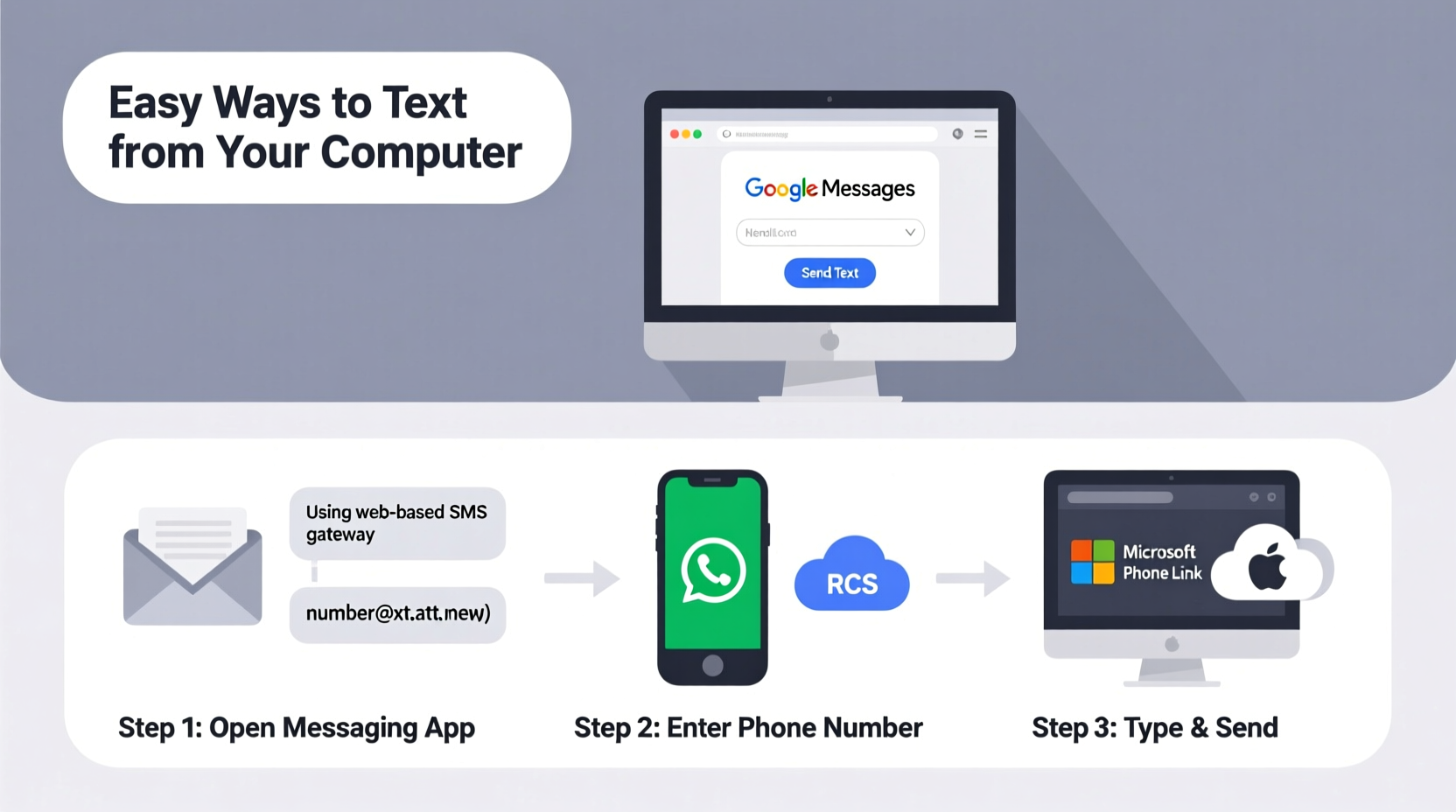
The convenience of typing on a full-sized keyboard, accessing clipboard history, and multitasking between apps makes computer-based texting a productivity upgrade. It’s especially useful in professional environments where constant phone use can appear disruptive or unprofessional.
Additionally, larger screens reduce eye strain and make it easier to proofread messages before sending. For individuals who rely on accessibility tools like screen readers or voice dictation, desktop messaging offers better integration than mobile interfaces.
“Seamless cross-device messaging isn’t just about convenience—it’s about maintaining flow during high-focus tasks.” — David Lin, UX Researcher at Digital Workflow Labs
Method 1: Use Built-in OS Integration (Apple Continuity)
If you're within the Apple ecosystem, iMessage syncing between devices offers one of the smoothest experiences for texting from a Mac. When properly configured, every SMS and iMessage sent to or from your iPhone appears instantly on your Mac.
How to Set Up Messages on Mac
- Ensure your iPhone and Mac are signed in with the same Apple ID.
- On your iPhone, go to Settings > Messages and turn on iCloud Messages.
- Open the Messages app on your Mac.
- Go to Messages > Settings > iMessage and sign in if prompted.
- Under Send & Receive, check the box next to your phone number.
Once enabled, you can start new conversations by clicking the compose button and entering any phone number. Replies appear in real time, and multimedia messages sync automatically.
Method 2: Android Messages for Web (Google’s Official Solution)
Android users have access to Google’s free web-based platform: Messages for Web. This service mirrors your phone’s default messaging app onto your browser, allowing full two-way communication.
Step-by-Step Setup
- Open messages.google.com/web on your computer.
- Open the Android Messages app on your phone.
- Tap the three-dot menu and select Messages for web.
- Scan the QR code displayed on your computer screen using your phone’s camera.
- Confirm the connection; your conversations will load instantly.
After pairing, you can send individual or group texts, view delivery status, and even react to messages—all from your browser. The session remains active until manually logged out or disconnected.
| Feature | Available | Notes |
|---|---|---|
| Send SMS/MMS | Yes | Requires active internet on phone |
| Receive Notifications | Yes (browser-based) | Enable notifications in browser settings |
| Use Without Phone Nearby | No | Phone must be powered on and connected |
| End-to-End Encryption | Limited | Only for RCS chats, not SMS |
Method 3: Third-Party Apps with Cross-Platform Sync
For users seeking advanced features or multi-device access beyond official solutions, third-party messaging platforms offer robust alternatives. These tools often support contact management, message scheduling, and team collaboration.
- Microsoft Your Phone App: Connects Android devices to Windows 10/11, enabling SMS syncing directly in the OS.
- Pinger Desktop: Offers free U.S. numbers and ad-supported desktop clients for Windows and macOS.
- MySMS: Browser-based interface with cloud backup and cross-platform syncing.
While convenient, third-party services require careful evaluation of privacy policies. Always verify data encryption practices and avoid entering sensitive information through unverified apps.
Mini Case Study: Remote Support Team Communication
A small IT support company based in Austin transitioned their client communication system to use MySMS on desktops. Technicians previously juggled phones while troubleshooting systems, leading to delayed responses and accidental disconnections.
After deploying desktop messaging, average response time dropped from 4 minutes to 90 seconds. One technician noted, “I can now reply to a client while still running diagnostics—no more switching windows or devices.” The team also reported fewer missed messages during after-hours shifts due to improved notification visibility on large monitors.
Method 4: Carrier-Specific Messaging Portals
Some mobile carriers provide web portals that let subscribers send and receive texts online. While less common today, these services remain functional for basic needs.
Verizon, for example, offers Messages+ Web, which syncs with your phone line via app installation and account login. AT&T once provided a similar service, though it has been largely phased out in favor of app-based solutions.
These portals typically require:
- An active account with the carrier
- Device registration and authentication
- Installation of companion mobile apps
Limitations include lack of feature parity with native apps and occasional sync delays. However, they serve as viable backups when other options aren’t available.
Checklist: Getting Started With Computer-Based Texting
- ✅ Confirm device compatibility (iOS/Android, OS version).
- ✅ Ensure both devices are connected to stable Wi-Fi or data networks.
- ✅ Sign in to the same account across devices (Apple ID, Google Account, etc.).
- ✅ Install required apps (Messages, Android Messages, Your Phone, etc.).
- ✅ Pair your phone with the web or desktop client via QR code or Bluetooth.
- ✅ Test sending a message to a trusted contact to verify functionality.
- ✅ Adjust notification preferences to avoid disruptions.
Frequently Asked Questions
Can I text someone without them knowing I’m using a computer?
Yes. Most services do not indicate the device type used to send a message. Recipients see only the message content and your number, indistinguishable from a phone-sent SMS.
Do I need my phone nearby to send texts from my computer?
In most cases, yes. Services like Android Messages for Web and Apple Continuity require your phone to be powered on and connected to the internet. True standalone texting requires a virtual number service.
Is it safe to send personal messages from my computer?
Security depends on the method used. Official platforms (Apple, Google) encrypt data in transit. Avoid public computers or unsecured Wi-Fi when accessing web-based messaging. For sensitive conversations, consider end-to-end encrypted apps like Signal Desktop instead.
Conclusion: Streamline Communication Wherever You Work
Texting from your computer is no longer a niche workaround—it's a legitimate productivity tool embraced by professionals and everyday users alike. Whether you choose built-in OS features, web-based mirroring, or dedicated third-party apps, the ability to manage messages from a larger screen enhances clarity, speed, and comfort.
The key is choosing a method that aligns with your existing tech ecosystem and security standards. Once set up, the shift feels natural, almost inevitable. You’ll wonder why you waited so long to break free from constantly reaching for your phone.




 浙公网安备
33010002000092号
浙公网安备
33010002000092号 浙B2-20120091-4
Comments
No comments yet. Why don't you start the discussion?