
Moving to a new Android phone is exciting — faster performance, better camera quality, and the latest features. But one of the most daunting parts of upgrading is transferring your data: contacts, messages, photos, apps, and settings. The good news is that with the right approach, you can move everything smoothly without losing a single file or missing a message.
Modern Android devices come equipped with tools designed to simplify this process, but knowing which method works best for your situation can save time and frustration. Whether you’re switching between Samsung models, moving from a budget device to a flagship, or simply replacing a damaged phone, a seamless transfer is entirely achievable.
Choose the Right Transfer Method
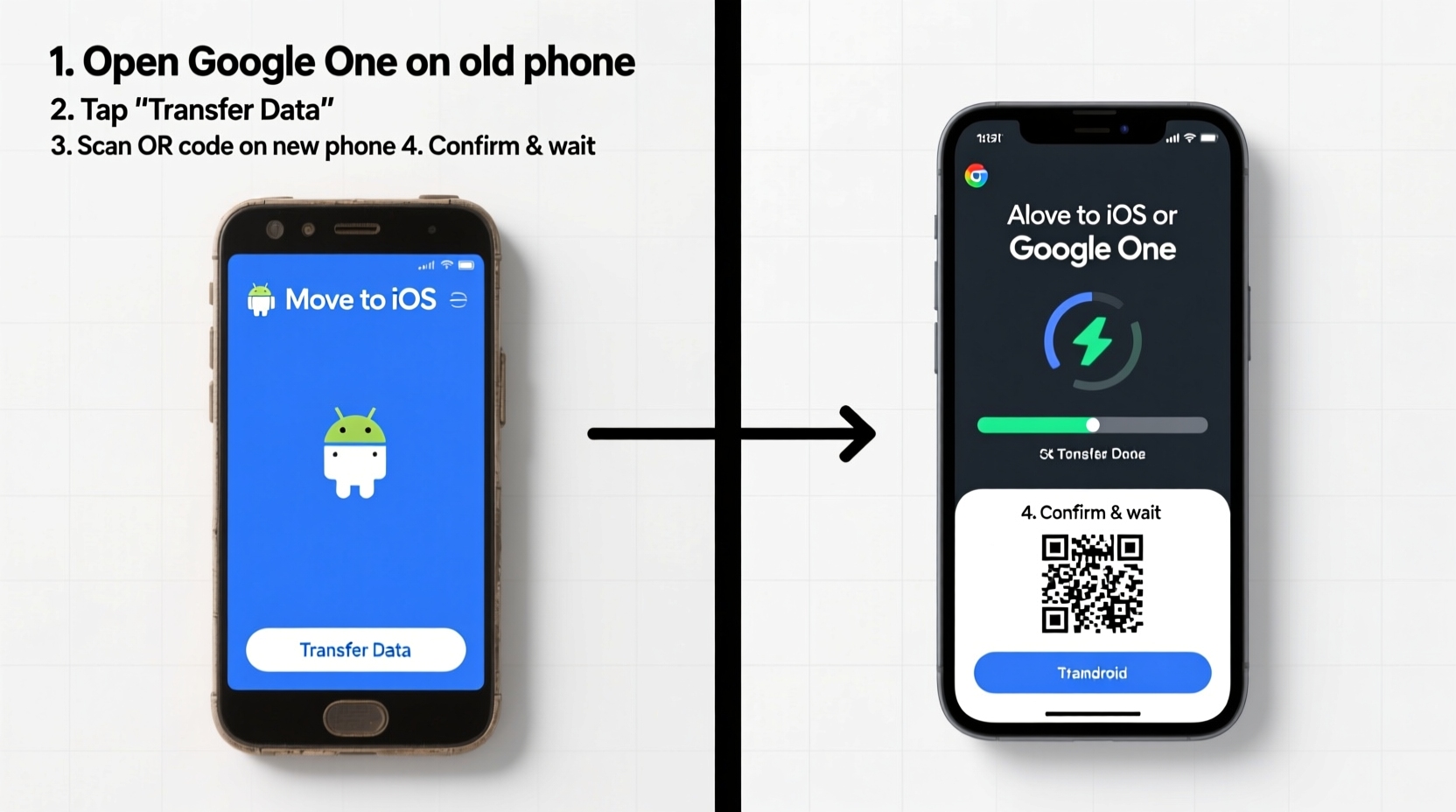
There are several ways to move your data, each with its own advantages depending on your devices, internet connection, and what type of data you're prioritizing. The three primary methods are:
- Google Account Sync – Best for contacts, messages, app preferences, and settings.
- Manufacturer-Specific Tools (e.g., Samsung Smart Switch, Xiaomi ShareMe) – Ideal for full device cloning including apps and media.
- Third-Party Apps (e.g., SHAREit, Send Anywhere) – Useful when no cloud or cable option is available.
Understanding these options helps you make an informed decision before starting the migration process.
Step-by-Step Guide: Using Google Backup & Restore
This method leverages your Google account to sync essential data across devices. It's universal, reliable, and works across all Android brands.
- On your old phone: Go to Settings > Google > Backup. Make sure “Back up to Google Drive” is enabled.
- Select your Google account if prompted. Ensure Wi-Fi is turned on.
- Tap “Backup now” to initiate a full backup. This may take several minutes depending on your data volume.
- Wait for confirmation that the backup completed successfully.
- Power off your old device and set up your new Android phone.
- During initial setup, sign in with the same Google account.
- When prompted, choose to restore apps and data from your Google backup.
- Wait for the restore process to complete. Some apps will reinstall automatically; others may require manual login.
This method ensures continuity of core services like Gmail, Calendar, Chrome bookmarks, and Play Store purchase history. However, it does not always include SMS messages or call logs unless supported by your device manufacturer.
“Google’s ecosystem is designed for continuity. If you use Android regularly and stay signed in, much of your digital life moves with you.” — David Lin, Mobile Systems Engineer at Android Authority
Using Manufacturer Tools for Full Migration
For a more comprehensive transfer — especially for media files, app data, and system settings — manufacturer-specific tools offer superior results. These applications often support direct phone-to-phone transfers via Wi-Fi Direct or USB cables, avoiding reliance on cloud storage limits.
Samsung Smart Switch
If you’re moving from one Samsung device to another, or even from a non-Samsung Android to a Galaxy phone, Smart Switch is the gold standard. It supports:
- Contacts, messages, photos, videos
- Music, documents, and downloads
- Call logs, calendar entries
- App data (including games with progress saved)
- Home screen layout and settings
To use Smart Switch:
- Download “Smart Switch” from the Google Play Store on your old phone.
- Install the same app on your new Samsung device.
- Open Smart Switch on both devices.
- Select “Send data” on the old phone and “Receive data” on the new one.
- Connect via cable (recommended), Wi-Fi, or QR code pairing.
- Choose the content types to transfer and start the process.
The entire transfer can take 30 minutes to over an hour, depending on data size, but runs in the background with real-time progress tracking.
Xiaomi, Oppo, OnePlus, and Other Brands
Many manufacturers have adopted similar tools:
- Xiaomi: Use “Mi Mover” (now integrated into “Phone Clone”)
- Oppo/OnePlus: “Clone Phone” or “Switch Master”
- Vivo: “Vivo Transfer”
These apps work similarly — establish a peer-to-peer connection and select what to migrate. They typically outperform generic Google backups when it comes to preserving app states and local media.
| Method | Best For | Limits | Speed |
|---|---|---|---|
| Google Backup | Contacts, settings, app list | Excludes some media & app data | Slow (depends on upload speed) |
| Smart Switch / Phone Clone | Full device clone, app data | Requires compatible devices | Fast (Wi-Fi Direct or USB) |
| Third-Party Apps | Quick file sharing | No system settings transfer | Moderate to fast |
| Manual Copy (SD Card/PC) | Photos, videos, music | Time-consuming, partial coverage | Variable |
Avoiding Common Transfer Pitfalls
Even with the right tools, mistakes can lead to incomplete transfers or lost data. Here are frequent issues and how to prevent them:
- Assuming everything backs up automatically: Not all apps back up their data to Google. Games, banking apps, and productivity tools often store data locally.
- Running out of battery mid-transfer: A sudden shutdown can corrupt the transfer. Keep both devices plugged in.
- Using slow or unstable Wi-Fi: For large transfers, a strong 5GHz network or wired connection is preferable.
- Not verifying post-transfer integrity: Always check critical data after migration — messages, recent photos, and passwords.
Mini Case Study: Maria’s Upgrade Experience
Maria had used a Pixel 4a for three years and recently upgraded to a Pixel 8. She assumed her Google account would handle everything. During setup, she restored from her Google backup and was pleased to see her apps and wallpapers return. However, she noticed her WhatsApp chat history was missing.
After checking, she realized she hadn’t backed up WhatsApp to Google Drive manually. While Android had transferred app data for most services, WhatsApp requires a separate backup step. She reinstalled WhatsApp on the new phone, verified her number, and restored from her last Google Drive backup — a process that took 20 minutes but recovered all her messages.
The lesson? Even within Google’s ecosystem, some apps operate independently. Always verify backup status for messaging, email, and productivity apps before retiring your old device.
Expert Checklist for a Flawless Transition
Follow this checklist to ensure nothing gets left behind during your Android migration:
- ✅ Charge both phones to at least 80% or keep them plugged in.
- ✅ Connect your old phone to Wi-Fi and ensure stable internet access.
- ✅ Enable Google Backup: Settings > Google > Backup > Backup now.
- ✅ Manually back up key apps (WhatsApp, Signal, Telegram) to cloud storage.
- ✅ Transfer photos and videos to Google Photos (or external drive).
- ✅ Install manufacturer transfer app (Smart Switch, Phone Clone, etc.) if applicable.
- ✅ Start transfer using preferred method (cable recommended for speed).
- ✅ After setup, verify critical data: contacts, messages, photos, passwords.
- ✅ Reinstall any apps not restored automatically.
- ✅ Factory reset old phone only after confirming success on the new device.
Frequently Asked Questions
Can I transfer data without Wi-Fi?
Yes. You can use a USB cable with tools like Samsung Smart Switch or LG Bridge. Some third-party apps also support offline hotspot-based transfers. However, cloud backups require internet.
Will my text messages be transferred?
It depends. Google Messages syncs to the cloud if enabled. Third-party SMS apps like Textra or ChompSMS may not auto-transfer. Always check app-specific backup settings beforehand.
What happens to my app logins after transfer?
While apps themselves may reinstall, most require you to log in again for security reasons. Password managers like Google Password Manager or Bitwarden can auto-fill credentials, making this process smoother.
Final Tips for Long-Term Data Security
A successful transfer isn’t just about getting data from point A to B — it’s about ensuring continuity and protection going forward. Consider these long-term habits:
- Enable automatic backups: Turn on Google One or manufacturer cloud services to continuously protect your data.
- Use a password manager: This ensures seamless access across devices without memorizing dozens of credentials.
- Regularly audit app permissions: New phones often prompt for permissions; review which apps get access to location, camera, and microphone.
- Label your old device: If keeping it as a backup, rename it in Bluetooth and cloud menus to avoid confusion.
Conclusion: Make Your Upgrade Stress-Free
Transferring data from your old Android to a new phone doesn’t have to be stressful or complicated. By planning ahead, using the right tools, and verifying each step, you can enjoy a seamless transition that preserves your digital life exactly as you left it.
Whether you rely on Google’s ecosystem, leverage powerful manufacturer software, or combine multiple methods for maximum coverage, the key is preparation. Take a few hours before your upgrade to back up, charge, and confirm your strategy — and you’ll unlock the full potential of your new device from day one.




 浙公网安备
33010002000092号
浙公网安备
33010002000092号 浙B2-20120091-4
Comments
No comments yet. Why don't you start the discussion?