
Moving to a new phone should be exciting—not stressful. Yet for millions of users each year, the process of transferring photos, messages, contacts, apps, and settings becomes a major hurdle, especially when switching between operating systems. Whether you're upgrading within the same ecosystem or jumping from iPhone to Android (or vice versa), seamless data migration is possible with the right preparation and tools.
The key lies not in speed but in strategy. A haphazard transfer can result in lost files, duplicated contacts, or incomplete app setups. With careful planning and an understanding of available technologies, you can preserve your digital life without disruption. This guide walks through reliable methods, platform-specific tools, and practical steps that ensure your transition is smooth—regardless of your device combination.
Understanding Cross-Platform Transfer Challenges
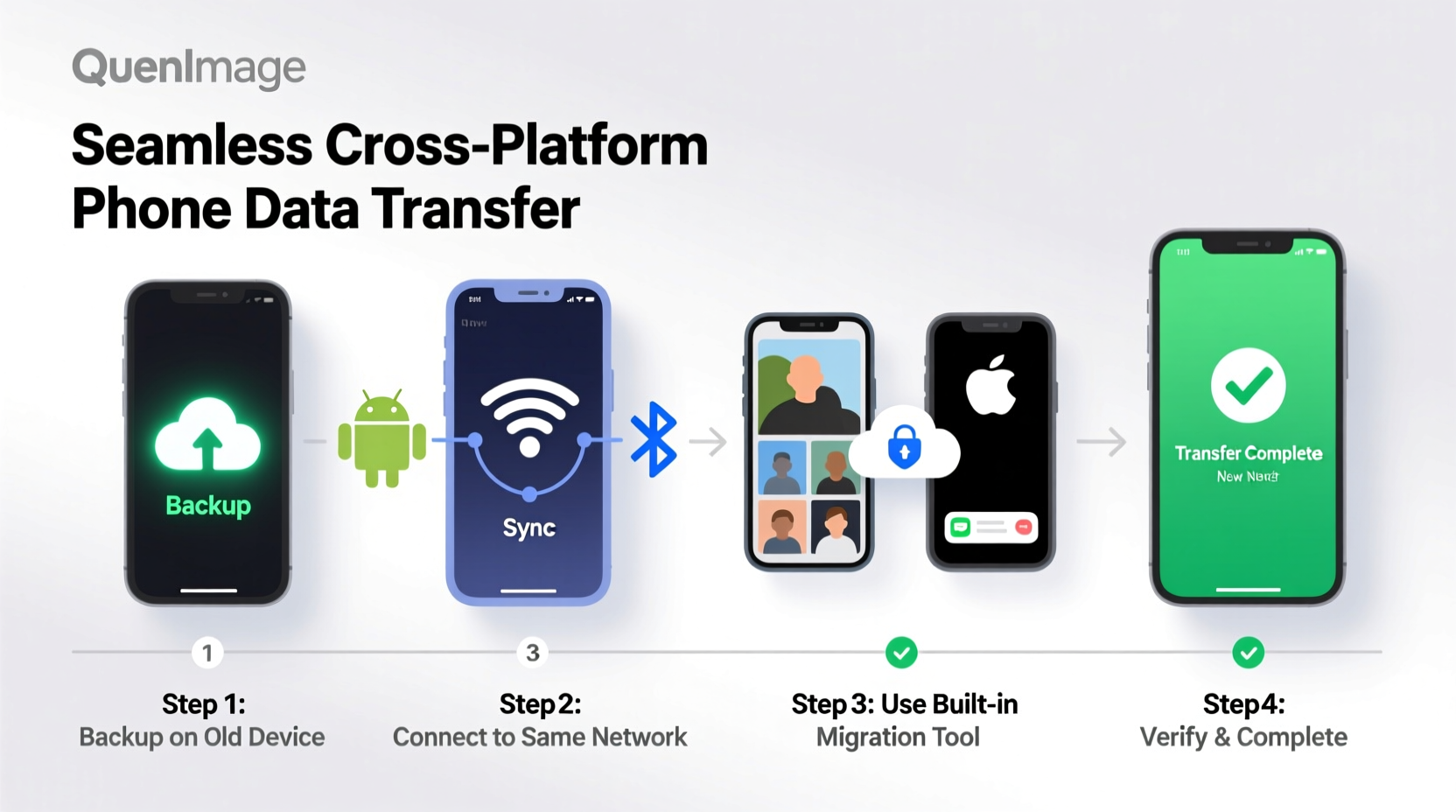
At first glance, moving data between phones seems straightforward. But underlying differences in operating systems create real obstacles. iOS and Android manage data differently: file structures, app permissions, messaging formats, and cloud sync behaviors are not interchangeable by default.
For example, iMessage threads don’t translate to Android’s SMS/MMS format. App data stored locally on one system may not be exportable to another. Even something as simple as calendar entries can lose formatting or recurrence rules during migration. These nuances mean direct copying isn't always viable.
Additionally, user habits complicate transfers. Many people rely on automatic backups without verifying their completeness. Others store critical photos only on their device, assuming they’re synced when they’re not. The absence of a unified backup standard across brands means responsibility falls on the user to ensure continuity.
“Most data loss during phone transitions happens not because tools fail—but because users skip verification steps.” — Rajiv Mehta, Mobile Systems Architect at CloudSync Labs
Step-by-Step Guide to Seamless Data Migration
A successful transfer begins long before unboxing your new device. Follow this timeline to prepare, execute, and verify your data move across any platform combination.
- Assess Your Data (3–7 Days Before): Inventory what needs transferring—contacts, photos, videos, messages, emails, calendars, notes, app accounts, and saved passwords. Prioritize based on importance and irreplaceability.
- Back Up Both Devices: Even if you plan a direct transfer, back up your old phone using its native cloud service (iCloud for iPhone, Google Drive for Android). This creates a safety net in case something goes wrong.
- Free Up Space: Ensure both devices have sufficient storage. Large photo libraries or video collections may require external cleanup or temporary cloud uploads.
- Charge and Connect: Plug both phones into power and connect them to a stable Wi-Fi network. Avoid relying on cellular data for large transfers.
- Choose Your Transfer Method: Based on your platform pair, select the appropriate tool (covered in next section).
- Initiate Transfer: Start the migration process using the chosen method. Do not interrupt the connection until completion.
- Verify Everything: After setup, manually check key items—sample photos, recent messages, contact names, and app logins—to confirm accuracy.
- Finalize Setup: Re-enable two-factor authentication, update apps, and set up biometric locks on the new device.
Best Tools for Each Platform Combination
No single solution works universally, but modern tools make cross-platform transitions far more manageable than in the past. Below is a breakdown of recommended options by scenario.
| From → To | Recommended Tool | What It Transfers | Limits |
|---|---|---|---|
| iPhone → iPhone | iCloud Backup or Quick Start | Full system clone including apps, settings, messages | Requires iCloud+ for large media; slow over cellular |
| Android → Android | Google Account Sync + Samsung Smart Switch (if applicable) | Contacts, calendar, photos, app data, home screen layout | Some third-party apps don’t migrate data automatically |
| iPhone → Android | Move to iOS (during Android setup) | Contacts, message history, photos, video, bookmarks, mail accounts | Only works during initial setup; no app data or music transfer |
| Android → iPhone | Move to iOS app (on Android) + Apple Quick Start | Same as above—contacts, messages, media, Wi-Fi settings | Must use Apple’s wireless method; wired transfer not supported |
| Any → Any (Manual) | Google Drive, Dropbox, or OneDrive | Selective file transfer (photos, docs, videos) | Time-consuming; doesn’t move app data or settings |
For mixed-platform moves, timing matters. The “Move to iOS” feature must be used during the initial setup of the Android phone—once completed, it cannot be reactivated. Similarly, Apple’s Quick Start requires both devices to be near each other and powered on.
Real Example: Switching from iPhone 12 to Google Pixel 8
Sophie had used iPhones for a decade but wanted to try Android for its customization and longer battery life. She purchased a Google Pixel 8 and followed these steps:
- On her iPhone, she backed up everything to iCloud and ensured all photos were uploaded via iCloud Photos.
- She downloaded the “Move to iOS” app on her new Pixel before turning it on.
- During setup, the Pixel prompted her to transfer data. She selected “Move Data from iOS,” which generated a code.
- On her iPhone, she opened the Move to iOS app, entered the code, and waited for the secure Wi-Fi connection to establish.
- Over the next 45 minutes, her contacts, text messages, photos, and browser bookmarks transferred wirelessly.
- After setup, she signed into Google Photos to double-check media integrity and restored additional documents from Dropbox.
The entire process took under two hours, and Sophie retained nearly all her essential data—except for app-specific information like game progress, which required separate cloud saves.
Critical Tips for Avoiding Common Pitfalls
Even with the best tools, mistakes happen. Here’s how to sidestep frequent issues:
- Don’t assume app data migrates: Most apps don’t carry over local data unless they use their own cloud sync (e.g., WhatsApp, Spotify). Check individual app settings beforehand.
- Watch for duplicate contacts: Merging accounts from multiple sources often creates duplicates. Use built-in deduplication tools (like Google Contacts Merge or iOS Contact Cleanup) post-transfer.
- Verify message encryption status: End-to-end encrypted messages (like iMessage or Signal) won’t appear on non-supported platforms. Export important threads as PDFs if needed.
- Update account recovery options: After transferring, update your trusted devices and numbers on services like Apple ID, Google Account, and banking apps.
Essential Checklist Before You Begin
Use this checklist to ensure nothing is overlooked before starting your transfer:
- ✅ Back up old phone to manufacturer cloud (iCloud/Google Drive)
- ✅ Confirm Wi-Fi stability and sufficient battery (both devices >50%)
- ✅ Sign into your new device’s primary account (Apple ID or Google)
- ✅ Install necessary transfer apps (Move to iOS, Smart Switch, etc.)
- ✅ Disable Find My iPhone or Lock Screen security temporarily (if required)
- ✅ Verify photo and video sync status (ensure \"My Photo Stream\" or \"Backup & Sync\" is active)
- ✅ Note down Wi-Fi passwords—you’ll need them on the new device
- ✅ Remove old device from trusted list after migration (for security)
Frequently Asked Questions
Can I transfer WhatsApp chats between iPhone and Android?
Yes, but only with WhatsApp’s official Move Chats tool. Available since 2021, it allows end-to-end encrypted chat transfer via USB cable or local Wi-Fi. Both phones must have the latest version of WhatsApp installed, and the process takes time depending on chat size. Media files transfer fully, but group admin status and some older attachments may not carry over.
Why didn’t my calendar events sync after transfer?
This usually happens when calendars weren’t properly assigned to the correct account. On Android, ensure events are saved to your Google account, not “On My iPhone.” On iOS, check that calendars are set to sync via iCloud or subscribed via a shared link. Post-transfer, manually force-sync the calendar app and refresh view.
Is it safe to sell my old phone after data transfer?
Only after performing a factory reset and removing your account credentials. For iPhone, sign out of iCloud and disable Find My iPhone. For Android, remove your Google account and perform a full reset via Settings > System > Reset. Never rely solely on deletion—always reset to prevent data recovery by third parties.
Conclusion: Make Your Upgrade Effortless
Transferring data across platforms no longer has to be a source of anxiety. With today’s tools, even complex migrations between iOS and Android can be completed in under an hour—with minimal data loss. The difference between success and frustration lies in preparation: backing up early, choosing the right method, and verifying every step.
Your digital identity—photos, messages, and personal records—is too valuable to risk. By following structured processes and leveraging built-in solutions, you maintain control throughout the transition. Whether you’re switching ecosystems or simply upgrading, take the time to do it right. A seamless transfer isn’t just about convenience—it’s about preserving your digital life with confidence.




 浙公网安备
33010002000092号
浙公网安备
33010002000092号 浙B2-20120091-4
Comments
No comments yet. Why don't you start the discussion?