
Moving from Android to iPhone is a common transition, but it often comes with concerns about losing important data. Photos, messages, contacts, app data—these aren’t just digital files; they’re memories, conversations, and personal records. The good news: you don’t have to sacrifice them during the switch. With the right tools and approach, transferring your data can be seamless, secure, and complete.
Apple has made strides in simplifying cross-platform transitions, particularly through its Move to iOS app. But that’s not the only option—and sometimes, it isn’t even the best one depending on your needs. Whether you're switching devices for the first time or helping someone else make the leap, understanding your options ensures no file gets left behind.
Why Data Loss Happens During Transfers
Data loss during an Android-to-iOS migration typically occurs due to incompatible formats, incomplete syncs, or reliance on third-party apps that fail to preserve metadata. For example:
- Android SMS messages are stored differently than iMessage threads and won’t automatically convert unless properly migrated.
- Photos may appear duplicated or missing if cloud syncing is misconfigured.
- Contact fields like custom labels or notes might not carry over if exported incorrectly.
The root issue is ecosystem fragmentation. Android uses Google services (Gmail, Drive, Messages), while iPhone relies on iCloud, iMessage, and Apple ID integration. Bridging these systems requires intentional steps—not just plug-and-play convenience.
“Most users assume their data will follow them like a shadow when switching phones. But without structured migration, critical information slips through the cracks.” — David Lin, Mobile Migration Specialist at TechBridge Labs
Method 1: Use Apple’s Official “Move to iOS” App
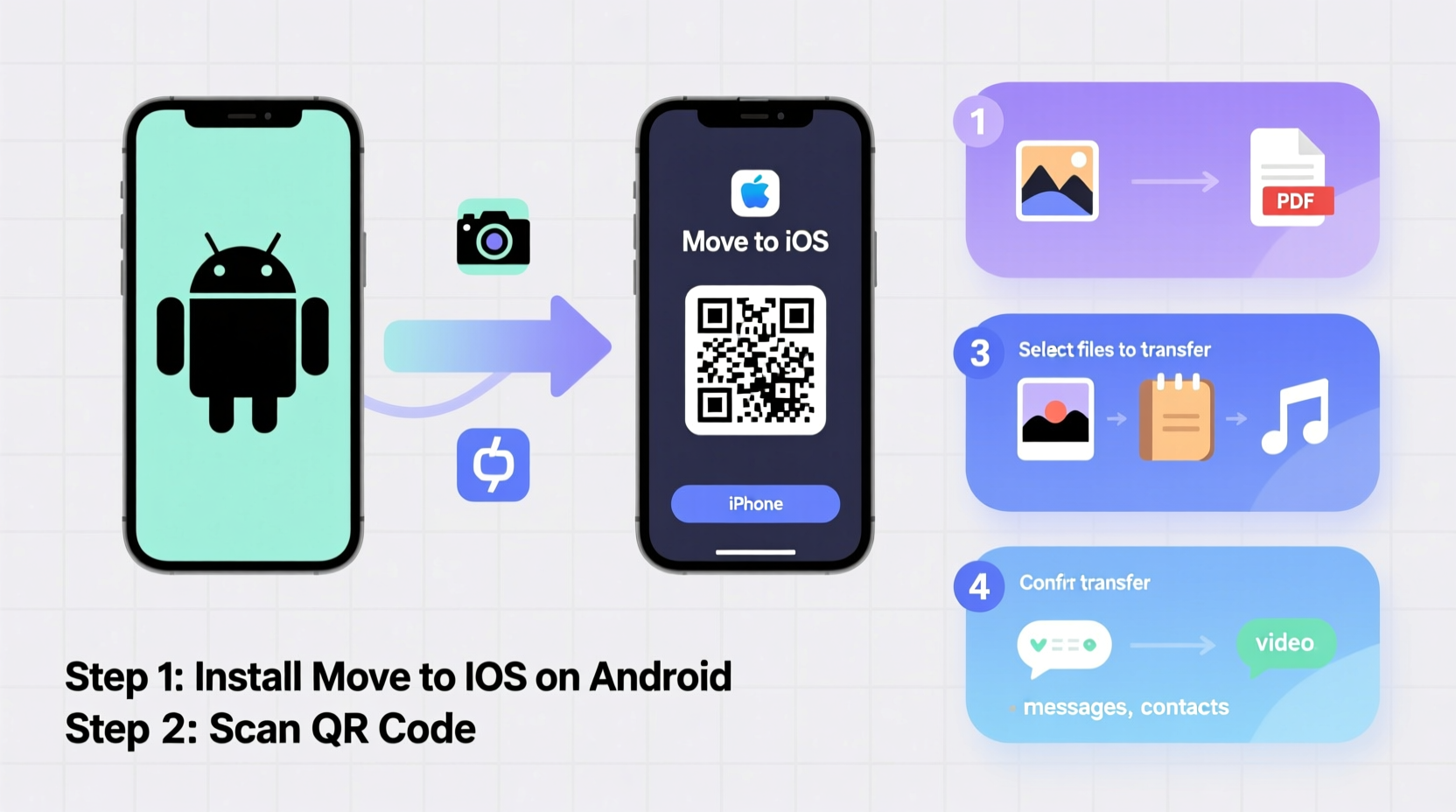
Apple designed the Move to iOS app specifically to help new iPhone users bring their data across from Android. It's free, encrypted, and supports key data types including contacts, message history, photos, videos, web bookmarks, and calendar events.
This method works during initial iPhone setup. Here’s how to use it effectively:
- Set up your new iPhone until you reach the “Apps & Data” screen.
- Select “Move Data from Android.”
- On your Android phone, download the Move to iOS app from the Google Play Store.
- Open the app and tap “Continue,” then agree to the terms.
- When prompted, enter the code displayed on your iPhone.
- Select the content you want to transfer—photos, videos, contacts, etc.
- Wait for the transfer to complete. Do not close either app or interrupt Wi-Fi.
- Finish setting up your iPhone. Your transferred data will appear in the appropriate apps.
Note: This method does not support transferring music, documents, or app data beyond what’s natively supported. Also, WhatsApp chats require a separate backup step using Google Drive before switching.
Pros and Cons of Move to iOS
| Feature | Supported? | Notes |
|---|---|---|
| Contacts | Yes | Syncs directly into iPhone Contacts app |
| SMS/MMS Messages | Yes | Preserves full thread history |
| Photos & Videos | Yes | Transferred via temporary encryption tunnel |
| Calendar Events | Yes | Copies all synced Google Calendar entries |
| App Data | Limited | Only basic app lists; no deep data transfer |
| Music Files | No | Must transfer manually or use streaming services |
| Call History | No | Not supported by Apple’s tool |
Method 2: Manual Transfer Using Cloud Services
If you prefer more control—or need to transfer data outside Move to iOS’s scope—cloud-based syncing offers precision and flexibility. This approach involves pre-syncing content to universal platforms before importing it into your iPhone.
Step-by-Step: Cloud-Based Migration
- Sync Photos and Videos: Enable Google Photos backup on your Android. Ensure all media is uploaded in “High Quality” or “Original” mode. On your iPhone, install Google Photos and sign in with the same account. Download or save items to the native Photos app.
- Transfer Contacts: In Android Settings, go to Accounts > Google and ensure contacts are synced. On iPhone, go to Settings > Mail > Accounts > Add Account > Google. Sign in and enable Contacts sync.
- Restore Calendar: Similarly, link your Google Calendar to the iPhone under the same Google account settings. All future and past events will populate in the Calendar app.
- Save Notes: Export Android notes to Google Keep or Gmail. Open them on iPhone via browser or app and re-save locally if needed.
- Move Files and Documents: Upload documents to Google Drive, Dropbox, or OneDrive. Access them from your iPhone using the respective app and export to Files or other destinations.
This method avoids proprietary limitations and gives you long-term access to your data across devices. However, it requires more time and manual verification to ensure completeness.
Method 3: Third-Party Tools for Advanced Transfers
For users needing deeper data migration—especially app-specific content like game progress, voice memos, or system backups—third-party software can bridge gaps left by official tools.
Popular cross-platform transfer tools include:
- SHAREit: Fast file sharing over Wi-Fi Direct, useful for large video collections or APK files.
- Send Anywhere: Secure peer-to-peer transfers with QR code authentication.
- MoboRobo: Desktop-based manager that allows full Android-to-iPhone file browsing and copying.
- dr.fone – Switch: Paid tool offering one-click transfer of multiple data types with format conversion.
While convenient, third-party apps vary in reliability and privacy standards. Always review permissions, avoid unknown developers, and scan transferred files for malware.
Mini Case Study: Sarah’s Seamless Switch
Sarah, a freelance photographer, switched from a Samsung Galaxy S21 to an iPhone 15 Pro. She had over 4,000 photos, client messages, and project notes she couldn’t afford to lose.
Instead of relying solely on Move to iOS, she used a hybrid approach:
- Backed up all photos to Google Photos and verified uploads.
- Used Move to iOS for contacts and message history.
- Manually downloaded her portfolio PDFs from Dropbox onto her iPhone.
- Reinstalled Lightroom and restored presets via Creative Cloud sync.
The entire process took two evenings, but every file arrived intact. Six months later, she still accesses old client texts and original RAW files without issue.
“The key wasn’t speed—it was redundancy. I didn’t trust one method alone. Backing up twice gave me peace of mind.” — Sarah Nguyen, Photographer
Checklist: Complete Android-to-iPhone Transfer Plan
Follow this checklist to ensure no data is lost during your transition:
- ✅ Back up your Android device to Google One or local storage.
- ✅ Verify that photos, videos, and documents are synced to Google Photos or Drive.
- ✅ Export contacts to a .vcf file as a backup.
- ✅ Back up WhatsApp chats to Google Drive (if applicable).
- ✅ Set up your iPhone and use Move to iOS for core data transfer.
- ✅ Sign in to Google services on iPhone and enable Contacts and Calendar sync.
- ✅ Install Google Photos and restore images to the native library.
- ✅ Manually transfer unsupported files via email, cloud links, or USB adapter.
- ✅ Reinstall essential apps and restore data using built-in login syncs (e.g., Spotify, Instagram).
- ✅ Audit transferred data: count photos, test message search, verify calendar accuracy.
FAQ: Common Questions About Android-to-iPhone Transfers
Can I transfer WhatsApp messages from Android to iPhone?
Yes, but not directly. Use WhatsApp’s built-in chat transfer tool: back up chats to Google Drive on Android, then during WhatsApp setup on iPhone, restore from that backup. Note: media may take hours to download depending on size.
Will my call logs come over to the iPhone?
No. Neither Move to iOS nor third-party tools currently support call history transfer due to platform restrictions. Consider exporting call logs using an Android app like Call Log Backup & Restore before switching.
What happens to my app subscriptions and purchases?
In-app purchases and subscriptions are tied to accounts, not devices. Reinstall apps using the same Google or developer account. For Apple-exclusive subscriptions (like Apple Music), you’ll need to resubscribe separately unless linked through a service like YouTube Premium.
Final Tips for a Smooth Transition
Switching ecosystems doesn’t have to mean starting from scratch. The most successful transfers combine automation with careful oversight. Don’t rush the process—take time to verify each category of data after migration.
Also, consider formatting your Android device only after confirming all files are accessible on your iPhone. Keep it powered on for at least a week as a fallback.
Conclusion
Transferring files from Android to iPhone without losing data is entirely possible—with preparation, the right tools, and attention to detail. Whether you use Apple’s Move to iOS, cloud syncing, or a mix of methods, the goal remains the same: a complete, accurate handoff of your digital life.
Your new iPhone shouldn’t feel empty. With smart planning, it can carry forward everything that matters—from childhood photos to years of text memories. Take the time now to do it right. Your future self will thank you every time you find that one photo or rediscover an old conversation exactly where it should be.




 浙公网安备
33010002000092号
浙公网安备
33010002000092号 浙B2-20120091-4
Comments
No comments yet. Why don't you start the discussion?