
Moving to a new phone is exciting—but it often comes with the risk of losing personal data you didn’t know how to save. Among the most overlooked yet emotionally significant files are voicemails. Whether it’s a message from a loved one, a professional callback, or a sentimental recording, these audio snippets can be irreplaceable. Unlike photos or messages, voicemails aren’t automatically backed up in standard sync processes. Without deliberate action, they vanish when you deactivate your old number or reset your device.
The good news: with the right tools and timing, you can securely transfer voicemails to your computer before switching phones. This guide walks through reliable methods for both iPhone and Android users, explains what works best depending on your carrier and device, and helps you preserve every voice note worth keeping.
Why Voicemails Are at Risk During Phone Transfers
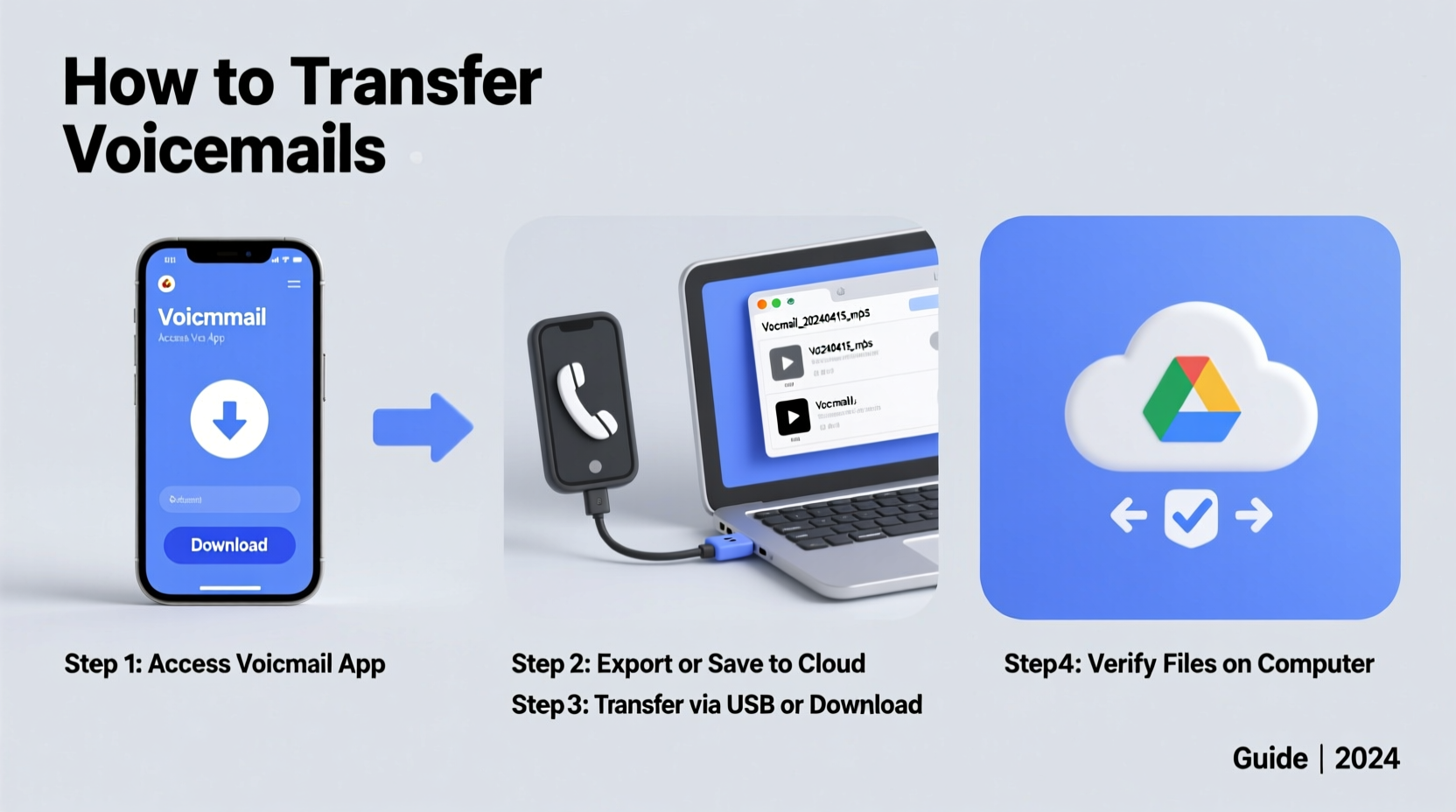
Most people assume that when they back up their phone to iCloud or Google Drive, everything transfers seamlessly. However, voicemails operate differently. They are typically stored on your carrier’s server, not locally on your device. Once you cancel service, port your number, or switch carriers, access to those voicemail messages is usually terminated.
Even if your phone stores voicemails locally—such as saved messages in the Voice Memos app or exported recordings—these aren’t always synced by default. Apple’s Visual Voicemail, for instance, relies on a live connection to your carrier. If that link breaks, the voicemail list disappears. Android systems vary by manufacturer and carrier, but few offer automatic export options.
“Voicemails are among the most fragile forms of digital memory. Unlike text or photos, they’re hosted off-device and time-sensitive. Back them up early.” — Dr. Lena Torres, Digital Archiving Specialist, University of Washington Information School
This makes proactive preservation essential. The window to act is narrow: ideally, while your old phone still has active service and full access to your voicemail inbox.
Step-by-Step: Transfer Voicemails from iPhone to Computer
iPhones using Visual Voicemail through carriers like AT&T, Verizon, or T-Mobile don’t store voicemails as downloadable files by default. But there are effective workarounds.
Method 1: Use Email Forwarding (Carrier-Supported)
Many carriers allow you to forward voicemails via email, converting them into audio attachments (usually .wav or .mp3).
- Open the Phone app and go to the “Voicemail” tab.
- Select a voicemail you want to save.
- Tap “Share” or look for an email icon (availability depends on carrier and iOS version).
- Enter your email address and send.
- On your computer, open the email and download the audio file.
- Save it in a dedicated folder (e.g., “Voicemails_Backup_2024”).
Method 2: Record Audio While Playing (Manual Workaround)
If your carrier doesn’t support sharing, you can record the audio playback using another device or software.
- Play the voicemail on your iPhone using headphones to reduce echo.
- Use your computer’s built-in microphone or an external mic to capture the sound.
- Open a recording app like Audacity (free) or Voice Memos (Mac).
- Start recording, then play the voicemail.
- Stop the recording and save the file with a descriptive name.
This method isn’t perfect—audio quality may degrade due to ambient noise or latency—but it’s functional in emergencies.
Method 3: Third-Party Apps (Recommended for Bulk Export)
Applications like Google Voice, Rev Call Recorder, or Voicemail to Text+ can intercept and save voicemails directly to the cloud or local storage.
- Install a compatible app from the App Store.
- Link it to your phone number (may require call forwarding setup).
- Let it capture incoming voicemails automatically.
- Export recordings to your computer via USB, email, or cloud sync.
Note: Some apps require subscription plans for full export features. Always review privacy policies before granting call access.
How to Save Android Voicemails to Your Computer
Android offers more flexibility than iOS in some cases, especially with Google Voice integration. However, methods depend heavily on your device model, OS version, and carrier.
Method 1: Use Google Voice (Best for Long-Term Backup)
If you have Google Voice set up, incoming calls and voicemails route through the app and are automatically saved to your Google account.
- Ensure Google Voice is active and linked to your number.
- Open the Google Voice app and navigate to “Voicemail.”
- Tap and hold a voicemail to select it.
- Tap the three-dot menu and choose “Download” or “Save to Device.”
- Connect your Android to your computer via USB.
- Navigate to the “Downloads” or “Voice” folder and copy the .mp3 files.
- Paste them into a backup folder on your computer.
Alternatively, access voicemails online at voice.google.com, where you can stream and download them directly.
Method 2: Carrier Voicemail Apps (e.g., Samsung Visual Voicemail)
Samsung and other OEMs include visual voicemail clients that sometimes allow saving messages.
- Open the Phone or Voicemail app.
- Find the message you want to keep.
- Look for a share icon (arrow or paperclip).
- If available, tap “Share” and choose “Email,” “Drive,” or “Save to Device.”
- Transfer saved files to your computer via USB or cloud services.
If no share option exists, use the audio recording method described earlier.
Method 3: File Manager Extraction (Advanced Users)
Some Android devices store voicemails in internal folders such as:
/CallRecordings//Voicemail//Android/data/com.samsung.android.voicemail/
To access them:
- Enable “Developer Options” and “USB Debugging” on your phone.
- Connect to your computer and use Android File Transfer (Mac) or MTP (Windows).
- Browse to the relevant folder and search for .amr, .3gp, or .mp3 files.
- Copy them to your computer and rename for clarity.
Do’s and Don’ts of Voicemail Transfer
| Do’s | Don’ts |
|---|---|
| Start early – Begin backup before canceling service. | Wait until after switching phones to attempt recovery. |
| Name files clearly – Use dates and caller names (e.g., \"Mom_Birthday_Wish_2024.mp3\"). | Leave files as generic “voicemail_001.wav” with no context. |
| Use encrypted cloud storage – For sensitive messages, store in password-protected ZIPs on OneDrive or Dropbox. | Upload private voicemails to public links or unsecured drives. |
| Verify audio quality – Play each file on your computer after transfer. | Assume the transfer succeeded without checking. |
| Back up multiple copies – Save to both computer and external drive. | Keep only one copy on a single device. |
Mini Case Study: Preserving Family Messages Before Upgrading
Sarah, a teacher from Portland, recently upgraded from an iPhone 8 to an iPhone 15. Her father, who lives overseas, had left several voicemails during the holidays—messages she wanted to keep forever. She assumed iCloud would handle the transfer, but after setting up her new phone, the voicemails were gone.
Panic set in—until she remembered her father’s messages were forwarded to her email via Verizon’s “Voicemail to Email” feature. She logged into her email account, found six .wav files sent over the past year, downloaded them, and organized them into a folder titled “Dad’s Voice – 2023–2024.” She later burned them to a CD for her mom as a gift.
Sarah’s experience underscores two truths: first, never assume voicemails are safe; second, even outdated methods like email forwarding can rescue precious memories if used in time.
Checklist: Secure Your Voicemails Before Switching Phones
- ✅ Confirm your carrier supports voicemail forwarding or downloading.
- ✅ Test the process with one voicemail before deleting anything.
- ✅ Install a third-party app (e.g., Google Voice) if native options are limited.
- ✅ Connect your phone to Wi-Fi and ensure full battery or power source during transfer.
- ✅ Download each voicemail to your computer and verify playback.
- ✅ Organize files in dated folders with clear naming conventions.
- ✅ Back up the folder to an external hard drive or encrypted cloud storage.
- ✅ Double-check that all important messages are accounted for before deactivating your old device.
Frequently Asked Questions
Can I recover voicemails after switching phones?
Only if they were previously saved to your computer, cloud service, or email. Once your old phone’s service ends, carrier-stored voicemails are typically deleted permanently. Recovery is nearly impossible without a prior backup.
Are there free tools to automate voicemail transfer?
Yes. Google Voice offers free voicemail storage and downloads. Audacity is a free desktop app for recording audio playback. Some file managers and cloud apps also provide free tiers for saving and syncing recordings.
Will my carrier keep my voicemails if I switch numbers?
No. Carriers do not retain voicemails after account closure or number porting. Data is purged within days or weeks. You are responsible for preserving any messages you wish to keep.
Conclusion: Act Now to Preserve What Matters
Voicemails are more than missed calls—they’re voices from moments you may never get back. A child’s first words, a grandparent’s advice, a friend’s encouragement—these aren’t just data, they’re emotional artifacts. Yet they sit on fragile servers, vulnerable to deletion with a single contract change.
The steps to protect them are simple but time-sensitive. Whether you’re using email forwarding, Google Voice, or manual recording, the key is acting while your old phone still works. Don’t wait for the upgrade to complete before realizing what’s lost.




 浙公网安备
33010002000092号
浙公网安备
33010002000092号 浙B2-20120091-4
Comments
No comments yet. Why don't you start the discussion?