
Moving from an Android device to an iPhone is often a smooth transition—but when it comes to transferring WhatsApp chat history, many users hit a wall. Unlike media or contacts, WhatsApp conversations don’t automatically sync across platforms due to encryption and ecosystem differences. Apple and Meta have collaborated on a solution, but only under specific conditions. The good news: you can transfer your WhatsApp data from Android to iPhone for free, without relying on sketchy third-party apps. This guide walks through the official method, alternative strategies, and practical tips to preserve your message history during the switch.
Understanding the Challenge: Why It’s Not Simple
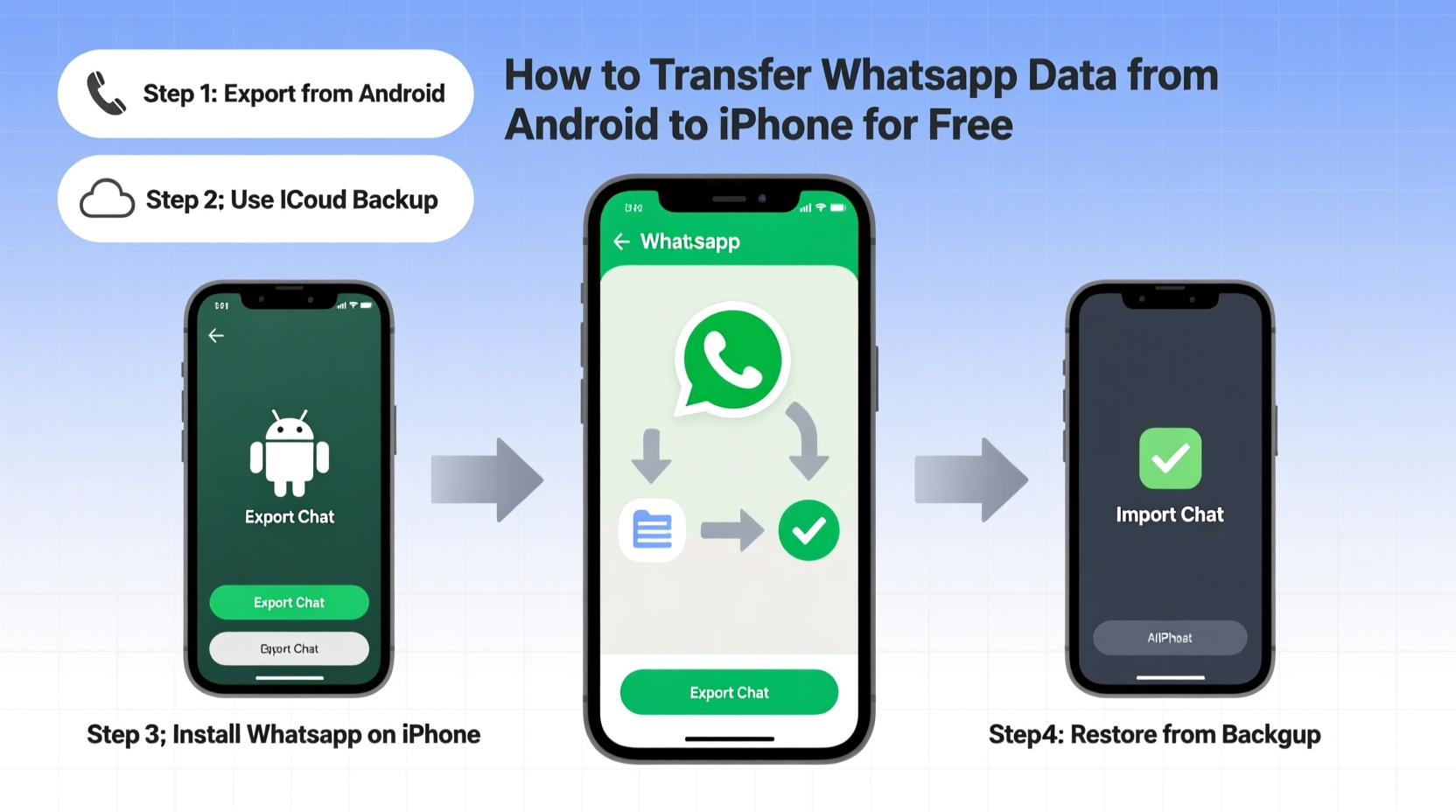
WhatsApp uses end-to-end encryption, meaning your messages are stored locally on your device and tied to your phone number and operating system. Android uses Google Drive for backups, while iPhones rely on iCloud. These systems aren’t compatible with each other. Until recently, there was no direct way to move chat history between platforms. Even today, full cross-platform transfers remain limited.
In 2021, Apple and Meta introduced a migration tool that allows users to transfer WhatsApp chats directly from Android to iPhone during initial iPhone setup. However, this feature only works under specific circumstances: during the first-time setup of a new iPhone, and only if both devices are close together and connected to power. If you’ve already set up your iPhone, this built-in option won’t appear.
“Transferring WhatsApp data across ecosystems has always been one of the biggest friction points in switching phones. The collaboration between Apple and Meta marks real progress—but it’s still narrow in scope.” — David Lin, Mobile Ecosystem Analyst at TechShift Insights
Official Method: Using Move to iOS (During Initial Setup)
The most reliable and secure way to transfer WhatsApp data for free is by using Apple’s Move to iOS app in conjunction with WhatsApp’s built-in migration feature. This method preserves text messages, photos, videos, audio, and documents—but not call logs or settings.
Prerequisites
- A new iPhone (not previously set up)
- An Android phone running Android 4.3 or later
- Both devices charged to at least 50%
- A stable Wi-Fi connection
- Same phone number on both devices
- Latest version of WhatsApp installed on Android
Step-by-Step Guide
- Start setting up your iPhone. Turn it on and follow prompts until you reach the \"Apps & Data\" screen.
- Select \"Move Data from Android.\" This triggers the Move to iOS process.
- On your Android phone, download the \"Move to iOS\" app from the Google Play Store if not already installed.
- Open the app and tap \"Continue.\" Accept the terms and wait for a six- or ten-digit code to appear on the iPhone.
- Enter that code into your Android device. A secure connection forms between the two phones.
- Select the data to transfer. Choose WhatsApp along with contacts, messages, photos, etc.
- Wait for the transfer to complete. This may take minutes to hours depending on data size.
- Finish iPhone setup. Once done, open WhatsApp on the iPhone and verify your phone number.
- Tap \"Transfer\" when prompted. WhatsApp will import your chat history directly from the Android device.
What If You Already Set Up Your iPhone?
If you’ve already completed the iPhone setup, the \"Move Data from Android\" option disappears. In this case, the official over-the-air transfer isn’t available. However, you can still migrate your WhatsApp data manually using a workaround that involves local backups and file transfer.
Manual Transfer via Local Backup (Free & No Third-Party Tools)
This method requires accessing your Android’s internal storage to extract WhatsApp’s local backup files and placing them in the correct location on your iPhone. While more technical, it’s completely free and avoids unauthorized apps.
Steps to Manually Migrate Chats
- On your Android phone, ensure WhatsApp is updated. Open WhatsApp > Settings > Chats > Chat backup. Confirm the last backup time.
- Connect your Android to a computer via USB. Enable \"File Transfer\" mode.
- Navigate to the local backup folder: Internal Storage > WhatsApp > Databases. Look for files named like
msgstore.db.crypt14(or similar). - Copy the most recent backup file (e.g.,
msgstore-YYYY-MM-DD.1.db.crypt14) to your computer. - Install iTunes (or Finder on macOS Catalina+) and connect your iPhone.
- Enable File Sharing in iTunes/Finder. Select your iPhone > Apps tab > scroll to File Sharing > select WhatsApp.
- Drag the backup file into the WhatsApp Documents list. This places it inside WhatsApp’s sandboxed storage.
- Uninstall and reinstall WhatsApp on your iPhone to trigger the restore prompt.
- Verify your number. When prompted, tap \"Restore\" to load the transferred chat history.
Note: This method only works if the backup file matches your current WhatsApp version and encryption standard. Files ending in .crypt14 are common for newer Android versions; iPhone WhatsApp supports restoration from these, provided the key is valid.
Do’s and Don’ts of WhatsApp Data Transfer
| Do’s | Don’ts |
|---|---|
| Use the Move to iOS app during initial iPhone setup | Assume iCloud backups can restore Android chat history |
| Keep both devices charged and on the same Wi-Fi network | Interrupt the transfer by closing apps or turning off devices |
| Back up your Android WhatsApp data before starting | Use unknown third-party apps claiming to transfer chats |
| Manually copy local backups via computer if needed | Expect voice calls or app settings to transfer |
| Reinstall WhatsApp on iPhone to force restore options | Change your phone number before completing the transfer |
msgstore.db.crypt14 before transferring to avoid recognition issues during restore.
Real-World Example: Maria’s Phone Switch
Maria had used her Samsung Galaxy for five years, accumulating thousands of family messages, travel plans, and shared memories in WhatsApp. When she upgraded to an iPhone 15, she assumed her chats would carry over. After setting up the iPhone and logging into WhatsApp, she found all her history missing. Panicked, she searched online and discovered the Move to iOS method was no longer accessible since setup was complete.
Following a manual guide, she connected her Android to her laptop, located the latest msgstore.db.crypt14 file from October 12, renamed it, and transferred it via Finder to her iPhone’s WhatsApp document space. She reinstalled WhatsApp, verified her number, and finally saw the “Restore” button. Within minutes, her entire chat history—including years of photo exchanges with her sister abroad—reappeared. Though it took effort, the result was worth it.
Alternative Free Methods (With Limitations)
While the above methods are the most effective, some users explore additional options. These come with trade-offs but may suit specific needs.
Email Individual Chats
For preserving critical conversations, WhatsApp allows exporting individual chats via email. Open any chat > tap menu > More > Export Chat. You can include media or send as text-only. This doesn’t restore chats to iPhone WhatsApp but saves them for reference.
Google Drive Backup (Not Cross-Compatible)
Some believe backing up on Android to Google Drive and restoring on iPhone works. It does not. iCloud and Google Drive backups are platform-specific. A Google Drive backup cannot be read by WhatsApp on iOS.
Third-Party Tools? Proceed with Caution
Many websites promote tools like “Dr.Fone” or “iCareFone” for cross-transfer. While some function, they often require payment, risk data privacy, and may violate WhatsApp’s terms. Given that free, official methods exist, avoiding these is strongly advised unless absolutely necessary—and even then, use only reputable brands with clear privacy policies.
Frequently Asked Questions
Can I transfer WhatsApp data after setting up my iPhone?
Yes, but not through the automatic Move to iOS method. You’ll need to manually transfer the local backup file (msgstore.db.crypt14) via computer and place it in WhatsApp’s document folder using iTunes or Finder.
Will photos and videos transfer too?
Yes, if included in the chat backup. The Move to iOS method transfers media along with messages. Manual file transfer also includes media, provided they were part of the exported backup. Note: Large media files may take longer to process.
Why won’t WhatsApp restore my backup on iPhone?
Common reasons include: incorrect file naming, outdated WhatsApp version, mismatched phone numbers, or using a backup encrypted with an unsupported key. Ensure the file is named msgstore.db.crypt14, your number matches, and WhatsApp is updated before attempting restore.
Final Checklist: Ensure a Smooth Transfer
- ✅ Verify both phones are on the same Wi-Fi network
- ✅ Charge both devices to at least 50%
- ✅ Update WhatsApp on Android
- ✅ Use the same phone number on both devices
- ✅ For manual transfer: locate and copy the correct
msgstore.db.crypt14file - ✅ Rename backup file to
msgstore.db.crypt14before importing - ✅ Reinstall WhatsApp on iPhone to trigger restore prompt
- ✅ Wait patiently—restoration can take time based on data volume
Conclusion
Switching from Android to iPhone doesn’t have to mean losing your WhatsApp history. With the right approach, you can transfer your messages, photos, and conversations for free—using only tools provided by Apple and Meta. Whether you’re in the middle of setting up your new iPhone or already past that stage, solutions exist that protect your privacy and preserve your digital memories. The key is preparation: act before changing devices when possible, back up early, and follow precise steps. Don’t let data migration fears hold you back from upgrading your phone experience.




 浙公网安备
33010002000092号
浙公网安备
33010002000092号 浙B2-20120091-4
Comments
No comments yet. Why don't you start the discussion?