
Location services are essential for navigation, ride-sharing, weather updates, and social check-ins. When your device displays a “location not found” error, it can disrupt daily activities and raise concerns about connectivity or hardware issues. The good news is that most of these problems stem from software settings, permissions, or signal interference—issues you can often fix in minutes. This guide walks through the root causes and proven solutions across smartphones, tablets, and laptops.
Understanding Common Causes of Location Errors
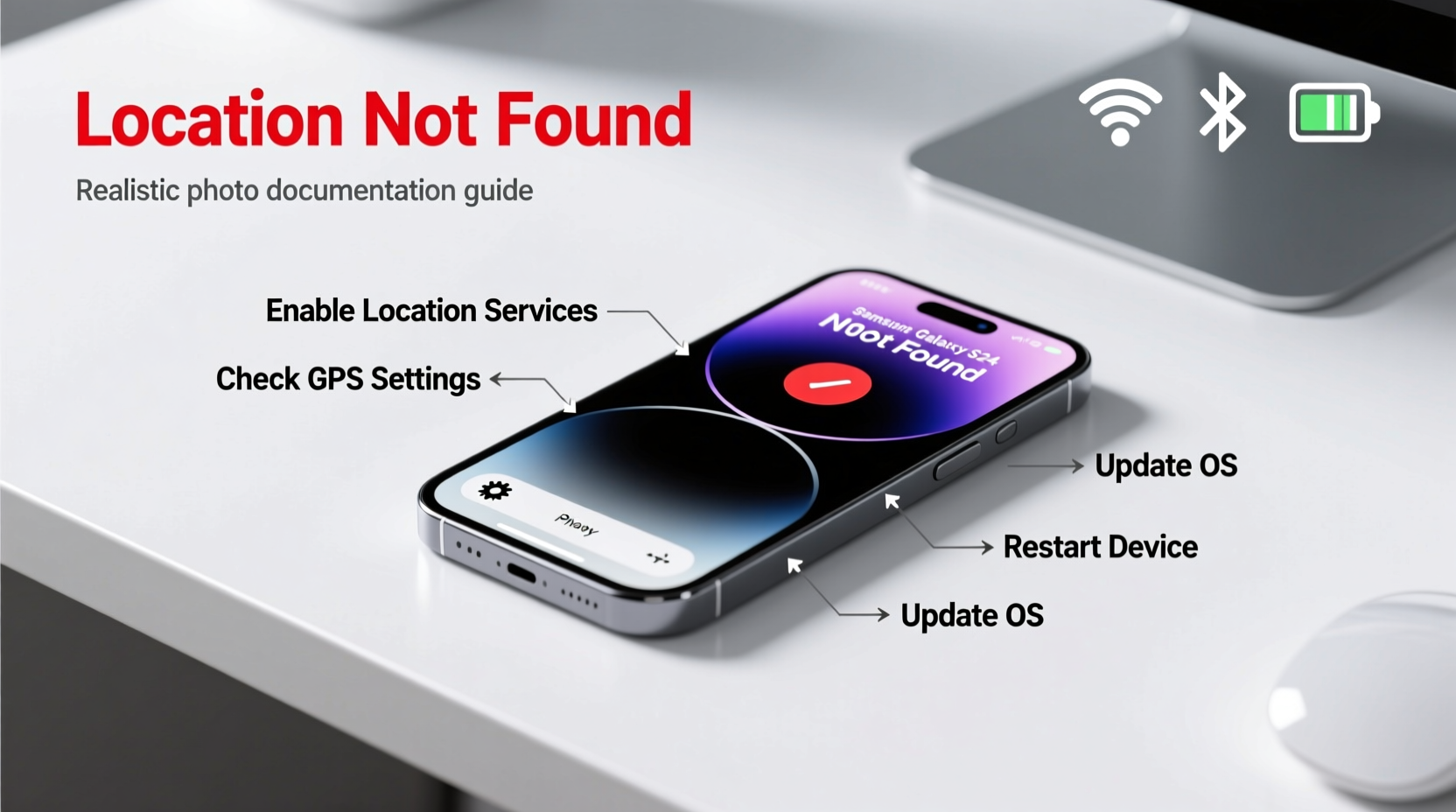
A “location not found” message doesn’t always mean GPS failure. Modern devices use multiple signals to determine position: GPS satellites, Wi-Fi networks, cellular towers, and Bluetooth beacons. If any part of this system fails, accuracy drops or location detection stops entirely.
Common culprits include:
- Disabled location services or GPS toggle
- Inadequate permissions for apps needing location access
- Poor satellite reception due to indoor use or obstructions
- Outdated operating systems or firmware bugs
- Incorrect date, time, or time zone settings
- Interference from third-party apps or battery savers
Before assuming hardware damage, test whether the issue persists across multiple apps like Google Maps, Uber, or Find My Device. If all fail, the problem is likely systemic—not app-specific.
Step-by-Step Guide to Restore Location Functionality
Follow this structured approach to diagnose and fix location detection problems efficiently.
- Verify Location Settings Are Enabled
On Android: Go to Settings > Location and ensure the master switch is on. Check mode settings—choose “High accuracy” (uses GPS, Wi-Fi, and mobile networks). - Check App Permissions
Navigate to Settings > Apps > [App Name] > Permissions and confirm “Location” is allowed. Some apps reset permissions after updates. - Enable Developer Options (Android)
Tap Build Number seven times under About Phone to unlock Developer Options. Then go to Developer Options > Select mock location app and ensure no fake GPS app is active. - Reset Network Settings (iOS & Android)
This clears saved Wi-Fi passwords and Bluetooth pairings but often fixes deep-seated connectivity conflicts affecting location. Found under Settings > System > Reset. - Calibrate the Compass (Mobile Devices)
Open Google Maps, tap the blue location dot, and follow prompts to move your phone in a figure-eight motion. This improves orientation accuracy. - Update OS and Apps
Outdated software may lack critical geolocation patches. Check for system updates in Settings > Software Update.
Do’s and Don’ts When Fixing Location Issues
| Action | Do | Don't |
|---|---|---|
| Using Location Services | Use “High Accuracy” mode when outdoors or navigating | Rely solely on GPS-only mode indoors or in dense urban areas |
| Granting Permissions | Allow only trusted apps to access location “while in use” or “always” | Give background location access to games or utility apps unnecessarily |
| Troubleshooting | Test location in open outdoor spaces away from tall buildings | Assume hardware failure without checking software settings first |
| Maintenance | Regularly clear cache for maps and location-based apps | Install third-party GPS booster apps—they don’t enhance real signal strength |
Real-World Example: Commuter Regains Navigation Access
Sarah, a delivery driver in Chicago, began experiencing frequent “location not found” alerts during morning routes. Her dispatch app failed to track deliveries, risking penalties. She tried restarting her Android phone with no success. After reviewing this guide, she discovered that a recent security update had reset location permissions for her logistics app. She re-enabled location access and switched from “Battery saving” to “High accuracy” mode. Within minutes, GPS lock improved, and her route tracking resumed normally. The entire fix took less than five minutes and prevented potential income loss.
“Many location issues aren’t about signal strength—they’re about permission chains and sensor fusion logic failing silently.” — Dr. Raj Mehta, Mobile Systems Engineer at IEEE
Platform-Specific Fixes
Different operating systems handle geolocation differently. Tailor your troubleshooting accordingly.
For Android Users
- Clear Google Play Services cache: Settings > Apps > Google Play Services > Storage > Clear Cache
- Use the built-in GPS Test app (available on Play Store) to verify satellite lock and signal strength
- Disable battery optimization for critical apps like Maps or fitness trackers
For iPhone Users
- Ensure Settings > Privacy & Security > Location Services is enabled globally
- Check that System Services (like Networking & Analytics) are active—these support location accuracy
- Toggle Airplane Mode on/off to reset radio modules including GPS
- Reset all settings via Settings > General > Transfer or Reset iPhone > Reset All Settings
For Windows Laptops
Windows 10/11 uses location based on IP, Wi-Fi triangulation, and optional GPS if available.
- Go to Settings > Privacy & Security > Location and turn on “Location Services”
- Ensure your Wi-Fi is connected—even scanning nearby networks helps pinpoint position
- Run the built-in troubleshooter: Settings > System > Troubleshoot > Other troubleshooters > Location
- Update Intel or Qualcomm wireless drivers, as they affect geolocation performance
Frequently Asked Questions
Why does my phone show wrong location even when GPS is on?
This usually happens when the device defaults to coarse location via Wi-Fi or cell towers. Indoors, GPS signals weaken, so your phone estimates position based on known network locations. To improve accuracy, go outside, enable high-accuracy mode, and let the device acquire satellites for 30–60 seconds.
Can a factory reset fix persistent location errors?
Yes, but it should be a last resort. Factory resets erase all data and restore default settings, which can eliminate corrupted configurations causing location failures. Always back up your device before proceeding.
Does airplane mode affect GPS permanently?
No. Airplane mode disables all wireless radios temporarily, including GPS. Turning it off restores functionality. However, some older devices may require a restart to fully reactivate sensors.
Final Checklist Before Seeking Help
Before contacting customer support or visiting a repair shop, complete this checklist:
- ✅ Reboot the device
- ✅ Confirm location services are enabled globally
- ✅ Verify app-specific location permissions
- ✅ Set location mode to “High accuracy” (Android) or “While Using” (iOS)
- ✅ Ensure correct date, time, and time zone settings
- ✅ Test location in an open outdoor area
- ✅ Update OS and relevant apps
- ✅ Reset network settings if needed
Conclusion
Location not found errors are frustrating but rarely permanent. With methodical troubleshooting, most users can restore full functionality using built-in tools and settings adjustments. Understanding how GPS, Wi-Fi, and permissions interact empowers you to maintain reliable location detection across devices. Don’t accept constant inaccuracies—take control today by auditing your settings and applying these proven fixes.




 浙公网安备
33010002000092号
浙公网安备
33010002000092号 浙B2-20120091-4
Comments
No comments yet. Why don't you start the discussion?