
Modern smart TVs come packed with advanced hardware and software capabilities, but manufacturers often lock away powerful tools behind layers of simplified interfaces. While most users rely on app stores and third-party downloads to enhance functionality, a more direct path exists—one that requires no downloads, no permissions, and no risk of malware. By accessing hidden service menus, diagnostic tools, and developer settings through simple remote commands, you can unlock calibration options, network diagnostics, firmware details, and even factory reset shortcuts that aren’t available in standard settings.
These concealed features were originally designed for technicians and quality assurance teams during production and repair. However, they remain embedded in the firmware of many consumer models, accessible through specific key combinations or navigation sequences. With careful use, these menus can improve picture quality, troubleshoot connectivity issues, and give you deeper insight into your TV’s performance—without installing a single app.
Understanding Hidden Menus: What They Are and Why They Exist
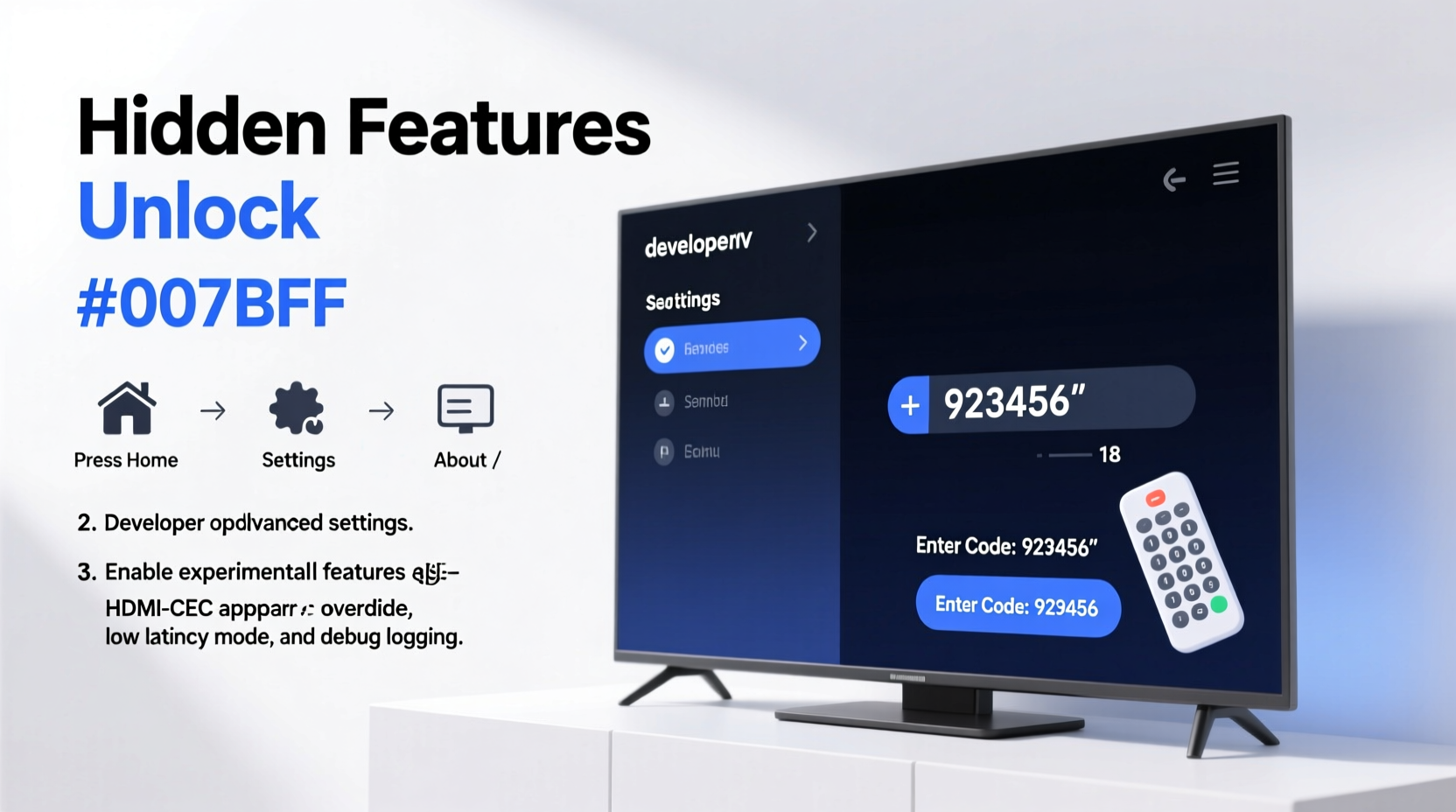
Hidden menus—also known as service modes, engineering modes, or secret menus—are diagnostic interfaces built into the firmware of smart TVs by manufacturers. They are not intended for everyday users but serve critical functions during manufacturing, testing, and servicing. These menus allow technicians to adjust backlight levels, calibrate color temperature, test speaker output, monitor signal strength, and perform deep system resets.
Because these tools bypass the user-friendly interface, they offer granular control over components that regular settings don’t expose. For example, while standard picture settings let you choose between “Vivid,” “Cinema,” or “Standard” modes, hidden menus may allow manual RGB gain and offset adjustments, gamma curve tuning, or motion interpolation fine-tuning.
“Service menus provide access to core display parameters that OEMs lock down to ensure consistency across units—but knowledgeable users can leverage them for superior image fidelity.” — Rajiv Mehta, Senior Display Engineer at VisionTest Labs
Despite their power, these menus are generally safe when used responsibly. The risk lies in altering values without understanding their impact. Incorrect calibration can lead to washed-out colors, flickering screens, or audio sync issues. That said, simply viewing diagnostic data poses no danger and can be incredibly informative.
Step-by-Step Guide to Accessing Hidden Features by Brand
Access methods vary significantly between brands. There is no universal code, but each major manufacturer uses consistent patterns across model lines. Below is a detailed guide for the most common brands.
Samsung: Service Menu via Remote Code
On many Samsung smart TVs (particularly models from 2012–2020), the service menu can be accessed using a specific remote button sequence:
- Ensure the TV is on and displaying a normal input (e.g., HDMI or antenna).
- Press and hold the **Info**, **Menu**, **Mute**, and **Power** buttons on your remote simultaneously.
- Keep holding until the screen flashes and displays a new menu labeled “Service Menu” or “S-MENU.”
- Use arrow keys to navigate options such as “White Balance,” “Signal Info,” or “Factory Reset.”
LG: Engineering Mode Through Home Button Combo
For certain LG WebOS models (especially those from 2015–2018), an alternate method unlocks engineering diagnostics:
- Turn on the TV and wait for the home screen to load.
- Press and hold the **Home** button on the remote until a context menu appears.
- While holding, press **Fast-Forward**, then **Rewind**, then **Play/Pause**, and finally **Stop** in rapid succession.
- If successful, a small popup will appear showing IP address and firmware version—this indicates entry into diagnostic mode.
- Navigate to \"System Information\" or \"Network Test\" from the main settings now enhanced with extra tabs.
Note: This method does not work on newer OLED models post-2020 due to tightened security protocols.
Sony: Customer Support Menu Using Remote Navigation
Sony Bravia TVs often include a hidden customer support menu accessible without complex codes:
- From the main menu, go to **Settings > Device Preferences > About**.
- Highlight “Version” and press **Up** five times quickly.
- A hidden submenu titled “Customer Support Options” should appear.
- This includes self-diagnostic tools like audio loopback tests, USB device detection logs, and Wi-Fi signal analysis.
This menu is less invasive than full service modes but still provides valuable troubleshooting insights.
Vizio: Hidden Settings via Input Shortcut
Vizio owners can access advanced picture calibration settings using a discreet shortcut:
- Switch the TV to any active input (HDMI, AV, etc.).
- Press **Input** on the remote, then within three seconds press **Volume Down + Channel Down** simultaneously.
- Repeat this combo twice more rapidly.
- A gray box labeled “Advanced Settings” or “Calibration Mode” will appear.
- Adjust contrast, brightness, color management, and black level with precision sliders.
This feature is particularly useful for home theater enthusiasts seeking accurate HDR performance.
Do’s and Don’ts When Using Hidden TV Menus
While exploring these menus can yield impressive results, misuse can cause instability or permanent misconfiguration. Follow these guidelines to stay safe.
| Do | Don't |
|---|---|
| Take screenshots or notes of original values before making changes | Change values in sections labeled “Factory,” “EEPROM,” or “PID Settings” |
| Use diagnostic tools to check signal strength or firmware status | Enable unknown network services or modify MAC addresses |
| Reset to default if unsure—most menus have a “Restore All” option | Leave the TV unattended while adjusting high-voltage panel settings |
| Consult model-specific forums before proceeding | Assume all codes work across different years—even same-brand models differ |
Real Example: Improving Streaming Clarity Without New Apps
Mark, a film enthusiast in Austin, noticed his Samsung Q70T was struggling with inconsistent brightness during streaming sessions. Auto-HDR settings kept dimming scenes unpredictably. Frustrated, he considered buying a new soundbar with processing enhancements—until he discovered the service menu.
Using the four-button combo, he entered the service menu and navigated to “PQ Debug” > “HDR Level Control.” He found that the default dynamic tone mapping was overly aggressive. By manually setting the peak luminance override to match his room’s ambient light, he stabilized the image. No app installation, no external hardware—just precise internal adjustment.
The result? Smoother transitions between dark and bright scenes on Netflix and Disney+, especially noticeable in night sequences from *Stranger Things* and *The Mandalorian*. Mark saved over $300 he’d planned to spend on upgrades—all by unlocking what was already inside his TV.
Tips for Safe Exploration and Maximum Benefit
Hidden menus aren’t magic, but they are powerful when used correctly. Consider these expert-backed strategies to get the most out of them safely.
- Always start with read-only exploration. Navigate the menus without changing anything to understand structure and terminology.
- Search your exact model number online. Sites like AVForums, Reddit’s r/SmartTV, and HDTVTest have documented working codes for thousands of models.
- Update firmware first. Some older firmware versions expose unstable debug options; updating ensures better compatibility and safety.
- Use a physical remote. Voice remotes or smartphone apps often lack the low-level input required for secret codes.
- Disable voice assistants temporarily. On some LG and Samsung models, pressing certain buttons triggers Bixby or Google Assistant, interrupting the sequence.
Frequently Asked Questions
Will accessing hidden menus void my warranty?
No, simply viewing or navigating hidden menus does not void your warranty. However, if damage occurs due to altered settings (e.g., excessive backlight causing burn-in), manufacturers may deny coverage for that specific issue. Always proceed cautiously.
Can I brick my smart TV by using these methods?
Potentially, yes—but only if you make unauthorized changes to critical firmware sections like EEPROM or panel timing. Merely entering the menu or adjusting picture settings carries minimal risk. When in doubt, skip unfamiliar options.
Why don’t all TVs respond to these codes?
Manufacturers frequently update firmware and security layers. Newer models, especially those released after 2021, often restrict access to engineering menus through encrypted bootloaders or removed debug binaries. Additionally, regional variants may have different firmware builds with suppressed features.
Conclusion: Take Control of Your Smart TV’s Full Potential
Your smart TV is more capable than the default interface suggests. Behind the sleek design and curated app ecosystem lies a suite of professional-grade tools waiting to be explored. By learning how to unlock hidden features without apps, you gain autonomy over performance, picture quality, and diagnostics—no downloads, no subscriptions, no compromises.
Start small. Try accessing just one diagnostic screen. Learn what your TV knows about its own signal health, color accuracy, or network latency. Over time, you’ll build confidence to make subtle improvements that enhance every viewing experience. And remember: knowledge is the best tool. Share what you discover, document your findings, and help others reclaim control from opaque software environments.




 浙公网安备
33010002000092号
浙公网安备
33010002000092号 浙B2-20120091-4
Comments
No comments yet. Why don't you start the discussion?