
Smartphones are packed with capabilities far beyond calling and texting. While most users stick to basic functions like messaging, browsing, and social media, manufacturers and operating systems include dozens of powerful tools that remain buried under layers of menus. These overlooked features can enhance security, boost productivity, extend battery life, and even improve accessibility. The truth is, your phone already has everything you need—you just haven’t discovered it yet.
From Android’s secret gesture controls to iOS’s underrated automation shortcuts, unlocking these hidden features doesn’t require technical expertise. It only takes awareness and a few minutes to configure settings that transform how you interact with your device.
1. Master Built-in Automation Tools
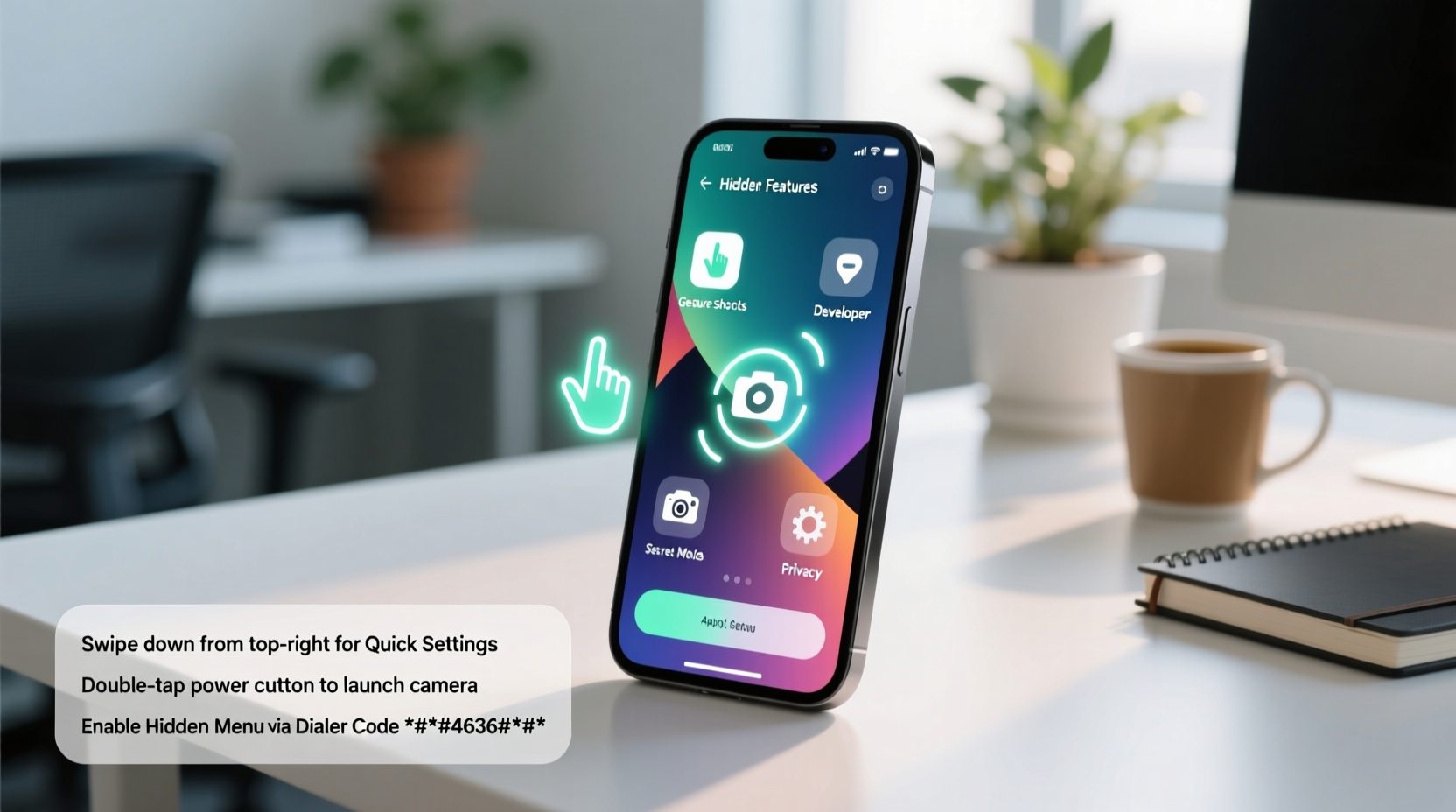
Both iOS and Android offer robust automation systems designed to reduce repetitive tasks. Yet, fewer than 15% of users actively leverage them. On iPhone, the Shortcuts app allows complex workflows triggered by time, location, or app usage. Android’s built-in routines (available on Pixel and Samsung devices) automate actions like silencing notifications at bedtime or turning on GPS when navigation apps launch.
For example, create a “Work Mode” shortcut that automatically turns on Do Not Disturb, connects to Wi-Fi, opens your calendar, and starts playing focus music—all with one tap or voice command.
Creating Your First Shortcut (iOS)
- Open the Shortcuts app (download from App Store if missing).
- Tap the + icon to create a new shortcut.
- Add actions like “Set Brightness,” “Send Message,” or “Start Timer.”
- Assign a voice phrase in Siri settings for hands-free activation.
Setting Up Routines (Android)
- Navigate to Settings > Apps > Automate (Samsung) or Settings > Connected Devices > Connection Preferences > Routines (Pixel).
- Select a trigger: time, charging, location, etc.
- Choose actions: toggle flashlight, open an app, adjust volume.
- Save and test the routine.
“Automation isn’t just for tech enthusiasts—it’s digital self-care. Reducing friction in daily interactions with your phone reduces cognitive load.” — Dr. Lena Torres, Human-Device Interaction Researcher, MIT Media Lab
2. Unlock Advanced Camera Modes Beyond the Basics
The default camera app does more than most realize. Hidden modes like Pro Manual, Time Lapse, and Night Sight are often buried in menu toggles or accessed via swipe gestures. Understanding these unlocks creative control without downloading third-party apps.
On many Android phones, swiping left or right in the viewfinder reveals modes like Panorama, Slow Motion, and Dual Camera (simultaneous front and rear capture). iPhones hide depth control adjustments after taking Portrait mode photos—tap the f-stop icon to tweak background blur intensity retroactively.
| Feature | How to Access | Use Case |
|---|---|---|
| Pro Mode (Manual Controls) | Swipe to “Pro” or “Manual” in camera app | Adjust ISO, shutter speed, white balance for low-light photography |
| Secret Timer Delay | Press and hold shutter button (iPhone) | Set custom countdowns up to 10 seconds |
| Hidden Macro Mode | Get within 2–4 cm of subject (Samsung/Google) | Capture extreme close-ups without a lens attachment |
| Audio Zoom | Enabled automatically when zooming (iOS) | Focus microphone direction toward what you’re filming |
Real Example: Capturing Better Low-Light Photos
Maya, a freelance photographer, struggled with blurry night shots using her mid-tier Android phone. After discovering the Pro mode, she manually set ISO to 400 and shutter speed to 1/4 second, stabilizing the phone on a bench. The resulting image was sharper and better exposed than any auto-mode attempt. She now uses this method weekly and avoids carrying extra gear.
3. Optimize Battery Life with Hidden Power-Saving Tricks
Battery anxiety affects nearly 70% of smartphone users. While everyone knows about lowering brightness or closing apps, deeper system-level power-saving options exist—and they’re often disabled by default.
Android’s Adaptive Battery learns which apps you use and restricts background activity for others. To enable it: Settings > Battery > Adaptive Preferences > Adaptive Battery. Similarly, iOS offers Background App Refresh limits per app under Settings > General > Background App Refresh.
One lesser-known feature is Wi-Fi scanning. Even when Wi-Fi is off, some phones constantly scan for networks, draining power. Disable it via: Settings > Location > Scanning > Wi-Fi & Bluetooth Scanning (Android). iPhones manage this through Location Services but allow tighter control in Privacy > Location per app.
Step-by-Step: Extend Daily Battery Longevity
- Enable Adaptive Battery (Android) or Optimized Battery Charging (iOS).
- Turn off Background App Refresh for non-essential apps (e.g., games, shopping).
- Limit push email frequency to “Manually” or “Hourly.”
- Disable Always-On Display if not critical (saves ~10% daily drain).
- Use Dark Mode consistently—especially on OLED screens where black pixels consume no power.
“Battery optimization isn’t about sacrifice—it’s about alignment. Let your phone prioritize what matters to you.” — Rajiv Mehta, Senior Engineer at Google Pixel Team
4. Enhance Privacy with Underused Security Features
Most users rely on passcodes and biometrics but overlook advanced privacy tools. Both platforms offer app-specific lock features, screen recording detection, and invisible incognito keyboards.
iOS allows locking individual apps with Face ID via the Notes app. Create a locked note, add sensitive info, then lock it—only accessible with biometric authentication. Third-party apps like Files also support folder-level encryption.
On Android, Samsung’s Secure Folder and Xiaomi’s Second Space create isolated environments where apps, files, and accounts run separately from the main system. Ideal for separating work data or hiding private media.
Checklist: Strengthen Phone Privacy Today
- ✅ Lock sensitive notes with biometric protection (iOS)
- ✅ Enable Secure Folder or Private Space (Android)
- ✅ Turn off ad tracking: Settings > Privacy > Tracking (iOS), Google Ads Settings (Android)
- ✅ Review microphone and camera permissions monthly
- ✅ Use an incognito keyboard that doesn’t learn inputs (e.g., DuckDuckGo Keyboard)
Another overlooked layer is clipboard monitoring. Both iOS and Android notify when apps access your clipboard. If an app reads it unexpectedly (like a calculator reading after copying a password), revoke its permissions immediately.
5. Discover Accessibility Features That Benefit Everyone
Accessibility tools are often assumed to serve only users with disabilities. In reality, features like Voice Access, Sound Amplifier, and Switch Control improve efficiency and comfort for all users.
Voice Access on Android lets you navigate your entire phone using voice commands. Say “Open Messages,” “Scroll down,” or “Tap Send” without touching the screen. This is invaluable during cooking, driving, or multitasking.
Apple’s AssistiveTouch (originally for motor impairments) enables customizable on-screen buttons. Repurpose it to take screenshots, launch apps, or activate magnifier with a single tap—perfect for large phones hard to reach across.
| Feature | Platform | Non-Disability Use Case |
|---|---|---|
| Voice Access | Android | Hands-free operation while driving or working |
| Back Tap | iOS | Trigger flashlight, screenshot, or Siri by tapping back of phone |
| Mono Audio | iOS/Android | Better audio balance when using one earbud |
| Live Transcribe | Android | Real-time captioning in meetings or noisy environments |
Mini Case Study: Using Back Tap to Reduce Distractions
James, a software developer, found himself constantly checking his phone during deep work sessions. He enabled iOS’s Back Tap feature (Settings > Accessibility > Touch > Back Tap), setting double-tap to activate Screen Curtain (turns display black). Now, when he feels the urge to scroll, he taps the back of his phone—momentarily disabling the screen and breaking the habit loop. Over three weeks, his unplanned pickups dropped by 60%.
Frequently Asked Questions
Are hidden features safe to use?
Yes. These features are built and maintained by official OS developers. They undergo rigorous testing and do not compromise security when used as intended. Avoid enabling developer options unless necessary, as those carry higher risk.
Why don’t manufacturers promote these features more?
Companies prioritize simplicity in marketing. Highlighting every function could overwhelm new users. Additionally, some features are platform-specific or require newer hardware, making broad promotion impractical.
Can I reverse changes if I don’t like a hidden setting?
Absolutely. All system-level features can be disabled through settings. Automation shortcuts can be deleted, camera modes reverted, and privacy locks removed at any time. No permanent modifications occur.
Conclusion: Take Control of Your Device
Your smartphone is more capable than you’ve been led to believe. By exploring beyond the surface, you gain precision, efficiency, and peace of mind. The features discussed aren’t gimmicks—they’re intentional design choices meant to adapt to your lifestyle, not force you to adapt to the device.
Spend just 20 minutes this week reviewing your settings. Activate one automation, test a camera mode, or lock a sensitive app. Small steps compound into meaningful improvements. Once you start using these tools, you’ll wonder how you ever managed without them.




 浙公网安备
33010002000092号
浙公网安备
33010002000092号 浙B2-20120091-4
Comments
No comments yet. Why don't you start the discussion?