
Your Google Account is central to nearly every service you use online—from Gmail and YouTube to Google Drive and Android. One of the most visible aspects of your digital identity is your profile picture. It appears across platforms whenever you sign in, comment on videos, or share documents. Keeping it current not only reflects your personal brand but also enhances recognition and trust among contacts and collaborators.
Whether you’ve recently changed your appearance, want a more professional look, or simply wish to refresh your online presence, updating your Google profile photo is a simple yet impactful step. This guide walks you through the entire process with clear instructions for desktop and mobile devices, troubleshooting tips, and best practices for choosing the right image.
Why Your Google Profile Image Matters
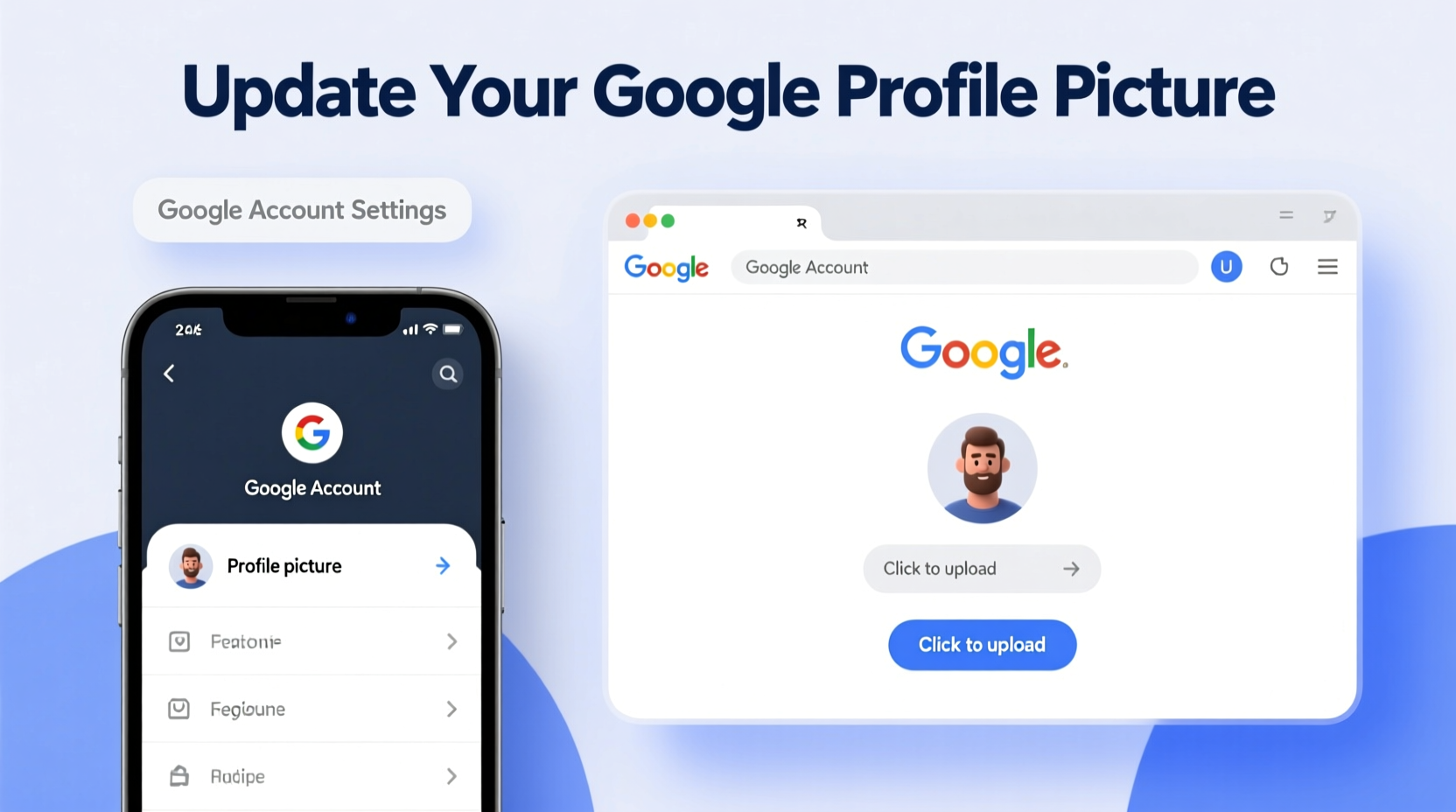
The image linked to your Google Account isn’t just decorative—it plays a functional role in how others perceive and interact with you online. When someone receives an email from you, sees your comment on a blog, or views shared files in Google Docs, your photo helps them identify you instantly.
A consistent, high-quality image builds credibility, especially in professional settings. On the other hand, outdated, blurry, or inappropriate photos can create confusion or diminish trust. Google uses this same image across its ecosystem: Gmail, YouTube, Meet, Classroom, and even in Google Search results when your public profile appears.
“Your digital footprint starts with small details like your profile picture. A clear, updated photo signals professionalism and attention to detail.” — Lena Patel, Digital Identity Consultant
Step-by-Step Guide to Updating Your Google Profile Photo
Updating your Google Account image is straightforward and takes less than five minutes. Follow these steps based on your device type.
On Desktop (Windows, Mac, Linux)
- Open a web browser and go to myaccount.google.com.
- Sign in if you aren’t already logged in.
- In the top-right corner, click your current profile picture or initial.
- Select Manage your Google Account from the dropdown menu.
- Navigate to the “Personal info” tab at the top.
- Under “Profile,” locate the current profile picture section.
- Click the camera icon or your existing image.
- Choose Edit from the pop-up options.
- Select Upload photo and choose a file from your computer.
- Adjust the crop area as needed, then click Save.
On Mobile (Android and iPhone)
- Open the Settings app on your phone.
- Tap Google (or \"Passwords & accounts\" > Google on some iPhones).
- Tap your name and email address at the top.
- Select Manage your Google Account.
- Go to the Personal info tab.
- Tap your current profile picture.
- Tap Edit, then Upload photo.
- Select a photo from your gallery, adjust the crop, and tap Save.
Note: If you don’t see the Google option in Settings, download the Google app from the App Store or Play Store and access your account through the profile icon in the top-right corner.
Best Practices for Choosing a Profile Picture
Your Google profile photo represents you across multiple platforms. To make a positive impression, follow these guidelines:
- Use a clear, well-lit headshot – Avoid dark, grainy, or backlit images.
- Show your face clearly – Crop tightly around your head and shoulders; avoid full-body shots.
- Dress appropriately – Match the tone of your intended use (e.g., business casual for work-related accounts).
- Avoid filters and heavy editing – Overuse of effects can reduce authenticity.
- Ensure consistency – Use the same photo across LinkedIn, email signatures, and company directories if applicable.
| Do’s | Don’ts |
|---|---|
| Use a neutral or simple background | Use cluttered or distracting backgrounds |
| Smile naturally and make eye contact | Frown or look away from the camera |
| Update annually or after major changes | Keep childhood or outdated photos indefinitely |
| Save a high-resolution version | Use screenshots or heavily compressed images |
Troubleshooting Common Issues
Sometimes, despite following the correct steps, users encounter issues when updating their profile picture. Here are common problems and solutions:
Photo Doesn’t Appear After Upload
Google may take up to 24 hours to fully sync your image across all services. However, most updates appear within minutes. If it still doesn’t show:
- Clear your browser cache or restart the Google app.
- Check that you’re signed into the correct Google Account.
- Try uploading again using a different browser or device.
“Upload Failed” Error
This usually relates to file size or format. Ensure your image is:
- Less than 10 MB in size
- In JPEG, PNG, GIF (non-animated), or BMP format
- Not corrupted or partially downloaded
Old Image Still Shows in Gmail or YouTube
Some Google services pull cached versions. Force-refresh by:
- Hard-refreshing the page (Ctrl + F5 on Windows, Cmd + Shift + R on Mac)
- Signing out and back into the service
- Waiting up to 24 hours for full propagation
Real Example: Rebranding a Professional Presence
Sophia, a freelance graphic designer, relied on her Google Account for client communication, portfolio sharing, and video consultations. For years, she used an old college photo—dark, poorly lit, and inconsistent with her current brand. After receiving feedback that she looked “unapproachable” on calls, she decided to act.
She took a new headshot with natural lighting, wore her signature minimalist jewelry, and uploaded it via her laptop. Within two hours, the image appeared on her Gmail, Google Meet, and shared project folders. Clients immediately noticed the change. One wrote, “You look so much more present and polished now.”
Within weeks, Sophia reported higher engagement rates and improved rapport during virtual meetings. A simple image update had enhanced her perceived professionalism and accessibility.
FAQ
Will changing my Google profile picture affect my YouTube channel?
Yes. If you use a Brand Account for your YouTube channel, your Google Account image will automatically become the default profile picture unless you manually override it in YouTube Studio settings.
Can I remove my photo completely?
You can delete your profile image, but Google will display your initials in a colored circle instead. Some users prefer this for privacy, though a photo generally improves recognition and connection.
Is my profile picture public?
By default, your Google Account profile photo is visible to anyone you interact with online through Google services. However, you can limit visibility by adjusting your Google Account’s sharing settings under “Privacy & personalization.”
Checklist: Updating Your Google Profile Image
- ✅ Choose a high-quality, recent photo (250x250 px minimum)
- ✅ Sign in to myaccount.google.com
- ✅ Navigate to “Personal info” and select your profile picture
- ✅ Click “Edit” and upload a new image
- ✅ Adjust the crop and save the changes
- ✅ Verify the update on Gmail, YouTube, and other Google services
- ✅ Update your photo annually or after significant appearance changes
Conclusion
Updating the image associated with your Google Account and search profile is a quick, powerful way to maintain a cohesive and professional digital identity. Whether you're managing personal communications or building a career online, your profile picture sets the tone for first impressions.
Take a few moments today to review your current photo. Is it clear? Current? Aligned with how you want to be seen? If not, follow the steps outlined here to make a change. The impact may seem subtle, but over time, a strong visual presence builds trust, recognition, and credibility across every Google interaction.




 浙公网安备
33010002000092号
浙公网安备
33010002000092号 浙B2-20120091-4
Comments
No comments yet. Why don't you start the discussion?