
Keeping your smartphone updated is one of the most effective ways to ensure optimal performance, security, and access to new features. Whether you're using an iPhone or an Android device, software updates are essential for protecting against vulnerabilities, improving battery efficiency, and enhancing user experience. Yet many users delay or skip updates due to uncertainty about the process.
This guide breaks down everything you need to know about updating both Android and iOS devices—step by step—with practical tips, common pitfalls to avoid, and expert insights to help you stay current without hassle.
Why Updating Your Device Matters
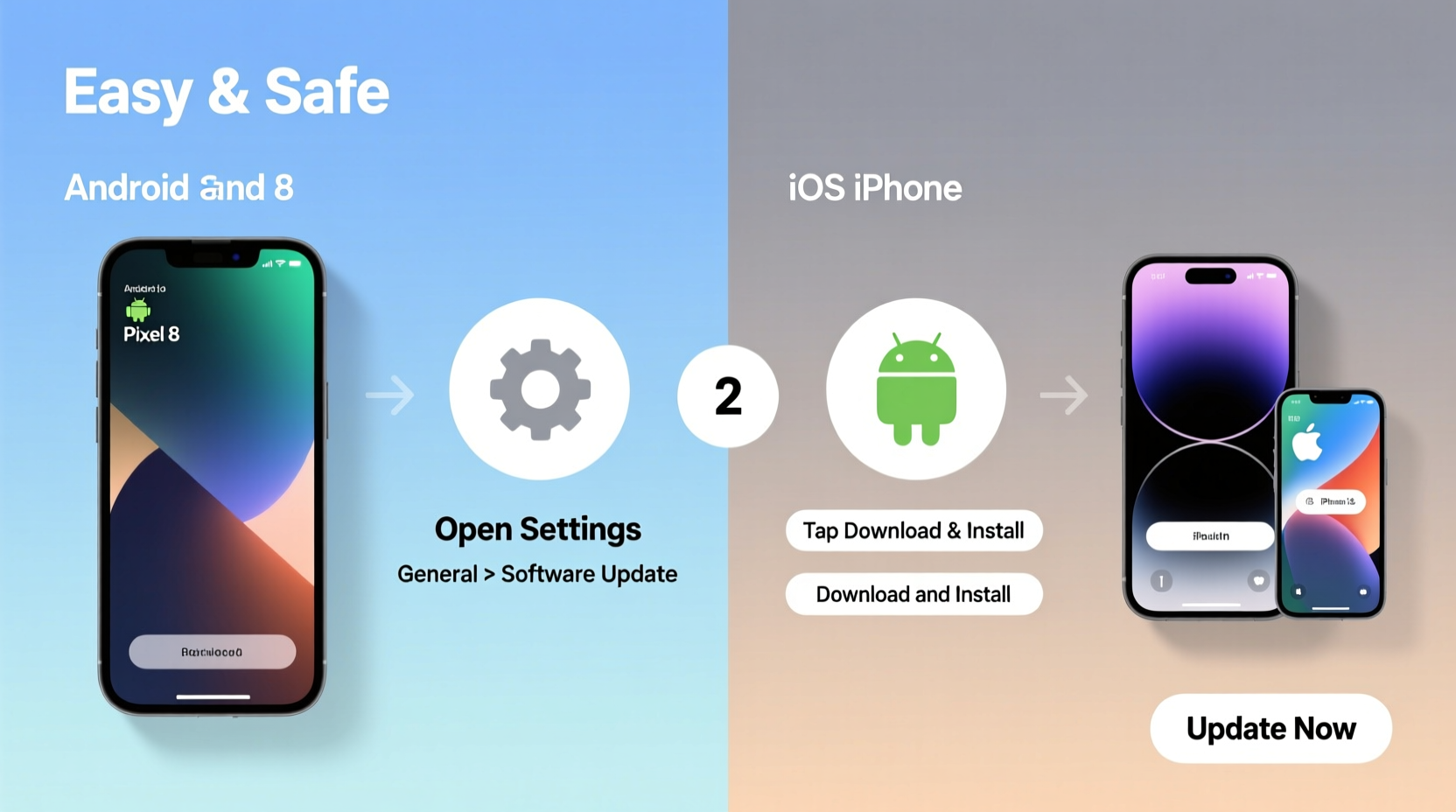
Software updates aren’t just about flashy new emojis or redesigned icons. They often include critical security patches that protect your personal data from emerging threats. Cybersecurity researchers consistently find that outdated operating systems are prime targets for malware and phishing attacks.
Apple and Google release regular updates to address bugs, improve system stability, and optimize performance across devices. For example, iOS 17.4 included fixes for Safari vulnerabilities, while Android’s March 2024 security patch resolved over 50 known issues.
“Failing to install OS updates is like leaving your front door unlocked. You might be fine today, but the risk grows every day you wait.” — Dr. Lena Torres, Mobile Security Analyst at TechShield Labs
Step-by-Step: How to Update Your Android Device
Android updates can vary slightly depending on your manufacturer (Samsung, Google Pixel, OnePlus, etc.), but the core process remains consistent across devices.
- Connect to Wi-Fi: Open your Settings app and tap “Network & internet” > “Wi-Fi.” Connect to a stable network to avoid data charges and interruptions.
- Charge your phone: Plug in your device or ensure it has at least 50% battery. Some updates require a minimum charge to begin.
- Open System Updates: Go to Settings > System > System Update (on Samsung) or Settings > About Phone > Software Update (on most others).
- Check for Updates: Tap “Check for Updates.” If a new version is available, download it. The file size can range from 100MB to over 2GB.
- Install the Update: Once downloaded, tap “Install Now.” Your phone will restart and apply the update. This may take 5–20 minutes.
- Verify Completion: After rebooting, go back into the update menu to confirm the latest version is installed.
Step-by-Step: How to Update Your iPhone (iOS)
Apple maintains a uniform update process across all iPhones running iOS 13 and later. The steps are straightforward and designed for ease of use.
- Back up your iPhone: Connect to iCloud or iTunes/Finder on Mac to create a backup before updating.
- Connect to Wi-Fi: Go to Settings > Wi-Fi and join a reliable network.
- Plug in your device: Apple recommends connecting to power during installation to prevent shutdowns.
- Navigate to Software Update: Open Settings > General > Software Update.
- Download and Install: If an update is available, tap “Download and Install.” You’ll see details about the update size and improvements.
- Agree and Confirm: Accept the terms, then tap “Install Now.” Your iPhone will restart once the update completes.
- Final Check: Return to the Software Update screen to verify the current version number.
“iOS updates often include behind-the-scenes optimizations that extend battery life and improve responsiveness—even if you don’t notice visible changes.” — Marcus Reed, Senior iOS Developer at AppNova
Common Challenges and How to Solve Them
While updates are generally smooth, occasional issues arise. Here’s how to handle frequent problems:
- Not enough storage space: Free up room by deleting unused apps, old photos, or clearing browser caches. On iPhone, offload unused apps via Settings > General > iPhone Storage.
- Update fails to install: Restart your device and try again. Ensure your internet connection is stable.
- Stuck on downloading: Toggle Airplane Mode on and off to reset the network stack, then retry.
- Phone won’t turn back on: Force restart: For iPhone 8 and later, press Volume Up, then Volume Down, then hold Side button until the Apple logo appears. For Android, hold Power + Volume Down for 10 seconds.
Do’s and Don’ts When Updating Your Phone
| Do’s | Don’ts |
|---|---|
| ✅ Back up your data before updating | ❌ Ignore update notifications for weeks |
| ✅ Use Wi-Fi to avoid data overages | ❌ Start an update right before bed without charging |
| ✅ Read release notes to understand what’s new | ❌ Interrupt the installation process |
| ✅ Install minor updates promptly | ❌ Download OS updates from third-party sources |
Real Example: Sarah’s Security Save
Sarah, a freelance writer from Portland, delayed her iPhone update for nearly three months. She dismissed the notification, assuming it was just another minor tweak. Then she clicked a link in a phishing email that exploited a known vulnerability patched in the pending iOS update.
Luckily, after her phone began acting strangely—apps crashing, unexpected pop-ups—she ran a diagnostic and discovered suspicious activity. She immediately installed the overdue update, which included the fix for the exploit. A factory reset and password change later, she avoided full account compromise.
“I learned the hard way,” Sarah said. “Now I schedule my updates every Sunday night. It takes 15 minutes and gives me peace of mind.”
Frequently Asked Questions
How often should I update my phone?
Install major OS updates within a month of release, and apply security patches as soon as possible. Both Apple and Google recommend monthly updates for best protection.
Can I still use my phone while the update downloads?
Yes, you can continue using your device during the download phase. However, once installation begins, the phone will restart and be unusable for several minutes.
What if my device isn’t compatible with the latest update?
If your phone no longer supports the newest OS (e.g., iPhone 8 or older not supporting iOS 18), focus on keeping all apps updated and avoid risky websites or downloads. Consider upgrading hardware if continued support is critical.
Maintaining a Smooth Update Routine
Make updates part of your monthly digital hygiene. Set a recurring calendar reminder—like the first Sunday of each month—to check for pending updates. Enable automatic downloads where possible, but manually trigger installations when convenient, such as during lunch breaks or evening downtime.
For families or teams managing multiple devices, consider creating a shared checklist. This ensures everyone stays protected, especially children or elderly users who may overlook update prompts.
Conclusion: Stay Current, Stay Secure
Updating your device doesn’t have to be complicated or intimidating. With a clear understanding of the steps for both Android and iOS, along with proactive habits, you can keep your phone running smoothly and securely. These small actions protect your identity, enhance performance, and extend your device’s lifespan.
Technology evolves quickly—your phone’s software should keep pace. Take five minutes today to check for updates. That small effort could prevent hours of frustration tomorrow.




 浙公网安备
33010002000092号
浙公网安备
33010002000092号 浙B2-20120091-4
Comments
No comments yet. Why don't you start the discussion?