
If you're a Spotify Premium user, keeping your payment information up to date is essential to avoid service interruptions. Whether your current card has expired, been replaced, or you simply want to switch to a different payment method, updating your card details is a quick and straightforward process. This guide walks you through every step clearly and efficiently—no confusion, no downtime.
Spotify supports various payment methods, including credit and debit cards, PayPal, and carrier billing, depending on your region. For most users, however, a credit or debit card is the primary option. Ensuring your card details are accurate helps prevent failed payments, canceled subscriptions, and loss of access to offline listening, ad-free playback, and other Premium features.
Why Updating Your Payment Card Matters
A lapsed payment doesn’t just mean losing access to your favorite playlists—it can also result in the loss of customized recommendations, saved podcasts, and personalized mixes like Discover Weekly. Spotify does not store your music locally unless you download it, so uninterrupted access relies on an active subscription.
Common reasons to update your card include:
- Your card has expired
- You received a replacement card from your bank
- Your card was lost or stolen
- You want to use a different card for budgeting or rewards
- Your current payment method failed and triggered a warning email from Spotify
Step-by-Step Guide to Updating Your Payment Card
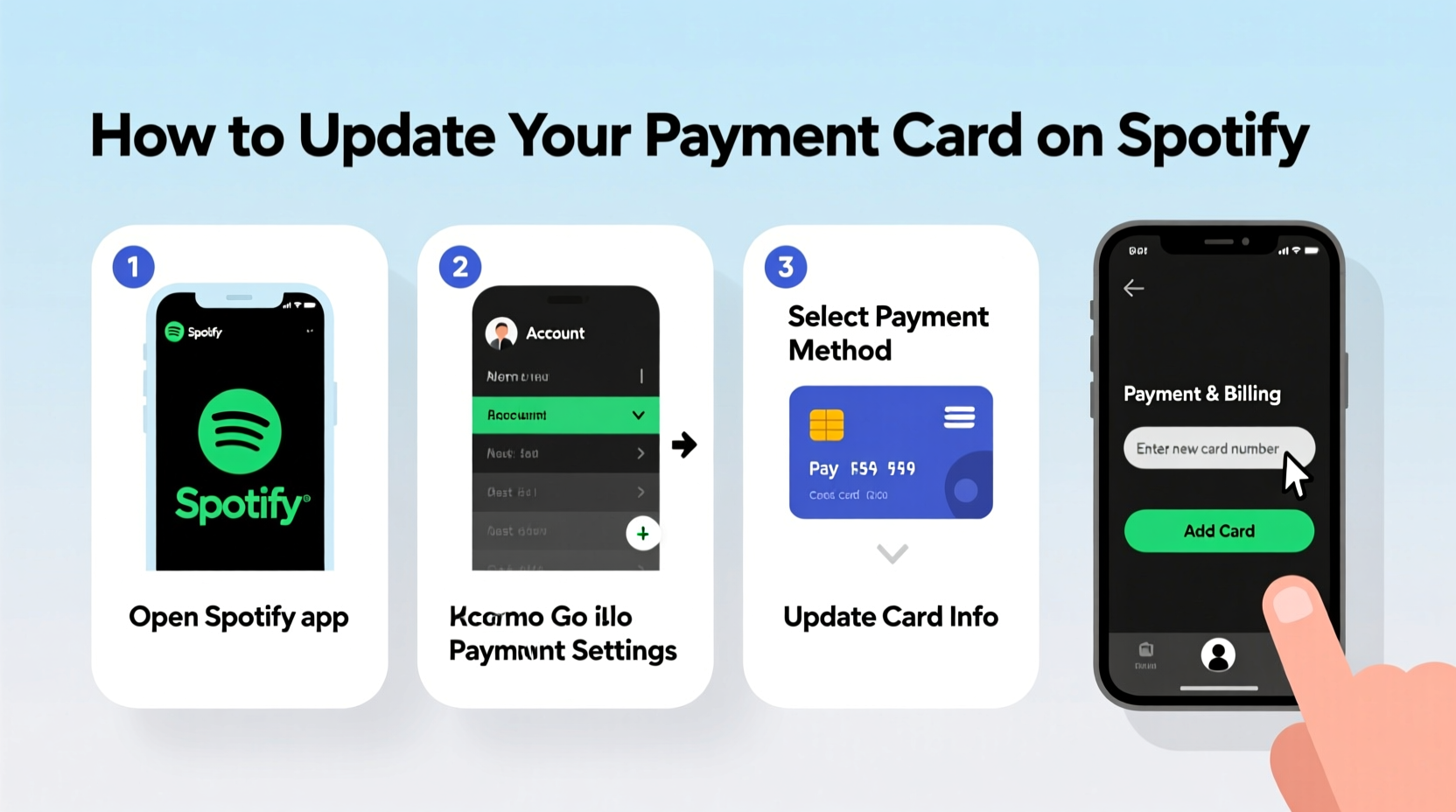
Updating your payment card on Spotify is best done through a web browser, as the mobile app doesn’t allow full account management for payment changes. Follow these steps carefully to ensure a smooth transition.
- Open your web browser and go to spotify.com.
- Log in using your Spotify credentials (email and password).
- In the top-right corner, click on your profile name or icon, then select Account from the dropdown menu.
- On the Account page, scroll down to the Subscription section.
- Click on Change plan or Manage payment details, depending on your interface.
- Select Edit payment details or Update payment method.
- Choose Credit/Debit Card as your payment option if prompted.
- Enter your new card information, including:
- Card number
- Expiration date
- CVV code
- Billing address (must match the address on file with your bank)
- Click Save or Update Payment Method.
- Wait for confirmation—Spotify will display a message confirming the update was successful.
After completing these steps, double-check that your new card appears under the payment section. You’ll also receive a confirmation email from Spotify once the change is processed.
What to Do If the Update Fails
Sometimes, despite entering correct details, the system may reject your card. Common causes include:
- Incorrect billing address
- Insufficient funds or spending limits
- Bank security blocks (common with international transactions)
- Outdated browser cache or cookies
If your update fails:
- Double-check all fields, especially the ZIP code and CVV.
- Contact your bank to confirm the card is active and can be used for online transactions.
- Try again later or use a different card temporarily.
- Reach out to Spotify Support if the issue persists.
Managing Multiple Devices After the Update
Once your payment method is updated, you don’t need to manually sync the change across devices. Spotify’s backend systems update globally within minutes. However, it's wise to verify access on each device you regularly use.
To ensure everything works:
- Open the Spotify app on your phone, tablet, or desktop.
- Check that the Premium badge (green icon or “Premium” label) is visible.
- Try playing a song offline or skipping tracks freely—free accounts limit skips.
If you’re still seeing ads or restrictions, log out and back in to refresh your session.
Payment Management: Do’s and Don’ts
| Do’s | Don’ts |
|---|---|
| Update your card before the billing date | Wait until your service is suspended |
| Use a card with international transaction capability (if needed) | Use expired or inactive cards |
| Keep your billing address current | Enter incorrect ZIP codes to bypass errors |
| Monitor your email for Spotify notifications | Ignore payment failure alerts |
| Test playback after updates | Assume the change applied automatically without verification |
Real Example: How Sarah Avoided a Service Gap
Sarah, a college student and avid podcast listener, relied on Spotify Premium during her daily commute. When her bank sent a replacement card due to fraud monitoring, she didn’t think much of it—until she opened the app one morning and found herself stuck behind an ad break.
She remembered receiving an email from Spotify two days earlier titled “Action Required: Update Your Payment Method.” After logging into her account via laptop, she followed the steps to input her new card. Within five minutes, her subscription was reactivated, and she regained access to her downloaded episodes.
“I didn’t realize how much I depended on Spotify until I lost access,” Sarah said. “Now I keep my card info updated and check my billing date monthly.”
“Keeping your payment method current isn’t just about convenience—it’s about maintaining seamless access to your digital life.” — Lena Torres, Digital Subscription Analyst
Frequently Asked Questions
Can I update my payment card using the Spotify mobile app?
No, the Spotify mobile app does not allow you to change your payment method. You must use a web browser and visit Spotify Account Dashboard to make updates.
Will updating my card cancel my subscription?
No. Updating your payment card does not affect your subscription status. It only replaces the payment method on file. Your plan, renewal date, and benefits remain unchanged.
What happens if I don’t update my expired card?
If your card expires and Spotify cannot charge your account, your Premium subscription will be deactivated after a grace period (usually 7–14 days). You’ll lose access to ad-free listening, offline downloads, and unlimited skips. Reactivating requires updating your payment method and settling any overdue charges.
Pro Checklist: Updating Your Spotify Payment Card
- Log in to Spotify via web browser
- Navigate to Account Settings
- Locate Subscription & Payment section
- Select “Update payment method”
- Enter new card details accurately
- Confirm billing address matches bank records
- Save changes and wait for confirmation
- Verify Premium status across devices
- Set a calendar reminder for next billing cycle
Stay in Control of Your Spotify Experience
Your Spotify Premium subscription is more than just music—it’s part of your routine, your workouts, your focus sessions, and your relaxation time. Taking a few minutes to update your payment card ensures you never miss a beat. The process is secure, fast, and entirely within your control.
Don’t wait for a declined payment or a locked account. Proactively manage your subscription details and enjoy uninterrupted access to millions of songs and podcasts. Now that you know exactly how to update your payment card on Spotify, take action today and keep your playlist rolling.




 浙公网安备
33010002000092号
浙公网安备
33010002000092号 浙B2-20120091-4
Comments
No comments yet. Why don't you start the discussion?