
ChatGPT has evolved beyond text-only interactions. With the ability to process uploaded images, users can now engage in richer, more dynamic conversations. Whether you're analyzing a document, identifying objects in a photo, or extracting text from a handwritten note, visual input adds a powerful layer to AI-assisted dialogue. This guide walks through everything you need to know about uploading and using photos in ChatGPT—how it works, what it’s best used for, and how to get the most out of this feature.
Understanding Image Input in ChatGPT
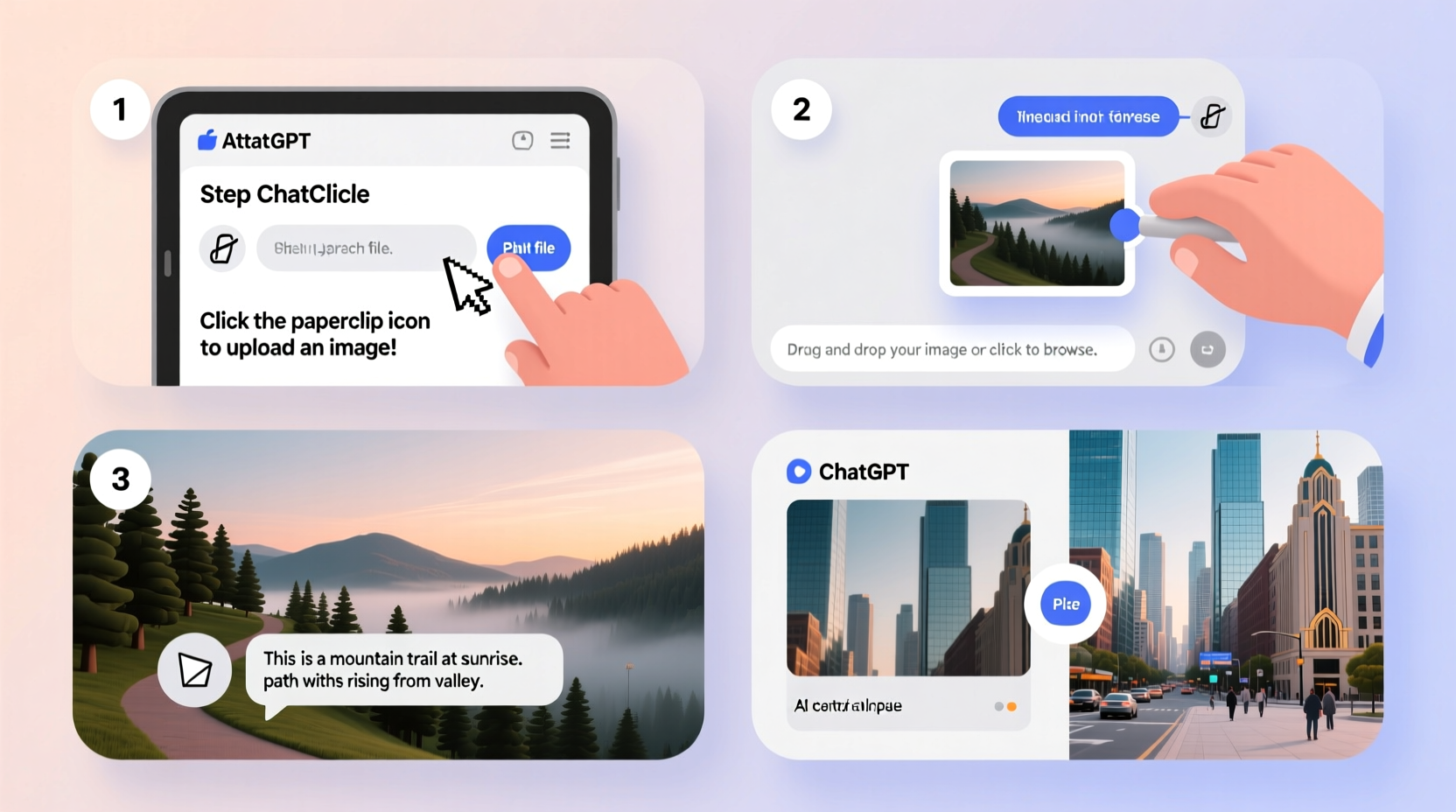
The capability to accept image uploads is available in ChatGPT Plus, Teams, and Enterprise subscriptions using GPT-4 with vision. Standard free-tier models do not support image processing. When enabled, the model can interpret visual data and respond contextually based on both the image and your prompt.
This feature leverages multimodal AI—technology that processes both text and visual information simultaneously. OpenAI trained GPT-4 with vision on diverse datasets containing images paired with descriptive text, allowing it to recognize patterns, objects, layouts, and even emotions conveyed visually.
Step-by-Step Guide to Uploading Photos
- Ensure You’re Using a Supported Plan: Confirm you have access to GPT-4 with vision via ChatGPT Plus, Teams, or Enterprise. Free users will not see the image upload option.
- Open the Chat Interface: Navigate to the conversation where you’d like to upload an image. Start a new chat if needed.
- Locate the Upload Button: In the message input box, look for the paperclip or image icon (varies by platform). On mobile, it may appear as a \"+\" symbol.
- Select Your Photo: Choose an image from your device. Supported formats include JPEG, PNG, GIF, and BMP. Files should be under 20 MB.
- Add Contextual Text: After selecting the image, type a question or instruction explaining what you want analyzed. For example: “What’s written on this receipt?” or “Identify the plant in this photo.”
- Send the Message: Hit enter or the send button. The AI will process the image and generate a response based on its analysis.
Processing time varies slightly depending on image complexity but typically takes just a few seconds. Once complete, the AI returns a detailed answer incorporating both visual recognition and linguistic reasoning.
Practical Use Cases and Examples
Image-based queries open up numerous applications across personal, educational, and professional contexts. Here are some real-world scenarios where photo uploads add significant value:
Analyzing Handwritten Notes
Suppose you’ve taken meeting notes on paper and want to digitize key points. Take a clear photo, upload it, and ask: “Summarize the action items listed here.” ChatGPT can extract text and organize it into a structured list.
Translating Foreign Language Signs
While traveling, you encounter a menu or street sign in an unfamiliar language. Snap a picture, upload it, and request: “Translate this Japanese menu into English and highlight vegetarian options.” The AI identifies text and provides accurate translation with contextual filtering.
Diagnosing Technical Issues
A red error light appears on your router. Instead of guessing, photograph the device and ask: “What does a blinking red light on this Netgear model indicate?” Based on visual cues and known troubleshooting databases, ChatGPT may suggest resetting the device or checking internet connectivity.
“Multimodal capabilities bridge the gap between human perception and machine understanding. Users who incorporate images report 40% higher satisfaction in problem-solving tasks.” — Dr. Lena Patel, AI Interaction Researcher at MIT Media Lab
Best Practices for Effective Visual Prompts
To maximize accuracy and usefulness, follow these guidelines when uploading photos:
- Use well-lit, high-contrast images with minimal blur.
- Crop tightly around the subject of interest to reduce noise.
- Avoid glare or reflections on glossy surfaces (e.g., screens or glass-covered documents).
- When scanning text, ensure letters are legible and not skewed.
- Specify exactly what kind of output you want (summary, translation, identification, etc.).
Do’s and Don’ts of Image Uploads in ChatGPT
| Do’s | Don’ts |
|---|---|
| Upload clear, focused images relevant to your query | Submit blurry, distant, or poorly lit photos |
| Ask specific questions tied to visual content | Expect perfect OCR results from low-quality scans |
| Use for educational, creative, or productivity purposes | Share sensitive personal data (IDs, financial docs) |
| Leverage it for language translation and object ID | Assume it can identify people or perform facial recognition |
| Verify critical information independently | Rely solely on AI for medical or legal diagnoses |
Mini Case Study: Enhancing Learning with Visual Input
Sophia, a university biology student, struggled to memorize leaf structures for her botany exam. Rather than relying only on textbook diagrams, she began photographing leaves during nature walks. She uploaded each image to ChatGPT with the prompt: “Identify this leaf type and describe its venation pattern.” Over two weeks, she built a personalized digital flashcard set powered by AI feedback. Her exam score improved by 28%, and she credited the interactive method for deepening her observational skills.
This approach exemplifies how combining real-world visuals with AI analysis creates active learning loops far more effective than passive reading.
Frequently Asked Questions
Can ChatGPT store or remember images I upload?
No. OpenAI states that images are processed in real time and not stored for training or future use. Conversations—including attached media—are not retained unless you explicitly save them.
Why didn’t ChatGPT recognize text in my image?
Poor image quality is the most common cause. Ensure adequate lighting, avoid camera shake, and position the camera directly above flat documents. Try re-uploading with a close-up crop if initial results fail.
Can I upload screenshots of websites or apps?
Yes. Screenshots work well for explaining UI elements, debugging app behavior, or asking about layout design. Just clarify your intent: “Explain how this dashboard functions” or “Suggest improvements to this mobile interface.”
Checklist: Optimizing Your Image Upload Experience
- ✅ Verify subscription includes GPT-4 with vision
- ✅ Test upload function with a sample image
- ✅ Capture high-resolution, well-lit photos
- ✅ Crop to relevant area before uploading
- ✅ Write precise prompts linked to the image
- ✅ Review output critically and verify important details
- ✅ Avoid uploading private or sensitive visual data
Conclusion: Elevate Your Conversations with Visual Intelligence
Uploading photos to ChatGPT transforms the way we interact with AI. It turns abstract descriptions into concrete analyses, enabling faster comprehension, smarter decisions, and deeper exploration. From students decoding complex diagrams to professionals interpreting reports on the go, visual input removes friction and enhances clarity.
The key lies not just in knowing how to upload an image—but in crafting thoughtful, targeted questions that guide the AI toward meaningful responses. As multimodal technology continues to evolve, mastering this skill today positions you ahead of the curve tomorrow.




 浙公网安备
33010002000092号
浙公网安备
33010002000092号 浙B2-20120091-4
Comments
No comments yet. Why don't you start the discussion?