
Transforming your home into a festive light show synchronized with music has moved from professional installations to something any homeowner can achieve—thanks to smart lighting technology. With app-controlled LED lights and the right tools, you can create a mesmerizing Christmas display that pulses, flashes, and dances in rhythm with your favorite holiday tunes. No longer limited to static twinkles or simple timers, modern smart lighting systems offer precision control, color customization, and audio-reactive effects that elevate your seasonal decor.
The magic lies in combining compatible hardware with intuitive software. Whether you're aiming for a subtle ambiance or a full-on neighborhood spectacle, syncing lights to music using smartphone apps is more accessible than ever. This guide walks through the essentials: choosing the right lights, setting up your network, selecting music-sync software, and fine-tuning your display for maximum impact—all without requiring advanced technical skills.
Selecting the Right App-Controlled Lights
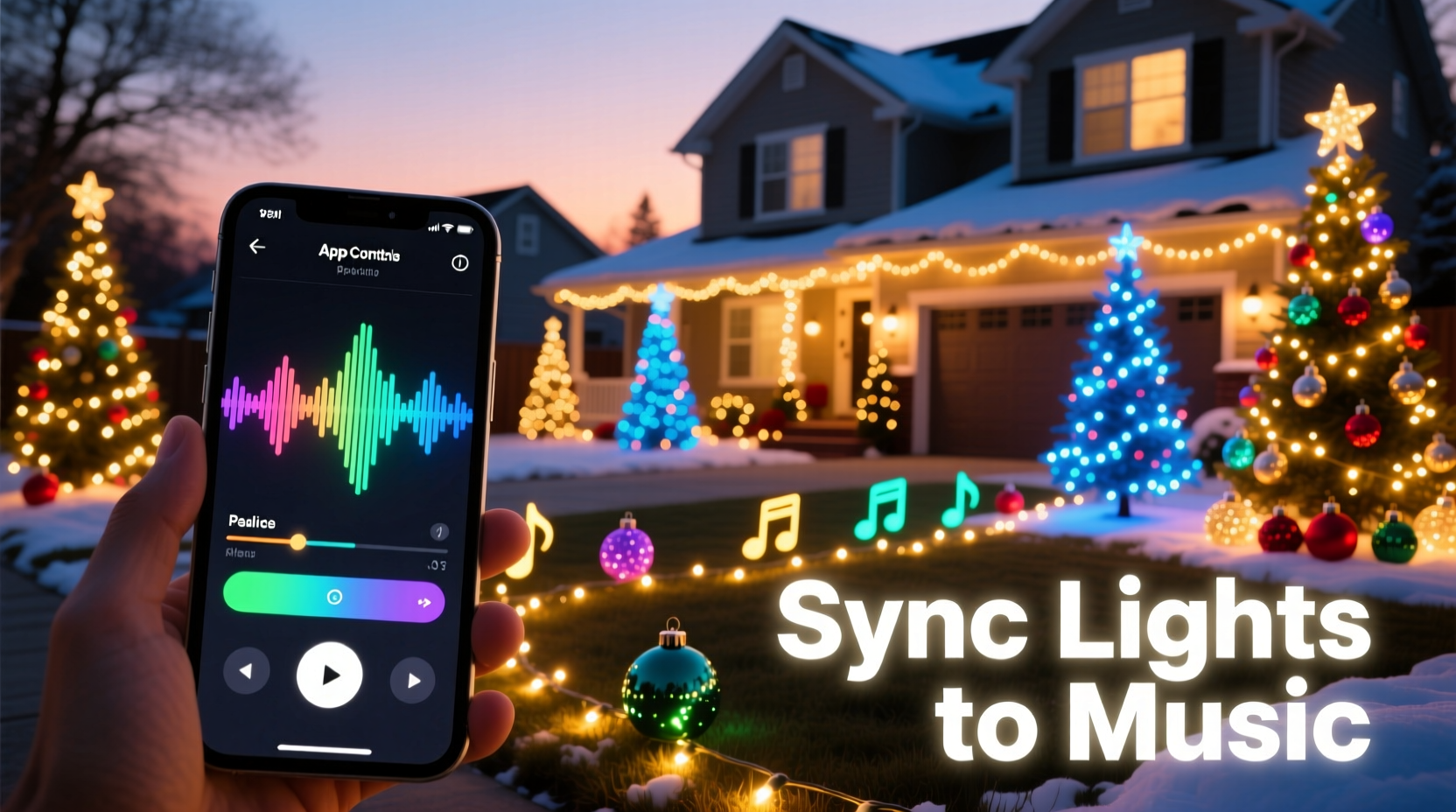
Not all smart lights are created equal when it comes to music synchronization. For dynamic, real-time reactions to sound, you need lights capable of rapid color changes, brightness adjustments, and individual pixel control. Here’s what to look for:
- RGB or RGBW LEDs: These allow full color spectrum control (red, green, blue) plus white tones, essential for vibrant displays.
- Wi-Fi or Bluetooth connectivity: Ensures seamless communication between your phone and lights. Wi-Fi is preferred for larger setups due to better range and stability.
- High refresh rate: Look for lights that update at least 30 times per second to avoid lag during fast beats.
- App compatibility: Choose brands that support third-party integration or have built-in music-reactive modes.
Popular options include Philips Hue, Govee, LIFX, and Nanoleaf. However, for advanced music syncing, consider programmable addressable strips like those from Wiz or DIY solutions using ESP8266-based controllers running platforms like WLED or Home Assistant.
Setting Up Your Network and Devices
A stable network is critical. If your lights stutter or disconnect mid-song, the illusion breaks. Follow these steps to ensure reliability:
- Use a dedicated Wi-Fi network or band: If possible, set up a separate 2.4 GHz network for smart devices. Crowded networks cause latency.
- Position your router centrally: Maximize signal strength to outdoor light zones. Consider a Wi-Fi extender if needed.
- Update firmware: Ensure all bulbs and hubs run the latest software versions for optimal performance and security.
- Name devices logically: Label each light strip or zone (e.g., “Front Roof,” “Tree Top”) so you can control them individually in the app.
For large-scale displays involving dozens of lights, consider segmenting zones by physical location or function. This allows layered effects—like having roof lights pulse while tree lights swirl independently.
Choosing and Configuring Music-Sync Software
This is where the real magic happens. Most smart light apps now include basic music-reactive features, but their capabilities vary widely. Below is a comparison of leading platforms:
| App/Platform | Music Sync Mode | Customization Level | Best For |
|---|---|---|---|
| Govee Garden | Real-time audio input via phone mic | Medium – preset effects only | Beginners, small indoor displays |
| WLED (with FastLED) | External audio input via FFT analysis | High – fully customizable | Advanced users, custom builds |
| LIFX | Music mode using device microphone | Low – limited effect options | Simple ambient syncing |
| Hue Sync (by Signify) | Desktop app syncs lights to PC audio | High – scene mapping, intensity control | Indoor entertainment areas |
| XLights (with Falcon Player) | Precise sequencing via audio waveform | Very High – frame-by-frame editing | Professional-grade outdoor shows |
For most homeowners, Govee or Hue Sync offer the easiest entry point. Install the app, enable music mode, play a song, and watch your lights respond. But if you want precise choreography—where specific beats trigger specific light movements—you’ll need more advanced tools like XLights or WLED paired with an MQTT bridge.
“The key to great synced lighting isn’t just responsiveness—it’s timing. Even a 200ms delay ruins immersion.” — Marcus Tran, Smart Lighting Engineer at OpenHome Labs
Step-by-Step Guide to Syncing Lights with Music
Follow this sequence to build a reliable, visually engaging music-synchronized display:
- Plan your layout: Sketch where each light strand will go. Group them by controllable zones (e.g., eaves, trees, walkway).
- Install and power lights: Use weatherproof connectors and grounded outlets. Keep cords secured and away from foot traffic.
- Connect to your network: Pair each light or controller with your chosen app. Confirm they appear and respond remotely.
- Test basic functions: Turn on/off, change colors, adjust brightness from the app to verify connectivity.
- Enable music mode: In Govee, tap the music icon; in Hue Sync, launch the desktop app and select audio source.
- Play a test track: Use a high-energy holiday song like “Dance of the Sugar Plum Fairy” or “Last Christmas” (Wham!) to see how lights react.
- Adjust sensitivity: Most apps let you tweak beat detection thresholds. Increase sensitivity for soft music, reduce for loud tracks to prevent over-flashing.
- Refine placement: Walk around your property. Are certain areas too bright? Do some zones lag behind? Rebalance brightness or restart unresponsive units.
- Add automation: Schedule your light show to start at dusk and stop at 10 PM. Some apps allow geofencing so lights activate when you arrive home.
- Invite feedback: Have family or neighbors watch a trial run. Fresh eyes often spot timing issues or visual imbalances.
Real Example: A Suburban Family’s First Light Show
The Peterson family in Denver wanted to bring joy to their neighborhood after two quiet pandemic holidays. With three young kids and no prior tech experience, they decided to try syncing their new Govee LED strips to music.
They started with 50 feet of waterproof RGB tape along their roofline and four smart floor-standing trees wrapped in Govee H6171 bulbs. Using the Govee app, they grouped devices by zone and tested the music mode with Mariah Carey’s “All I Want for Christmas Is You.”
Initially, the response was underwhelming—the lights pulsed slowly and missed beats. After reading online forums, they realized their phone’s microphone wasn’t picking up bass well. They switched to playing the song directly from the same room as the phone and increased the beat sensitivity slider. The difference was immediate: strobes flashed on drum hits, and color waves flowed with the melody.
They added a Bluetooth speaker near the front yard to amplify sound for passing viewers and scheduled daily shows from 5–9 PM. By Christmas Eve, their driveway had become a local attraction, with families parking to watch the synchronized display. Their secret? Consistent testing and choosing songs with strong rhythmic patterns.
Pro Tips for Better Visual Impact
Synchronization isn't just about matching beats—it's about creating emotion. Use these techniques to enhance your show:
- Match mood to music: Soft pastels for slow carols, rapid red-and-green flashes for upbeat pop songs.
- Vary intensity: Dim background lights during verses, then brighten dramatically during choruses.
- Incorporate motion effects: Use chasing or fading animations instead of static flashes to simulate movement.
- Layer multiple zones: Have one area mirror the beat while another cycles colors independently for depth.
- Use silence strategically: A sudden blackout followed by a flash on the first beat of a new song grabs attention.
“People remember moments, not minutes. Design your show around 3–4 standout transitions.” — Lena Choi, Interactive Exhibit Designer
Common Challenges and How to Fix Them
Even with modern tech, issues arise. Here’s how to troubleshoot frequent problems:
- Lights don’t respond to music: Check microphone permissions in the app settings. Ensure volume is high enough and background noise isn’t interfering.
- Lag between sound and light: Reduce the number of connected devices per hub or switch to a less congested Wi-Fi channel.
- Inconsistent colors across bulbs: Calibrate white balance in the app or replace older units that have degraded over time.
- App crashes during playback: Close other apps, restart your phone, or use a dedicated tablet for the show.
- Battery-powered lights die mid-show: Replace alkaline batteries with lithium ones for colder weather performance, or switch to AC power.
FAQ
Can I sync lights to live music or must it be pre-recorded?
You can sync to live audio using the device’s microphone, but results depend on sound clarity. Pre-recorded tracks provide more consistent timing. For live events, use a direct audio feed into the control system if possible.
Do I need internet access during the show?
Once configured, many systems operate locally. However, cloud-dependent apps like early versions of Govee require internet. For reliability, use local-control platforms like WLED or standalone Hue bridges.
Can I sync different songs to different parts of my house?
Yes, if you have multiple independent zones. Some advanced setups use media servers like Volumio or Pi-hole with MQTT triggers to assign unique playlists to each area.
Checklist: Ready Your Music-Synced Display
- ☐ Choose RGB/WIFI-enabled lights with music-reactive support
- ☐ Map out physical layout and power sources
- ☐ Connect all lights to your network and label zones
- ☐ Install and configure music-sync app (Govee, Hue Sync, WLED, etc.)
- ☐ Test microphone input and adjust sensitivity
- ☐ Play sample songs and observe response accuracy
- ☐ Fine-tune brightness, colors, and effects per zone
- ☐ Set schedule or automation for daily operation
- ☐ Add external speaker for audience audio
- ☐ Perform final walkthrough at night
Conclusion
Syncing app-controlled lights with music turns a simple holiday decoration into an immersive experience. With thoughtful planning and the right tools, anyone can create a display that delights neighbors, spreads cheer, and becomes a cherished tradition. Technology has made it easier than ever—but the heart of the show still comes from creativity and care.




 浙公网安备
33010002000092号
浙公网安备
33010002000092号 浙B2-20120091-4
Comments
No comments yet. Why don't you start the discussion?