
App Store gift cards are a popular way to purchase apps, games, music, movies, iCloud storage, and more from Apple’s digital ecosystem. Whether you received one as a gift or bought it for personal use, knowing how to redeem it correctly ensures a smooth experience. This guide walks you through every step of the process—on iPhone, iPad, Mac, and even via the web—with tips to avoid common pitfalls and maximize your balance.
Understanding Your App Store Gift Card
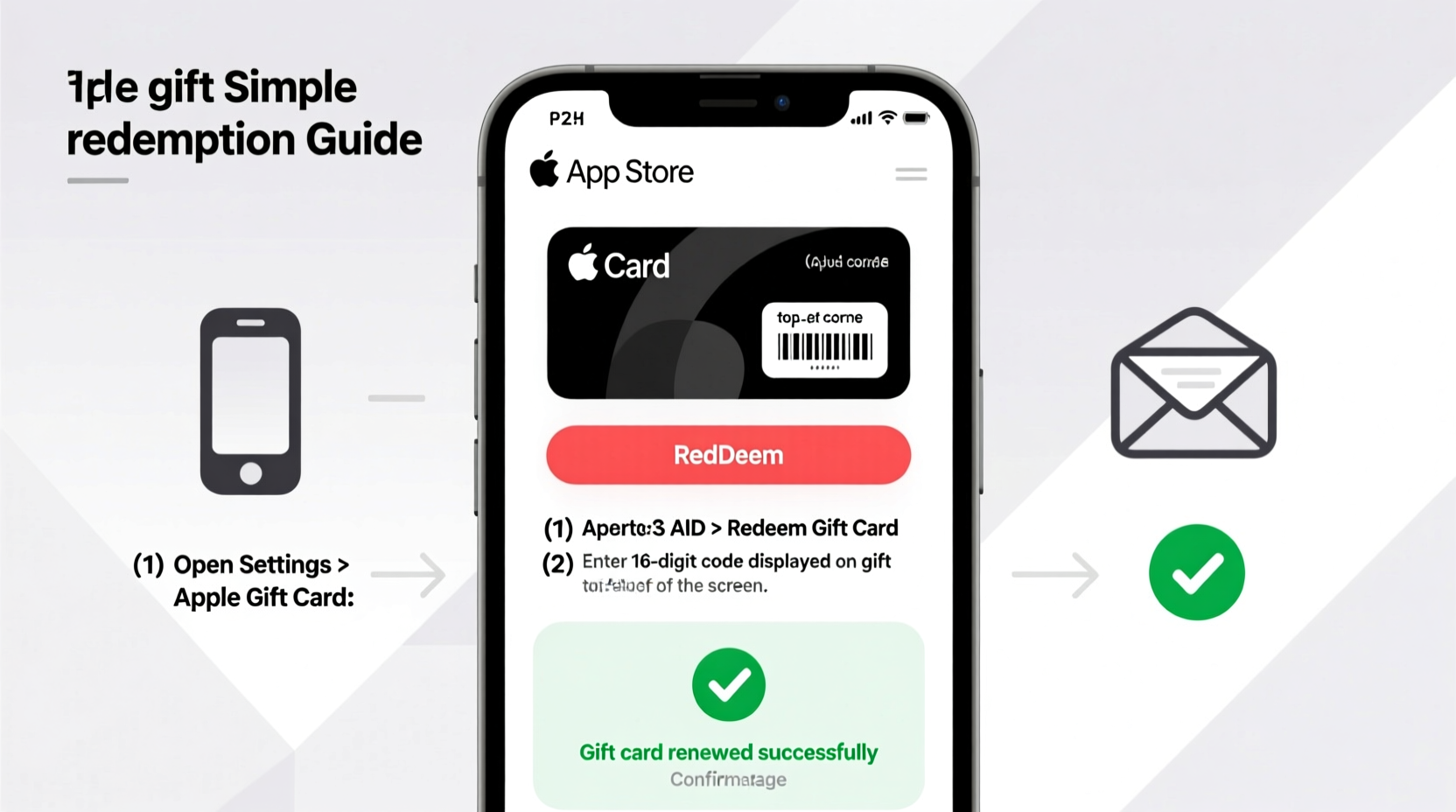
Before redemption, it's important to understand what an App Store gift card is and what it can do. Unlike physical credit cards, these are prepaid cards with a specific monetary value loaded onto them. They’re issued by Apple and can be used across multiple Apple services including the App Store, iTunes Store, Apple Books, and Apple TV app.
Gift cards come in two forms: physical cards sold at retail stores and digital e-gift cards delivered via email. Both contain a 16-digit alphanumeric code required for redemption. Once applied, the balance is tied directly to your Apple ID and becomes available instantly.
“App Store balances offer flexibility without requiring a linked credit card, making them ideal for parents, travelers, and budget-conscious users.” — Lisa Tran, Digital Payments Analyst
Step-by-Step Redemption Process
Redeeming your App Store gift card is straightforward when you follow the correct procedure. Below is a detailed timeline for each supported device type.
On iPhone or iPad (iOS Device)
- Open the App Store app.
- Tap your profile picture or initials in the top-right corner.
- Select Redeem Gift Card or Code.
- Use your camera to scan the code or enter it manually.
- Tap Redeem. The updated balance will appear immediately.
On Mac (macOS with App Store)
- Open the App Store application.
- Click your name or profile icon in the bottom-left corner.
- Choose Redeem Gift Card or Code.
- Enter the 16-digit code found on the back of the card.
- Click Redeem. Your balance updates automatically.
Via Web Browser (if other methods fail)
- Go to appleid.apple.com.
- Sign in with the Apple ID you want to add the balance to.
- Navigate to Payment & Shipping under Account Settings.
- Select Add Money or Redeem Gift Card.
- Enter the code and confirm.
Note: Web-based redemption may not be available in all regions. Check Apple’s regional support page if this method fails.
What You Can—and Can’t—Do With Your Balance
Your App Store balance gives you access to a wide range of digital content, but there are limitations. Understanding these helps prevent frustration during checkout.
| Allowed Uses | Not Supported |
|---|---|
| Paid apps and in-app purchases | Physical Apple products (e.g., iPhones) |
| Subscriptions (Apple Music, iCloud+, etc.) | AppleCare+ plans |
| Movies and TV shows rentals/purchases | Hardware accessories |
| iCloud+ storage upgrades | Cash withdrawals or transfers |
| Books from Apple Books | Third-party subscriptions outside Apple (Netflix, Spotify, etc.) |
Troubleshooting Common Issues
Even with careful steps, some users encounter problems when redeeming their gift cards. Here are frequent issues and how to resolve them.
- Invalid Code: Double-check that you’ve entered all 16 characters correctly, avoiding confusion between “0” and “O” or “I” and “1.”
- Already Redeemed: The code may have been used on another Apple ID. Contact Apple Support with proof of purchase if you believe this is an error.
- Region Mismatch: Gift cards are region-locked. A U.S.-issued card won’t work on an account set to Japan, for example.
- Balance Not Updating: Restart the App Store or sign out and back into your Apple ID to refresh the cache.
Mini Case Study: Sarah’s Smooth Redemption Experience
Sarah received a $50 App Store gift card for her birthday. She had never redeemed one before and was hesitant to make a mistake. Following the iOS redemption steps carefully, she opened the App Store, tapped her profile, selected \"Redeem Gift Card or Code,\" and scanned the QR code using her iPhone’s camera. Within seconds, a confirmation appeared: “$50 added to your account.” That evening, she used part of the balance to subscribe to Apple Fitness+ and downloaded a premium meditation app. Because she verified the region match and kept her original email receipt, the entire process took less than three minutes.
Security Best Practices When Using Gift Cards
Because App Store balances cannot be refunded once spent, protecting your code and Apple ID is essential.
- Never share your gift card code publicly or via unsecured messages.
- Only buy gift cards from authorized retailers to avoid scams.
- Enable two-factor authentication on your Apple ID to protect your balance from unauthorized access.
- If you lose a physical card, contact the retailer immediately; unfortunately, Apple cannot replace lost or stolen codes.
Checklist: Before and After Redemption
- ✅ Confirm the card is intended for your country/region.
- ✅ Scratch off the coating carefully (for physical cards) to reveal the code.
- ✅ Ensure you're signed in to the correct Apple ID.
- ✅ Enter the code accurately—check for typos.
- ✅ Wait for the success message before closing the app.
- ✅ Verify the updated balance under your Apple ID settings.
- ✅ Save your receipt or email confirmation until the balance reflects.
Frequently Asked Questions
Can I combine multiple gift cards?
Yes. You can redeem multiple App Store gift cards to accumulate a larger balance. Each code adds directly to your existing amount.
Does my App Store balance expire?
No. In most countries, App Store balances do not expire. However, unused balances may be subject to local laws or dormancy fees in certain regions—check Apple’s Terms of Sale for details based on your location.
What happens if my purchase exceeds my gift card balance?
If your balance isn’t enough to cover a purchase, Apple will automatically charge the remaining amount to your primary payment method on file (credit card, PayPal, etc.). If no payment method is set, you’ll need to add one before proceeding.
Final Thoughts and Next Steps
Using an App Store gift card doesn’t have to be confusing. With the right steps, you can unlock its full value in minutes—whether you're treating yourself to a new game or upgrading your iCloud storage. The key is accuracy, attention to region compatibility, and safeguarding your redemption code until it’s successfully applied.
Now that you know exactly how to redeem your App Store gift card, take action today. Clear that wishlist, explore premium features, or simply enjoy the peace of mind that comes with having a secure digital balance ready to go.




 浙公网安备
33010002000092号
浙公网安备
33010002000092号 浙B2-20120091-4
Comments
No comments yet. Why don't you start the discussion?